Pagember

getimg.ai Outpainting is useful when a good image has the wrong shape for a website placement. A tightly framed subject may work in a product tile but leave no room for a heading in a wide banner. Expanding the surrounding canvas offers another route: keep the source and create space around it.
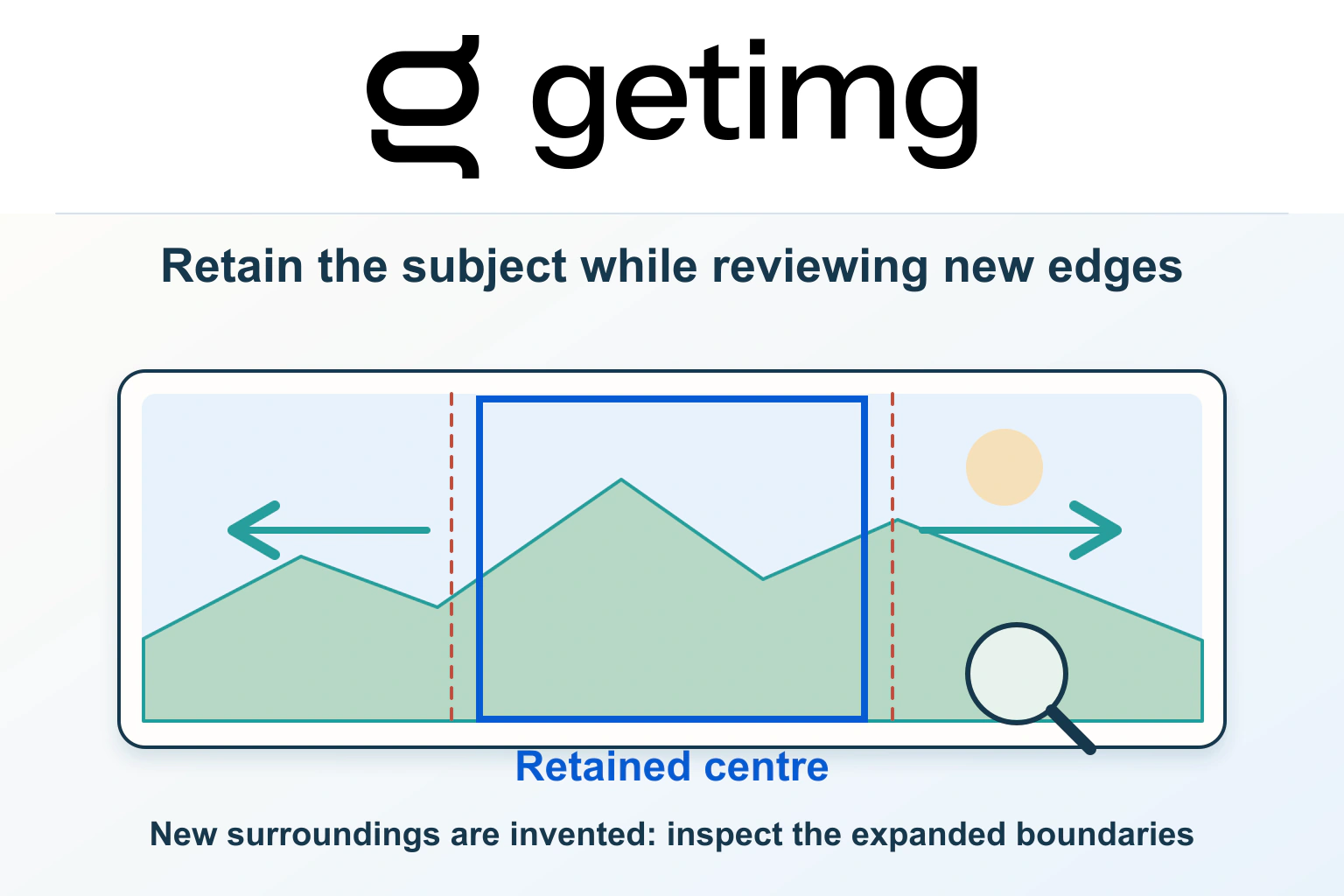
Imagine a ceramics workshop with an approved square photograph of a bowl on a plain table. The owner wants a wider introduction image without cutting into the bowl. The exercise below follows that decision through generation and website review.
Choose an image whose surroundings can be extended honestly
Start with the best original file you are entitled to use. Keep an unchanged copy outside the editing workflow, along with any relevant permission or production notes. If the source is already a screenshot of a compressed preview, find the original before spending time on expansion.
Decide what the image needs to prove. A neutral decorative background has more flexibility than a photograph documenting the size of a room or the contents of a product bundle. An invented continuation must not quietly become evidence for a claim the business cannot support.
For the workshop, a plain table and wall may be suitable for extra visual space, provided the result does not imply additional items are included. The getimg.ai product-image planning guide covers the wider brief; this article concentrates on extending an already selected frame.
 Play video: Uncrop Tutorial: Add More Background to Your Photos l getimg.ai
Select Outpainting for source preservation
The official Outpainting page describes generation beyond the original boundary while preserving the source pixels. It distinguishes this from Smart Resize, which regenerates the complete frame, and from upscaling, which increases resolution without changing the composition. Batch capacity depends on the plan.
That distinction matters when the bowl’s shape, glaze and photographed surface must remain the reference. Select the operation according to what may change, rather than treating all image-resizing controls as interchangeable.
Source preservation also has a limit: it does not make the newly generated surroundings factual. The original bowl may remain intact while the extension adds an unsuitable reflection, a second object or a misleading environment. Treat the expanded region as a new creative decision.
Set the target shape from the actual website placement
The current resizing guide places Resize image under Image in the Actions sidebar. Add a source from a file or gallery, choose an aspect ratio, select Outpainting and start generation. The result appears as a separate gallery file, leaving the original available.
Measure the website container before choosing that ratio. For the hypothetical workshop, a wide banner might need additional space beside the bowl, but the mobile layout could crop that space differently. Write down the intended desktop shape and the smaller-screen treatment before deciding where text should sit.
Do not bake an important offer or button into the generated picture. Keep website text as ordinary page content wherever practical, so it can remain readable when the image is cropped, translated or resized. Use the new background space to support that layout, rather than making the image responsible for every part of the message.
Generate around a restrained visual brief
The image-extender documentation states that Outpainting does not require a prompt. It recommends clear source images and notes that large changes in shape can produce softer extensions. Review the result before downloading it; the generated area is inferred from the source rather than recovered from an unseen original.
Prepare a review brief even when no prompt is needed. For the workshop, the intended result is simply more neutral table and background around the existing bowl. It is not a new table setting, a larger bowl or a suggestion that accessories are included.
Keep separate candidate files and record which target shape produced each one. Compare candidates against the brief, not only against one another. A more dramatic result can be less suitable than a quiet extension if it distracts from the actual product or changes the scene’s meaning.
Inspect the boundary and every newly invented detail
Review the whole image at its intended viewing size, then zoom in around the original frame boundary. Look for a continuation that feels coherent without assuming that an attractive thumbnail proves the image is suitable. The following is a proposed review sheet for the hypothetical workshop.
| Review area | Question to answer | Reason to reject a candidate |
|---|---|---|
| Original subject | Is the approved bowl still represented clearly? | The product is obscured or appears different |
| Frame boundary | Do texture and lighting continue naturally? | A visible seam distracts from the subject |
| Generated objects | Was anything added that changes the offer? | Extra items imply an unsupported inclusion |
| Perspective and shadows | Does the extension fit the source scene? | Geometry or reflections contradict the image |
| Space for page text | Is the intended text area visually calm? | The layout requires unreadable text placement |
Do not repair a misleading extension merely by making it smaller. If the image needs an explanation to stop customers drawing the wrong conclusion, reconsider whether it belongs on that page. Returning to the unchanged source is a valid editorial outcome.
Check the published layout separately from the image
A suitable file can still look poor in a website container. Preview the actual page at desktop and phone widths. Check the focal point, the heading position and what the container hides. An image that keeps the bowl intact in its own file may still lose it under the website’s crop rule.
Write alternative text around the image’s useful meaning. A decorative background should not become a long catalog of generated details; an informative product image needs a concise description of the subject. Keep the alternative text consistent with what the page actually communicates.
If the approved result later becomes a moving visual, use the getimg.ai first-frame and motion guide for a separate review. Acceptance as a still image does not establish that later generated motion preserves the same message.
Save an approval record that makes reuse easier
Keep the original, chosen extension, target ratio and a short note identifying the generated surroundings. Record where the image is approved for use. A website banner and a detailed product-evidence image can have different standards even when they begin with the same photograph.
Check current account allowances and output rights against the getimg.ai workload and plan guide before scaling the process, and confirm that your plan's terms allow commercial use of the output you intend to publish.
Outpainting’s practical appeal is the chance to adapt a useful source instead of sacrificing its subject to a crop. A restrained brief, a careful boundary review and a real page preview help turn that flexibility into an image the website owner can explain and reuse. For the other getimg.ai tools and plans, see the getimg.ai company guide, and for cut-out product shots the AI background removal edge review covers a related check.