 Pagember

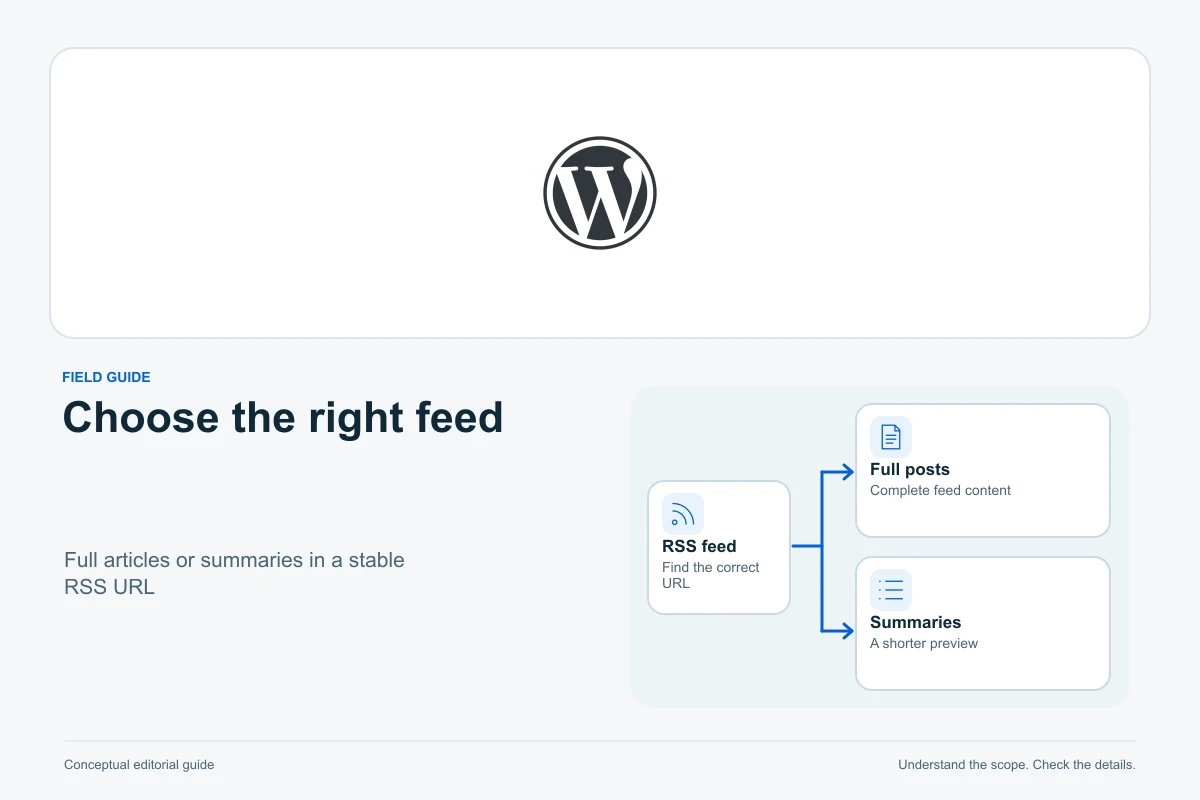
A normal WordPress site already has a feed for its recent posts, usually at your address followed by /feed/, for example https://example.com/feed/. You do not need another plugin to offer RSS. To choose full articles or summaries, go to Settings → Reading, set the feed option to Full text or Excerpt and save. Test the result in a feed reader before advertising it to visitors.
This guide covers the standard feeds of self-hosted WordPress, with official documentation checked on October 13, 2026. Custom podcast feeds, membership feeds and newsletter integrations can apply their own rules.
Understand what readers are subscribing to
RSS is a structured publication format that a reader application can retrieve. The feed contains a channel and its items, rather than the whole website interface. An item can provide a title, article link, publication date and a summary or content. The RSS 2.0 specification describes these elements.
For a public blog, this gives people another way to follow new writing without receiving an email from you. The site publishes the feed; the reader decides how to retrieve and display it. Do not promise instant notifications or a particular refresh interval across all applications.
A feed subscription is different from a newsletter subscription. It does not, by itself, add the reader's email address to your mailing list or give you permission to send marketing messages. If you also offer email, explain the two choices separately. Our newsletter setup guide follows the email signup and test-message route.
Find the feed belonging to the correct WordPress site
For an installation served at https://example.com/, the main posts feed commonly appears at https://example.com/feed/. A query-style RSS 2.0 address is https://example.com/?feed=rss2. These are examples, not URLs to paste unchanged into your own navigation.
WordPress builds the actual address from the site's front-end URL and permalink configuration. Its get_feed_link() reference documents both pretty-permalink and query-string output. If the public WordPress site lives under a path such as /journal/, its feed may live there too. A server folder name alone does not establish the public feed address.
- Open the public site you want readers to follow, rather than a different installation in the same hosting account.
- Look for a clearly labeled RSS or Subscribe via RSS link in its footer or navigation.
- If none is visible, inspect the page source for an alternate RSS feed link and copy its exact destination.
- Open that destination logged out, then add it to a feed reader and check its title and article links.
WordPress can output feed discovery links in the document head through feed_links(). Themes and plugins affect what is actually present. A missing orange icon does not prove the feed is disabled, and an icon leading to the homepage does not prove it is configured.
Choose the posts feed, not an unrelated feed
WordPress distinguishes content feeds from comments feeds. A comments feed follows discussions, rather than publishing a normal list of your articles. The official feed overview explains this distinction. Check the feed's title and items before labeling it Latest articles.
The ordinary main blog feed follows posts. It is not a feed of every navigation destination, page edit or item in the media library. Publishing an About page therefore does not mean it should appear alongside new blog posts. WordPress's query reference documents how post types and feed queries are selected; extensions can change that selection.
A category feed can serve a narrower interest, such as a site's WordPress tutorials. WordPress provides category feed links for this purpose. Prefer the generated link or a verified archive feed over guessing the category base, especially when that base has been customized.
For example, a small publication could offer All articles and WordPress articles as two explicit feed choices. It should not label the second one All updates. Test each with a recently published post in the relevant category and another outside it.
Set full text or excerpts in Reading
Open Settings → Reading in the correct installation. Under For each article in a feed, show, choose Full text or Excerpt; some interfaces describe the latter as Summary. Save Changes. The Reading settings documentation defines this control.
| Choice | What it is for | What to verify |
|---|---|---|
| Full text | Let readers consume the article's feed content inside their reader | Useful text, headings, links and any important limitations survive outside the website layout |
| Excerpt or Summary | Offer a short introduction with a route to the article | The summary is meaningful and the item opens the correct public article |
Choose according to the reading experience you want, rather than a promised SEO or revenue effect. A reader who prefers complete articles may value Full text. A publication whose articles depend on detailed interactive examples may prefer an honest excerpt that points to the complete page.
The Blog pages show at most control is separate from Syndication feeds show the most recent. Changing the former is not the way to change the number of feed items. The WordPress Reading lesson demonstrates the distinction. Neither setting creates a complete historical archive in the reader.
Write a useful excerpt and inspect the actual output
When using summaries, write an excerpt that explains the article's question and outcome. For example: “Find the correct WordPress feed, choose full text or summaries, and diagnose a reader that shows the wrong content.” That helps a reader decide whether to open the article without repeating a vague introduction.
A manual excerpt and automatically generated text can produce different results. Inspect a recent post with a manual excerpt and another without one. WordPress's feed excerpt output is filterable through the_excerpt_rss, so an extension can also add or alter text.
If you choose Full text but see only a few lines in an application, first inspect the feed itself. A reader may initially show a preview; a plugin may customize the feed; or you may have subscribed to a different endpoint. Changing the same setting repeatedly will not distinguish those causes.
The content-feed reference shows that WordPress processes and filters post content for feeds. Full text therefore does not mean a copy of your entire page, header, sidebar and interactive behavior. Check essential information in the delivered content, including any disclosure or limitation that must accompany a claim.
Test the feed as a new subscriber
Use a reader you can access without a website administrator session. Add the exact feed address, then open an existing recent item. Record the date of the check, feed URL and item title so a later problem can be compared with a known result.
- The feed identifies the correct site and scope.
- A recent public post appears with a sensible title and date.
- The selected full-text or summary experience is visible.
- Following the item opens its intended article over HTTPS.
- Important links and readable text work without relying on the site's interactive interface.
- A normal new publication appears after the reader's next retrieval, without assuming immediate delivery.
A browser might show raw XML, a download prompt or its own display of the feed. That alone is not a failure. Conversely, a normal-looking web page at the address may be an HTML error or login screen. Test what the reader receives, not just whether a browser tab opens.
Diagnose a broken or stale feed safely
An edited post shows up again as new, or a deleted post will not go away. Feed readers recognize an item by its guid, not its title. WordPress sets that identifier when the post is first created and keeps it through ordinary edits, so a normal correction should update the existing item. A duplicate usually means the identifier changed, most often during a domain change or a move to another platform, so check that the old and new feed show the same guid for an older post. Removing a post from the feed does not delete the copy a reader already downloaded; RSS has no recall command, so put any important correction on the article page itself.
For a public feed, the W3C Feed Validation Service can report format problems. Give an external validator only a URL or content that is meant to be public. Do not paste private membership tokens, authenticated feeds or unpublished material into it.
| Symptom | First distinction to make | Focused next check |
|---|---|---|
| The reader reports invalid XML | Malformed feed versus an HTML error response | Read the validator's reported location and inspect that response |
| The feed is valid but a post is missing | Wrong feed scope versus an unpublished or old item | Check the post's public status, date, category and feed item limit |
| The feed is current but the reader is stale | Source output versus reader retrieval/cache | Refresh through the reader's supported controls and compare the same item |
| A security or login page appears | Access control versus content formatting | Check whether the public feed is intentionally restricted and ask the site operator to review that route |
Unexpected debug output, a feed customization or a plugin conflict can require technical investigation. Preserve the exact error and reproduce changes in a controlled test environment. Do not disable the site's security globally, alter unrelated domains or paste unreviewed server rules merely to make one reader accept a URL.
Full text versus excerpts is not an access-control decision. Summaries do not make publicly available articles private or prevent copying their website pages. Likewise, an ordinary RSS feed is not a private delivery channel for confidential information.
Give the working feed a stable, understandable link
Once verified, add a text link such as Subscribe via RSS using the theme's supported navigation or footer controls. Explain whether it follows all posts or a particular category. Avoid implying that clicking it sends an email or creates an account on your site.
Send new posts by email as well
Many readers prefer email to a feed reader. Newsletter services can read your verified feed and send new posts to subscribers who signed up for that. In MailerLite, an RSS campaign takes the feed URL, a template and a schedule, such as a weekly digest of anything published that week. If you would rather choose and introduce each post yourself, the RSS email digest workflow compares the automatic and manual routes. Either way, subscribers join through a signup form with their own consent, which the feed does not provide.
Keep the feed address in your domain-migration checklist so existing subscribers are not abandoned when the site moves. If your concern is an incorrectly configured article index, fix that separately with our homepage and blog-page guide. A feed and the visible Blog page serve different interfaces.
Finally, treat RSS as another reader route, not an indexing guarantee or a complete audience measurement system. Our analytics and Search Console guide explains the different questions those tools answer. Keep the feed useful and testable without inventing a subscriber count from ordinary website visits.