 Pagember

To give a WordPress site a custom homepage and a separate blog, create two different pages and assign them under Settings → Reading. The homepage introduces the site; the Posts page is the address of its automatically generated article list. Editing those two pages does not necessarily edit the two layouts visitors see.
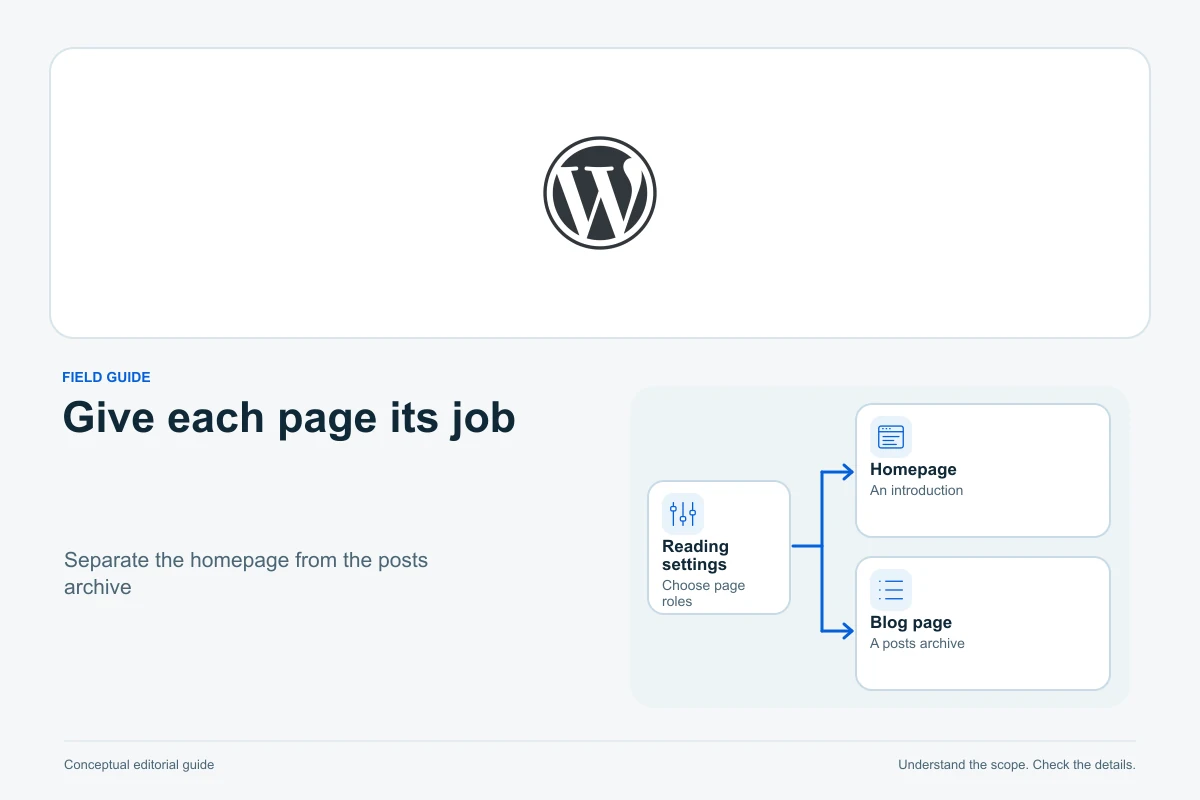
This guide explains self-hosted WordPress with its native block editor, using official documentation checked on October 13, 2026. It distinguishes block themes from classic themes and shows how to investigate missing content without deleting articles or rebuilding the site.
Choose the experience before changing a setting
A site whose main attraction is its newest writing may work well with posts at the root address. A service business may need a homepage that explains the service before offering a route to its articles. Neither arrangement requires copying posts into a page.
| Intended experience | Reading setup | What you maintain |
|---|---|---|
| Newest articles appear when visitors open the site | Your latest posts | Individual posts and the posts-index layout |
| A custom introduction, plus a separate article list | A static page; different Homepage and Posts page selections | The introduction page, individual posts and the relevant templates |
| A custom introduction with a small recent-posts section | A static homepage containing a suitable posts-list block | The page's main content and that block's query/layout |
“Static” describes which page WordPress selects for the front of the site. It does not mean the page must be a plain HTML file or that every block is frozen. A homepage can contain a dynamic article list alongside an introduction you edit manually.
For example, a hypothetical repair business could introduce its services at the root address, link to booking information and show three maintenance guides. Its separate Blog page could provide the complete article index. Those two lists serve different purposes: the homepage offers a short starting point; the index helps readers browse.
Record the current setup
Before changing a working site, note the present homepage setting, selected page names and public addresses. Open the existing root URL and article index in a logged-out window. Save a screenshot or brief description of the layout you want to retain.
Check whether the site already has useful Home, Blog, News or Articles pages. Reuse the appropriate existing pages instead of producing duplicate navigation entries. If the proposed Posts page contains valuable writing, preserve that writing before assigning the page a different role.
Changing the front-page selection is separate from changing the domain or site-wide permalink structure. Do not alter those settings to solve a layout problem. If broader work is planned, establish a recovery route first; our WordPress backup guide explains what a recoverable copy needs.
Create the pages and assign their roles
For a new custom homepage, open Pages → Add New, give it a useful title, add its introduction and publish it. Create and publish a second page for the article index, such as Blog. An empty body is appropriate for that second page because WordPress supplies the post listing. See WordPress's static front-page instructions.
- Open Settings → Reading.
- Under Your homepage displays, select A static page.
- Choose the introduction page in Homepage.
- Choose the separate index page in Posts page.
- Set Blog pages show at most to the number of articles each index page should list, for example 10.
- Save Changes, then reopen the public root and index addresses.
The two selections must be different. If you are still deciding what should be a page and what should be a post, the guide to posts, pages and custom post types explains the difference. WordPress's Reading settings documentation also explains that leaving Posts page unassigned does not create a dedicated article index there; posts can still be reached through other navigation, such as archives. A dedicated Blog link is usually easier for readers to understand.
If the selection controls are missing or the intended page is absent, first confirm you are administering the correct installation and that the page exists and is published. Inspect the theme's documented workflow and your permissions. Creating repeated copies of Home will not resolve a theme override or a wrong-site login.
Why the Blog page's paragraphs may disappear
An assigned Posts page is not an ordinary page with an automatic list appended to its body. Its role tells WordPress where to display the posts index. Do not expect paragraphs entered in that page's editor, or a custom page template selected there, to control the normal index output.
Suppose you type an introduction into Blog, then assign Blog as Posts page and see only articles. That does not prove the introduction was deleted. Reopen the page editor to check its stored content. Place an introduction in the appropriate blog-index template or supported theme setting instead, and verify where that change appears.
There is an alternative when the design needs substantial page-specific content: keep a normal page and insert a custom Query Loop in it. That page is a curated listing, with its own query settings, rather than the assigned Posts page. Choose deliberately; a custom category-filtered list is not automatically a replacement for the complete index.
With a block theme, inspect Front Page and Home separately
The Site Editor is available with block themes through Appearance → Editor. A site can use the block editor for articles while retaining a classic theme, so the presence of blocks in a post does not by itself establish which theme controls the layout. See the Site Editor guide.
In WordPress's template terminology, Front Page is the site's front address, while Home means the posts index. A block theme's front-page.html takes precedence at the front address. For a separate Posts page, the normal template sequence is home.html, then index.html. See the block-theme template hierarchy.
This explains a common puzzle: you assign a well-written Home page but still see a theme's starter design. The front-page template may be displaying its own blocks instead of the selected page's body. Inspect the template in List View and identify whether its text is template content or the page's content.
The Content block supplies a post or page's body within an appropriate template. If the intended front-page template should display the selected page, check how that content is included. Do not paste the whole introduction into both the page and the template as a workaround; that creates two copies to maintain and can later produce duplication.
Before saving template work, read the editor's list of affected items. A header, footer or shared pattern can affect more than the homepage. Keep the change focused on the layout you intend to adjust.
With a classic theme, use its supported controls
Classic themes use PHP templates. The comparable distinction is front-page.php for the site's front and home.php for the posts index, with documented fallbacks. A Front Page template can still take precedence over the selected page's ordinary template. See the classic-theme hierarchy.
Your theme may expose a homepage section, widget area or blog layout in the Customizer or its own settings. Read that theme's instructions before assuming the page editor controls every visible section. If code changes are necessary, arrange a focused theme change and recovery plan instead of editing unrelated files on the live server.
A missing Appearance → Editor entry is therefore not automatically a WordPress error. Use the controls supported by the active theme. Switching themes solely to reveal a menu can change the entire site's appearance and is a poor first diagnostic step.
Configure a homepage article list deliberately
In a normal static homepage, add a Query Loop when you need a controlled article section. Current WordPress documentation uses Query type: change it from Default to Custom when selecting posts for a normal page. Older interfaces may describe inheritance differently. Choose the Post type, ordering, filters and item count that match the section's purpose. See the Query Loop instructions.
Use List View to distinguish the query from its nested Post Template. Changing the repeated layout affects each item; it is not a way to edit the underlying articles individually. Check that titles or images actually link to their posts, and keep a visible route to the full article index.
For the repair-business example, three recent maintenance articles could be useful. A filter restricted to one category is intentional there, but it would be misleading if the section were labeled All articles. Review the empty state too: an overly narrow filter should not leave an unexplained blank area.
Update navigation, then check as a visitor
Changing a Reading selection and changing a menu are separate actions. With a block theme, use the appropriate Navigation block and confirm the selected menu. With a classic or supported hybrid theme, Appearance → Menus may provide the controls. Check Home and Blog links rather than relying on their labels.
- Open the root address logged out and confirm the intended introduction or latest-posts list appears.
- Follow Blog from the header and verify the final address and article list.
- Open a listed article, then navigate back without depending on the admin toolbar.
- Test pagination if the index has more articles than fit on its first page; the archive pagination guide covers what page two should show.
- Check the mobile menu, long article titles and the spacing of repeated cards.
If the editor and public view disagree, confirm the settings were saved and the page was published before investigating caching. Use the documented cache-purge controls for your own site and affected URLs, then check again logged out. A private browser window avoids an existing login but does not automatically bypass server or CDN caches.
Diagnose the remaining symptom
Home still shows the starter design: inspect the front-page template and its source of content. Blog ignores its page body: inspect the posts-index layout. A homepage list is incomplete: inspect its custom query, filters and pagination. The menu opens the wrong page: inspect the destination, not just the label.
Change one layer at a time and record the result. If a theme or plugin conflict needs investigation, use a controlled process such as our WordPress conflict troubleshooting guide, rather than disabling everything on a busy site.
The setup is doing its job when the root, article index, individual posts and navigation each have a clear role. Keep the assignment recorded so the next redesign starts from those roles instead of mistaking a template for a page.