 Pagember

A Webnode backup is a recovery point for the project inside Webnode. It is not a separate copy of every service connected to your business, and restoring it is broader than fixing one damaged page. Before a redesign or rollback, identify what the snapshot contains, what changed afterwards and what you must preserve elsewhere.
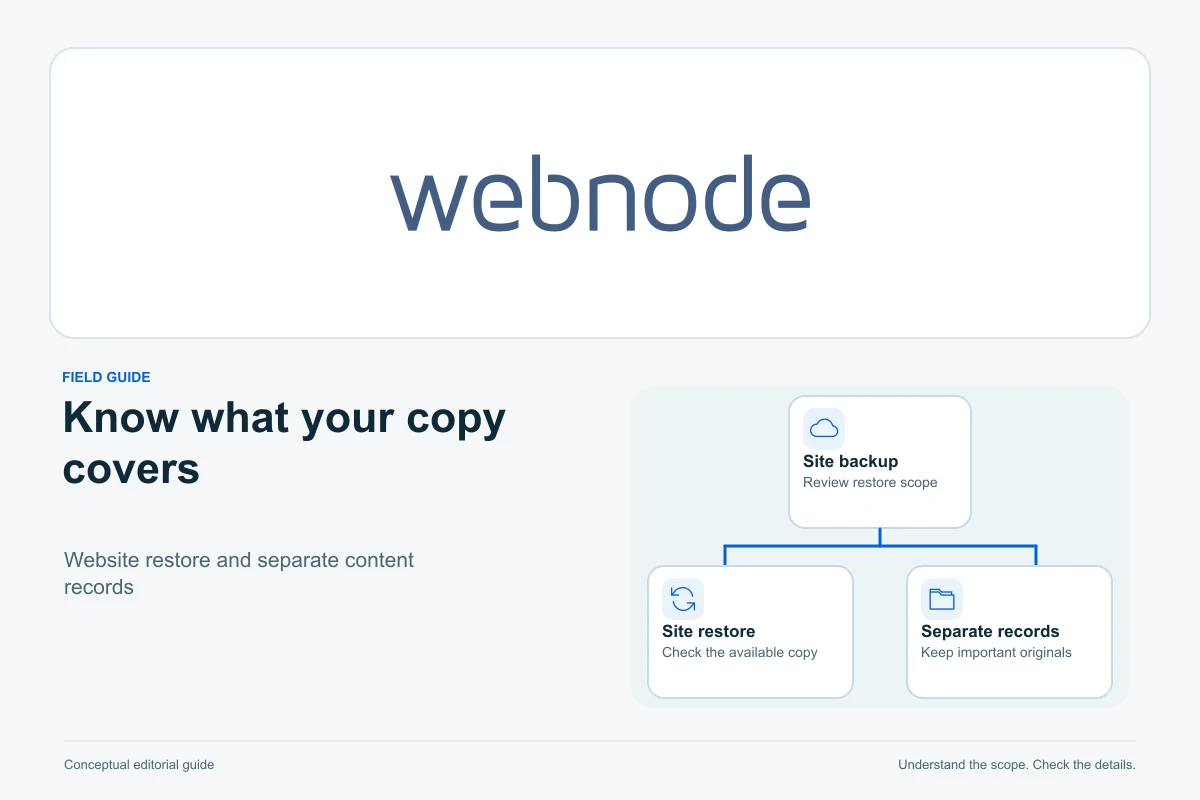
Webnode makes the basic routine easy: manual snapshots before a big edit, and an optional automatic backup that runs every morning without you thinking about it. This tutorial, based on Webnode's documentation checked on October 13, 2026, shows how to use both and what to copy separately before a restore. For the platform as a whole, see the Webnode guide.
Identify the recovery problem first
Write one sentence describing the damage: “The service page lost its pricing section after an edit” is a more useful starting point than “The website is broken.” Record the first known bad time and the last time the required content worked. Ask what continued happening during that interval: inquiries, orders, stock changes or member registrations.
A narrow content mistake may be easier to repair from your saved text than by rolling the entire project backwards. A project-wide loss can justify broader recovery, but the backup date alone does not show whether the rollback is acceptable.
 Play video: Make your Website with Webnode
Distinguish manual and automatic backups
Webnode documents manual whole-site backups with Standard and Profi: Standard allows up to five and Profi an unlimited number. Manual snapshots count toward project storage. Its manual backup guide explains the controls. The separate Business feature list also lists unlimited website backups; confirm the entitlement attached to your actual project.
Automatic backup is an additional paid service available with Premium packages, rather than a feature to assume is active on every site. The documentation describes daily creation at 05:00 in the project's time zone, with only three automatic snapshots retained. During the first week these are the last three days; in the second week the last two days and the previous Sunday; from the third week the current morning and previous two Sundays. See how automatic backup works.
That is a rotating selection, not a complete archive of every day. If an error started on Thursday and you only notice it much later, the exact Wednesday copy you want may no longer exist. Inspect the dates actually available before promising a recovery.
The automatic backup policy says automatic snapshots do not consume the plan's website storage and include website content, settings, form entries, member registrations and orders. They exclude mailbox contents, so plan email separately; the Webnode business email guide covers mailbox setup and recovery checks.
Create a named recovery point before a large edit
- Confirm the project name and public domain. Several sites in one account make choosing the wrong project an avoidable risk.
- Open the project's Administration area, then Backup and recovery. The editor also provides a route through Settings and its backup controls.
- Choose Create new backup and give it a meaningful name, such as “Before services redesign, 13 October”.
- Check that the new snapshot appears in the list with the expected time. A click without a visible result is not a recovery point you have verified.
These controls follow Webnode's manual backup instructions. Keep a short change note beside your own project records: what you intend to change, which snapshot precedes it and which working pages or actions you will check afterwards. Naming a backup after the planned change makes the recovery decision easier than relying on a list of similar timestamps.
Keep separate copies of what matters outside a rollback
- Original writing and images
- Keep source documents and original media in storage you control.
- Recent inquiries
- Export required form records before a rollback and verify the exported file.
- Orders and fulfillment details
- Preserve the current order export and reconcile it with your payment and delivery records.
- Use an appropriate mailbox backup or export process with the actual email provider.
- Domain and integrations
- Keep ownership, renewal and configuration records separately from website content.
Webnode documents form submission export in CSV through Overview, Collected form data, the selected forms and More, Export data. Open the downloaded file and check a recent entry, its date and the expected fields. Saving a file with an unfamiliar name is weaker evidence than reading the records it contains.
For a shop, the order export guide describes an XML download through Overview, Orders, More and Export orders. This is a useful record of orders and their properties. It is not documentation of a one-click reimport that reconstructs every order or associated transaction after a restore.
Store these exports where the right person can find them. They may contain customer information; use controlled access and a retention practice suited to the records rather than uploading them to a public page.
Understand what Restore will overwrite
Webnode's restore documentation states that restoration covers the entire project, including shop orders, stock and form data. A single page or part of the site cannot be restored separately. Orders newer than the snapshot are deleted by the rollback. Its automatic backup policy also describes restoration as irreversible.
Consider this editorial example: you create a snapshot on Monday, receive four inquiries on Tuesday and delete a service page on Wednesday. Monday's copy may contain the page you need, but restoring it also returns project data to that earlier state. First compare the work of rebuilding the page from a text copy with the work of preserving and reconciling those inquiries.
If you decide a full rollback is necessary, agree who will handle activity during the recovery window. For a busy shop, decide how to control incoming orders and record changes before starting. Do not assume exporting a list prevents duplicate fulfillment, restores stock automatically or cancels a payment already processed elsewhere.
Restore only after the decision is clear
- Record the selected snapshot's name and timestamp, the reason for recovery and the newer records that may be affected.
- Open Administration, Backup and recovery and select Restore beside that snapshot.
- Read the confirmation carefully. Continue only if the project, snapshot and whole-project impact match the recovery plan.
- After the operation, inspect the public website and the relevant administrative records before resuming ordinary changes.
The official controls are simple; deciding whether to replace the newer data is the difficult part. If the required recovery point is absent, or the consequences are unclear, stop and ask Webnode support about the available options. Do not create a recovery history by repeatedly trying different old snapshots.
Verify the result with real requirements
- Open the page that motivated the restore and check its text, images, navigation and links.
- Review a representative mobile layout rather than checking only the homepage on desktop.
- Check the form configuration and, when authorized, a clearly labeled test inquiry.
- Compare preserved recent orders, stock changes and inquiries with the restored project; assign any reconciliation work explicitly.
- Confirm the automatic service is running if you rely on it, and inspect the next available recovery point.
Keep the evidence until the site has passed its next meaningful business cycle. “The homepage loads” does not establish that an order list, form recipient or translated page is correct.
Troubleshooting and a practical decision rule
No manual backup button: confirm the project, active plan and relevant entitlement. No recent automatic snapshot: inspect whether the extra service is active or paused and check its documented rotation. Storage remains tight: manual snapshots consume space; avoid deleting your only healthy recovery point merely to clear a warning.
Missing email: site restore is not mailbox restore. Investigate the email service separately. Need to leave Webnode: the editor FAQ says the complete website cannot be transferred to another host. Specific data exports and original content copies help a rebuild; they do not turn an internal snapshot into portable hosting files. See the editor FAQ and our builder export checklist.
Proceed when the healthy snapshot exists, its scope is acceptable and the newer data has a preservation and reconciliation plan. Choose a smaller manual repair when it solves the problem with less disruption. For most small sites, a Premium package with the automatic backup service switched on gives a daily recovery point with no manual step; check in your account which plan your project has. Before a larger change, such as connecting your own domain or adding a second language, create a named manual backup first.
