 Pagember

Moving an email list is an opportunity to make the newsletter easier to run. MailerLite provides documented subscriber imports, groups, segments, forms and automation, giving a publisher or small business a coherent destination for that work. A successful move preserves the meaning of the audience as well as the addresses: who subscribed, what they expect and which contacts should not receive another campaign.

This checklist is for an existing permission-based audience moving from another email platform into the current MailerLite product. It follows MailerLite's import and subscriber documentation and adds a transition plan around it. For the platform-neutral side of a move, especially carrying unsubscribes, bounces and complaints across so they stay excluded, see the guide to newsletter migration and suppression lists. Keep the original service available until the intended contacts, signup routes and essential messages have been checked.
Map what the newsletter depends on
List the current signup forms, landing pages, subscriber fields, audience labels, scheduled campaigns and active automations. Include resource links and integrations that create or update contacts. This inventory turns an abstract platform change into a set of known connections. It also prevents an old footer form from quietly collecting new subscribers in the wrong account after the main list has moved.
Separate the data from the behavior. A CSV can carry addresses and fields; it does not by itself recreate a welcome sequence, campaign design or subscriber journey. Decide which elements need rebuilding and which historical records you only need to retain. Give each item an owner and a check that demonstrates it works in the new arrangement.
Preserve subscription status and the signup record
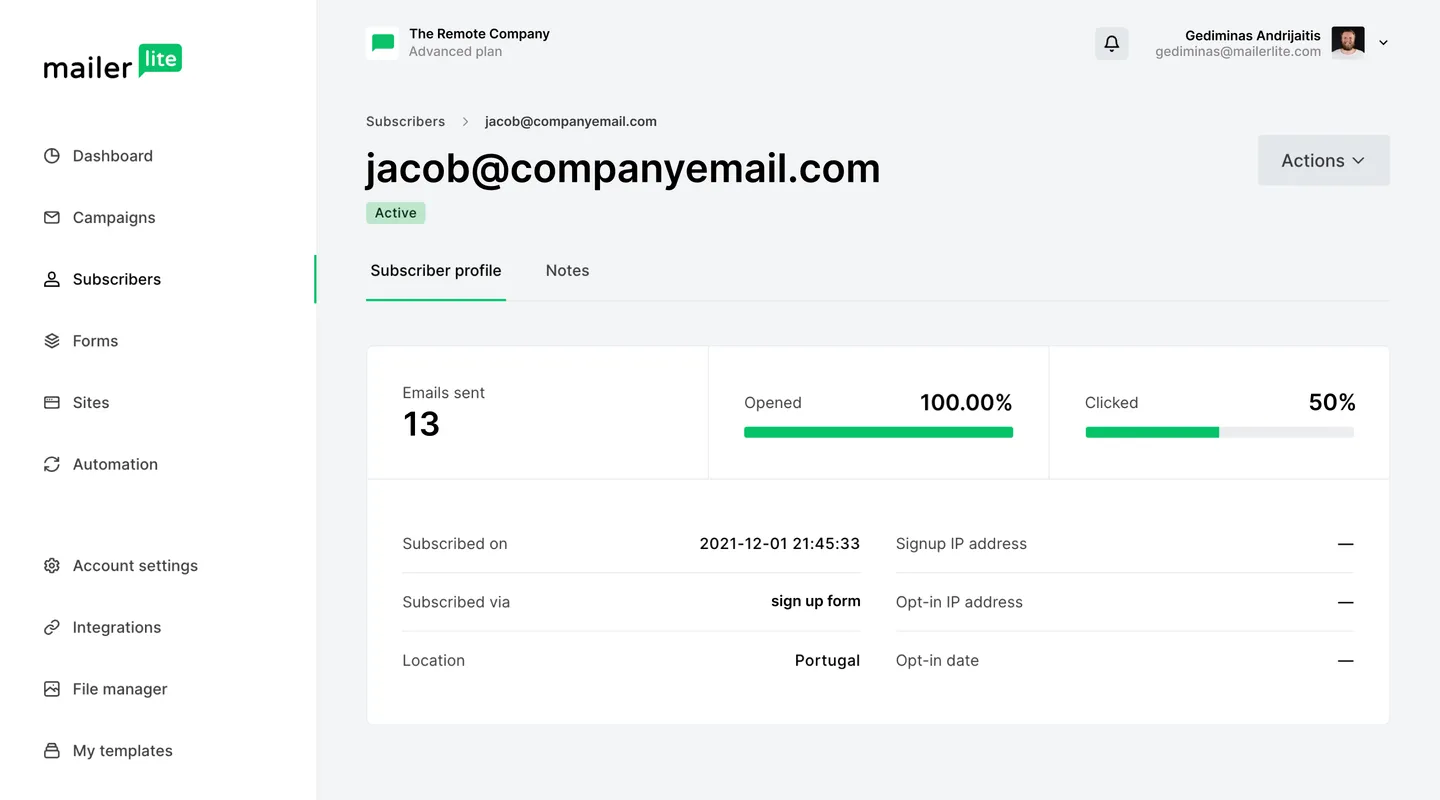
Keep an export of active subscribers separate from unsubscribed, bounced, unconfirmed and complaint records. Retain the available subscription source and permission history in your controlled migration record. Do not flatten every exported address into a new active audience. A clean destination is more useful than a larger count that loses the reason each contact belongs there.
MailerLite distinguishes Active, Unsubscribed, Bounced, Spam complaints and Unconfirmed statuses. Campaigns and automations use eligible active subscribers; unsubscribed and complaint contacts are not a new sending opportunity. Use the current status documentation to review the destination and keep the old exclusions available when preparing each import. Read the subscriber status reference before deciding which records belong in the sendable audience.
Design the field and audience mapping
Create a short mapping sheet with the source column, its meaning and the destination field. Separate a full name from a company name and distinguish a signup date from the last campaign date. If a field has several possible meanings, resolve that ambiguity before importing. This is much easier than finding a personalization error after the first campaign has been sent.
Use groups for deliberate audience membership and segments for conditions you want evaluated dynamically. For example, an imported editorial-interest group might remain a stable label, while a segment can identify contacts matching a defined combination of fields. Rebuild conditions from their purpose, not just their old label. Check whether the rules use AND or OR so the new audience does not become accidentally broad.
Prepare a small, representative import
MailerLite documents CSV or TXT import and copying rows from Excel, with group selection and column matching. Its instructions call for a single sheet, clean records and UTF-8 when using non-English characters. During import you can choose whether added contacts should enter an automation associated with the selected group. Review that choice deliberately. Use the official import instructions for the current account.
Start with a small permitted sample that includes ordinary names, accented characters and the fields used in your messages. Use a dedicated migration-review group rather than an active welcome trigger. Compare the resulting records with the source and examine the import summary, including rejected rows. An apparently successful import can still contain a wrong field mapping that only becomes visible when you inspect individual contacts.
Rebuild the welcome sequence before redirecting signups
Prepare the intended automation while it is still under review. Map the trigger, message order, delays and exit conditions from the existing subscriber promise. An imported established reader may not need the same introduction as a new signup. Keep those entry situations separate and decide how the first campaign to the migrated audience should differ from a welcome email.
MailerLite allows activation choices for eligible contacts who already meet a trigger. Read those choices before activating the workflow, particularly when importing into a trigger group. Check the new-subscriber route with a controlled address and review the automation Activity view. The objective is a known sequence of events, not merely an automation that looks complete in the editor.
Configure the sender and check actual delivery
Review the sender name, address, reply route and sending-domain authentication in the new account. Use the records and instructions issued for that account rather than copying a generic DNS value from an article. Coordinate changes with whoever manages DNS and preserve the records needed by the website and normal business email. A newsletter platform change does not imply moving the mailbox or domain registration.
Send a controlled test and inspect its content, links and reply behavior. Authentication status is one part of the setup; it is not a guarantee of inbox placement. Check the actual audience and content choices as well. Keep the first production send purposeful and consistent with what subscribers already requested, with a recognisable sender and a clear way to leave.
Move every signup route deliberately
Prepare the replacement embedded forms, relevant integration settings and confirmation behavior. Then test them on the actual pages where visitors will use them. A desktop form preview is not enough if the real signup is inside a narrow mobile footer. Check that the privacy link, validation message and success state are understandable in the page layout.
Choose a transition window and record when each old route is replaced. If the original service continues collecting subscribers during preparation, reconcile those later additions before the final handoff. Also reconcile new unsubscribes and other exclusions, not just new signups. The audience should reflect current choices at the moment you resume normal sending.
Reconcile the result before retiring the old service
- Audience
- Source count, eligible import count and an explanation of differences
- Fields
- Reviewed sample records and verified personalization fields
- Signup
- Each live form reaches the intended group and confirmation route
- Automation
- Controlled subscriber follows the expected sequence
- Message
- Approved email, working links and checked reply behavior
- History
- Retained campaign and permission records required for ongoing operations
A difference in counts deserves an explanation, not a forced match. Duplicates, invalid addresses, exclusions and changed audience definitions can all affect the comparison. Record the reason for the difference and inspect unexpected cases. Keep a reversible path until the essential checks are complete rather than canceling the source contract immediately after uploading a file.
Give the new workflow a useful first month
Review subscriber growth, campaign responses, complaints and the operation of signup and welcome routes after the move. Compare meaningful results with your own prior baseline, allowing for changes in audience and message. Avoid treating one campaign as proof of a lasting improvement. Use the review to correct a specific issue or simplify a process that remains unnecessarily complex.
Once the list is in place, the guide to connecting a MailerLite signup form to a welcome sequence covers the form and automation menus step by step, and the MailerLite company page summarizes the plans.
MailerLite can provide a practical home for an organized newsletter workflow. The strongest move carries forward the audience's expectations, preserves exclusions and rebuilds the few connections that make the newsletter work. A small representative import, deliberate signup handoff and clear reconciliation make the transition easier to understand and maintain.
Budget the subscriber tier and monthly sends · Connect signup forms to a welcome sequence