 Pagember

A good welcome sequence connects the promise on a website with the first useful email a subscriber receives. MailerLite brings forms, subscriber groups and automation into a documented workflow, making it a practical candidate for a publisher, creator or service business that wants a clear starting journey. The best first version is usually small: one recognisable offer, one defined audience and a welcome message that delivers what the form promised.

This guide focuses on the connection between a signup form and a welcome automation. It follows the official MailerLite documentation, and the MailerLite company page summarizes what each plan includes. Confirm the features and usage limits in your current plan, especially when using templates, additional triggers or integrations. Keep the initial journey simple enough to understand before adding branches.
Define the promise before designing the form
Write down what the subscriber will receive and how often you intend to email. A useful promise might be a monthly website checklist, a short onboarding series or a practical download followed by related guidance. State the subject clearly on the form. The first email should feel like the natural continuation of that statement rather than the beginning of an unexpected sales campaign.
Decide what success means for the welcome email. It might be downloading the promised checklist, reading the first lesson or replying with a relevant question. Give the message one main action. This makes the copy easier to write and the destination easier to check, while leaving room for a concise explanation of future emails.
 Play video: How to Personalize Email Newsletter with Sign Up Form Fields

Give the audience a clear group
MailerLite's embedded-form workflow includes selecting the group that receives signups. Use an internal name that explains the offer and audience, such as Website checklist subscribers. The label should remain understandable to the next person who maintains the account. Document which forms add people to that group before connecting it to an automation.
Keep this group distinct from a temporary migration or testing group. A website signup and an imported existing contact are different entry situations, even when both people will later receive the same newsletter. A simple audience map helps you decide which event should begin a welcome message and which existing subscribers should be excluded from a new introduction.
Build a form that belongs on the page
In MailerLite, go to Forms, open the Embedded forms tab and click Create form. Name the form, choose the Embedded form type and click Save and continue, then select the subscriber group from the previous step and click Continue to open the editor. The embedded form guide shows each screen. The editor sidebar lets you change the heading, text, fields and button. Choose the fewest fields needed for the promise. An email address may be sufficient for a simple newsletter; another field should have a clear purpose in the welcome journey. Keep labels visible and the action clear on both desktop and mobile.
Plan the states around the form as carefully as the initial design. Explain what happens after submission, whether an email confirmation is still required and where the subscriber can return. A success message should not announce that a download has already arrived before the actual journey is tested. Test the wording with the precise sequence you have configured.
Choose the installation route for your website
MailerLite documents JavaScript embedding, HTML embedding, an official WordPress plugin and a shareable form URL. The installation choice affects maintenance: its help page says a static HTML embed needs updating on the website when the form changes. Pick the route that your website owner can maintain reliably. Compare the official installation methods before placing code in several locations.
Check the form inside the real page, including narrow screens and the space around the submit button. The form should not shift other content unexpectedly or disappear behind a fixed bar. Check your website's actual privacy and cookie behavior when adding a third-party integration; the form's visual success alone does not establish that the complete integration is configured correctly.
Treat confirmation and welcome as separate steps
Double opt-in asks a new subscriber to confirm through an email before becoming active. MailerLite says this is enabled by default for newly created forms, while API and integration signups have their own setting. Confirm the route you actually use rather than assuming a form setting covers every integration. Editing the confirmation email is a paid-plan feature. Read the current confirmation guidance.
The confirmation message has one job: help the person complete the signup they requested. The welcome email can then deliver the resource and explain what follows. Keep both messages recognisable, with the same sensible sender identity. Do not make an unconfirmed subscriber search an unrelated page to understand why they received a confirmation request.
Connect the automation to the right event
For a simple shared welcome journey, a group-based trigger can provide a clear connection between several signup locations and one sequence. MailerLite specifically recommends considering group triggers when multiple double-opt-in forms feed related automations, because confirmation through one form does not necessarily trigger every form-specific workflow. Map the entry rule first, then build the email and any delay steps.
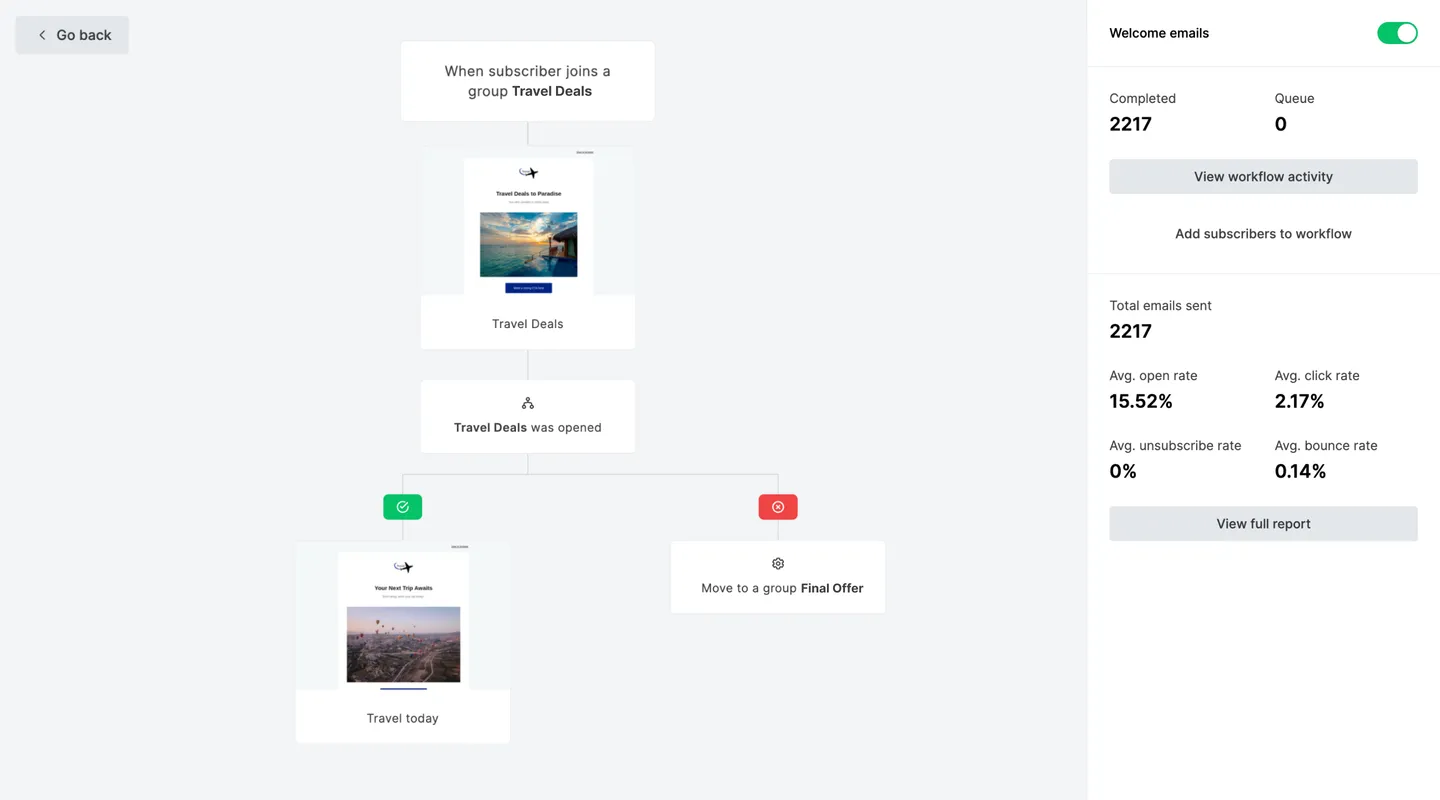
To build it, open Automations and click Create workflow. From the Triggers tab, drag Joins a group into the workflow, choose your signup group and click Save. Click the plus icon and drag Send email from Actions for the welcome message, then add a Delay from Rules before the second email. When every step is complete, click Activate in the top-right corner. MailerLite's workflow guide covers each step.
The documented workflow starts with a trigger and proceeds through its actions and rules. Email steps without delays can run together. If your plan is a spaced sequence, include deliberate delays rather than assuming separate email blocks imply separate sending days. Keep the first implementation short so you can verify the order before adding conditions or other paths.
Write the first two messages with purpose
A useful first message identifies the signup promise, provides the requested resource or next step and sets expectations. A later message can explain how to use that resource or answer a common question. The timing below is an example to adapt to your own offer.
| Stage | Purpose | Review priority |
|---|---|---|
| After confirmed entry | Deliver the promised resource and explain future emails | Correct link, sender identity and actual entry condition |
| After a deliberate delay | Help the subscriber use the resource | Useful advice and one relevant next action |
| Optional later message | Answer a closely related question | Fit with the original signup promise |
Test the complete journey before wider release
Use an address you control to follow the real signup route. Check submission, confirmation, group assignment, workflow entry and the delivered message in order. Open the email on a phone, follow the main link and inspect the final destination. A preview can show the design while missing a broken link or an incorrect trigger.
Include an existing-subscriber case as well as a genuinely new signup. Decide whether someone who already belongs to the group should receive the introduction again. Inspect the account's activation options and re-entry rules before applying them broadly. When a contact does not move as expected, MailerLite's automation Activity view helps identify the current stage and outcome.
Keep the welcome journey maintainable
- Record the promise, group, trigger and destination in one short account note.
- Keep the confirmation and welcome messages consistent with the website form.
- Test a new signup and the existing-subscriber case deliberately.
- Inspect the actual email and destination on mobile.
- Review the automation after changing a form, group or downloadable resource.
- Measure useful actions against your own baseline rather than assuming a standard conversion rate.
If the sequence grows into a short course, the guide to a subscriber-requested email mini-course shows how to plan the lessons and delays.
MailerLite is worth considering when you want the signup and welcome experience to live in one manageable system. A clear offer, a deliberate trigger and a verified delivery route give the automation a dependable purpose. Once that first journey works for your audience, expand it with specific needs rather than complexity for its own sake.
Compare subscriber and sending budgets · Prepare an existing email list for migration