 Pagember

Hosting.com’s managed migration service is a useful reason to consider the provider when moving a WordPress website. Its published process starts with access to the existing site or a backup, builds a copy on the new platform and gives you a preview before the switch. That puts the work in a sensible order: copy first, inspect the result, then approve the change visitors will see.
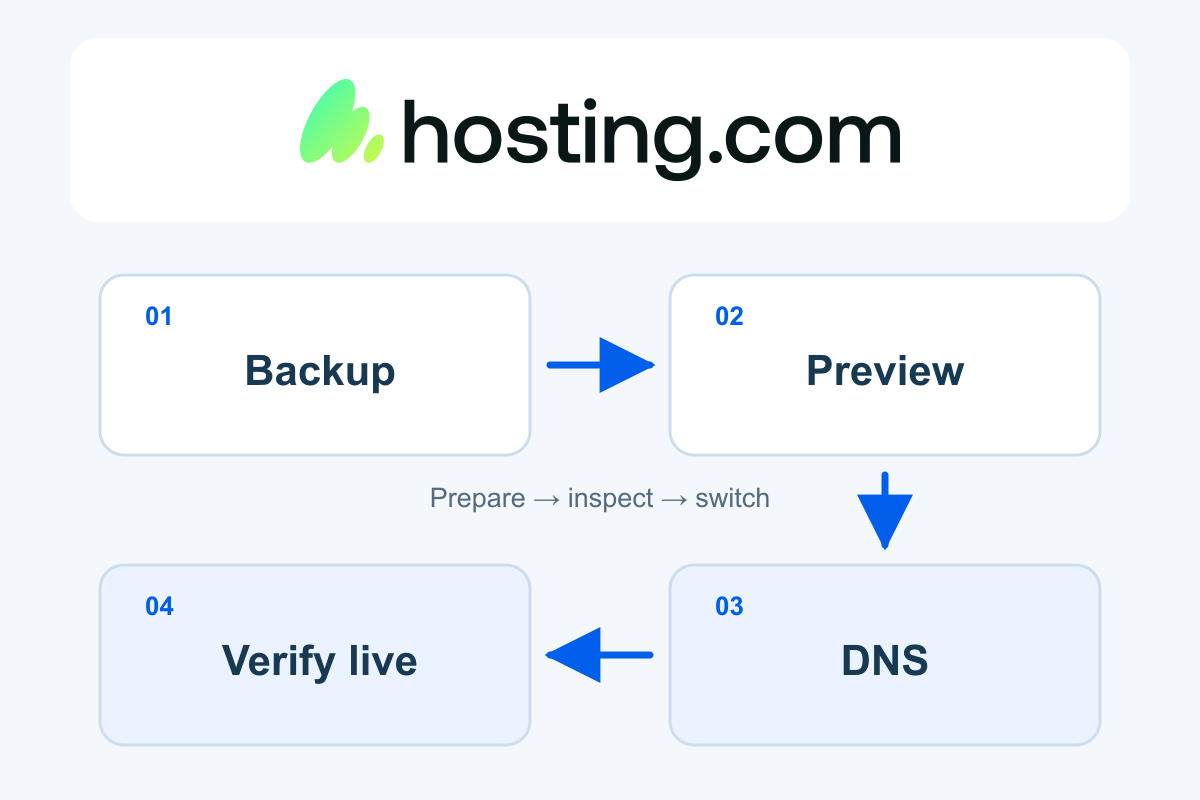
The provider-neutral steps (inventory, DNS timing, email records and rollback) are in How to move WordPress to a new host without losing content or email. This checklist covers the hosting.com part.
Your part is to define what must arrive and check that it works. A successful move includes more than a homepage that looks right: it preserves recent content, working forms, email delivery and the routes visitors use. The checklist below turns those needs into a manageable plan.
Confirm the scope before you book the move
Hosting.com advertises free managed migrations on its migration page. Its billing policy adds that moves from non-cPanel environments are priced by complexity, so a cPanel source is the simplest case. Before committing, ask the migration team to confirm in the support ticket the included work, any exclusions and the final cost for your source host.
Tell the team which control panel you use, how many sites are moving and whether email is included. Add approximate file and database sizes, special software and any store or membership functions. Ask whether the selected destination plan has enough sites, storage and resources. This makes it easier to choose the right package and obtain a useful schedule rather than discovering a mismatch during the move.
For the hosting budget itself, see Hosting.com Starter: upfront cost and renewal, and confirm the basket total, tax and agreed migration scope separately. If you are still choosing a plan, shared or managed WordPress compares the two routes.
 Play video: How to move your WordPress / Wix / ANY website (or let us do it for you)
Make a one-page site inventory
- WordPress
- Live domain, software version, important plugins and theme
- Data
- File and database sizes, uploads, recent posts and other changing records
- Mailbox provider, addresses, aliases and where messages must remain
- Domain and DNS
- Registrar, current nameservers and a copy of the existing DNS records
- Connections
- Forms, scheduled tasks, external services and payment integrations where used
- Ownership
- Who can approve the preview, authorize the switch and confirm completion
The inventory should explain the working site without exposing credentials. Share access only through the provider’s agreed secure migration process. Keep the domain and hosting accounts under the business owner’s control, and use supported delegated access where appropriate. A developer helping with the move should have a defined job and an agreed handover.
Keep an independent, restorable backup
Before work begins, preserve a copy of the WordPress files and database outside the account being replaced. Include uploads, configuration and any files stored outside the usual WordPress folders. A WordPress content export alone is not a complete copy of themes, plugins, media files and the database configuration. Ask the migration team which backup format it can use for your setup. The WordPress backup you can restore guide lists what a complete copy contains.
Check that the archive opens and that the database export is present, then have the copy restored in the agreed preview environment. The useful result is a working website, not merely a large download with a reassuring filename. Record when the backup was taken so you know which later changes need to be copied again before cutover.
Keep the old hosting service active while the new copy is prepared. Avoid redesigning the site, changing plugins and moving providers in the same step. A migration is easier to verify when the expected result is the existing site on new hosting. Improvement work can follow once the move has a stable, documented baseline.
Test the preview as a visitor and an editor
Hosting.com describes a temporary preview URL before DNS changes. Ask how to access it and whether the team needs you to use a specific preview method. Check that preview traffic cannot accidentally send real customer messages, collect payments or create duplicate scheduled activity. Agree which live integrations stay disabled until the final site is ready.
- Open the homepage, a typical article, a deeper page and a page with large images.
- Use the main navigation, search, pagination and any important redirects.
- Check a phone-sized screen and desktop for missing fonts, broken layouts or cropped images.
- Sign in to WordPress, open the media library and confirm important pages can be edited.
- Test forms through the agreed route and check where the resulting message arrives.
- For a store or membership site, test the appropriate sandbox or non-destructive journey and verify live-data handling with the migration team.
Record each issue with its page, device and the result you expected. Give the migration team a short, concrete list, then recheck the affected routes after correction. Also compare the visible article count, key pages and recent records with the original site. A beautiful preview is only ready when it contains the right content and performs the important tasks.
Make email and domain registration explicit choices
Decide whether email is moving or staying with its current provider. If it is moving, include messages, folders, aliases and forwarders in the agreed scope and test receiving as well as sending. If it stays elsewhere, preserve the records that route and authenticate email. Copy the current DNS configuration before any change so the team has a reliable reference; connecting a domain without breaking email shows which records to keep.
Changing the server that delivers a website and transferring domain registration are separate operations. Ask which is required for the chosen plan rather than assuming both must happen together. If a registration transfer is included in your plan, confirm its conditions and timing. Preserve access to the registrar account throughout the website move.
Agree the cutover and final copy
A filled cutover brief for a brochure site. This hypothetical site has 42 articles and eight pages, no shop or member accounts, and external email that will stay with its current provider. Contact messages are delivered through the existing external sending service rather than stored as WordPress submissions.
| Checkpoint | Agreed action in the example | Condition before proceeding |
|---|---|---|
| Final copy | The owner pauses content edits; the team records the copy time and the 42-article/eight-page baseline. | The preview includes the latest article, its image and the intended pages. If live edits resumed, identify and copy the difference first. |
| External mail | Keep the domain at its registrar and retain the approved external MX and mail-authentication configuration. | The migration ticket names web records separately. If a nameserver change is proposed, reproduce and review the whole required DNS zone before approving it. |
| Web switch | The authorized DNS operator applies only the approved web change; both hosting environments remain available. | HTTPS and the intended primary address work on the live domain. Allow for visitors seeing the DNS change at different times. |
| Inquiry and sign-off | Send a clearly labeled controlled test through the public contact route; check arrival in the external inbox and the reply path. | The owner records receipt, article/page checks and any remaining issue before resuming edits or retiring the old host. |
Rollback decision: if the essential contact path fails and the agreed fix cannot be applied safely, the owner and team review reverting the approved web records. First account for any WordPress edits or new records created since the final copy; a DNS reversal does not merge them. The external mailbox remains the mail destination, but the website’s sending path must still be retested. Keep this plan in the migration ticket with the old working configuration and the person authorized to use it.
A store or membership site needs an additional live-data synchronization plan; the example’s edit pause is not a substitute for preserving orders or accounts. If some visitors still reach the old server after the switch, the DNS propagation guide explains how to check which answer they receive.
Verify the live domain before closing the old account
After the switch, repeat the important checks using the real public domain. Confirm HTTPS, navigation, images, forms and email delivery. Review redirects and the site’s indexability settings so a preview-only restriction has not followed the copy into production. Check that your existing analytics and consent controls still behave as intended; a migration should preserve that setup unless a separate change was agreed.
Keep a dated completion note with the migrated sites, final checks, backup location and any remaining issue. Remove temporary access and retire the preview through the agreed process. Cancel the old service only after the team confirms the transition and you have checked the live website and any email it hosted. Keep control of the domain even if the old hosting subscription ends.
A well-prepared move makes the service more useful
Hosting.com’s migration assistance can remove much of the manual copying and setup work from a WordPress move. You make that service more effective with a clear inventory, a restorable backup and a concrete preview checklist. Confirm the product on the Hosting.com company page and the migration scope, then use the provider’s team to help you move an established working site with a deliberate approval point.

