 Pagember


To stop automatic joining from your own Fireflies account, open Settings → Recording & Privacy (Personal tab) and turn off Auto-record meetings. Then review Recording Rules and any team-enforced setting. If you want selected calls, use the invitation-only option and inspect the upcoming meeting.
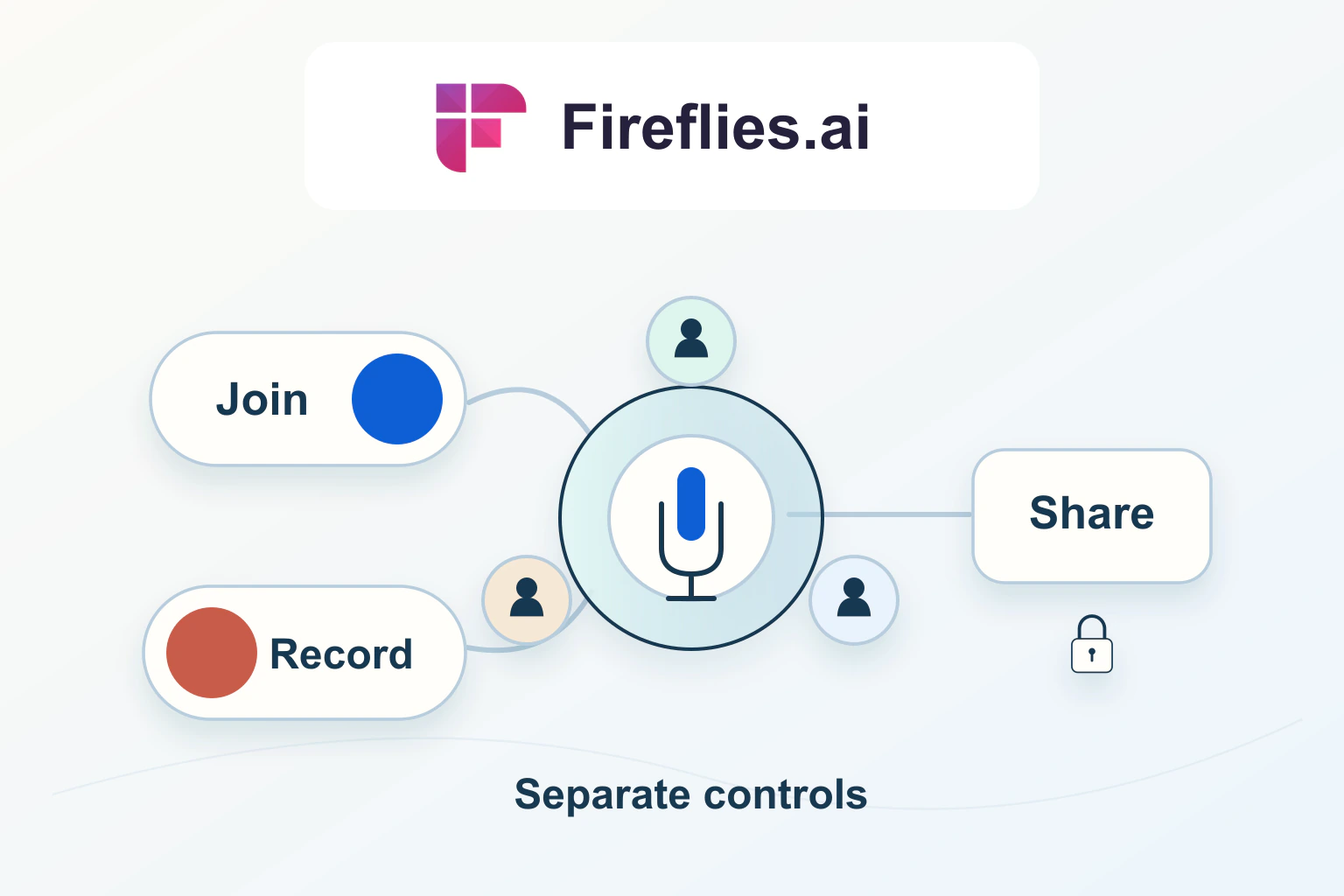
One personal switch does not control invitations sent by teammates or every other capture route. This guide uses official documentation reviewed on October 23, 2026. The examples and worksheet are planning aids for your own workspace.
Stop automatic joining from your own account
- Open Settings, choose the Personal tab, then open Recording & Privacy.
- Turn off Auto-record meetings. The documented switch saves automatically.
- Review Recording Rules for rules that record or skip particular meetings. Check whether your administrator enforces a team setting.
- Inspect the upcoming event and its inviters. A colleague’s invitation can be separate from your personal auto-join preference.
- If a meeting should use no capture, confirm the intended arrangement with the owner and participants before it starts. Check other connected recording routes too.
See the official auto-join instructions and Recording Rules guide for the current controls. “Off” for your personal automation should not be described as a guarantee that nobody can invite or record through another route.
 Play video: How Fireflies Auto-Join Works: Control Which Meetings Fred Joins
Start with meeting types, not a universal recording rule
List the meetings your team actually runs. A recurring project call, a recruitment interview and an informal client check-in do not automatically need the same capture or sharing arrangement. For each type, decide whether a recording is needed, who owns it, who needs access afterwards and when its original material stops being useful.
For a hypothetical small agency, ordinary project calls may be captured after the agreed notice and permission process. Recruitment discussions use a separately approved process. Casual calendar invitations do not automatically become recordings merely because they contain a video link. The point is to define a routine the team can explain before connecting an assistant to a busy calendar.
| Meeting type in the example | Joining decision | Post-meeting audience |
|---|---|---|
| Internal delivery planning | Approved recurring capture | Relevant delivery team |
| Client project review | Deliberate invitation after the agreed process | Named project participants or reviewed recap recipients |
| Unclassified calendar event | No automatic capture until classified | No generated record assumed |
Give one person responsibility for the initial setup. They should be able to explain the effective defaults, not simply remember what they selected during onboarding. Record a review date and the workspace involved so a later team change does not quietly broaden access.
Choose the effective auto-join setting
Fireflies documents team-level recording choices such as recording calendar meetings, recording only hosted meetings and recording only when invited. Administrators can also allow teammates to choose their own behavior. The current admin guide places these controls under Settings → Team → Recording & Privacy. See the auto-join and email settings guide.
For an initial pilot, an invitation-based approach is easier to inspect: the owner chooses one appropriate call, checks the attendees and confirms the assistant's presence. Broader automatic capture can be valuable later for a repeatable meeting process, but first make sure the calendar actually represents the meeting types you intend to include.
Check both personal and team settings. A teammate may expect their own preference to apply while an administrator has enforced a workspace rule. Also inspect recording or restriction rules and connected capture routes. A calendar rule is not a complete inventory of every desktop, mobile, upload or integration workflow the organization uses.
Fireflies notes that when several teammates invite its notetaker to the same meeting, it joins on behalf of the first inviter and follows that person's sharing configuration. Standardizing the relevant defaults prevents the result from depending on who happened to invite it first. This behavior is described in the team settings guide.
Check the next meeting instead of assuming the result
Download the meeting capture checks worksheet (CSV; hypothetical examples or blank checks).
Use the hypothetical scenarios as prompts, then leave the observed fields empty until you check your own non-sensitive event. Record the intended personal choice, team rule, inviter, actual bot presence and capture result. Check the recap recipient and viewing access separately; these are not interchangeable permissions.
Free-plan qualification: Fireflies documentation distinguishes new Free accounts created from September 1, 2026: the unlimited-transcript eligibility described there depends on auto-join. Invitation-only or disabled auto-join does not have that same eligibility; AI credits are separate. Check the current Free-plan explanation for your account rather than assuming the rule applies to every older account.
Make the recording notice part of the meeting
Fireflies documents notification controls before and during capture. Available signals depend on the capture method: a visible notetaker participant is different from the desktop app's Take Notes workflow. The desktop documentation describes audio notification, a camera watermark and a meeting-chat notification where supported. Review the responsible notetaking guide for the current options.
Use wording people can understand. For the hypothetical agency: “We would like to use Fireflies to record and prepare project notes. The project owner will review the summary and share the approved result with the agreed team. Let us know if we should use a different arrangement.” Adapt that example to the actual purpose, audience and required permission process.
Do not make the first disclosure an unexpected recap email after the call. Explain the process at the appropriate point before capture, and provide a workable alternative if capture is not appropriate. A short manual decision note may be enough for a particular meeting. Removing a visible bot is also not a reason to assume no other capture method is active.
During the pilot, inspect what an attendee actually sees or hears. Check an ordinary participant account rather than relying exclusively on the organizer's settings page. Include a late joiner in the test so the team understands how it will keep people informed throughout the call.
Separate recap recipients from access permission
Two questions are easy to confuse: who receives a recap email, and who can open the underlying meeting. Fireflies documents these as separate controls. Sending the email only to the owner does not, by itself, make the recording private. Its current privacy guide lists visibility choices including the owner, participants, teammates and people with a public link. See the meeting recap privacy guide.
Choose a deliberately narrow default for the pilot, then add access for a genuine project need. In the agency example, the owner first reviews the transcript and summary. A client receives the approved recap or appropriate access to the meeting, rather than an automatic invitation to every internal note stored with it.
A public link should be treated as a sharing decision. A forwarded link can reach someone beyond the intended audience. For confidential project discussions, test the actual link while signed out and with an unrelated account. If it opens when it should not, revise the access setting before sharing anything.
Fireflies can be a useful choice when the team wants searchable meeting material while retaining a clear owner and review process. Evaluate the complete path from joining through restricted sharing, not just the quality of a sample summary.
Review the meeting before distributing it
Check speaker names, dates, amounts and commitments in the generated record. Keep tentative ideas separate from approved work. The sharing reviewer should also check whether the recording contains an incidental topic that does not belong in a client's project recap.
Sharing a concise approved recap and sharing a recording are different deliverables. Choose the one that serves the recipient's task. If someone only needs three confirmed actions, they may not need access to an hour of discussion. Conversely, a colleague checking an ambiguous decision may need the underlying context through an approved route.
Inspect connected destinations as well. An export, CRM note or copied transcript can create a second retained copy with its own audience. Keep an inventory of those destinations so later access changes and cleanup do not stop at the Fireflies meeting page.
Set retention around the purpose of the material
Decide how long the original recording is needed, who will review that decision and what approved record must remain elsewhere. Do not choose a period only to fill storage or automatically keep every conversation forever. A project decision log may need a different lifecycle from the raw conversation used to prepare it.
The documented Fireflies auto-delete feature is available to Enterprise users. It follows the meeting owner's setting and applies to future meetings, not an automatic cleanup of the entire existing library. Administrators can impose a workspace retention choice. Confirm the current availability and behavior in the auto-delete guide.
If automatic deletion is unavailable in your plan, use an owned review schedule. The agency might review completed project recordings at the end of its agreed retention period while preserving its approved project record. That is an illustrative operating rule, not a universal legal retention recommendation.
Before changing a retention setting, identify the meetings it affects and any material that must be preserved through the appropriate business process. Test the policy with a non-sensitive pilot record before applying a large cleanup. Keep the review narrow enough that an owner can verify each decision.
Understand deletion before using it
Fireflies' meeting deletion guide says only the meeting owner can delete the meeting and that deleted meetings cannot be restored. It describes removal of the transcript, summary, recording and related meeting data. Do not confuse this with account deletion, which is a different process. See the meeting deletion instructions.
Before deleting, verify the meeting title, date and owner and confirm that the approved record is stored where it belongs. Avoid bulk deletion as the first test of a policy. A small, reviewed cleanup is easier to assess and less likely to remove material still needed by a project owner.
Deletion from one workspace is not a recall button for files already downloaded or notes copied elsewhere. Review those destinations under their own controls. Keep a minimal cleanup record describing what was removed and who approved it, without creating a new unnecessary copy of the conversation.
Run a complete lifecycle acceptance check
- Create a non-sensitive test meeting with the intended owner and participant types.
- Confirm that the effective joining rule includes it and excludes an unapproved comparison event.
- Verify the visible or audible capture notice through the actual meeting route.
- Review the processed record and correct a deliberate test ambiguity.
- Check recap email recipients separately from signed-out and unrelated-account access.
- Inspect any export or integration copy and its audience.
- Use a disposable meeting to verify the documented cleanup path.
If Fireflies joins an unintended class of calls, narrow or disable automatic joining while you review the rule. If the issue is access, restrict sharing first and investigate the affected records before deleting useful evidence. A dependable meeting assistant is a managed service: the team knows what is captured, who can see it and when the original material should leave the workspace.
For the output after a properly configured meeting, continue with turning Fireflies notes into reviewed actions. Keep the joining decision separate from the later review of the transcript.
For more help with the output and review process, use the AI meeting notes guide selector. It separates capture settings, reviewed action notes and plan decisions. Before connecting any notetaker, the AI meeting notes data checklist covers consent, retention and access, and the Fireflies company guide summarizes the plans.