Pagember

A useful product tutorial helps someone finish one real task. Descript is a strong candidate for that job because it connects screen recording with a transcript-led editing workflow. You can organize the explanation around spoken steps, improve the pacing and prepare a clear handoff without treating the recording as an unchangeable take. The most important work still begins before you press Record: deciding exactly what the viewer should achieve.
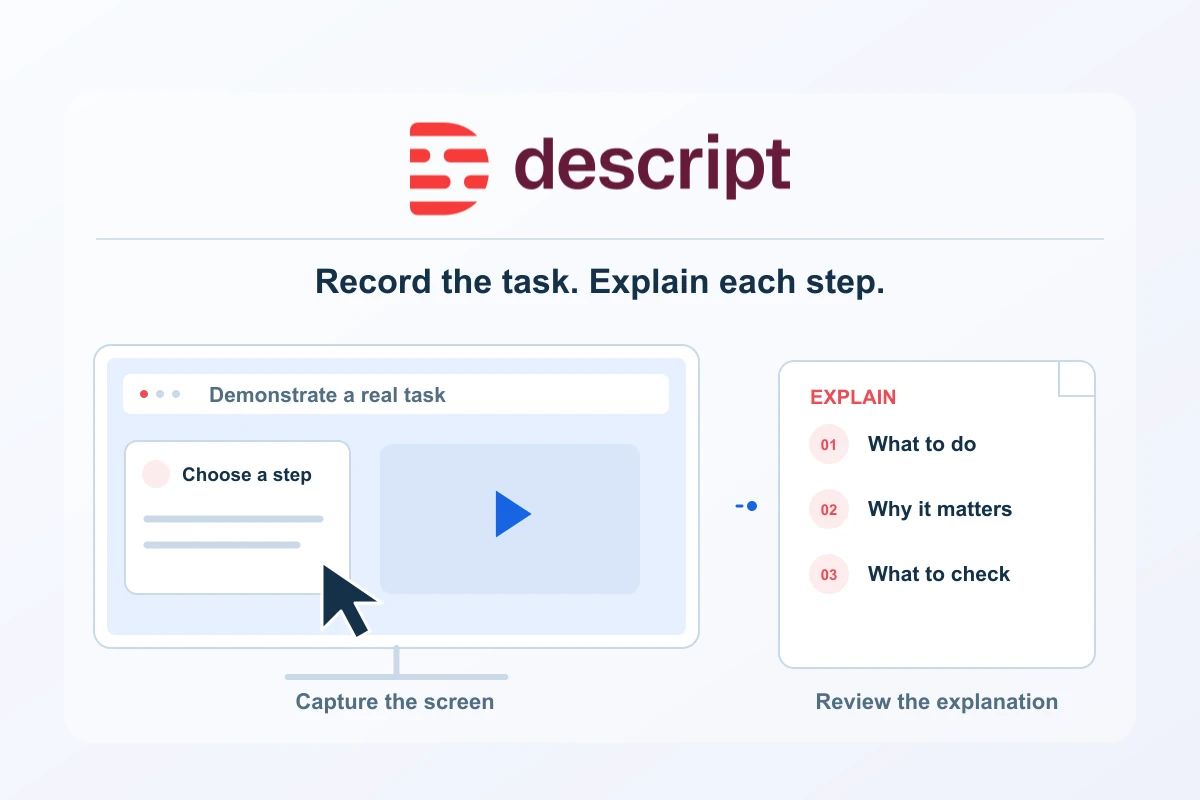
This guide develops a practical workflow for a small website or software team. Imagine a tutorial showing a customer how to update one setting and verify the result. Use a permitted test account and check the actual export before publishing your own tutorial.
Give the tutorial one finish line
Write a one-sentence outcome such as: after watching, the viewer can change the notification setting and confirm it has saved. That outcome decides what belongs in the video. Account creation, an unrelated dashboard tour and a sales introduction may each deserve their own material. Keeping this tutorial focused makes the sequence easier to record, review and maintain when the product changes.
- Result: state the one task the viewer will finish.
- Starting screen: name the account, plan or permission needed.
- Action: show the necessary controls in order.
- Confirmation: show how the viewer knows the change saved.
- Next step: offer a useful follow-up without turning this into another full tutorial.
 Play video: Underlord in Descript: Get Started with Your AI Video Co-Editor
Prepare the screen and narration
Use a sample workspace with realistic but non-sensitive content. Close personal tabs, disable distracting notifications and remove private details from the visible browser area. Make the pointer easy to follow and increase the interface scale enough that important labels remain readable in the intended player. A clean demonstration is usually easier to understand than one that requires the viewer to search a crowded desktop.
Read the outline once while performing the actions. Notice where the software waits, changes context or opens another window. Decide how you will explain those moments. Describe the purpose of a click before making it, then pause long enough for the visible result to become clear. The recording should give the viewer time to understand the interface as well as hear the instruction.
Choose recording behavior deliberately
Descript's desktop Screen Recorder can capture a display, window or selected region, with microphone and optional camera input. Its documentation distinguishes Quick Share from an editable project: with Quick Share enabled, stopping can publish a share page automatically; with it disabled, inputs open as separate tracks in the editor. For a tutorial that needs review, keep Quick Share off and check the destination before recording. Read the current recorder instructions for your operating system.
- Open the recorder from the Descript icon in the Windows notification area or the Mac menu bar, or press Shift + Ctrl + 2 (Shift + Command + 2 on Mac).
- On a Mac, the first time, open the gear icon in the dock and grant screen recording, computer audio, microphone and camera permissions, then relaunch Descript.
- Click the display icon, and choose Screen Region from the dropdown if you only want part of the screen. A region sized to the app window keeps labels larger in the final video.
- Turn on the microphone, and turn on computer audio only if the product makes sounds the viewer needs to hear.
- Leave the camera off unless your face helps the explanation.
- Switch Quick Share off so each input opens on its own track in the editor.
- Click Record, and stop with the timer button in the dock. Pause and resume are available on Mac only.
Descript lists a maximum recording length of four hours, far more than a single-task tutorial needs.
Make a short trial capture before the complete demonstration. Listen for the correct microphone and look for the intended screen region. If sound from the application matters, test that source separately from your voice. The documented browser recording route captures tab audio rather than system-wide audio. Confirm the actual permission prompts and input behavior on your machine instead of assuming desktop and browser capture are identical.
Record in meaningful sections
A tutorial is easier to revise when its structure follows the task. Record the introduction, action and verification as deliberate sections, leaving a brief pause around major transitions. If a step goes wrong, restate that section cleanly. Avoid narrating the troubleshooting detour unless learning that recovery process is part of the tutorial's stated purpose.
Keep narration precise enough to survive small interface changes. Describe the function of a control as well as its visible label. If the tutorial depends on a specific plan or permission, say so near the affected step. A recording can remain useful longer when it explains the goal rather than relying entirely on a memorized path through buttons.
Edit the explanation through the script
Descript links the script to the media: deleting spoken text removes that passage from the composition, and moving text moves the corresponding media. That makes the transcript a useful place to find repeated explanations or a false start. Read the script for structure first, then listen across each edit point. A clear written sentence can still sound abrupt when the audio is joined. Review script-based editing before making large changes.
Keep transcript correction separate from changing the recording. Correct mode fixes names, punctuation and missed words without replacing the underlying speech. Use it for accurate software labels and terminology, then decide separately whether the audio itself needs another take. A corrected caption should not imply that the speaker said a different factual claim. Descript explains the distinction here.
Make the demonstration readable without overdesigning it
Use visual emphasis only when it helps the task. A short label can identify the next action; a closer view can make a setting readable; a simple transition can separate preparation from verification. Keep the visual language consistent across the tutorial. Too many competing highlights make the viewer decide what to watch at the exact moment they need to follow an instruction.
Check captions against the real sound, particularly product names, abbreviations and numbers. Descript also supports exporting subtitles as SRT or VTT files. Choose whether the destination needs a selectable subtitle file or captions that remain visible in the picture; these are different deliverables. Test the result in the intended player rather than assuming a caption preview represents the final viewing experience. For a self-hosted video, the WebVTT captions workflow shows how to attach the VTT file.
Review the result as a new customer
- Task
- Can a viewer identify the starting condition and final result?
- Sound
- Is each instruction audible and natural across edits?
- Picture
- Are the relevant labels readable in the actual player?
- Accuracy
- Do the captions, account role and product state match the explanation?
- Privacy
- Does every visible screen contain only material cleared for publication?
Ask a reviewer to perform the task using the final export and an appropriate test account. Record where they hesitate and revise the instruction at that point. The useful measure is whether the explanation supports the task, not whether the rough cut looks impressive inside the editor. Label any result you actually observe in your own review record rather than generalizing it to all viewers.
Export for the destination and keep a maintainable source
Descript documents MP4 video export with quality presets; available resolution also depends on the plan and project settings. A larger export cannot restore detail absent from the recording. Open the final file, inspect the smallest important interface label and listen through the last frame. For hosted sharing, confirm the chosen access level and the link you intend to distribute.
Keep the source, approved export and a short record of the product version or interface date. Name the tutorial by the task it teaches. When a setting changes, this record makes it easier to identify which section needs updating. You can then improve a useful tutorial without recreating unrelated material or leaving old instructions scattered across help pages.
Descript's appeal for product tutorials is the connection between a recorded demonstration and an editable explanation. Start with one finish line, make the interface readable and review the actual delivery. That combination gives the tool a practical role in customer education, onboarding and support content. To publish the export, the guide to embedding or uploading video in WordPress covers the page side, and the Descript company guide summarizes the plans.
Compare Descript plans and production budgets · Create related short clips from a longer recording