
Organize a small active set first, give bookmarks useful names, and preserve a copy before bulk changes.
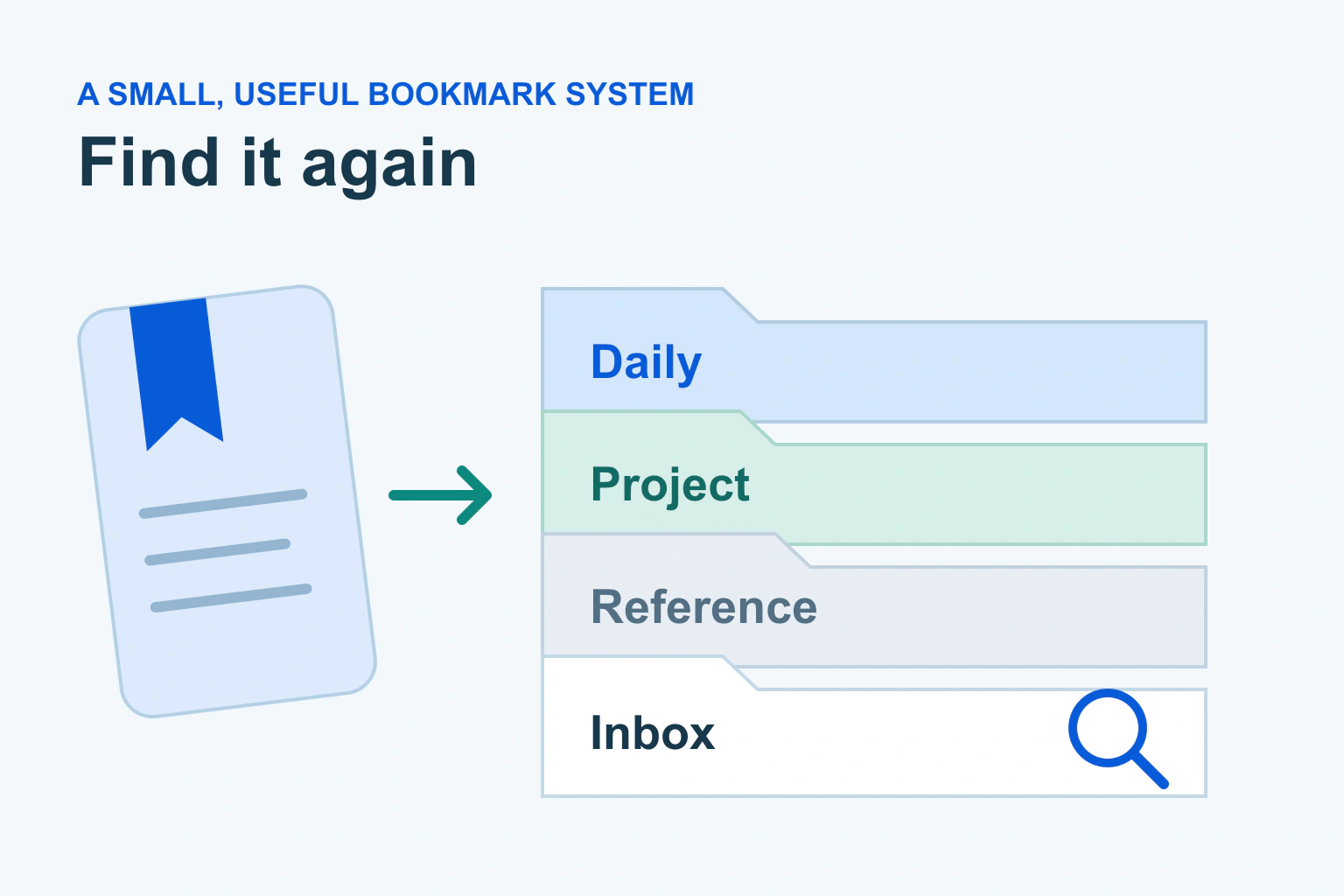
Keep a small set of bookmarks you use often, give them names you recognize and group the rest by the task they serve. Start with one crowded folder rather than reorganizing every saved page at once. A useful system is one you can keep using next week.
A bookmark saves an address, not a permanent copy of the page. The website can change, require a login or disappear. Treat important documents and receipts differently from links you merely want to revisit.
Find the bookmarks before rebuilding them
Open your browser’s bookmark or favourites manager. Check which browser profile you are using and look through its folders. Missing items may be somewhere other than the visible bar. Avoid importing the same collection repeatedly before you know what is already there.
Chrome’s bookmark guide describes finding, editing, sorting and moving saved pages. Its desktop address bar can search bookmarks using the documented bookmark-search mode. Controls on a phone can differ, so use the instructions for the device where you are working.
Choose one browser profile as your everyday home for this collection. If you deliberately keep work and personal profiles separate, keep their bookmarks appropriately separate too. Do not combine a workplace collection into a personal account without permission.
Make a copy before a big cleanup
Before bulk deletion or importing another collection, use the browser’s supported export or backup route. Store the resulting file somewhere you can find. It may reveal private project names or website addresses, so do not upload it publicly as an example.
Mozilla’s backup guidance explains an important distinction: Firefox Sync follows changes and is not intended as a true backup. It also warns that restoring a backup replaces the current collection, while an HTML import is a different operation.
Read the consequence before restoring or importing. Keep a current copy before trying an older one. A dated backup is useful evidence of the earlier state; a second device that synchronizes deletions may not preserve that state independently.
Choose a few folders with clear jobs
Use names connected to what you will do: Household, Learning, Current project or Places to visit. Keep the structure shallow enough to remember. A folder inside several other folders can make an ordinary page harder to retrieve than searching for it again.
Separate ongoing reference material from temporary research. An Inbox folder can hold new bookmarks until you decide whether they deserve a permanent place. Review it occasionally so it does not become another large unsorted collection.
| Collection | Useful contents | Review habit |
|---|---|---|
| Daily bar | A few pages used regularly | Remove shortcuts you no longer need often |
| Current project | Sources for one active task | Archive or trim when the task finishes |
| Reference | Pages worth consulting again | Check that addresses still lead to the right material |
| Inbox | New links awaiting a decision | Sort a small batch rather than letting it grow endlessly |
These folder names are suggestions, not a required taxonomy. If three folders cover your needs, creating twenty more adds maintenance without necessarily improving retrieval.
Rename links for the words you will remember
A saved page title can be vague, long or full of advertising text. Rename it with its subject and purpose: “Community hall booking details” is easier to understand than “Welcome, discover more”. Preserve the address unless you intentionally correct it to a verified destination.
Microsoft Edge’s favourites instructions support creating and renaming folders and sorting by name. Alphabetical sorting can help within a clear folder; it cannot decide which material belongs together.
Firefox also documents bookmark organization and retrieval, including its supported tagging features. Tags can be useful when one page serves several topics. Do not assume another browser has the same controls or automatically transfers every organizational detail.
Open an unfamiliar saved address cautiously. An old bookmark is not proof that the destination remains trustworthy. If it redirects unexpectedly or requests new payment or login details, confirm the genuine destination before proceeding.
A fictional evening of bookmark cleanup
Imagine a fictional reader, Ellis, has dozens of links for a kitchen project mixed with recipes and work material. Ellis first saves a dated backup, then creates one Current kitchen folder and one Recipes folder.
- Ellis moves a small batch after opening each page.
- Clear duplicates are removed only after checking their destinations.
- Useful links get short descriptive names.
- Uncertain links stay in Inbox for later review.
- Ellis closes the manager, then tries finding three important pages again.
The result is useful even though the whole collection is not perfect. When the kitchen project ends, Ellis can keep a few reference links and remove expired research without disturbing unrelated material.
Keep the collection small enough to maintain
Use our real-task approach to test the new structure: find the page needed for an ordinary activity. If that takes several guesses, simplify the folder names or bookmark title. Organization should make the next action easier.
Our photo-organization guide uses the same small-batch habit for a different kind of collection. If you use an assistant to learn a browser feature, the AI learning guide explains checking instructions against the current interface.
Your next step is to back up the bookmarks, choose one active folder and make ten useful links easy to find. Keep saved files elsewhere when you need an actual copy rather than an address.
Sources and verification
Editorial review 2026-10-18. Source check dates are recorded separately. Notes describe what each source supports and its limits.
View sources
- Google: Create, find and edit bookmarks in ChromeChecked Chrome supports finding, searching, editing, sorting and moving bookmarks; desktop and mobile routes differ.
Limits: No promise of permanent page availability or identical recovery behaviour across devices. - Microsoft: Organize favorites in EdgeChecked Edge supports favorites folders, renaming and alphabetical sorting.
Limits: Organization features do not archive a website or certify the destination. - Mozilla: Bookmarks in FirefoxChecked Firefox provides bookmark organization and supported retrieval/tagging features.
Limits: Do not assume these controls or all organizational details transfer to other browsers. - Mozilla: Restore bookmarks from backup or move themChecked Firefox Sync is not a true backup; restoring bookmarks replaces the current set, unlike a merging HTML import.
Limits: Recovery instructions are product-specific; preserve a current copy and read the actual operation before acting.