
Keep a protected original set, organise with albums or a simple folder system, and review duplicates in small batches rather than reimporting everything.
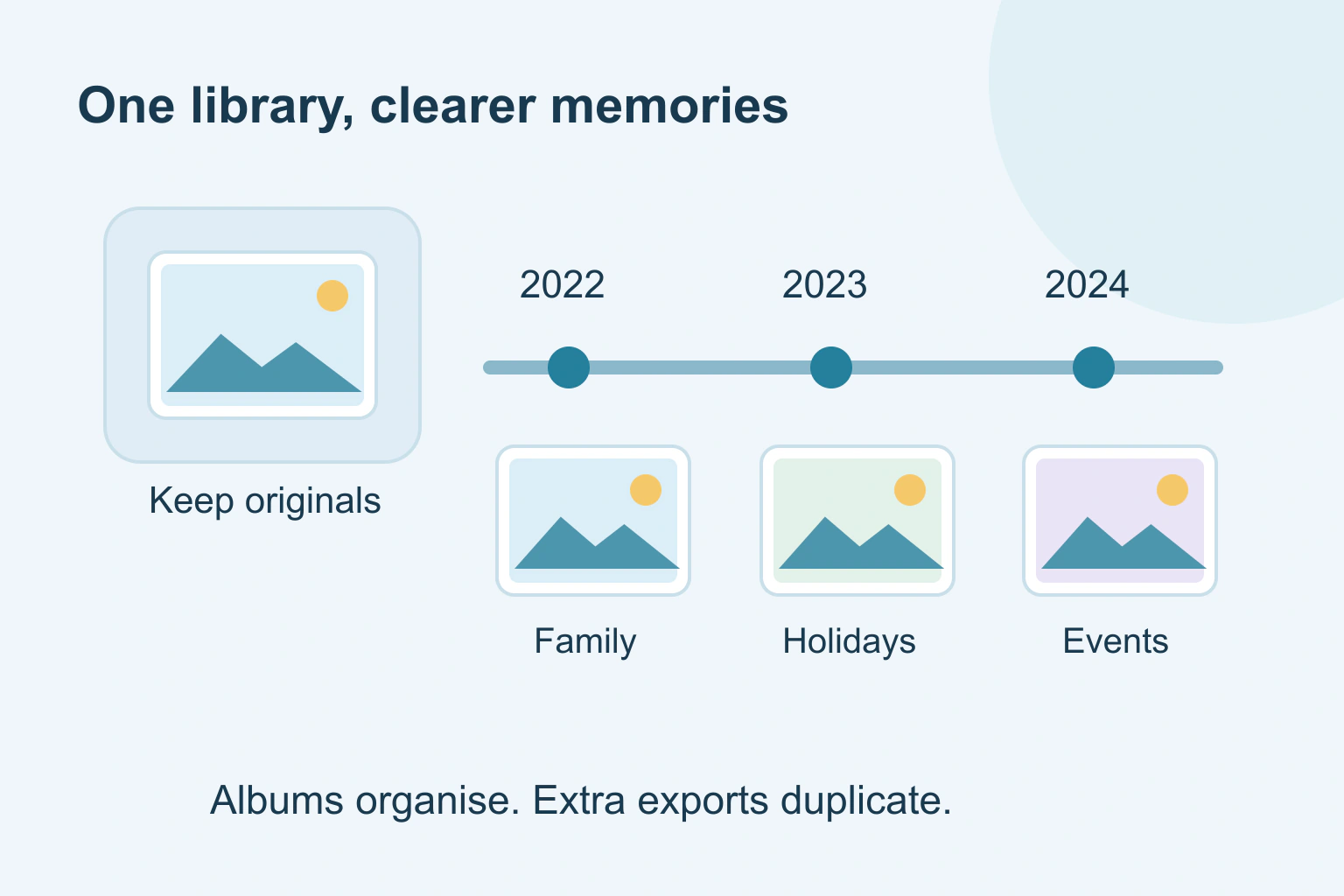
Start by choosing one place to organise your photos and keeping a separate protected copy of the originals. Then work through a small period at a time. Use dates and a few meaningful albums to make pictures easier to find, rather than copying the same photo into every new folder you create.
You do not need to name every file or sort your whole life in one weekend. The first useful result is being able to find a few important events without wondering which of five nearly identical libraries is current.
Find the collections before combining them
List the places holding photographs: current phone, old phones, computer folders, memory cards, external drives and cloud accounts. Note which collection is still receiving new pictures. Avoid importing the same old drive repeatedly while you work out what it contains.
Keep an untouched copy before a large tidy-up. Apple’s archive instructions explain ways to copy photos and originals from its supported services. Other providers have their own export process. Open a few saved files and videos to check that you have usable material, not only shortcuts or small previews.
Record where a collection came from and when you copied it. A folder called “Old phone, copied October 2026” explains more than “Photos final final”. Keep that source note outside the pictures if you prefer not to rename original files.
Choose a home and a simple structure
A managed photo library can offer albums, dates and search without requiring folders for everything. A folder-based collection can also work if you keep a straightforward system such as year followed by event. Choose something you can explain to another family member.
Do not force every photo into exactly one event. A picture can matter as a holiday memory and a portrait of a relative. In supported photo apps, albums can organise the same library items without you exporting another physical copy for each use.
Apple’s album guidance explains that removing an album does not delete its photographs from the library. This is not the same as choosing Delete on the photo itself, and it is not a universal rule for every application. Read the wording before confirming.
Use dates carefully, especially after an export
A file’s download date is not necessarily the date the picture was taken. Inspect the photo’s information before rearranging an entire collection by the computer’s “created” column. An old scanned print may have no reliable original capture date at all.
For uncertain dates, keep an honest label such as “approximately 1998” in your notes rather than assigning an exact day you do not know. Group by a known event or period. You can add context without pretending that every memory came with complete camera data.
| Item | Useful treatment |
|---|---|
| Known holiday date | Use the event and year |
| Scanned print with uncertain year | Keep an approximate-date note |
| Edited and original versions | Keep both when each has a purpose |
| Several similar family moments | Review expressions before discarding |
| Exact duplicate import | Compare and merge using the app’s supported process |
Review duplicates without confusing them with similar shots
A burst of a child blowing out candles may contain several different expressions. A lower-resolution copy might include an edit or a note worth keeping. “Looks almost the same” is not enough reason to delete a file you cannot replace.
Apple documents a Duplicates collection and Merge action for supported iPhones. Follow the guidance for your version and inspect the proposed groups. Do not assume any detection tool has found every duplicate or that every suggested merge matches your preference.
Begin with a small batch you understand. Reopen the remaining pictures afterwards. Leave uncertain groups for later. Avoid emptying recovery areas simply to feel the tidy-up is finished; understand the app’s retention and sync behaviour first.
A fictional weekend tidy-up
Imagine Amina has photos on her current phone, a laptop and an old external drive. She wants to find family birthdays easily. She starts with a protected copy of the old drive and a note identifying the folder’s source.
- She chooses her current library as the everyday place to browse.
- She works on one year’s birthdays instead of importing the entire drive again.
- She creates a Birthday album using existing library items.
- She reviews clear duplicate imports and leaves similar expressions intact.
- She opens several finished pictures and checks the album before moving to another year.
Amina has not completed a perfect archive. She has created a repeatable process and one useful result. Next weekend she can continue without restarting the whole job or making another “complete” copy on the same laptop.
Keep private and sharing copies separate
Your family archive may include addresses, documents or pictures people do not want published. Keep a deliberate selection for sharing rather than exposing the whole collection. Ask before sharing sensitive family moments, especially when the picture includes someone else.
If you later publish a photo on a website, our photo metadata guide explains the separate privacy review. The image permission guide covers rights and attribution. Organising a file does not supply permission to publish it.
For sending selected large files, use our share-link checklist to set the intended audience. Your next step is to choose a single year or event, protect the original material and make that part easier to find. Keep the system simple enough to maintain when new photos arrive.
Sources and verification
Editorial review 2026-10-18. Source check dates are recorded separately. Notes describe what each source supports and its limits.
View sources
- Apple: Create and work with photo albums on iPhoneChecked An album can organise library items; deleting an album leaves its photos in the library.
Limits: Labels and paths depend on iOS version; not a cross-platform deletion rule. - Apple: Merge duplicate photos and videos on iPhoneChecked Photos identifies duplicates and provides a merge operation; a missing collection can mean none were detected.
Limits: Detection is not a promise that every similar image is an unwanted copy. - Apple: Archive or copy iCloud informationChecked Documents exporting photo originals and warns shared-album copies do not preserve full resolution or comments/likes.
Limits: Instructions apply to supported Apple workflows, not a complete portable album format.