
Start with one active meeting-audio connection in the room, then check the selected microphone and speaker.
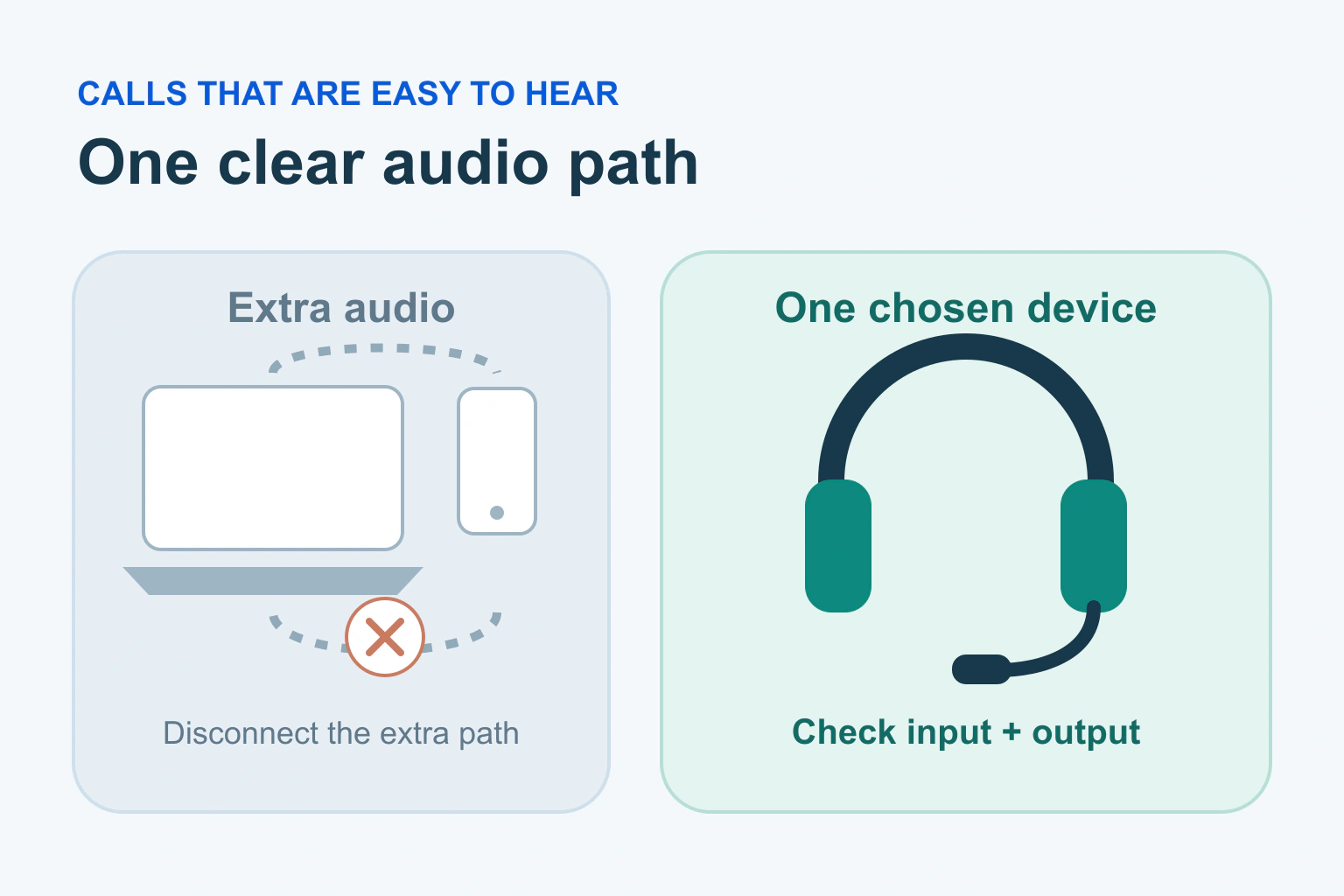
If a video call repeats your voice back to you, start by checking for a second audio connection. A phone and laptop in the same room, both connected to the meeting, can create a loop. Keep one intended microphone-and-speaker path active before changing lots of settings.
An echo is not always a fault on the device of the person hearing it. Your voice may be coming out of somebody else’s speaker and returning through their microphone. Work together on a short check rather than asking everyone to reinstall the app.
First identify what people are hearing
Ask whether people hear a repeated voice, a high squeal, general room reverberation or broken speech. Describe the sound in ordinary words. Those symptoms can have different causes, so “the audio is bad” is not enough information to guide a useful change.
Have one person speak while the others listen. Ask whose voice repeats and when it starts. If the problem began when someone joined with a second device, check that connection first. Do not record other participants merely to collect a sample without their knowledge and agreement.
For a microphone that produces no sound at all, use our camera and microphone access guide. That is a separate problem from sound returning to the call after it has already been captured.
Leave one meeting-audio connection in the room
Count laptops, phones, tablets and room systems connected to the same meeting. Include a telephone dial-in alongside the computer. You can need a second screen without needing its microphone and speakers to join the audio.
Zoom’s echo guidance identifies multiple nearby connections and simultaneous computer and telephone audio as common causes. It also explains why muting a microphone alone may be insufficient: that device’s speaker can still play sound for another microphone to capture.
- Choose the device that should handle the room’s meeting audio.
- Disconnect or leave meeting audio on the other devices, using the app’s supported control.
- Keep their visual meeting connection only if needed and supported.
- Ask someone remote to speak, then check a short reply from the room.
Disconnecting meeting audio is different from ending the entire call. Read the control before selecting it. If a room system is managed by your workplace, follow the room instructions instead of changing its permanent configuration.
Check the input and output actually selected
Plugging in a headset does not prove that the meeting is using it. Open the call’s audio settings and inspect the microphone and speaker separately. The chosen output might still be a monitor or laptop speaker, while the microphone remains on another device.
Microsoft Teams documents separate device selections and a test-call feature in its desktop settings. Availability differs between clients and accounts, so use the controls present in your version.
For an ordinary spoken meeting, try headphones at a comfortable volume. They can reduce sound escaping into a microphone. Check that a wireless headset is charged and connected to the intended computer. Do not keep changing the input while another person is trying to compare the result.
| What you notice | First useful check |
|---|---|
| Echo starts when a second device joins | Leave one meeting-audio connection active in that room |
| Other people hear their own words return | Check the room’s speakers, headset and selected microphone |
| Sound disappears after connecting headphones | Check the meeting’s selected speaker and headphone connection |
| Speech breaks up without a clear repeat | Use the app’s quality troubleshooting rather than assuming echo |
Change one thing and listen again
Google Meet’s quality guidance recommends headphones, lower speaker volume and muting when not speaking to help avoid echo. It also describes in-meeting troubleshooting suggestions. Those are useful options after checking the room’s connections.
Try one change at a time. First remove the duplicate audio path; then check device selection; then try headphones or a lower speaker level. Ask the same person to say a short sentence after each change. Otherwise, an apparent improvement cannot tell you which adjustment mattered.
Muting while somebody else speaks can help isolate a participant whose audio path is involved. Ask the host to coordinate that check rather than abruptly muting everybody without explanation. If one person must leave and rejoin, keep the joining details available elsewhere.
A fictional meeting with two useful screens
Imagine a fictional neighbourhood group meeting. Priya joins on a laptop to show a document and on her phone to read the chat. When both devices join audio, the group hears a repeat after someone speaks.
Priya keeps the laptop for the document and chooses the phone with headphones for sound. She disconnects meeting audio on the laptop rather than merely muting its microphone. The group checks a short exchange before carrying on. This illustrates an isolation process; it does not prove the cause of every real echo.
If the repeat remains with one audio connection and the correct devices, Priya notes the app, device, connection and symptoms for support. She does not disable all device protections or install an unknown “audio repair” download.
Make the next call easier
Before an important meeting, check the ordinary task you need to complete: hear, speak and share the intended material. Our small real-task trial explains why a finished short practice is more useful than browsing a feature list.
If you will share a screen, use the screen privacy checklist to prepare visible windows and notifications. Your next step is to identify the one intended audio device and run a brief two-way check before the meeting begins.
Sources and verification
Editorial review 2026-10-18. Source check dates are recorded separately. Notes describe what each source supports and its limits.
View sources
- Zoom: Managing audio echo in a meetingChecked Duplicate computer/telephone audio and nearby active devices can create echo; microphone mute alone can leave speaker playback active.
Limits: Zoom-specific controls; these common causes are not a diagnosis of every audio problem. - Google Meet: Troubleshoot video and audio qualityChecked Headphones, lower speaker volume, muting when not speaking and built-in troubleshooting can help with echo.
Limits: Client, device and account features differ; quality guidance does not establish the cause of a particular call. - Microsoft: Manage your device settings in TeamsChecked Desktop settings distinguish microphone and speaker selection and include a test call.
Limits: Do not assume every client or account provides the same controls.