
Match each permission to an understood feature, choose narrower supported access and test that feature after changing it.
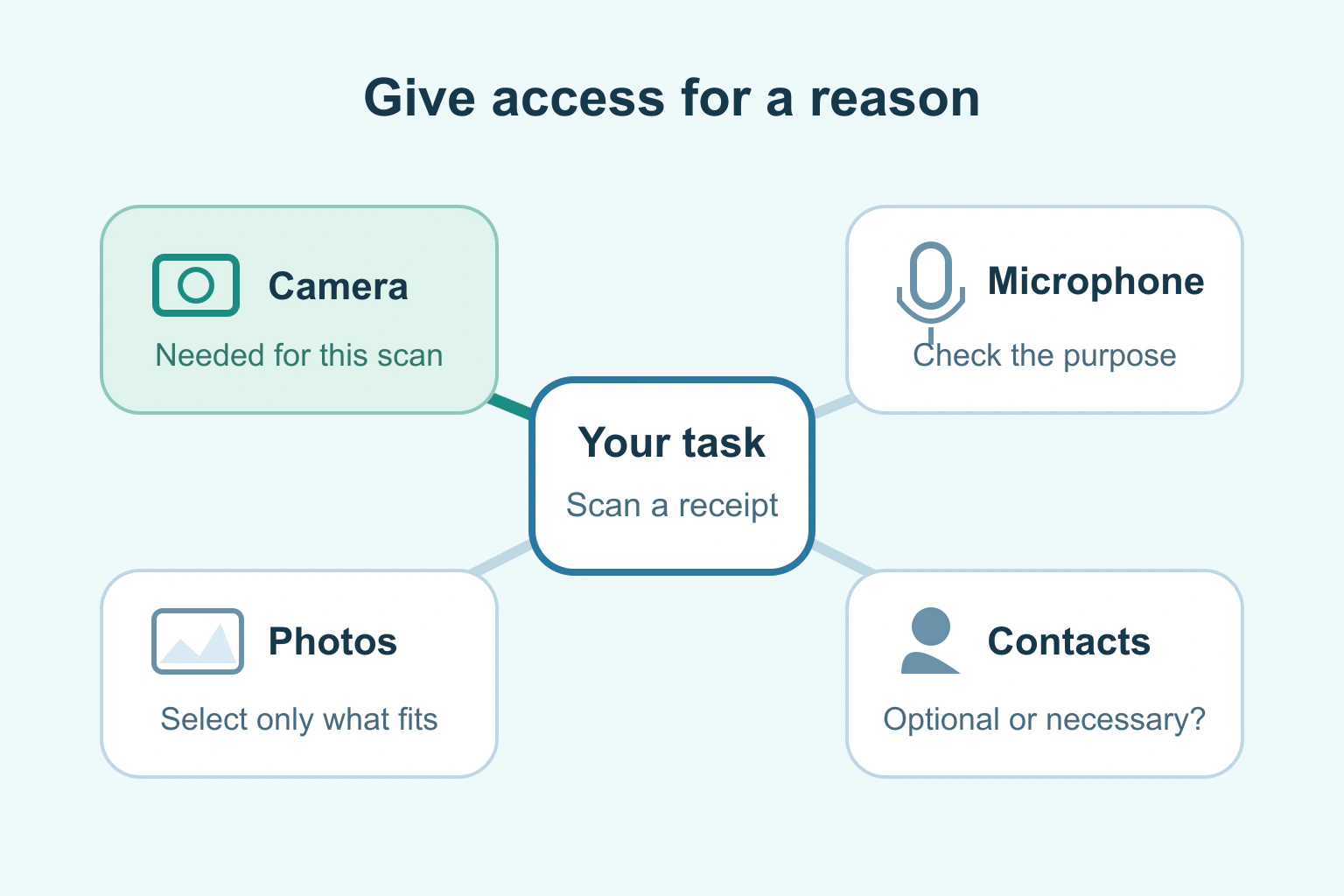
A phone app needs a permission when a feature genuinely uses the information or device capability behind it. A camera feature may need the camera. Reading a recipe does not explain every possible permission request. Review what you use, what the app asks for and the narrower choices your phone offers.
You can often change a decision later. Start with one app and one permission instead of turning everything off at once. That makes it easier to see whether an important feature stops working and to restore only the access it needs.
Connect the request to a real feature
Read the explanation when a prompt appears. Ask what action you just started. Selecting a voice-message button explains a microphone request better than merely opening a shopping list. If the timing or wording makes no sense, pause and check the app’s official help and privacy information.
A permission is a capability, not a trust certificate. An app can have a sensible reason to request access while still having privacy practices you need to consider. Conversely, a denied permission may leave the rest of an app working while the related feature is unavailable.
Android’s permission guide describes checking permissions by app or by type. Available choices can include access only while using the app, asking each time or refusing access. The choices depend on the permission and phone version.
Review one app, then look across a category
Open the phone’s supported app or privacy settings and select the app you intend to review. Check the exact name and developer if similar apps are installed. Read the current allowed and denied permissions rather than assuming a prompt you remember is still the active choice.
Then inspect one category, such as microphone or contacts, across apps. This can reveal an app you tried once and no longer use. Do not change a managed work app to bypass an employer’s policy; ask the responsible administrator if the purpose is unclear.
On iPhone, Apple’s information-access guide describes reviewing apps under privacy categories such as contacts, calendars and photos. Its App Privacy Report also provides information about permission use and network activity. Treat those records as context for a review, not proof of why every connection occurred.
Use the narrowest option that fits
| Feature you use | Permission to examine | Practical question |
|---|---|---|
| Record a voice message | Microphone | Is access needed only during this task? |
| Upload one picture | Photo access or a supported picker | Can I select only the intended picture? |
| Find something nearby | Location | Does a narrower available choice work? |
| Invite a friend | Contacts | Can I enter the address instead? |
| Receive reminders | Notifications | Which reminders do I actually want? |
These are questions to check, not promises that every app offers the alternative. If a photo picker or manual address entry exists, try it with harmless material. An option suitable for one app may not exist in another.
Do not grant background access just because the app presents it as convenient. Equally, recognise when a feature actually depends on it. Read the product’s explanation before deciding whether the benefit is worth that access.
Understand the camera and microphone indicators
Apple’s hardware-access documentation explains how to review camera and microphone permissions. It also documents the green and orange indicators used when those capabilities are active.
An indicator can help you notice use, but it does not tell you the full purpose, destination or retention of a recording. Check what you deliberately started and stop the task if the behaviour is unexpected. Do not share a screenshot containing private room details or messages while seeking help.
For an app that genuinely captures media, make a harmless test after changing access. Can you start and stop the intended recording? Does the app explain a denied permission clearly? Keep the feature off if you do not need it.
A fictional review of a scanning app
Imagine fictional reader Erin installed a document-scanning app. She wants to scan one receipt. A camera request fits that task. A request to read all contacts does not have an obvious connection, so she checks the official explanation before allowing it.
Erin keeps the camera access needed for scanning and declines an optional invitation feature she does not use. She makes a scan with an invented sample and checks the saved result. She also reads whether scanning stores the document locally or sends it to an online service.
The permission list alone does not answer the storage question. Our private PDF workflow explains why document handling and upload behaviour deserve a separate check.
Do not confuse phone access with account connections
Removing microphone access does not necessarily disconnect an app from your online calendar or cloud account. Those can be separate permissions granted inside the account service. Our connected-app access guide covers that different job.
Likewise, changing a phone permission does not retrieve information the app already copied. If you want stored data removed, inspect the service’s own data and account controls. Avoid deleting an account before preserving the work and access you need.
- Choose an app you recognise.
- Match each permission to a feature you actually use.
- Choose a narrower supported setting where it works.
- Test the affected feature with harmless information.
- Review online account connections separately.
Our app-or-browser guide can help if you are deciding whether the installed version is necessary at all. Your next step is a five-minute review of one app, with a clear reason for each permission you keep.
Sources and verification
Editorial review 2026-10-18. Source check dates are recorded separately. Notes describe what each source supports and its limits.
View sources
- Google: Change app permissions on your Android phoneChecked Permissions can be reviewed per app or category; available duration choices and unused-app controls vary.
Limits: Android and device-version differences apply; no universal menu layout or feature promise. - Apple: Control access to information in apps on iPhoneChecked Review information-access categories and App Privacy Report.
Limits: iPhone-specific; activity records do not establish every use purpose or data-retention practice. - Apple: Control access to hardware features on iPhoneChecked Camera and microphone permission review and the documented active-use indicators.
Limits: Indicators do not prove storage destination, retention or overall app safety.