
Try the same small task in the versions available to you. Choose based on the needed features, device, saving, sharing and genuine offline support.
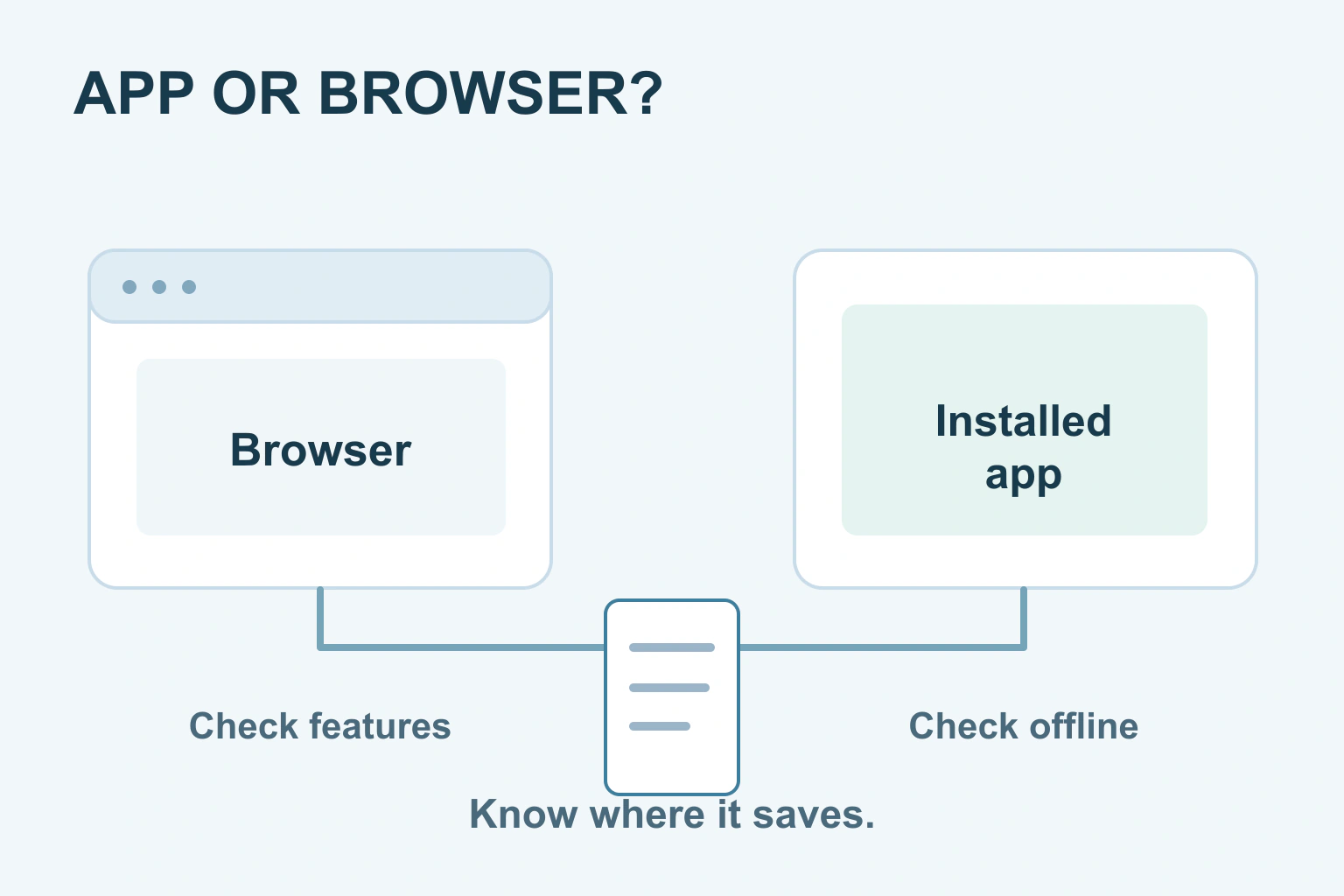
Use the version that completes your task comfortably and keeps the result where you expect it. A browser version can be convenient for opening a shared file without installing software. An installed app may offer features or device access you need. Neither is automatically the right choice for every job.
Try the same small task in the versions available to you. Check editing, saving, sharing and any offline work that matters. The app’s name can be the same while its phone, desktop and browser versions behave differently.
Start with the task and the device
A quick comment on a document is different from carefully laying out a long report. Reviewing a timetable on a phone is different from editing a detailed spreadsheet. Choose around what you need to do today, rather than assuming the most feature-rich version is always easiest.
Include the physical setup. A keyboard and larger display may matter more than whether the editor is installed. On a shared computer, access and sign-out deserve attention. On your own phone, a simple app may offer a more comfortable view than a crowded browser page.
Check the actual device support before paying or installing anything. A desktop feature shown in a demonstration may not exist in the mobile app. Likewise, a browser version may require a supported browser or a particular account.
Check that the necessary features exist
Open a copy of the sort of file you normally use. Make the important change, save it and inspect the result. If the job needs a particular export, printing layout or collaboration role, include it. Looking at the toolbar alone does not tell you whether the finished file is suitable.
Microsoft’s Word comparison explains that the same document can be opened in browser and desktop environments while some features work differently. Treat that as an example of the question to ask, rather than a claim that every app has the same differences.
| Your need | What to check in each version |
|---|---|
| A quick shared review | Open the link, find the comment and reply |
| A detailed edit | Make the actual formatting or data change |
| Work without a connection | Prepare the file and test the supported offline route |
| A finished download | Export and open the required format |
| A second device | Find the correct account, file and latest saved change |
A missing nonessential feature may not matter. A missing step central to the job does. Do not install a larger app merely to answer one comment if the browser works well, or struggle in a limited view when the task needs controls available elsewhere.
Do not guess whether it works offline
An installed app may still need a connection for login, licensing, cloud files or a particular feature. A browser-based editor may support some offline work after preparation. Check the documented route for your product and try it with a harmless sample before relying on it during travel.
Google’s browser offline guide requires setup while online and describes supported browsers, the offline extension and local storage. It also provides a way to check a document’s offline status. Simply leaving a tab open is not the same as preparing a reliable offline file.
Microsoft’s mobile offline guidance similarly tells people to prepare relevant files before losing the connection. Your useful check is simple: can you open the right sample, make the needed change and keep it through the supported offline workflow?
Find out where the work is saved
Look for the document’s account and location. It might be stored on the device, in cloud storage or in both places through synchronisation. The window you see does not by itself answer that question. A locally installed app can edit an online file; a browser can hold a temporary local copy.
After making a small change, wait for the app’s confirmed save status. Reopen the file normally and check that the change appears. If you expect to continue on another device, check the correct account and allow the supported synchronisation to finish before switching.
Our unsaved-work guide explains why a visible edit is not proof of a saved one. If a browser-only draft is important, the browser-storage guide provides further background. You do not need to change technical settings simply to recognise where your copy lives.
A fictional journey with a travel document
Imagine Robin prepares a trip checklist at home in a browser. Before travelling, he wants to read and update it somewhere with an unreliable connection. He checks the product’s offline instructions, makes the file available as documented and tries a sample change.
On his phone, he discovers he is signed into another account. He switches to the intended account and finds the correct file. He also saves a readable reference copy for the journey, understanding that it will not automatically collect later edits.
This fictional example shows three separate decisions: which interface is convenient, whether offline access is prepared and which copy is current. Choosing an app does not answer all three at once.
Keep sharing and privacy consistent
Check whether opening a link changes its destination or account. A browser may offer to open an app, and the app may already be signed into another identity. If files seem missing, confirm the account before creating a duplicate or asking someone to make the file public.
Our account-identity guide covers a related sign-in problem. For shared devices, follow the service’s sign-out process and avoid leaving private downloaded files behind. The fact that a version runs in a browser does not make its saved downloads disappear automatically.
Grant only permissions needed for the task and read the relevant privacy information. Neither an installed app nor a website deserves automatic trust. Sensitive work may also be subject to an employer’s or organisation’s approved-tool rules.
Choose a normal route and a backup
- Choose the device and version that make the ordinary task easiest.
- Check the essential editing and output steps with a sample.
- Confirm the file location and account.
- Prepare offline access if needed and check saving afterwards.
- Keep a suitable independent copy of important work.
You can use more than one version for different parts of a job, provided you know which file is current. Keep the choice practical: the best version is the one that lets you finish, find and share the correct result without unnecessary effort.
Sources and verification
Editorial review 2026-10-18. Source check dates are recorded separately. Notes describe what each source supports and its limits.
View sources
- Microsoft: Differences between using a document in the browser and in WordChecked Browser and desktop versions can use the same document but support different editing features and formats.
Limits: A Word example; exact capabilities should be checked in the current product and account. - Google Docs: Work on Google Docs, Sheets and Slides offlineChecked Browser-based offline access has documented setup, browser, extension, storage and file-availability requirements.
Limits: It does not mean every web app works offline or that every file is automatically available. - Microsoft: Can I work offline?Checked Offline mobile work requires the appropriate locally available files and preparation while online.
Limits: Microsoft mobile-app guidance; not a universal claim for all installed apps.