
Choose a workflow whose processing and storage you understand, work from copies and inspect the saved result before sharing.
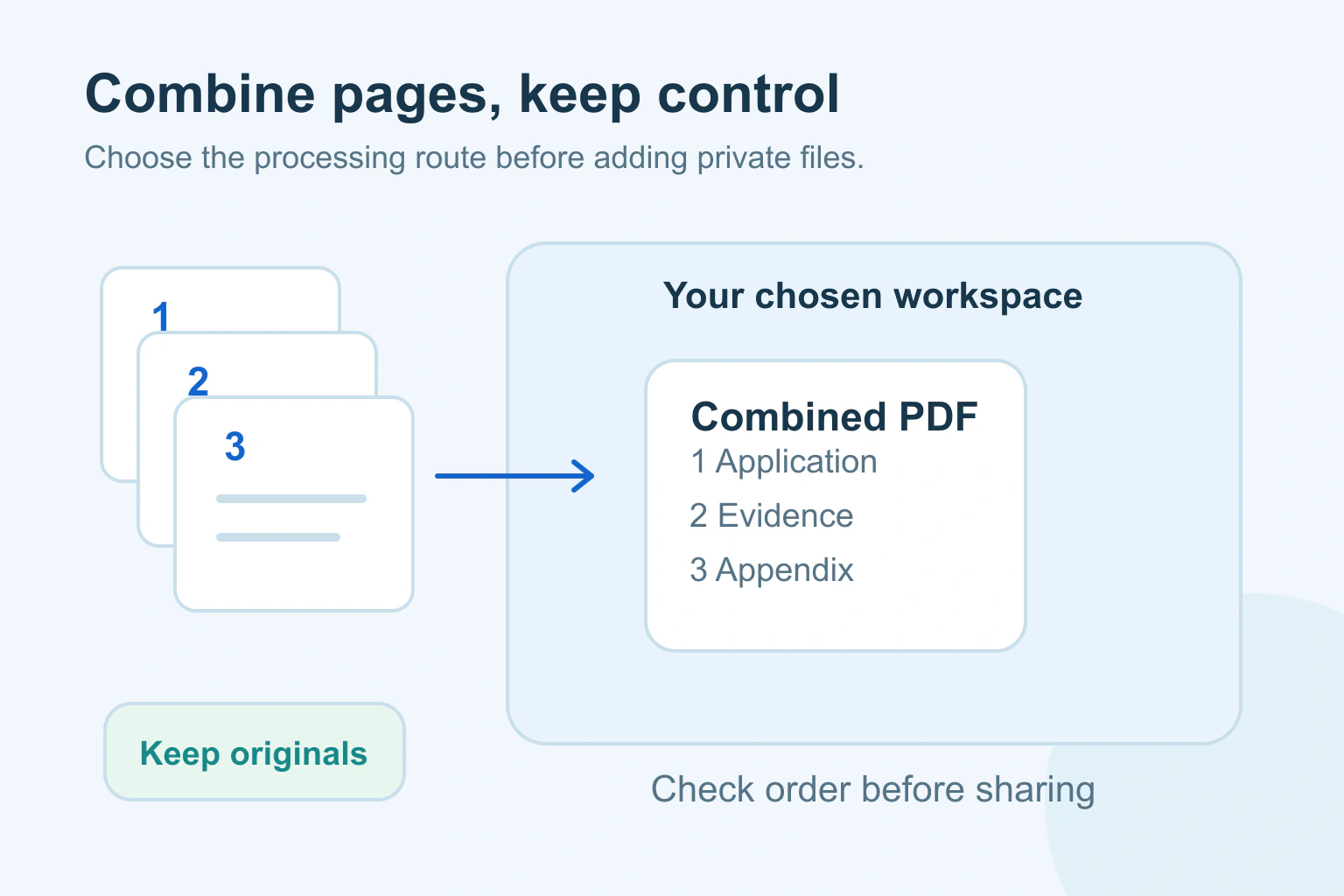
For private documents, first check where a PDF tool processes the files. A local desktop workflow can avoid uploading them to an unknown merge website, but a desktop or phone app can still use a cloud service. Read the feature’s instructions before adding the documents.
Keep the originals, combine working copies and reopen the finished file. Page order, missing pages and accidentally included material matter as much as whether the download button works.
Decide whether these files should be combined
Write down the recipient’s actual request. Do they want one PDF, several named attachments or a particular upload form? Combining everything is not automatically helpful. A signed document, a password-protected file or a form with special requirements may need to remain separate.
Include only the pages required for that purpose. An application asking for proof of address does not necessarily need a complete account history. If you need to remove sensitive content, use a proper redaction process; a black rectangle placed over text is not reliable removal.
Our private-information removal guide explains the difference between removing content and hiding it visually. The sharing destination may be different here, but the file check is still useful.
Check the actual feature, not only the app’s name
Look for clear information about processing, uploads, retention and account storage. Local files in a cloud-synchronised folder can also be uploaded by the folder’s sync service even when the merge itself runs on the computer.
For example, Adobe’s Android combining instructions state that its feature sends files to the Combine service and uploads them to Document Cloud. That is a specific documented workflow, not proof that every PDF feature in every Adobe app behaves the same way.
If you cannot establish what a feature does with confidential documents, choose an approved alternative or ask the person responsible for those documents. A browser page saying secure, private or free is not enough information to answer the processing question.
| Route | Check before use | Do not infer |
|---|---|---|
| Built-in desktop editor | Where the source and result are stored | A synced folder stays only on this computer |
| Installed desktop PDF app | Whether this merge feature invokes a cloud service | Installed means every operation is offline |
| Phone PDF app | Upload and storage behaviour in its instructions | Phone files remain local after selection |
| Online merger | Permission, processing and retention terms | A privacy slogan is a complete explanation |
Use working copies and a clear order
Create a temporary working folder in an appropriate location. Copy the required files into it, leaving the originals intact. Give copies simple order names such as 01-cover, 02-application and 03-evidence. Avoid putting sensitive identifiers in filenames unnecessarily.
Open each copy before merging. Check that it is the correct version and that the pages are legible. A blank-looking scan may need attention before it becomes one page in a larger package.
Check the destination’s file-size and page limits. Do not merge dozens of unrelated pages simply because the tool allows it. A smaller, purposeful package is easier for both you and the recipient to review.
Follow the method for your actual computer
On a Mac, Apple’s Preview instructions describe combining PDFs using the thumbnail sidebar. Apple specifically recommends duplicating originals first if you want to preserve them. Use the current instructions matching your system and keep the working-copy habit.
For a supported Acrobat desktop workflow, Adobe documents adding files, arranging pages and selecting Combine. Product access and interfaces can vary. Do not assume a free viewer includes every editing feature or that another platform has the same menus.
If your device has no suitable local option, you do not need to install the first merger advertised in a search result. Ask whether the recipient accepts separate files, or use a tool already approved for the documents involved.
Work through a fictional application pack
Imagine a fictional reader must submit one PDF containing a completed application and two pages of supporting evidence. They have a six-page statement, but only one specified page is needed. The recipient confirms the acceptable document and required information.
The reader prepares working copies, selects the permitted evidence and checks the order in the editor. They save the combined copy with a neutral name. The original application and statement remain unchanged in their usual restricted storage.
On reopening the result, they notice a blank separator and a repeated page. They correct those before uploading. A successful save alone would not have found either problem. No actual application or personal document was used to create this example.
Review the saved file as the recipient will see it
Close the editor and open the exact result from its saved location. Count pages, inspect the first and last page and check every transition between source files. Confirm orientation, readable small text and any required forms or signatures with the recipient’s requirements.
Check the file size and name. If text needs to be searchable or read with assistive technology, our PDF accessibility guide explains why visible pages alone are not enough. Merging does not automatically repair document structure.
Share through the intended restricted route. Our large-file sharing guide helps when a private link is more suitable than an attachment. Your next step is to choose the processing route before selecting the private files, then keep only the reviewed result in the outgoing package.
Sources and verification
Editorial review 2026-10-18. Source check dates are recorded separately. Notes describe what each source supports and its limits.
View sources
- Apple: Combine PDFs in Preview on MacChecked Preview provides a thumbnail-based combine route; duplicate originals to retain them.
Limits: Mac and Preview-specific instructions; does not establish the privacy of unrelated sync folders. - Adobe: Combine files into one PDFChecked Desktop Acrobat supports adding, previewing and ordering files and pages before combining.
Limits: Product availability and version differ; no universal offline-processing claim. - Adobe: Combining and compressing files on AndroidChecked The documented Android combine workflow uses Adobe Combine service and Document Cloud.
Limits: Specific mobile workflow, not an assertion about every desktop operation.