 Pagember

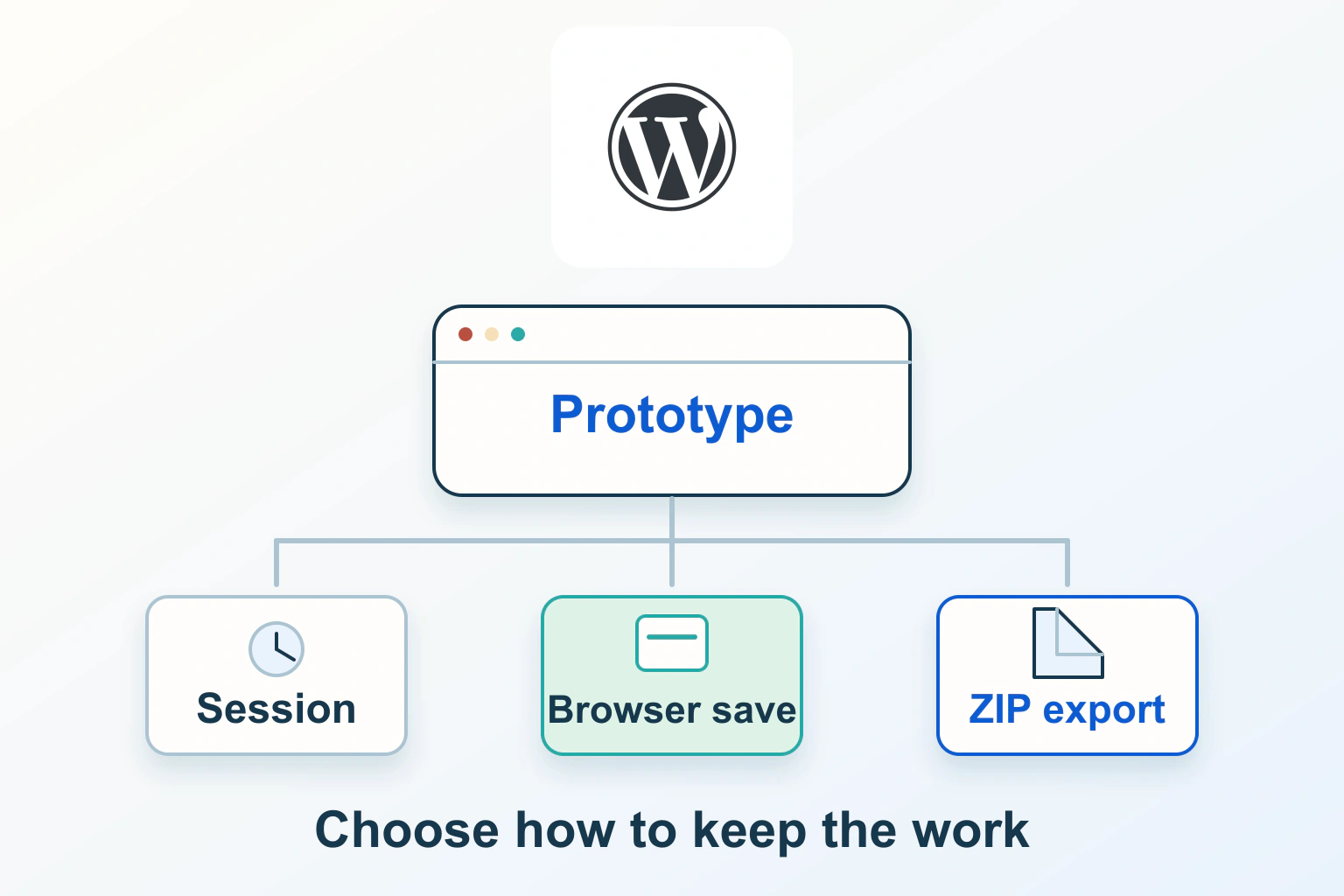
Save a WordPress Playground deliberately, then export and rehearse a separate restore if the work matters. Recent autosaves are recovery points with a limited lifecycle. Browser storage is convenient, but a downloaded ZIP gives you a portable copy independent of that browser profile.
Playground is useful for trying an editorial layout or learning a WordPress feature without changing a live site. This guide follows the current documented Dock workflow, checked on October 14, 2026. Run the practice checks below in your own browser to confirm the result for your setup.
Choose an experiment worth preserving
Start with one small task: arrange a page with headings, a list and a local image, then keep the finished state for another day. Give the experiment a meaningful name. A dozen unnamed browser experiments are difficult to distinguish when one has the layout you need.
The official Learn WordPress activity uses Playground for browser-based learning, version exploration and sharing an exported environment. Treat that as an opportunity to practice, not a promise that every production dependency behaves identically in the browser.
Use invented text and an image you may reuse. Do not import customer records, production configuration, live access tokens or an unknown ZIP just to make the exercise realistic. Plugins and themes are executable components; choose trusted material needed for the task.
Read the current storage state before refreshing
The current Playground quick-start guide describes Dock states such as Autosaved and Unsaved. Use the current written workflow rather than assuming an older video describes your storage state.
The limitations handbook distinguishes temporary, autosaved and explicitly saved sites. Temporary storage, including storage=temp, is discarded when the whole app refreshes or its tab closes. The Dock's Refresh page control reloads the WordPress page inside the current environment; a browser refresh reloads the Playground app.
Before testing reload, record the visible storage state and confirm which experiment is active. Save important changes through the WordPress editor first. A Playground storage choice cannot preserve text that never reached the experiment's database.
Keep an experiment beyond the recent-autosave list
For the documented UI, open the Autosaved or Unsaved status in the Dock, select Store permanently and choose Save in browser storage. Give the saved item a useful name and identify it in Your Playgrounds. These are interface labels, not an absolute durability guarantee.
The Sites API documentation distinguishes autosave persistence from explicit saves. Up to five recent autosaves are kept; another autosave can prune the oldest. An explicitly kept site is outside that recent-autosave lifecycle. Do not depend on being able to recover an old experiment after creating many others.
Browser storage still belongs to its browser profile. Clearing site data, profile changes, private browsing or storage pressure can remove it. For a piece of work you cannot easily recreate, make a portable copy rather than relying on the word permanently in the menu.
Build a small recovery checklist before export
Create a public post in your practice site called Recovery practice, with an image named practice-image.png that you have permission to use. Save an unpublished draft called Recovery draft with the text Draft marker 2. Immediately before exporting the ZIP, add ZIP checkpoint 2 to the public post and click Update. Those two markers will tell you which copy you reopened.
Record what should return: post content, draft status, image appearance, active theme and the setting you intentionally changed. Note the WordPress and PHP choices from Site Settings without adding unrelated configuration. This is a canary for recognizing the right state, not a substitute for reviewing every important feature in a larger experiment.
- Distinctive saved sentence
- Did the latest saved edit return?
- Uploaded image
- Does the restored environment contain and display it?
- Unpublished draft
- Did its content and draft status survive?
- Chosen theme or setting
- Does the copy retain the intended configuration?
Keep the checklist outside the experiment, with the exported filename. If the only recovery notes are inside the environment you lose, they cannot help identify the missing state.
Export the current environment as a whole ZIP
Open Export in the Dock and choose Download as .zip. The official learning activity describes the package as including the database, uploads, active plugins and themes, preserving the current environment. Save the downloaded file with the experiment name and an unambiguous date, then confirm it actually exists in your intended folder.
Keep the complete ZIP. Its SQLite database is part of the environment, and layouts have changed between older and newer Playground exports. Do not remove hidden files or keep only uploads because they look like the valuable part. A folder that resembles WordPress is not necessarily a complete saved state.
For important work, keep another appropriately protected copy outside the browser's own storage boundary. If the archive contains private material, choose storage and sharing controls accordingly. A download link and a reusable setup link are different objects.
Restore into a new Playground, not over the only copy
Use New Playground in the Dock, choose Import zip and select the exported file. The documented flow restores the package into a new environment. Retain the original saved experiment and ZIP while you compare; they provide a recovery route if the import does not produce the expected result.
Open the sample post in the imported Playground and verify that ZIP checkpoint 2 appears on the rendered page and that the image loads. Then open Posts in the imported dashboard and confirm that Recovery draft still has Draft status and contains Draft marker 2. Check the active theme and your chosen setting. If the post opens but the last checkpoint is missing, compare the selected ZIP with the export you made after saving that edit.
Record any discrepancy before changing the restored copy. If the image is absent, confirm you selected the matching ZIP and retained its full contents. If the latest sentence is missing, consider whether the editor saved it before export. Repeatedly exporting a different active experiment will not repair a mistaken source selection.
Distinguish a setup recipe from edited state
A reusable setup link or Blueprint can describe how to create an initial environment. It does not automatically contain every later edit made inside your current site. Share the setup recipe when someone needs the same starting conditions; share an appropriate state export when they need the finished exercise.
A WordPress WXR content export also has a narrower purpose than a complete Playground ZIP. It transfers supported content into an existing WordPress installation. It is not the same object as an environment's files and database together. Decide what the recipient needs before choosing the export.
For the practice layout, the recipe might install a chosen theme, while the state contains the edited page and uploaded canary image. Explain that difference in the handover notes so a recipient does not open the recipe and conclude your work disappeared.
Know what this recovery rehearsal cannot prove
A restored Playground demonstrates something about that browser environment and package. It does not establish that the same SQLite database can be dropped into a conventional MySQL hosting account, or that live email, payments, scheduled jobs and external services have been recovered.
If you later want a hosted site, use the migration checklists to identify the actual destination requirements. A learning ZIP is not a production deployment instruction. Our WordPress backup and restore guide covers the separate matching-files-and-database recovery question.
Keep testing isolated from live actions. The private staging guide explains why an environment label alone does not disable external integrations. Browser-based work should begin with synthetic data rather than needing a cleanup after a real message or charge. When you need to try a change against a copy of your real site, with its content and plugins, a staging copy such as BlogVault staging is the closer match than a blank Playground.
Leave a portable handover, not only an open tab
Keep the ZIP, checklist and brief notes together: experiment name, export date, intended task, relevant versions and what the restore comparison showed. State what you did not check. Avoid claiming a plugin is production-ready because its settings page opened once.
Repeat the export after changes you intend to keep; a previous download does not update itself. Accept the workflow when you can identify the saved experiment, recover the matching exported state in a new instance and explain its limits without relying on the original tab still being open.