 Pagember

If a WordPress post shows Missed schedule, first check whether it is still scheduled, which timezone its date uses and whether the same article is already public. Recover the existing post if it needs publishing now, then investigate the scheduling path. Creating another copy or changing server cron settings immediately can add a second problem.
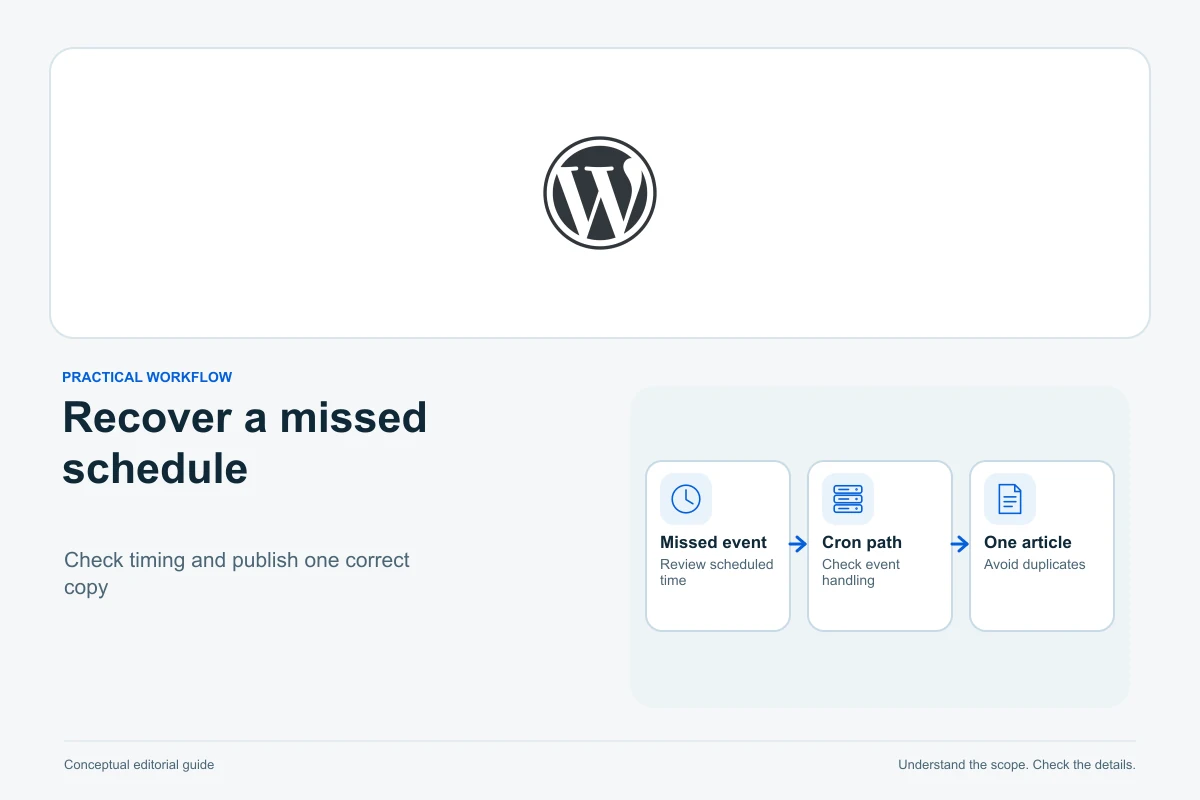
This guide covers self-hosted WordPress with the native editor, using official documentation and reference code checked on October 13, 2026. It separates a publication-setting mistake from delayed scheduled tasks and a stale public view.
Short answer: the most common cause is WP-Cron, which only runs when someone visits the site, so a quiet site can miss the publishing moment. To publish the post now, open it and click Publish. To stop it happening again, have WordPress run on a real server schedule: add define( 'DISABLE_WP_CRON', true ); to wp-config.php only after the host has set up a system cron job that calls wp-cron.php every few minutes.
Record the article and its actual status
Open Posts → All Posts and locate the affected item. Record its title, post ID or edit address, displayed status, scheduled date and time. Keep a copy of any unsaved text before navigating away. If content has also been overwritten, use our revision and autosave recovery guide as a separate step.
- Draft or Pending
- A future date alone does not establish that the post was scheduled for publication
- Scheduled, with its intended time still ahead
- Verify timezone and expectations before treating it as a failure
- Scheduled or Missed schedule, with the time past
- Investigate a due publication that has not completed
- Published, but missing from a list
- Check the public URL, visibility, list filters and caching before rescheduling
The date shown below a title is not a substitute for its status. An article can have an old date without being public. Conversely, a published article with a backdated date may appear farther down a chronological list rather than at the top.
Open the intended public address logged out, not an editor preview. If it is public, avoid publishing another post to make it appear in the homepage list. Investigate that list's query, category selection and cached output instead.
Check the site timezone, not only your computer clock
WordPress's scheduling lesson explains that publication dates use the site's date and time configuration. Open Settings → General and inspect Timezone. Prefer the appropriate named city when the site's publishing schedule follows that region's daylight-saving changes, rather than assuming a fixed UTC offset always represents local time. See the General settings guide.
Suppose a local newsletter is meant to appear at 08:00 Lisbon time. An editor traveling abroad should still interpret its schedule in the site's chosen publishing timezone. Changing the laptop's clock does not change that site setting.
Compare the intended timezone, the current time WordPress displays and the post's saved date. Check the day, month, year and any 12-hour AM/PM control. A timezone error and an accidental date selection need different corrections.
If the site's timezone really is wrong, record it before correction and review the remaining scheduled articles afterwards. Do not assume one global setting change has rewritten every existing schedule exactly as the editorial calendar intended.
Confirm that the schedule was actually saved
In the post editor, inspect its publication date and status controls. For a future publication, select the intended date and complete the Schedule action and any confirmation offered by your version. Reopen the item from All Posts to confirm its saved state. WordPress's scheduling tutorial covers scheduling, rescheduling, returning to draft and backdating.
Saving text as a draft and scheduling the article are different operations. If the editor reports a failed save, an expired session or a connection problem, resolve that error and verify the stored state. A calendar selection left on screen is not evidence that the server accepted it.
For a collaborative site, confirm whether another editor intentionally returned the item to draft. An editorial hold should not be overridden as though it were a cron fault. Keep the same post as the source of truth while deciding what should happen next.
Understand why WP-Cron can run late
WP-Cron is WordPress's system for time-based work, including scheduled publication. In its ordinary traffic-triggered configuration, WordPress checks for due tasks on page loads; it is not a continuously running clock. If no suitable request reaches WordPress near the chosen time, execution can happen later. See the official WP-Cron introduction.
The scheduled date describes when the task becomes due, not proof that a worker ran at that instant. That matters on a small site overnight, but low traffic is only one possible explanation. A blocked request, an error in a task or an intentionally disabled traffic trigger also needs investigation.
A host can configure a system scheduler to trigger WordPress independently of visitor traffic. Some managed hosts already do: Kinsta runs a server cron on every site every 15 minutes, so its customers can disable the visitor trigger without adding their own job. Before adding anything, establish whether that already exists. Two overlapping configurations are harder to understand than one documented arrangement.
Core's future-post publication routine checks the existing post's status and due time before publishing it. A task present in a queue is therefore not a reason to expect a draft, deleted item or later rescheduled post to publish indiscriminately.
Read Site Health as a diagnostic clue
Open Tools → Site Health and inspect Status for relevant scheduled-event or loopback notices; the Site Health triage guide explains how to rank them. Record the exact message, event identifier if provided and check time. The Info tab can help identify the active configuration, but review exported information before sharing it. See the Site Health documentation.
A loopback request is a request WordPress makes back to its own site. The official loopback-test reference explains its relationship to scheduled tasks. Its test checks that communication route; success does not prove the specific article's event completed, and a warning needs interpretation rather than an automatic security change.
Ask the administrator or host to correlate a failure with the affected domain and time: can the server resolve and reach its own WordPress URL, and what response or error does it receive? Authentication, request filtering and hosting configuration are possible areas to inspect, not diagnoses established merely by the warning.
Keep staging and production distinct. A protected test site can have access rules that differ from the live site. Do not remove a production firewall or private-site protection just to make a diagnostic badge turn green.
Check an existing host scheduler before replacing it
If visitor-triggered WP-Cron has been disabled, confirm the intended replacement exists, targets this installation and has actually run. Ask for the configured cadence, most recent execution and any failure output, with credentials and private server paths omitted from public support posts.
WordPress documents connecting its task runner to a system task scheduler. Its examples explain the mechanism; they are not a universal command or interval for every host.
Choose a cadence with the host according to the tasks' timing needs, resource limits and expected duration. A five-minute trigger cannot promise execution exactly at every scheduled minute. A one-minute trigger does not fix a failing task or guarantee completion within one minute. Document the acceptable delay rather than treating either number as mandatory.
Do not disable the existing trigger until the replacement is configured and verified. On shared hosting, identify the specific site before editing a scheduled command; another site's working tasks are outside this repair.
Calling wp-cron.php directly is not a harmless read-only check: it can execute due work beyond this one article. If many events are overdue, not only this post, the guide to a WordPress cron queue backlog covers inspecting the queue. Use the host's supported diagnosis and understand the queue before manually triggering it.
Publish the missed article deliberately if it is needed now
Separate the immediate editorial decision from the infrastructure repair. If the article is approved and should be public now, open the existing item and use the editor's controls to publish it at the intended time. If the interface requires unscheduling first, return that same item to draft, review its date and publish it deliberately.
Before confirming, review the title, body, links, visibility and any embargo or required approval. Note whether you intend to preserve an earlier displayed date or use the actual release date. Backdating the display does not prove the article was available then.
Reload the editor and confirm Published, then open the public URL logged out. Inspect its article-list placement separately. Keep the original post ID and canonical address where appropriate; copying the article into a new post can create duplicate URLs, split discussion and confuse later scheduled work.
If the existing article was already public, do not cycle its status merely to test the scheduler. That can affect readers, feeds or integrations connected to publication.
Verify the cause was fixed before trusting the next release
After a focused correction, choose a suitable, approved test item or a test environment with equivalent scheduling. Record the intended publication time and actual observed state. Check without manually forcing the queue at the decisive moment, since that would hide whether the configured trigger works.
- Confirm the item remains scheduled before its due time.
- After the expected trigger window, reload All Posts and inspect the saved status.
- Open the actual public URL and verify the intended content and visibility.
- Check the relevant event or host-run evidence and any new error.
- Review another ordinary scheduled task if the repair changed the shared runner.
A single successful manual publication proves the content can publish; it does not validate the automated path. A successful test of that path is stronger evidence, though continuing monitoring is sensible for time-sensitive releases.
If the problem followed a plugin or optimization change, use our controlled conflict workflow. Our WordPress update-testing guide explains how to preserve a recovery route before further changes.
Keep the final note small and specific: the affected post, expected time, observed status, identified cause, correction and successful follow-up check. That makes the next missed schedule diagnosable without rebuilding the article or guessing at cron intervals again.