 Pagember

NordVPN split tunneling can make a mixed website-work session more practical: keep the applications you want on the VPN route while a specific, deliberately excluded application uses the ordinary connection. The benefit is control over routing without repeatedly disconnecting the whole VPN for one task.
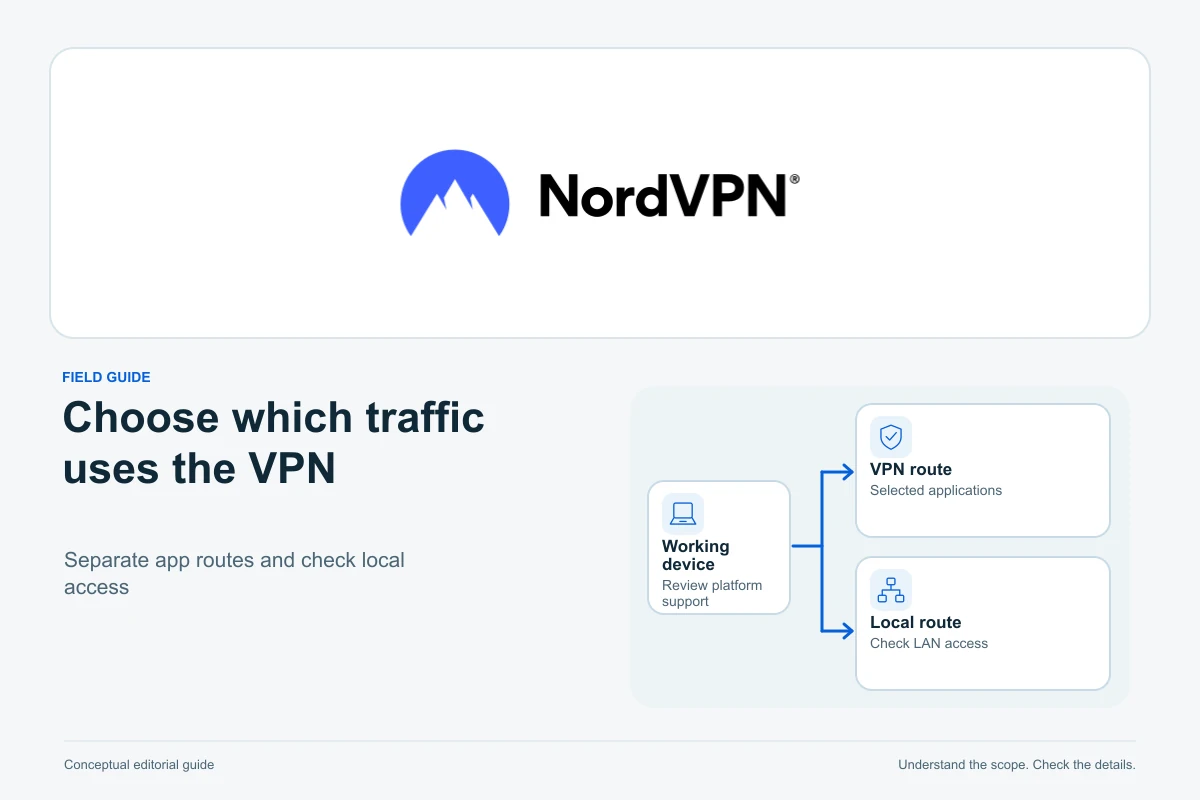
The useful configuration depends on your platform and the reason for the exception. An application exclusion, a browser website exclusion and a Linux subnet rule have different boundaries. This guide explains those boundaries and a verification workflow you can run on your own devices.
Explore NordVPN
Explore NordVPN for supported selective-routing workflows. Check your platform’s split-tunneling options before choosing a subscription.
Start with a named task and the smallest exception
Suppose you maintain a website in one browser and also use a separate, trusted application that needs your ordinary connection. Write down which task should use the VPN, which should bypass it and why. If there is no clear need for a direct route, keeping the simpler full VPN route avoids an exception you must maintain.
NordVPN's split-tunneling explanation distinguishes traffic sent through the tunnel from traffic using the regular connection and IP address. Bypassing the VPN changes that network layer; it is not additional protection for the excluded application. Avoid interpreting “trusted app” as a certification that its data or destinations are safe.
For website work, retain account security and HTTPS regardless of the route. A VPN does not replace MFA, permission controls or a secure hosting account. The VPN guide for website owners explains that wider decision.
 Play video: How Split Tunneling Works | NordVPN
Match the exception to the platform
| Installation | Relevant selection boundary | Important consequence |
|---|---|---|
| Windows app | Selected applications | Excluding a browser affects its traffic, not just one tab |
| Android or Android TV app | Selected applications excluded from the VPN | Check the actual app list and supported device interface |
| Browser proxy extension | Selected websites inside that browser | Other desktop applications are outside the extension's coverage |
| Linux app | Allowlist entries for ports or subnets | Matching traffic from more than one application can bypass the VPN |
| iOS or macOS app | No equivalent app split-tunneling feature in the reviewed guidance | Do not follow Windows or Android exception instructions |
NordVPN's current platform and local-connectivity guidance identifies Windows, Android, Android TV and browser extensions as supported split-tunneling routes and excludes iOS/macOS from that feature. Record your OS, app version and installation source before relying on a tutorial screenshot.
A familiar label is not enough: selecting a domain in an extension and selecting the whole browser executable in a desktop app are different policies. Choose the one that actually matches your requirement.
Configure an application exception deliberately
On a supported Windows installation, open the app's split-tunneling settings and read the selected mode before adding anything. Confirm whether the list describes traffic to exclude or traffic to include. Name the exact installed application, including a replacement executable after an update, rather than assuming a shortcut identifies every related process.
NordVPN's Android setup documentation places split tunneling among the connection settings. Use the actual device interface to select the intended exclusion. Android TV has its own selection screen, so a phone's click path is not a universal television procedure.
For a hypothetical workflow, keep your administration browser on the VPN and exclude a separate application only after confirming its need. If you instead exclude that administration browser, do not expect only its banking tab to bypass the tunnel while the WordPress tab stays inside. The selection is at the application's boundary.
Use browser website exclusions for browser-only needs
The app-versus-extension guide describes the extension as a browser proxy with website exclusions. It does not cover your separate mail client, file-transfer utility or background backup application. NordVPN also advises against running its app and extension simultaneously because they can interfere.
A website workflow may use several hosts: the public site, its sign-in service, an image domain and a separate payment page. An exception for one address is not proof that every step uses the same route. Check the complete harmless journey and consult current support guidance if a dependent host behaves differently.
Do not create a broad list of unrelated exceptions just to make a single page load. First confirm whether you need a browser-only proxy or the app's wider routing scope. One clear configuration is easier to verify than several overlapping layers.
Treat Linux allowlists and local access as separate decisions
The support article distinguishes Linux allowlisting from app-based split tunneling. Matching ports or subnets bypass the VPN and Kill Switch, applying to incoming and outgoing traffic. A broad subnet or port range is therefore not equivalent to excluding one trusted application.
That article also acknowledges cases where an excluded application's ordinary IP and the computer's NordVPN DNS route produce compatibility problems. A changed browser IP alone does not prove that every relevant routing or DNS behavior matches your intention.
For a local printer or test server, first distinguish local discovery from internet access. Review the app's local-network visibility setting on a network you trust. Do not switch off a firewall, expose a router's administration interface or apply a broad Linux allowlist merely because a printer disappeared.
If you administer a Linux machine remotely, arrange an authorized recovery route before changing networking. A remote session is a poor place to discover that a rule blocks the same connection needed to undo it.
Check interaction with connection-blocking settings
Split tunneling does not promise that excluded applications stay online under every blocking policy. NordVPN's interaction guidance describes excluded applications losing access when Internet Kill Switch takes precedence. Linux allowlist behavior has its own documented exception, so do not generalize one platform's result.
Decide which requirement matters: ordinary access for an excluded application, or a stricter connectivity block. Do not silently weaken a deliberate blocking requirement to remove an error. The separate Kill Switch guide covers platform-specific interruption handling.
A VPN-bypassed connection is not automatically plaintext application content. TLS, including HTTPS, protects its own connection layer. Equally, HTTPS does not turn a direct route into a VPN route. Keep those observations separate.
Verify the actual workflow with harmless traffic
- Record the platform, app version, selected mode and existing exceptions. Save open work before changing networking.
- Establish a baseline with ordinary non-sensitive traffic and identify which application's request you are observing.
- Add only the intended exception and reconnect if the current instructions require it.
- Check a request from the excluded application and a separate request expected to remain on the VPN.
- Exercise the necessary sign-in or local-device journey using a harmless test account or sample task.
- Observe normal reconnect and sleep/wake behavior separately, including the chosen blocking settings.
- Remove the temporary exception and confirm that the original route returns.
These checks provide evidence for the requests and transitions observed. They do not establish the absence of every leak or the behavior of every background process. Keep credentials, private URLs and customer information out of diagnostic screenshots.
Keep a small exception list you can explain
If the configuration fails, use NordVPN's split-tunneling troubleshooting guidance for the current app. Note the version, application, time and exact symptom before resetting settings. Remove an obsolete exception when its original need ends, and recheck after replacing an application or making a major OS update. To compare NordVPN’s apps and plans for the devices you use, see our NordVPN guide; for travel work, the public Wi-Fi checklist shows where split tunneling fits.
NordVPN's practical strength here is selective routing in supported environments: it can reduce the need to disconnect a whole working session for one exception. Choose it for a documented configuration that fits your devices, and review the current supported features before subscribing. A small, verified exception list is more useful than a promise of universal compatibility.