 Pagember

A landing page has a focused job: help the right visitor understand an offer and take a clear next step. CodeDesign describes a workflow from a prompt to a responsive website draft, followed by visual editing and a choice of publishing routes. That can be useful for a small business that needs a starting composition rather than another blank editor.

The draft still needs the business's offer, proof and operating details. This guide follows a hypothetical bookkeeping service creating a consultation page.
Write the offer before the design prompt
Describe the audience, the problem, the service and the desired next step in plain language. For the hypothetical bookkeeping service, the audience is a small company that needs a clearer monthly reporting process. The page asks the visitor to request a discovery call, not to buy an undefined package immediately.
Supply approved service details, geographic availability, contact information and evidence the business may publish. If the company has permission to use a testimonial, keep its wording accurate. If it has no testimonial, use a concrete explanation of the process rather than generating a sample customer quote.
Prepare a short content outline: headline, service explanation, who the service fits, process, relevant proof, frequently asked questions and contact action. A clear outline makes the first design request more useful and gives the reviewer a way to notice missing content.
Prompt for a page structure you can inspect
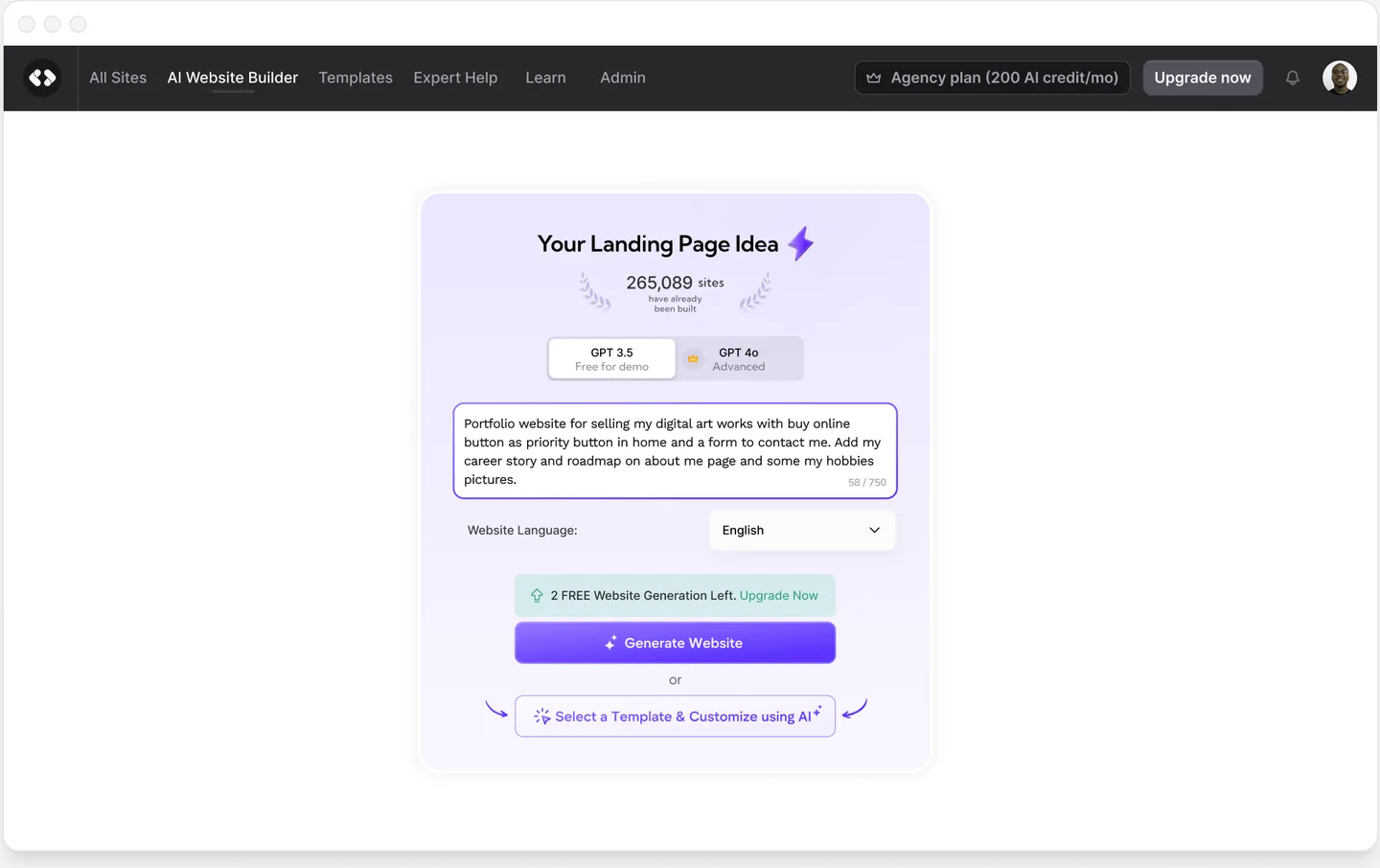
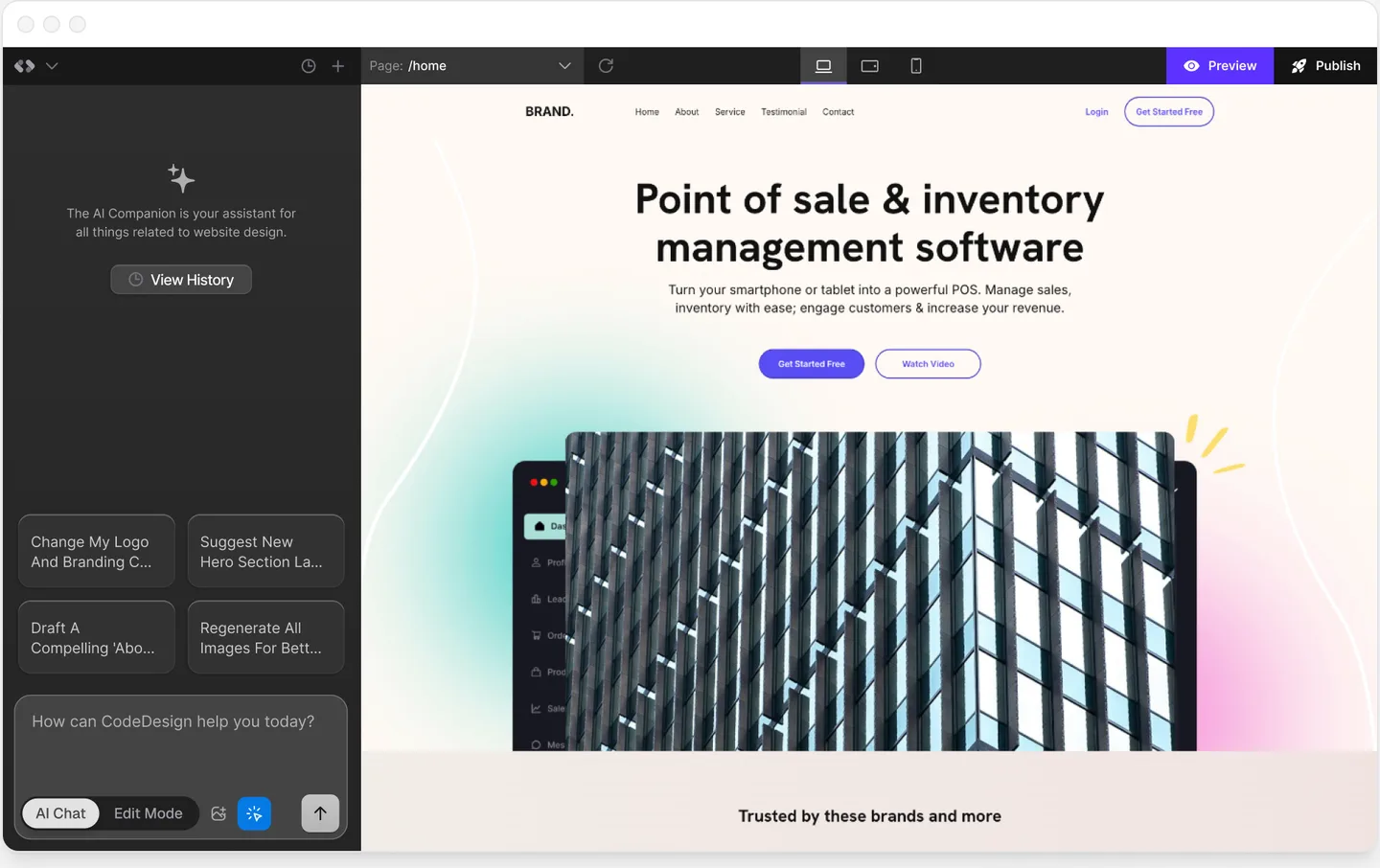
CodeDesign's official AI Companion walkthrough starts with a brief and language, then a site name and location. Choose Generate to review the draft and Edit Website to refine it. Where AI Companion is included in the selected plan, select an element and describe the change; check its available credits first.
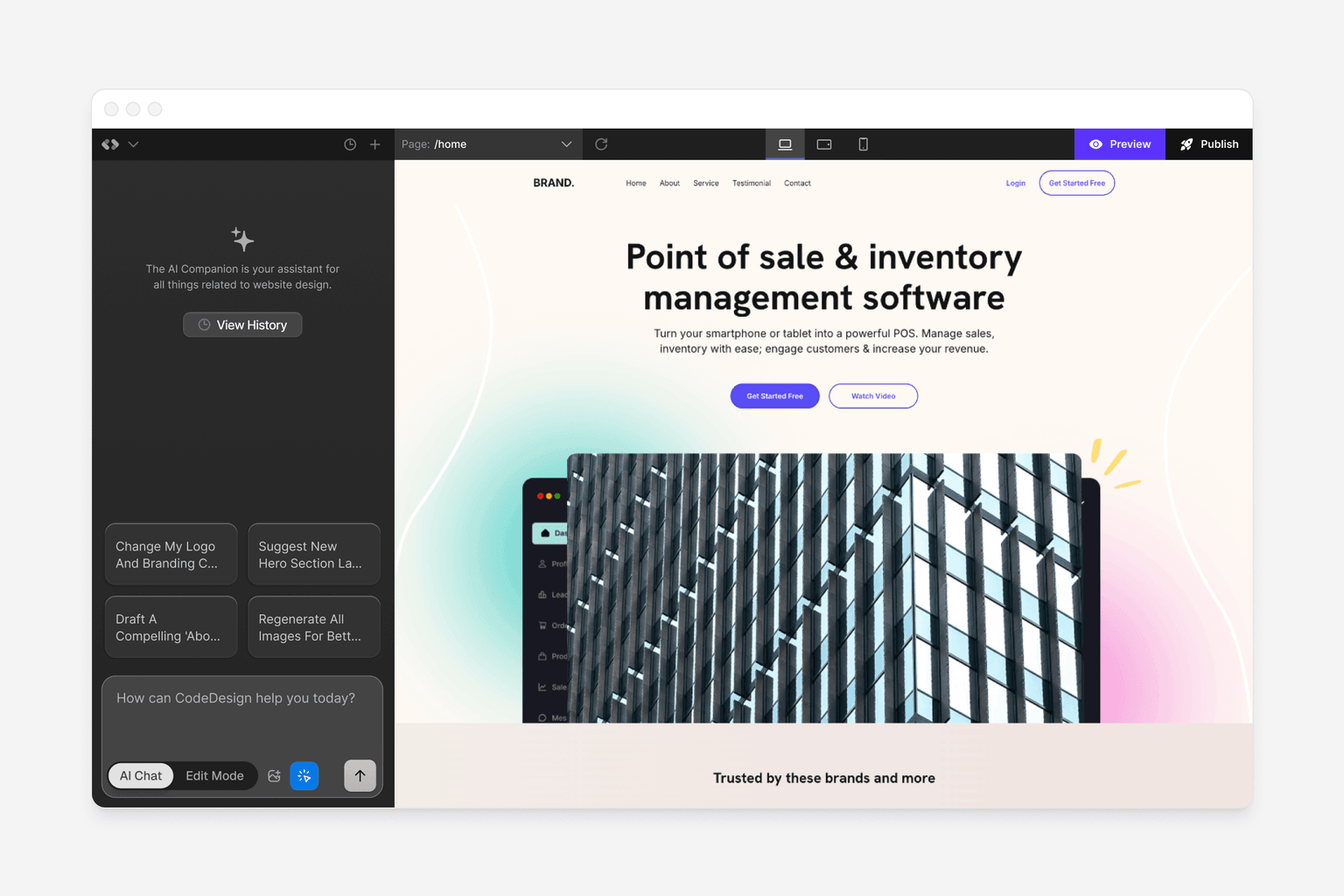
Make one specific edit, then check the result before changing more: the headline should identify the service, and the main button should describe its destination. Keep the approved business facts in your brief. Official workflow and demonstration.
Refine the reading order and spacing
Review the page from top to bottom without interacting. A visitor should understand the service, why it may fit and what to do next. Make headings describe the section. Use short paragraphs and a restrained number of competing visual elements so the main action remains easy to find.
| Page area | Useful content | Design check |
|---|---|---|
| Opening | Service, audience and primary action | Readable headline and visible button |
| Process | What happens before and after the call | Clear sequence without dense text |
| Contact | Required fields and response expectation | Usable labels and confirmation |
Balance logos, icons and photographs optically rather than stretching them into identical boxes. Keep decorative imagery secondary to the offer. A large graphic is useful when it explains the process; it is less useful when it pushes the contact action far below several empty screens.
Test mobile as a reading and action experience
A responsive draft is a starting capability, not proof that the final page works at every width. Inspect the actual page on a narrow phone viewport and a desktop. Check line length, text size, section spacing, image cropping and the order of content when columns stack.
Try the primary action with a finger-sized target area in mind. The button label should explain the next step, and the destination should match it. A “Book a call” button should not lead to a generic home page where the visitor must search for the booking route again.
Check that nothing extends beyond the viewport, including long email addresses, logos and form error messages. If a comparison or list becomes cramped, change the layout rather than hiding important information. Mobile visitors need the same service facts and a complete action path.
Treat the form as part of the product
Decide which information the business actually needs to respond. For the example service, a name, contact address and short description may be enough for a first inquiry. Avoid adding fields merely because a generated template includes them. Each required field adds work for the visitor and information the business must manage.
Test an empty submission, an invalid address and a successful inquiry. Confirm the message reaches the intended destination and that the visitor receives a clear confirmation. Check the current platform's actual form and integration behavior; a convincing visual form does not establish that a delivery service has been configured.
Keep contact and policy information accessible in the finished page. Explain the response expectation accurately. If the team usually replies within a business day, use that only when it reflects the real operating process rather than a generic template promise.
Choose the publishing route before final handover
CodeDesign describes hosted, WordPress-connected and code-export routes where supported. These routes have different responsibilities. A hosted page uses the provider's operating environment; an export requires somewhere to run the files and a plan for any connected services. Confirm which options the selected subscription actually includes.
The builder's FAQ describes free generation and preview, with a paid plan needed for a custom domain, export and branding removal. Confirm the currency and the total on the order summary before paying. Our CodeDesign hosting, export and handover guide compares the three publishing routes in more detail.
For one landing page, check the complete job: a published site, the required domain route, an editor its owner can use and any export required for handover. The Individual plan lists one HTML/React site export. If you need source-code download or AI Companion, confirm both are included in the plan you choose.
Launch a page someone can maintain
Save the approved copy, source images and account ownership details. Give the business a short handover explaining how to change the offer, test the form and find the current page. Set a review trigger for service changes, contact changes and expired promotions.
CodeDesign is a relevant option when a business wants a quicker route to an editable page composition. Its value becomes practical when the team supplies accurate content and follows the page through mobile reading, a working inquiry path and a supported publishing route. For the product overview, see our CodeDesign guide; when the site grows beyond one page, the CodeDesign blog publishing guide covers adding articles.
