
Use OCR on a copy, set the correct language and inspect the recognised text against the scan; searchability does not establish accuracy or complete accessibility.
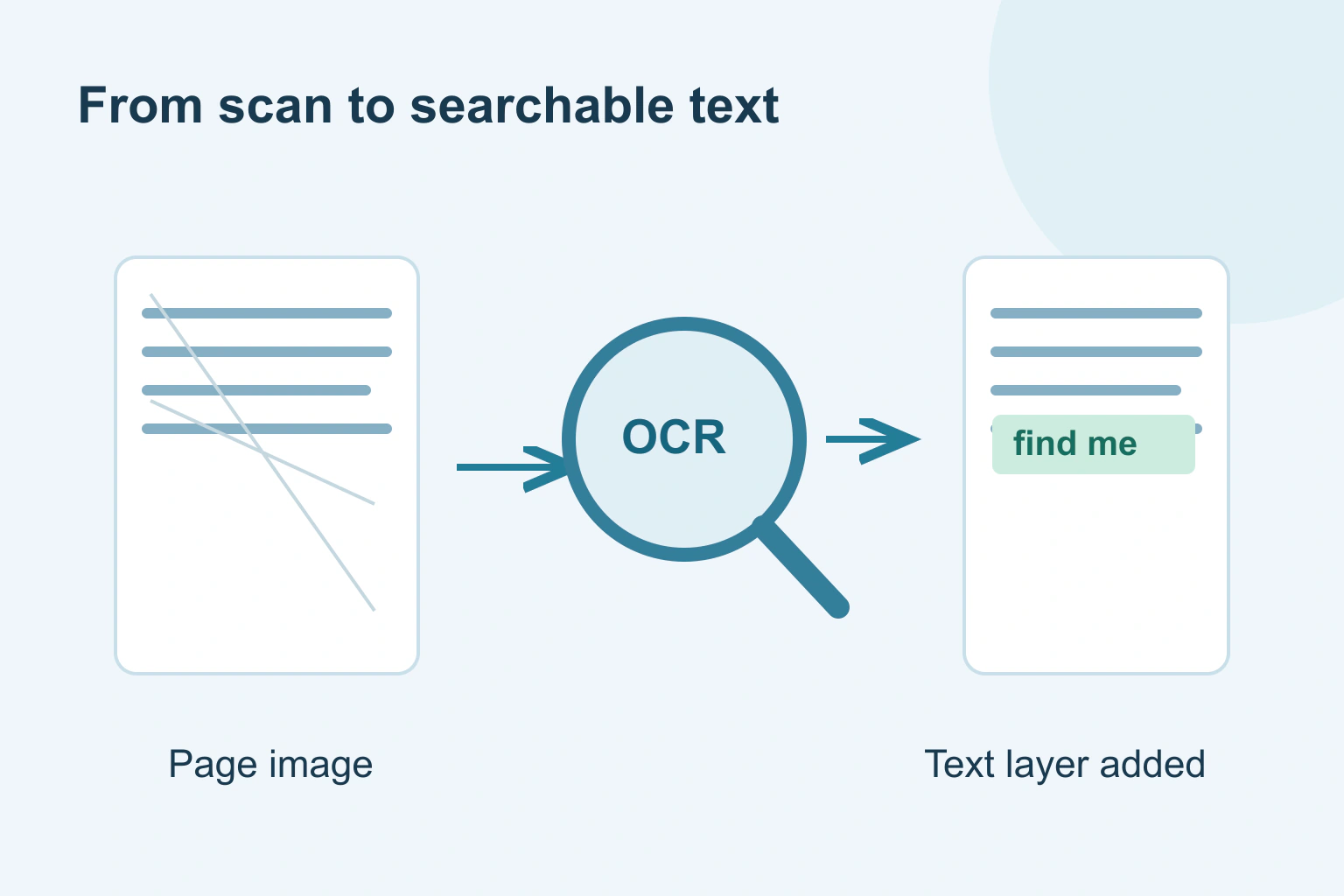
A scanned PDF can be a set of page pictures rather than a document containing readable words. OCR, short for optical character recognition, tries to identify the letters in those pictures. A suitable PDF tool can add a text layer so you can search for a word while keeping the page image.
Work on a copy and check the result. OCR can confuse characters, miss a line or read a name incorrectly. A document that now responds to Search is more convenient, but its recognised words are not automatically accurate.
Check whether the document already contains text
Open the PDF and search for a distinctive word you can see on a page. Try selecting a sentence and copying it into an ordinary text editor. Some files already contain text, while others mix text pages with scans.
A failed search can also have another cause, such as the search wording or a restriction on the file. Do not repeatedly process a document without checking what it already contains. Keep the original unchanged so you can compare it with each new version.
If you only need one paragraph as editable text, a text-extraction feature may be enough. Microsoft documents OCR extraction in OneNote. That is different from producing a finished PDF with a searchable layer, and a synced notebook may not be an appropriate place for private paperwork.
Begin with a clear, complete scan
Straighten the paper, include the full page and avoid shadows or glare. Check that small print is legible before processing a long pack. If you can rescan a blurred page, doing that can be more useful than repeatedly asking OCR to guess at it.
Put the pages in the right order and rotate any that are sideways. Check both sides when the paperwork is double-sided. A missing page cannot be recovered by text recognition, and a sharp first page says nothing about the rest of the file.
Use a trusted tool appropriate for the material. Do not upload a passport, medical letter or private financial pack to an unfamiliar conversion website just because it offers a free button. Read whether the feature runs locally, syncs material or sends it to an online service.
Add the text layer with the correct language
In supported Acrobat desktop versions, Adobe’s instructions describe opening Scan & OCR, choosing the file or page range, selecting the language and running text recognition. Current menus can differ, so use the help for the version you actually have.
The language setting matters because recognising letters and words depends partly on the expected language. If the pack contains several languages, check how the tool supports that situation rather than assuming one setting covers everything.
| Result you need | What to check |
|---|---|
| Searchable PDF | A visible word is found on the expected page |
| Usable copied text | Sentences copy in a sensible order |
| Accurate key details | Names, dates and amounts match the page image |
| Complete pack | Page count, order and orientation are correct |
| Private handling | The chosen process fits the document’s sensitivity |
Save the processed version under a new, clear filename. Do not overwrite your only copy of the scan to save a little folder space.
Review the words the software recognised
Search for a known name, a date and an unusual word from different pages. Copy a short passage and read it carefully. Pay special attention to letter O versus number zero, letter l versus number one, decimal marks and names the software is unlikely to know.
Adobe documents reviewing and correcting unclear recognised words. Use those controls when available, then check the important details yourself. An automatic list of suspected errors does not prove that everything outside the list is correct.
Compare tables and multi-column pages with extra care. The right words in the wrong reading order can produce a misleading copied paragraph. For financial or official paperwork, use the original page image and the relevant professional process rather than making a decision from unreviewed OCR text.
A fictional box of old appliance instructions
Imagine Omar scans instruction sheets for household appliances. He wants to search for the word filter without opening every folder. Some pages are faint and one was scanned sideways.
- He keeps the original scan and fixes the sideways page in a working copy.
- He rescans the faint page before recognition.
- He chooses the correct document language and creates a searchable version.
- He searches for filter and checks the highlighted passage against the image.
- He checks the model number, where a zero was mistaken for the letter O.
Omar’s document is now easier to find and use. The example does not claim that every appliance instruction or OCR tool behaves the same way. It shows why a few deliberate checks are more helpful than trusting a successful completion message.
Keep searchability separate from accessibility and sharing
Text recognition is one step. A PDF may still need headings, tags, reading order and other work before it is usable with assistive technology. Our PDF accessibility guide covers that broader review.
If the document is suitable for public publication, the PDF publishing guide explains the download route. For private material, use the controlled sharing checklist instead of placing it in a public media library.
Your next step is to process a short copy and test a handful of known words. When that works, continue with the rest of the pack and keep the original scan alongside the checked searchable version.
Sources and verification
Editorial review 2026-10-18. Source check dates are recorded separately. Notes describe what each source supports and its limits.
View sources
- Adobe: Recognise text in scanned documentsChecked Acrobat can add a searchable text layer, with page range and language options.
Limits: Instructions apply to supported Acrobat desktop features and do not promise perfect recognition. - Adobe: Fix text recognition errorsChecked Recognised text can need review and correction through supported tools.
Limits: Flagged words are not a complete guarantee that all errors have been found. - Microsoft: Copy text using OCR in OneNoteChecked OCR can extract text from pictures or printouts, and results should be checked.
Limits: Text extraction in OneNote is not the same as adding a searchable layer to a PDF.