
Start with a structured source document, export a tagged PDF where supported, then inspect recognized text, semantic structure and real reading and keyboard tasks in the final downloadable file.
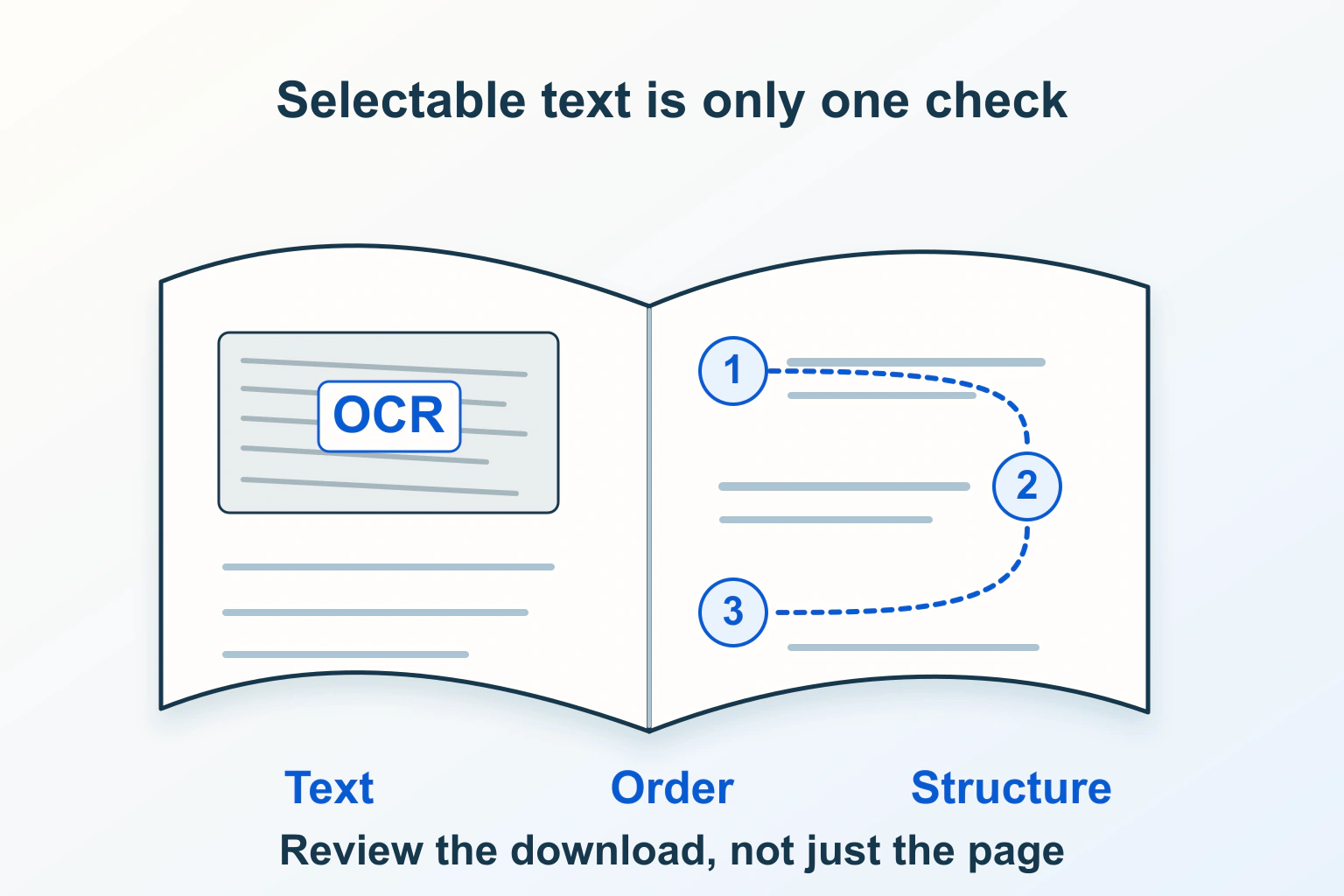
A PDF can look orderly and still read in the wrong sequence with assistive technology. It can contain searchable words but no useful heading structure, or a form whose fields cannot be reached in a sensible keyboard order. A successful upload and a clean first page do not answer those questions.
Review the final document around the reader’s task: find the right section, understand its information and complete any interaction. Begin with the source document where possible, then inspect the exported PDF itself. Keep file delivery, search indexing and document accessibility as separate checks.
Decide whether the information needs a PDF
A PDF can be useful for a printable pack or a document with a defined page layout. A maintained HTML page may be easier to read, navigate and update for ordinary website instructions. Choose the format for the task rather than turning every article into a download.
If you offer both, keep their meaning and version information aligned. A web summary that omits the instructions needed to complete a task is not an equivalent alternative merely because it is easier to open. State which document or page is current and who maintains it.
For a fictional workshop application pack, the essential tasks are understanding eligibility, finding a deadline and completing the application. The review needs to cover those tasks across the whole pack, including notes, tables and fields. It cannot stop after checking the cover page.
Build structure in the source document first
Use real heading styles, lists and table structures in the authoring document. Keep paragraphs in a logical sequence. A large bold line made from ordinary text may look like a heading without carrying heading semantics into the exported file.
Use the export workflow that preserves document structure and tags where supported. Do not assume that a print-to-PDF route produces the same result as an accessibility-aware export. Inspect the resulting PDF rather than relying on the name of an export setting.
Section508.gov provides practical PDF authoring and testing resources. Use the relevant checklist for your document and tools. These resources help organize a review; they do not determine which legal requirements apply to your website or certify a file that has not been examined.
Check whether the file contains accurate text
Try selecting, searching and copying representative text. A scanned page may contain only an image, while another scan may have an OCR text layer. Both can look identical. Optical character recognition can make scanned words available as text, but recognition errors still need review.
W3C’s PDF7 technique describes OCR for scanned documents. Check the recognized output against the page, especially names, dates, amounts, punctuation and any characters that change an instruction. Finding one searchable sentence is not evidence that every page is correct.
For the workshop pack, misreading the deadline or an account identifier is consequential even if most paragraphs are accurate. Mark those details as explicit test points. Correct the source or recognized text using an appropriate workflow and recheck the exported result.
Distinguish tags from correct reading order
Tags describe the document’s semantic structure. Their presence is useful, but a tagged document can still have an incorrect sequence or unsuitable element roles. Inspect the structure and the experience, not just the existence of a tag tree.
W3C’s PDF3 technique covers reading and tab order. Review a multicolumn page carefully: does the text continue down one column before moving to the next, or jump between unrelated lines? Check where captions, footnotes and side notes appear in the sequence.
Use an appropriate document inspection tool and assistive-technology review. Plain copy-and-paste can reveal problems but is not a complete reading-order test. Similarly, the order in which a sighted reader scans the page does not prove how the structure will be announced.
Make headings and navigation meaningful
W3C’s PDF9 technique explains heading tags. Check that the document’s actual section headings have appropriate semantics and a coherent hierarchy. Styling every heading with the same large type does not explain which sections belong inside others.
Ask someone using heading navigation to find the application deadline or submission instructions. The wording should make that destination recognizable. In a long document, review bookmarks and any contents links too; they should lead to the promised sections and match the current version.
Check the document title and language information as part of the authoring checklist. A meaningful file name helps people identify a download, while the internal document settings serve different purposes. Neither compensates for missing structure inside the pages.
Review images and tables for information, not decoration
Identify what each meaningful figure contributes. A diagram explaining a process needs an equivalent explanation of that process. An alternative such as “diagram” does not provide the missing information. Purely decorative material should not repeatedly interrupt the reading journey.
For tables, check whether a reader can identify which headers apply to a cell. Review rows and columns in a realistic navigation sequence, including any table continued across pages. If the source uses spacing or separate text boxes to imitate a table, reconsider its structure before remediation becomes harder.
Our website data-table guide explains the underlying relationships in HTML. PDF tools use a different implementation, so a correct website table does not automatically establish that its exported counterpart retains those relationships.
Test links and forms with the keyboard
Move through the document’s links and any form fields without a pointer. Check focus visibility, logical progression, meaningful link names and understandable field labels. If a form contains choices or required inputs, verify that those distinctions can be understood and operated.
Do not test only successful completion. Leave a required item empty, correct a mistake and check what the reader is told. If submitting a PDF form depends on a viewer feature, explain the supported workflow and test that exact route. A browser preview and a separate document reader may behave differently.
For a document intended only to be printed and completed by hand, say so clearly. Do not present empty lines as an interactive accessible form. Consider offering an appropriate web form or another maintained route when the task requires digital completion.
Combine automated checks with a task-based review
| Area | Manual question | Useful evidence |
|---|---|---|
| Recognized text | Are important words, dates and numbers accurate? | Checked samples and all consequential details |
| Structure | Do headings and element roles reflect the content? | Tag inspection and navigation results |
| Sequence | Does the whole explanation read in the intended order? | Review of columns, notes and captions |
| Tables and images | Can the reader obtain the same essential information? | Relationship and equivalent-text checks |
| Interaction | Can the intended task be completed by keyboard? | Tested links, fields and correction paths |
Run the appropriate automated checker and resolve its findings, then review the items it cannot decide. A checker can flag missing tags; it cannot establish that an alternative accurately explains your chart. Record the tools, viewer versions, manual checks and unresolved limitations instead of labelling a file universally accessible.
Verify the exact download after publication
Publish the reviewed file, then download it through the ordinary visitor’s route and verify that it is the intended version. Check the mobile journey and any embedded preview separately. A correct local file is not proof that the website still points to that file.
Our free PDF download guide covers that delivery and update workflow. If your PDF originates from a browser print layout, the print-layout guide addresses clipping and pagination; those visual repairs still need this separate structure and interaction review.
Retain the structured source and the acceptance record. When the content changes, correct the source, export again and repeat the affected checks. Fixing one PDF once is less robust than having an authoring process that preserves the reader’s task through every revision.
Sources and verification
Editorial review 2026-10-15. Source check dates are recorded separately. Notes describe what each source supports and its limits.
View sources
- W3C WCAG technique PDF7: OCR for scanned documentsChecked OCR can provide actual text in scanned PDFs, while recognized content must be checked for correctness.
Limits: OCR does not by itself create appropriate document semantics or establish accessibility; the technique is an informative example rather than a certification. - W3C WCAG technique PDF3: Reading and tab orderChecked Tagged structure and appropriate reading and tab order support an understandable document journey; manual checking is required.
Limits: Correct ordering is one part of accessibility, not evidence that every other content or interaction requirement is satisfied. - W3C WCAG technique PDF9: Heading tagsChecked Semantic heading tags help expose document structure, rather than relying solely on visual heading styling.
Limits: Heading tags do not prove that the hierarchy, wording or rest of the document is correct. - Section508.gov: Create accessible PDFsChecked Practical PDF authoring, testing and remediation resources support source-document structure, automated checking and manual review of the final file.
Limits: The resource does not establish which law applies to an individual publisher or certify an unexamined PDF.