
Use separate operating-system accounts for regular users and understand what browser profiles and administrators can still access.
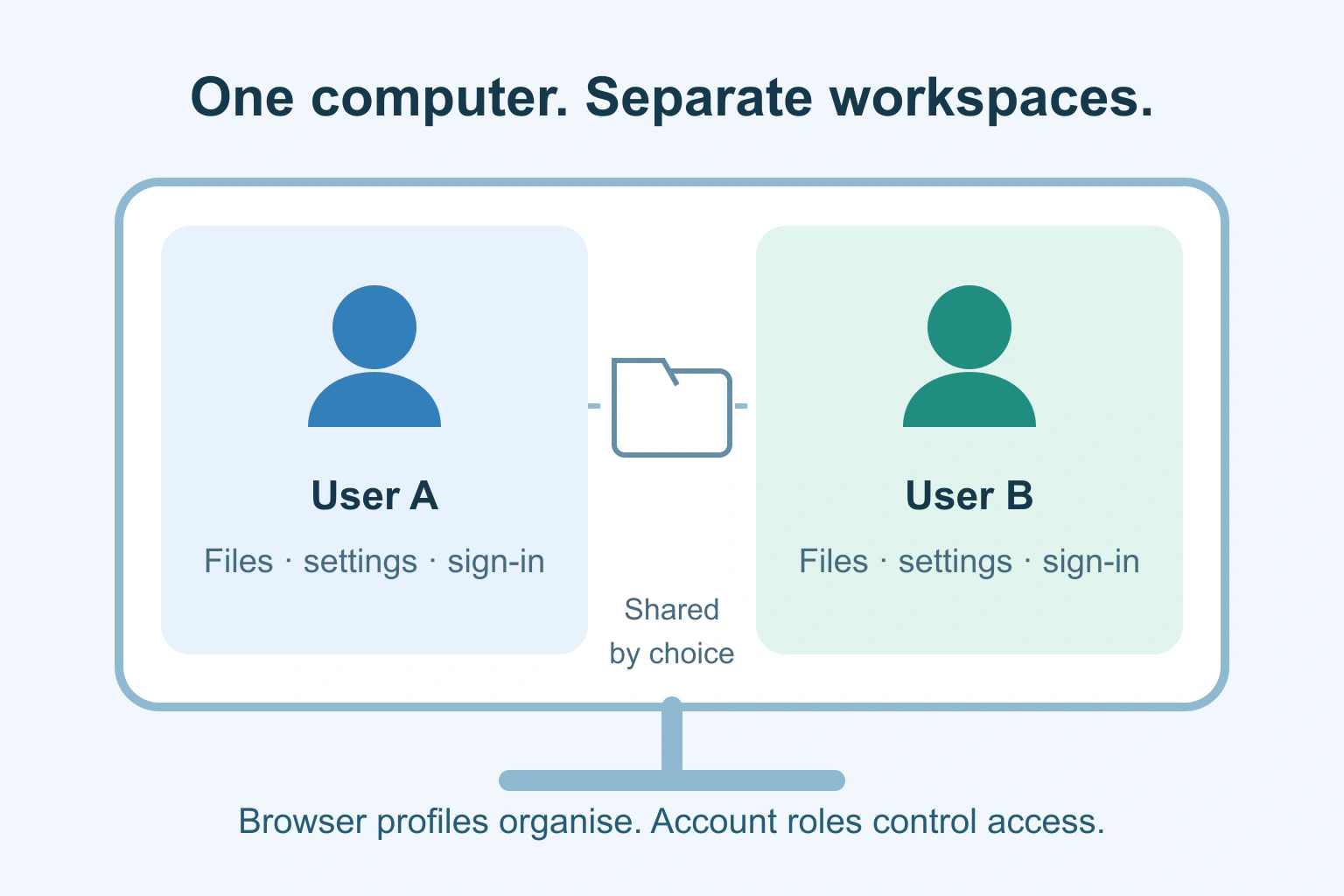
For regular computer sharing, give each person a separate operating-system account and their own sign-in. That keeps everyday files, settings and app sessions apart more clearly than asking everyone to use different tabs. Choose standard accounts for ordinary use where suitable, and keep administrator access limited.
This helps prevent accidental mixing. It is not a promise of secrecy from the computer’s administrator or protection against an untrusted device. Shared folders, cloud accounts and apps can also create access outside your personal sign-in.
Choose the right kind of separation
An operating-system account is the identity used to enter Windows or macOS. A browser profile is a separate collection of browser settings and stored information. A website account is your identity inside a particular service. These layers can use similar names while controlling different things.
Microsoft’s account guidance describes separate Windows users with their own settings, documents and applications. It also explains that administrators have broad control, including access to files. Do not grant that role merely because someone uses the computer often.
On a family computer, start with who needs regular access and who maintains it. An occasional visitor may suit the system’s supported guest arrangement. A child may need the relevant family controls. Follow the instructions for your system and situation rather than treating every account type as interchangeable.
Browser profiles are useful, with clear limits
A separate profile can stop your bookmarks and work tabs getting mixed with someone else’s. It can also help you notice which identity is active. However, Chrome’s profile documentation warns that someone using the device can switch to other Chrome profiles and see their information.
A private browser window is another different feature. Do not treat it as a locked personal workspace. It does not create an operating-system account or make a downloaded file disappear. Use it only for the purpose the browser documents, with the limits understood.
| Layer | Useful for | Do not assume |
|---|---|---|
| Computer user account | Separating regular users’ sessions and files | Privacy from an administrator |
| Browser profile | Keeping browser identities organised | A protected boundary between users |
| Website account | Access to that service’s records | Other apps use the same identity |
| Private browsing | A separate temporary browsing session | All traces and downloads are erased |
Set up each person’s ordinary workspace
Use the system’s supported account controls. On a Mac, Apple’s user-account guide distinguishes administrator, standard and sharing-only accounts. A sharing-only account can access shared files remotely but cannot log into the computer normally.
Give each regular person their own sign-in secret, and avoid sharing the administrator password. Help them identify their home folder and choose where ordinary documents belong. Keep a harmless sample file in each workspace to check that people understand the arrangement before moving important material.
Review automatic sign-in and screen locking. If the computer opens directly into one person’s account, the separate accounts do little to prevent casual access while that session remains open. Use the normal lock, switch-user or sign-out route when handing the machine over.
Check files and cloud identities separately
A folder deliberately shared with everyone can remain shared despite separate sign-ins. Review common folders and external drives before placing private documents there. Ask the person who maintains the machine if you cannot tell who can access a location.
Next inspect the signed-in identities in email, storage, browsers and password managers. Opening an app does not prove it belongs to the person currently at the keyboard. An account can also sync material onto the computer that was not visible during setup.
Our wrong-account sign-in guide helps when a service keeps offering another identity. If the person only needs a browser version of a tool, our app-or-browser guide explains how to compare the actual task without assuming an installed app is always necessary.
A fictional household handover
Imagine two fictional housemates share one laptop. Previously, both opened the same desktop and switched email accounts inside a browser. A saved document appeared in the wrong person’s recent-files list, and neither knew which download folder held the final copy.
They create separate standard user accounts through the system’s normal controls. One maintains administrator access. Each signs into their own email and storage, and they use a clearly agreed shared folder only for household documents. They practise switching users before the arrangement becomes routine.
This reduces confusion; it does not make the maintainer unable to access the machine’s files. If either needs privacy from the person controlling the device, a separate trusted device is the more appropriate starting point.
Make the daily routine easy to follow
- Enter your own computer account.
- Check the identity in the service before opening sensitive work.
- Save private documents in the intended personal location.
- Keep shared files in a deliberately chosen shared location.
- Lock, switch user or sign out before someone else takes over.
Do not remove another person’s account as a cleanup shortcut. Account removal can delete its local data, and cloud-account deletion is a separate action again. Agree a backup and handover before retiring a workspace.
Screen sharing can expose several layers at once. Our private screen-recording checklist helps prepare a clean demonstration. Your next step is to inspect the computer’s current user list and write down who needs ordinary access, who maintains it and which files are intentionally shared.
Sources and verification
Editorial review 2026-10-18. Source check dates are recorded separately. Notes describe what each source supports and its limits.
View sources
- Microsoft: Manage User Accounts in WindowsChecked Windows supports separate user workspaces; ordinary standard use and limited administrator roles have different control.
Limits: Administrator access is broad; account separation is not a guarantee against a device administrator. - Google: Manage Chrome with multiple profilesChecked Profiles separate browser information but a device user can switch to another profile.
Limits: Chrome-specific; profiles are not presented as a security boundary. - Apple: Add a user or group on MacChecked Mac user types differ; sharing-only accounts cannot log into the computer; administrator credentials should not be shared.
Limits: macOS-specific; paths and options vary by version.