
Reduce a copy only as much as the real delivery limit requires, then inspect readability and the document's functions before sharing.
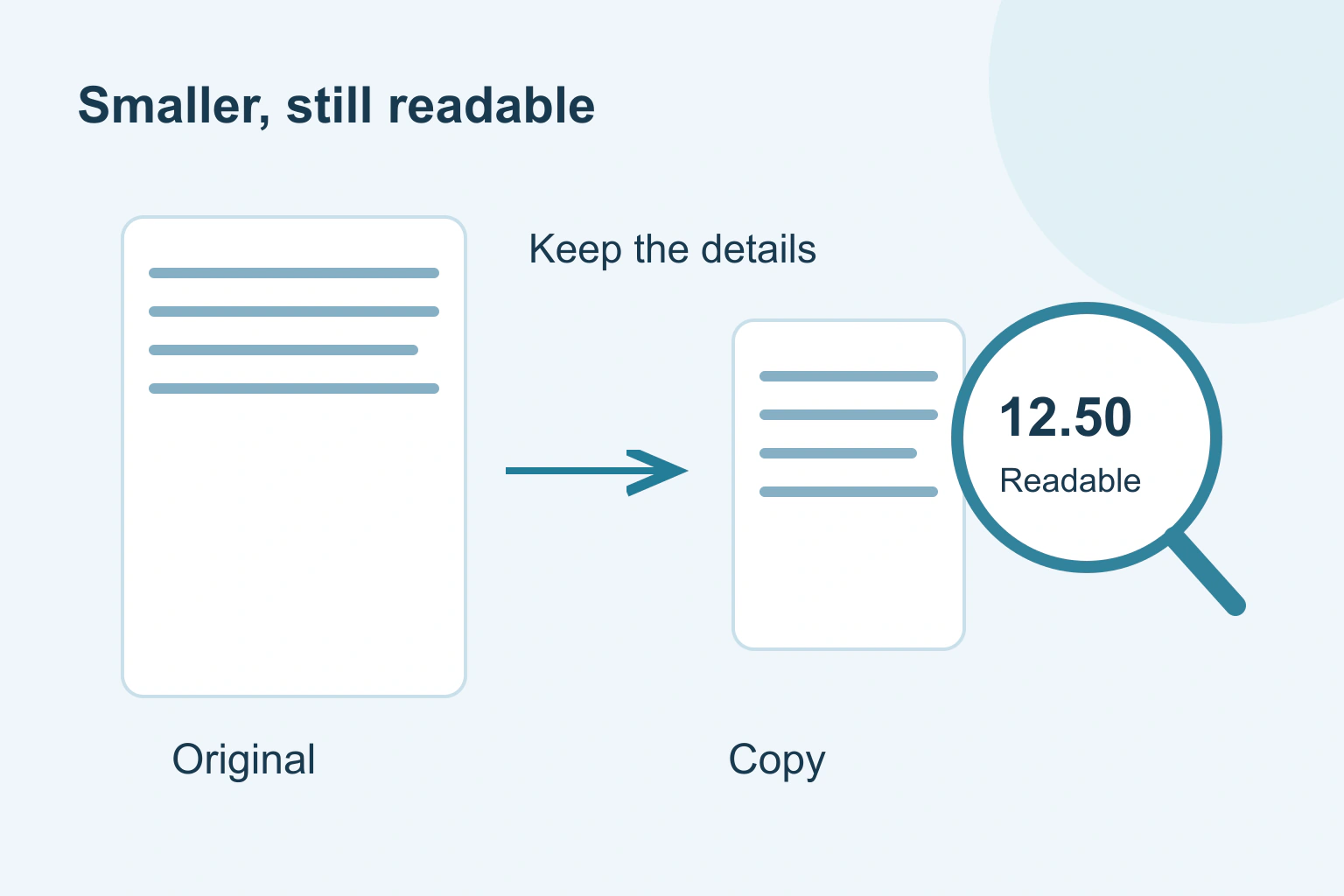
Make a copy of the PDF, choose a moderate size-reduction option and compare the result with the original. Stop when the file meets the actual upload or sharing limit and remains easy to read. The smallest possible file is not useful if it blurs the numbers or removes something the recipient needs.
Keep your original unchanged. A compressed copy can be convenient for sending while the larger source remains useful for printing, editing or keeping important detail.
Find the real limit before changing the file
Check the upload form or receiving service for the maximum file size and accepted format. It may apply to each file, the whole submission or the message. Do not guess from an old email or another service’s rule.
Check whether all pages belong in the document. An accidental blank scan or repeated set can add unnecessary size, but remove pages only when you are sure they are not required. For an application, a blank reverse side may still be part of the requested record.
If an appropriate controlled share link is accepted, our large-file sharing guide offers another route. That solves delivery differently; it does not mean a public link is suitable for private paperwork.
Understand what is taking the space
A scanned pack contains page images, so the scan quality and image compression often matter. A document exported from a word processor can already contain efficient text, with a few large photographs causing most of the size. Compressing the whole file blindly may produce little benefit or damage the wrong parts.
If you still have the original editable document, export a fresh PDF using an appropriate size setting. This can preserve clearer text than printing a PDF into another PDF or turning its pages into pictures. Keep necessary links, bookmarks and form behaviour in mind.
Adobe’s advanced optimisation guidance lists separate controls for images, fonts and other document elements. Those controls explain why “smaller” can affect much more than image quality.
Use a trusted tool and save a new version
If you have a Mac, Apple documents reducing PDF size in Preview through export options. It warns that compression can reduce quality and that results vary. Choose a new filename so you can compare it with the original.
If you already have a supported Acrobat desktop product, Adobe documents its size-reduction tools and compatibility choices. Follow the instructions for your current version. There is no need to assume every free PDF reader includes those editing features.
For private documents, check where processing happens. An online compressor receives the file you upload under its own handling arrangements. Do not send sensitive paperwork to an unfamiliar site simply to avoid checking a trusted tool you already have.
| Document part | Check after reducing size |
|---|---|
| Small text | Readable at ordinary viewing size |
| Amounts and dates | Digits and punctuation remain distinct |
| Photographs or diagrams | Required details are still visible |
| Forms and links | The intended interactions still work |
| Pages and signatures | No required material or validation was lost |
Be careful with aggressive cleanup
Some tools can discard comments, flatten forms, remove embedded material or change fonts while reducing size. Do not select every option just because it promises a smaller number. A feedback pack may need comments; an application may need working fields.
Already digitally signed documents need particular care. Changing the document after signing can affect signature validation. Ask for the appropriate smaller unsigned source or follow the recipient’s instructions rather than silently rebuilding the signed file.
Use a moderate setting first, then inspect the result. If it is still too large, change one relevant option and compare again. This makes it easier to understand what caused a loss of quality instead of trying several destructive changes at once.
A fictional upload with a small-file limit
Imagine Hugo needs to submit a fictional six-page course application. His scan is larger than the form accepts. The important information includes small printed dates, handwritten numbers and a diagram.
- He keeps the original and confirms the actual upload limit.
- He removes one accidental duplicate page after comparing the pack.
- He exports a moderately compressed copy through a trusted tool.
- He checks the dates, handwritten numbers and diagram beside the original.
- He reopens the exact file selected for upload and confirms its size.
The copy meets the limit without another reduction. Hugo stops there. This is a fictional process example; it makes no promise that a particular compression setting will reduce every PDF by a fixed amount.
Check the file the recipient will receive
Open the saved copy in a normal PDF viewer and inspect more than the first page. Search a known word if text search matters, click a useful link and check any required form field. Look at the page count and a few high-detail areas.
If accessibility matters for the document’s audience, use our PDF accessibility guide; a small file and selectable text do not establish complete accessibility. If you are starting from a website’s print output, the print layout guide addresses missing or clipped content before compression.
If no acceptable copy fits, ask the recipient about an approved alternative such as separate files or a controlled transfer route. Do not keep reducing until the document merely slips through a size check. Your next step is to compare one moderate copy with the original and keep the version that the reader can actually use.
Sources and verification
Editorial review 2026-10-18. Source check dates are recorded separately. Notes describe what each source supports and its limits.
View sources
- Apple: Reduce a PDF in PreviewChecked Preview can export a reduced-size copy; Apple warns quality and resulting size vary.
Limits: Mac-specific instructions do not promise a particular reduction or preserved quality. - Adobe: Reduce PDF file sizeChecked Acrobat supports PDF size reduction and compatibility choices.
Limits: Features depend on the desktop product and do not guarantee a target upload size. - Adobe: Advanced PDF size reductionChecked Advanced options can affect images, fonts, transparency, forms, comments and other document information.
Limits: Aggressive cleanup can change required content or functions; settings need task-specific review.