
Start with the app that saved the file, locate its actual folder and open the correct copy before downloading again.
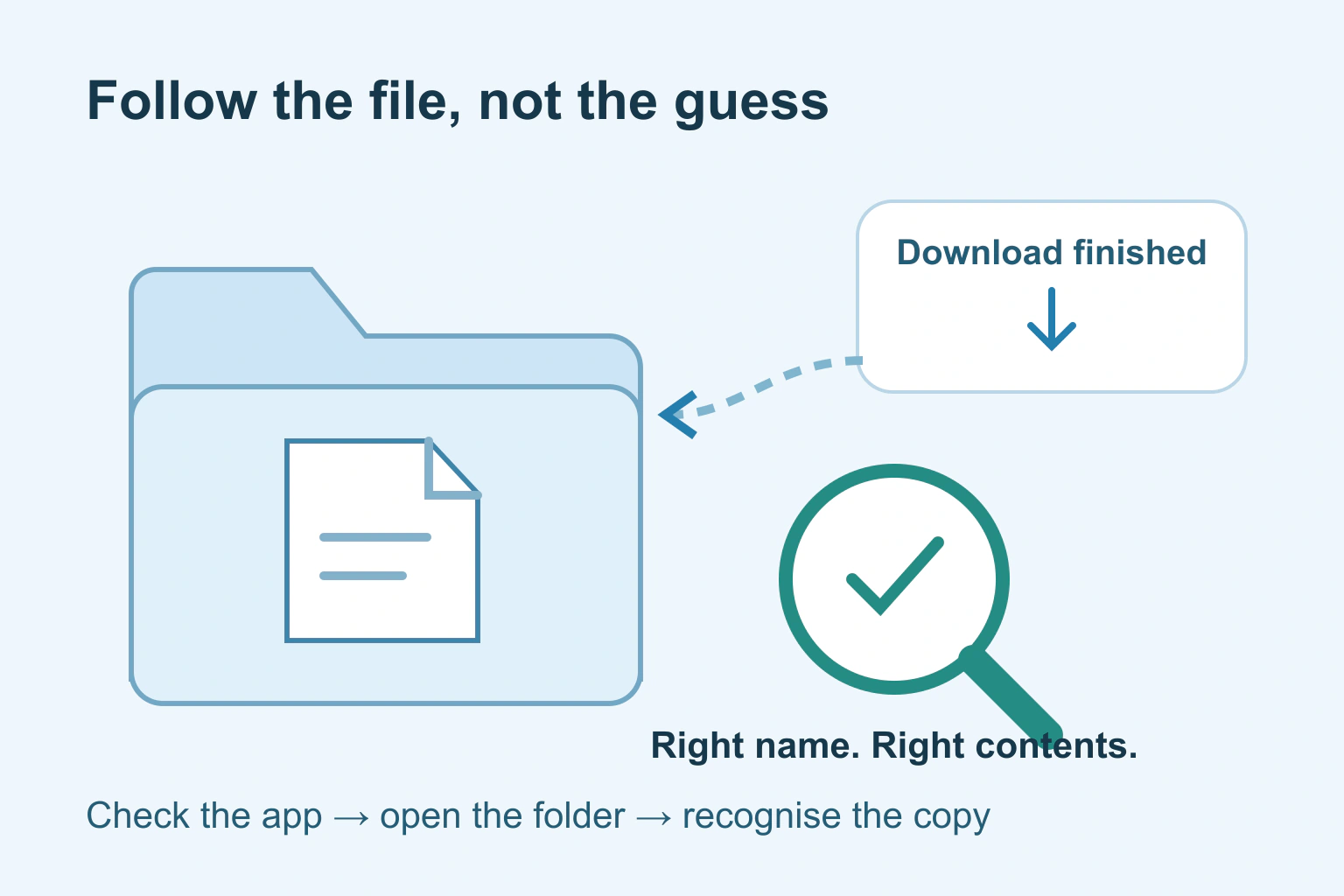
Start in the browser or app you used to download the file. Its download record may show the filename, whether saving finished and an option to reveal the containing folder. Then check the saved file itself. A document open in a viewer is not necessarily a copy you can find later.
Do not repeatedly press Download before looking. Several attempts can leave almost identical names and make it harder to identify the copy you need. First establish what happened during the original attempt.
Remember where the download began
Was the file on a website, attached to an email or inside a messaging app? Return to that same app. Downloads from different apps do not necessarily appear in one shared place. An app may show a document inside its own library rather than save a normal file to your chosen folder.
Look for a completion message or download entry. A paused, failed or still-running transfer needs a different response from a completed file you cannot locate. If a service says it is preparing an export, wait for its genuine completion instructions rather than assuming the request already created a local copy.
Chrome’s download guide describes its download list and, on a computer, the option to show a file in its folder. It also explains that the save destination can be changed. Use the current record instead of assuming a default location is always correct.
Use the phone’s file app, not only its photo library
A PDF, spreadsheet or ZIP archive is not normally something to look for only among photographs. Find your phone’s supported file-browsing app and inspect its download and recent-file views. Check the available locations too: device storage, a cloud drive and a connected service are different places.
For iPhone and iPad, Apple’s download instructions direct readers to the Files app and its Downloads folder. They also describe opening recent Safari downloads from Safari. If you chose another destination or another app, follow that actual saving route.
On an Android phone, file-app names and organisation vary by manufacturer. Use the installed file app’s supported download or search view, and the original browser’s download list. Do not install a new file manager just because the first screen does not look like someone else’s phone.
Search a useful location on a computer
Check the browser’s actual save location, then open that folder in the computer’s file manager. If you remember part of the filename, search there first. Sort recent files by date where supported, and compare the file type and size to what you expected.
Microsoft’s Windows file-search guide distinguishes searching a particular folder from a broader computer search. Starting in Downloads can be more manageable than searching everything. Search results may include cloud files, so inspect the location as well as the name.
| What you see | Useful next check |
|---|---|
| The download is still running | Wait for completion or read the reported error |
| The browser says it completed | Reveal the file’s saved folder where supported |
| A document is open in a viewer | Check whether you deliberately saved a copy |
| Several similar filenames appear | Open the intended edition and compare contents |
| A cloud icon appears beside the file | Check whether its contents are available on this device |
A search result or recent-file entry is a pointer, not proof that the document remains at that location. If the item moved or was removed, use the app’s explanation and check your known storage locations. Do not assume a missing shortcut means every copy is gone.
Recognise the right copy before using it
Open only a file from a source you intended to use and trust for that purpose. A familiar name or extension does not prove safety. If a browser blocked a suspicious download, read the warning rather than disabling protection to complete this checklist.
For an ordinary document, check its title, date, page count and a piece of expected content. A saved sign-in page is not your requested report. A file with an extra number in its name may simply be another download, not a newer edition.
If the document is a PDF scan, our searchable-PDF guide explains why visible words may not be searchable text. That is a content issue after finding the file, rather than evidence the download failed.
A fictional missing school form
Imagine fictional reader Dani downloads a school form on a phone. The form opens immediately, so Dani later looks for it among photos and finds nothing. Instead of downloading five more times, Dani returns to the original browser and checks the completed download.
The browser leads to the document in the file app. Dani opens it, checks the school name and current year, then places a clearly named copy in the intended documents folder. Dani reopens that copy from the folder before relying on it.
If several forms need combining, our private PDF guide covers that separate task. Finding a file does not require uploading it to an unknown conversion website.
Give important downloads a home
- Find the completed download in its originating app.
- Open the actual saved folder.
- Check the document is the intended copy.
- Move or copy it deliberately to an appropriate long-term location.
- Reopen it there and keep any important original.
Moving a file inside a syncing drive can affect its location on other devices. Keep that in mind before reorganising shared folders. On a borrowed device, avoid leaving sensitive downloads behind after the task.
Our guide to files after a subscription ends helps plan longer-term access. Your next step is to locate one recent download and note its app, filename and real saved location.
Sources and verification
Editorial review 2026-10-18. Source check dates are recorded separately. Notes describe what each source supports and its limits.
View sources
- Google: Download a file in ChromeChecked Computer download records, show-in-folder controls, completion status and configurable save locations.
Limits: Computer Chrome instructions; other apps and mobile browsers can save differently. - Apple: Where to find downloads on your iPhone or iPadChecked Files app Downloads location and access to recent Safari downloads.
Limits: Does not define the storage behaviour of every third-party app or user-chosen destination. - Microsoft: Find your files and apps in WindowsChecked Search in File Explorer by folder or broader computer scope and inspect local/cloud results.
Limits: Windows-specific; a search result does not establish offline availability or file safety.