
Compare the same task near the router, in the problem room and over Ethernet where supported; improve the part shown to be limiting before buying a faster plan.
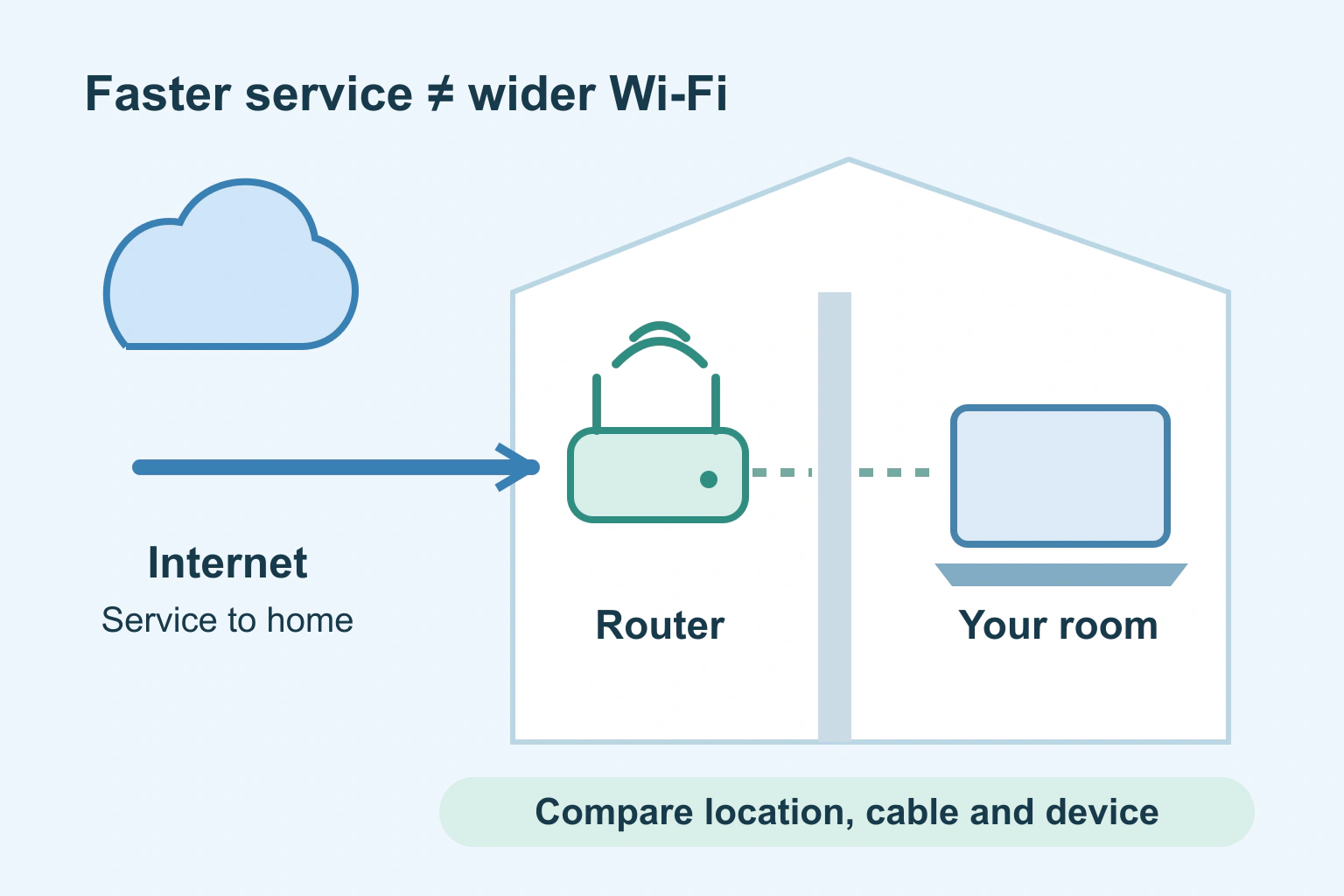
A faster internet plan does not automatically make a weak Wi-Fi signal reach another room. Your internet service brings a connection to the home; Wi-Fi carries a wireless connection between your router and devices. Either part can limit the result, and sometimes the device or app is the real problem.
Before paying for an upgrade, compare the same ordinary task in a few controlled situations. Does it work near the router? On another device? Through a network cable where supported? Those differences are more useful than buying the largest advertised speed and hoping.
Separate the four parts of the journey
Think of a video call as a journey through the service outside your home, the router, the local connection and your device. The calling service itself is another dependency. A problem anywhere along that journey can look like “bad internet”.
Speed commonly describes how much data can move in a period. Delay is how long a response takes. A large download and a live conversation stress the connection differently. A high speed-test number is not a complete assessment of the experience.
Ofcom’s broadband and Wi-Fi guidance distinguishes a slow Wi-Fi test from a broadband-line fault and notes that delay affects live services. It recommends testing before changes. Its UK complaints and compensation rules are separate from these practical checks and should not be treated as worldwide rights.
Make a small comparison before changing settings
- Write down the task and the symptom, such as a call breaking up in the back bedroom.
- Use the same device and task near the router, then in the problem location.
- Repeat at a similar time with other large household transfers paused by agreement.
- If available, compare a suitable device connected to the router by Ethernet cable.
- Record the location, connection type, time and result, then repeat once later.
Keep mobile data from silently becoming an alternative connection during a Wi-Fi comparison. Confirm which connection the test device uses. Do not interrupt other people’s work or essential connected equipment merely to create a quiet test.
A speed checker can add useful numbers, but it is one observation. Repeating a test at another time helps reveal variation. Save an honest record rather than choosing only the fastest or slowest result.
| Pattern you observe | What to investigate next |
|---|---|
| Good near the router, poor in one room | Coverage, obstacles and that room’s connection |
| Ethernet works, Wi-Fi struggles | The wireless path, router setup and device compatibility |
| Only one device struggles in the same place | That device’s software, hardware and current workload |
| Several devices struggle even by cable | Provider status, router and the service reaching the home |
| Only one app or website fails | That service, its settings and its support guidance |
These patterns guide the next question; they do not prove a final diagnosis. For example, an old network adapter or unsuitable cable can limit a wired test. Tell support what you used rather than presenting the result as an exact measurement of the contract.
Improve the wireless path before buying more speed
If the problem changes strongly with location, look at router placement first. Microsoft’s home-layout guidance describes obstacles, interference and placement as factors in wireless performance. It recommends comparing locations before and after a change.
Try a permitted, practical position with fewer barriers between router and work area. Keep ventilation and the manufacturer’s installation requirements clear. Do not stretch cables across walkways or relocate fixed provider equipment without checking what is allowed.
Different Wi-Fi bands have different range and compatibility trade-offs. A newer device label does not mean every room benefits equally. Use the router and device documentation rather than copying an advanced setting from an unrelated model.
Additional access points, mesh equipment or an Ethernet run may be appropriate for a coverage problem. Check the whole arrangement and installation before buying. More boxes are not automatically better, and a device placed where it receives a poor connection may not produce the improvement you expect.
Check the device and the actual task
Microsoft’s Windows connection guide recommends comparing another device and notes that a connected icon can coexist with a specific app or website problem. Its available troubleshooting tools depend on the Windows version.
If another device works in the same place, check the struggling device’s supported updates, connection and background work. Save open work before restarting. Start with ordinary supported controls; a factory reset is not a sensible first reaction to one slow call.
Describe the symptom precisely. A repeated voice can be an audio loop, not a shortage of download speed. Our video-call echo guide covers that separate problem. Likewise, our website offline-message guide explains why an application’s broad status message is limited evidence about a particular action.
A fictional household avoids the wrong upgrade
Imagine fictional reader Mina has reliable streaming in the living room but broken video calls in a back bedroom. She is considering a faster monthly plan. Before ordering, she tries the same laptop and call near the router and makes a supported wired comparison.
The results suggest that the bedroom’s wireless path deserves attention first. Mina discusses placement and coverage with her provider rather than assuming the outside service needs more capacity. She checks the real call again after one agreed change.
Another household might find a different pattern: several simultaneous tasks struggle even on a suitable wired connection. That could justify investigating service capacity or a fault. This fictional example supplies a comparison method, not measured results or a promise about either household.
Know when a faster plan belongs in the decision
Consider an upgrade after the evidence and provider checks suggest the existing service cannot meet the household’s actual needs. Ask about both upload and download requirements, equipment compatibility, installation, the full contract and renewal. Compare the complete commitment rather than only the introductory monthly figure.
If the service is performing unexpectedly, report that before treating a larger package as the repair. Give support your locations, devices, cable comparison and times. Ask what their measurement covers and whether the proposal addresses the observed limitation.
A service upgrade and a coverage improvement can both be needed. They solve different parts of the journey. Keep the useful tests and choose changes in an order that lets you see what helped.
For essential documents, our offline preparation guide can reduce dependence on a perfect connection. Your next step is to compare one problem task in the problem room and near the router, then record the difference before spending.
Sources and verification
Editorial review 2026-10-18. Source check dates are recorded separately. Notes describe what each source supports and its limits.
View sources
- Ofcom: Get help with broadband and Wi-Fi problemsChecked Testing before changes, Wi-Fi versus broadband faults, delay, wired comparisons and reporting useful observations.
Limits: UK consumer guidance; no worldwide contract, compensation or minimum-speed rights are asserted. No package speed or result is guaranteed. - Microsoft: Wi-Fi and your home layoutChecked Location comparisons, obstacles, interference, router placement and band compatibility trade-offs.
Limits: General Windows and home-network guidance, not a survey or design for the reader's property. Advanced settings and absolute performance claims are not copied. - Microsoft: Fix Wi-Fi connection issues in WindowsChecked Comparing another device, application-specific failures despite a connection icon and version-dependent troubleshooting.
Limits: Windows-specific supported controls; the guide does not ask readers to execute the source's advanced commands or reset a network as a first step.