
Inventory motion by trigger and purpose, make nonessential effects static when reduced motion is requested, and provide usable controls for automatically moving or updating content where required.
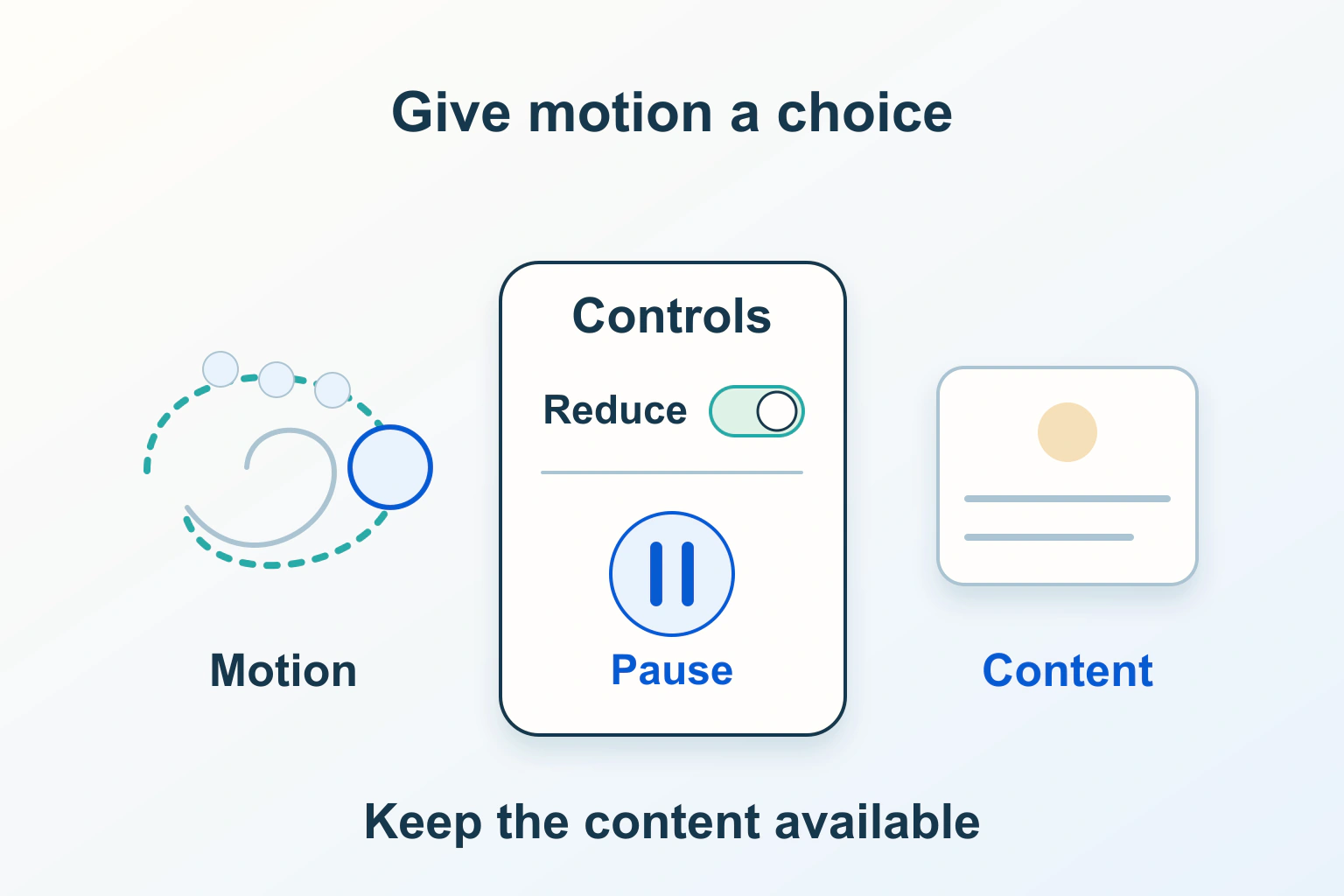
A website can look polished while moving far more than a visitor wants. Parallax backgrounds, zooming cards, smooth page travel and automatically advancing banners can compete with reading or cause discomfort. Removing every effect indiscriminately is not the only option: identify its purpose, preserve the information and give the person meaningful control.
Reduced motion is a preference to honor across the actual journey, not a single CSS snippet to paste and forget. This guide separates decorative movement, interaction-triggered animation and automatically updating content, then turns those distinctions into a focused test plan.
Inventory what moves and what starts it
Review a representative page from first load through reading, navigation, forms and expandable sections. For each moving component, record its trigger, duration, repetition, information conveyed and existing control. Include mobile navigation and third-party embeds, which may behave differently from the desktop page.
| Example | Trigger to inspect | Useful static alternative or control |
|---|---|---|
| Decorative background drift | Page load and continuous timer | A stable background retaining contrast. |
| Card zoom or parallax | Hover, focus, scroll or pointer movement | A stable card with a visible focus indicator. |
| Rotating announcement | Automatic slide timer | Pause/resume and access to every announcement. |
| Loading indicator | An unfinished operation | Clear status text that remains meaningful without rotation. |
| Live score or activity feed | Incoming updates | A controlled update frequency or pause mechanism. |
Ask whether motion is carrying essential information or merely decorating it. A process may need to communicate “still loading,” but that does not automatically make a particular spinning or zooming effect essential. Preserve the status while choosing a calmer presentation.
Read the user’s preference accurately
The prefers-reduced-motion media feature exposes a motion preference, usually configured through the operating system. The reduce value means the user has requested reduced nonessential motion. No-preference means no such preference is known; it is not affirmative consent to unlimited animation.
Decide how each component behaves with either value. A reduced-motion visitor should still be able to understand state changes and operate the page. Avoid replacing a visible result with silence, hiding navigation or turning a progress display into an unexplained frozen icon.
Check the preference before starting decorative motion where your implementation allows it. Applying a stop only after a large entrance animation has already played misses the first-load experience you intended to improve.
Keep the WCAG requirements distinct
WCAG 2.2 criterion 2.3.3, at Level AAA, concerns motion animation triggered by interaction: users must be able to disable it unless that animation is essential to the functionality or information. Scroll-linked travel and interaction-driven zoom effects deserve deliberate review under that scope.
Criterion 2.2.2, at Level A, has a different automatic-content test. Moving, blinking or scrolling information needs a pause, stop or hide mechanism when it starts automatically, lasts more than five seconds and appears alongside other content, unless the movement is essential.
Automatically updating information has its own clause: when it starts automatically and appears alongside other content, a mechanism must let users pause, stop, hide or control update frequency unless it is essential. Do not apply a blanket five-second exemption to auto-updating content. Honoring an operating-system preference alone does not establish that every relevant automatic component meets this requirement.
These are selected requirements, not a certificate for the whole page. Flashing, keyboard access, focus visibility and other accessibility questions remain separate checks. Document why an essential exception applies rather than treating the word “important” as sufficient justification.
Prefer a stable default for decorative effects
W3C technique C39 illustrates a useful approach: begin with a static presentation and enable motion when the user has no reduced-motion preference. It is one sufficient technique for the relevant criterion, not a mandatory stylesheet for every website.
This invented card example limits the effect to a particular component. The ordinary focus styling must still exist independently. The selectors and distances are illustrative design choices, not accessibility thresholds.
.feature-card {
  transform: none;
  transition: none;
}

@media (prefers-reduced-motion: no-preference) {
  .feature-card {
    transition: transform 160ms ease;
  }
  .feature-card:hover {
    transform: translateY(-3px);
  }
}
Use the same reasoning for decorative parallax and long smooth-scroll journeys. Select the relevant components and provide an immediate, stable alternative. Avoid a global rule that reduces every animation duration to a tiny value without understanding its dependencies; application code may rely on a completion event, and unrelated components can end in the wrong state.
Connect JavaScript motion to preference changes
A CSS media query does not automatically stop a canvas loop, scripted slider, animated image or embedded video. Locate the code or component API that actually starts and stops each effect. A CSS animation and a JavaScript timer can coexist, so changing one may leave the other running.
For code you maintain, read a matchMedia query for prefers-reduced-motion, apply the initial match and subscribe to its change event. When the preference changes, tell the component to stop or replace its nonessential movement. Remove listeners when the component is disposed so repeated navigation does not accumulate competing handlers.
Define what stopping means: cancel scheduled frames or timers, settle into a readable state and retain any user-entered data. Resuming should not replay a large backlog of transitions. An explicit pause chosen by the visitor should also remain effective rather than being silently cancelled by a preference change.
Give an automatic carousel a real pause control
For a fictional announcements carousel, start by asking whether automatic rotation is necessary. A static list may communicate the same information more reliably. If rotation remains, make pause/resume discoverable and keyboard operable, with a label that reflects the action available.
Pausing only while a pointer hovers is not a complete control for touch users and people navigating by keyboard. Review focus behavior as well: a timed slide change must not unexpectedly replace a focused control or move the person to a different destination. Preserve a way to reach announcements manually while rotation is paused.
Test returning from another tab, reopening an accordion and navigating back to the page. These transitions can restart timers even after the main pause button worked. A component’s initial reduced-motion state, explicit pause state and disposal/reinitialisation logic need to agree.
Preserve status and embedded-content controls
When a form submits, keep an understandable waiting state and final result even if decorative motion stops. Retain relevant text, error recovery and safe duplicate-action handling. Do not leave a button permanently disabled because a visual animation no longer emits the event previously used to unlock it.
For embedded video, maps or other externally controlled components, inspect the provider’s actual controls and supported configuration. Parent-page CSS may not govern their internals. If the component cannot provide a usable presentation, consider a static preview or deliberate open action that preserves the reader’s task.
Layout stability is related but different. An effect can avoid layout shifts and still be uncomfortable. Our CLS diagnosis guide addresses changing geometry; reduced motion addresses the moving experience itself.
Verify the whole journey in both states
- Load the page with no reduced-motion preference and record each automatic effect and control.
- Load it with reduced motion already requested; confirm that the initial presentation is stable and meaningful.
- Change the preference while the page is open; inspect both CSS and scripted components.
- Operate pause, resume, next and previous controls with a keyboard and on a touch-sized layout.
- Check hover, focus, scrolling, form progress and returning navigation for unexpected restarts.
- Confirm that content, focus indicators, status messages and all destinations remain available.
Record component-level results and remaining exceptions. A useful repair makes reading and interaction predictable for the tested states, while preserving every piece of information the visitor came to use.
Sources and verification
Editorial review 2026-10-14. Source check dates are recorded separately. Notes describe what each source supports and its limits.
View sources
- MDN: prefers-reduced-motionChecked The reduce and no-preference media values and use of the operating-system motion preference.
Limits: The preference does not automatically control every script, image, video or embedded component. - W3C: Understanding Pause, Stop, Hide (2.2.2)Checked Level A conditions for automatic moving, blinking or scrolling content and the distinct auto-updating requirement.
Limits: The essential exception is contextual; satisfying one criterion is not a complete WCAG conformance assessment. - W3C: Understanding Animation from Interactions (2.3.3)Checked Level AAA ability to disable nonessential motion animation triggered by interaction.
Limits: Does not mean every transition is prohibited or establish a complete accessibility result. - W3C: Technique C39Checked A static default with motion enabled through a no-preference media query as a sufficient technique for the relevant criterion.
Limits: A sufficient technique is one approach, not a mandatory implementation or a solution for all automatic updating. - MDN: MediaQueryList change eventChecked Listening for changes in a media-query match to respond when the user preference changes.
Limits: The component still needs its own implementation for stopping, resuming or replacing motion.