
Review target size and spacing, non-drag pointer operation and keyboard operation independently, then test the full task in its real layout.
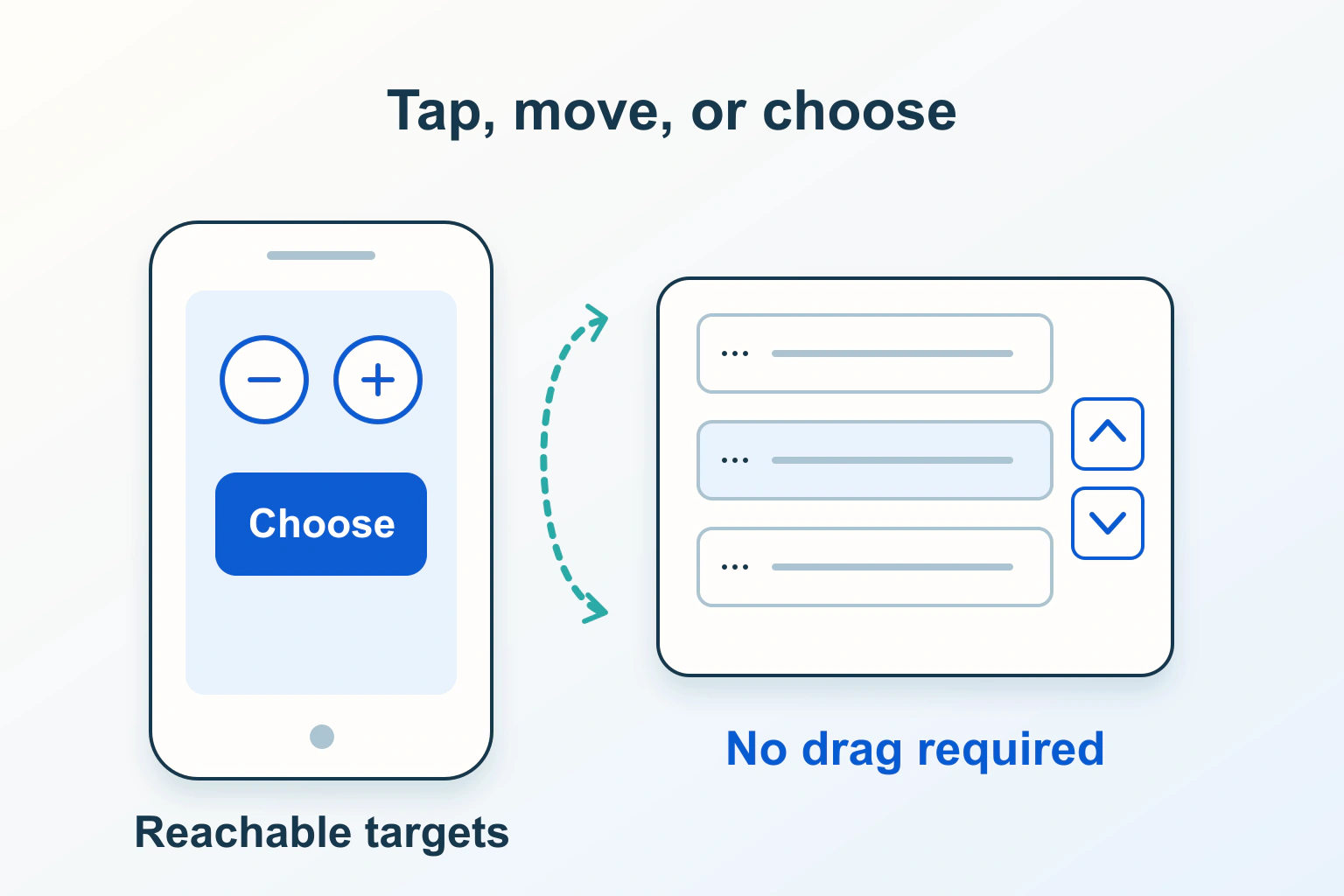
A control can look large while only its small icon responds to a tap. Another can have generous dimensions but require a precise press, hold and drag that the visitor cannot perform. These are separate design problems, and a good repair checks both.
Start with the actions that matter: choosing a date, changing a quantity, sorting a list, navigating a carousel or dismissing a panel. Measure and test the actual component in its surrounding layout. Increasing every icon to an arbitrary size is not a substitute for understanding which region accepts input and how the task completes.
Measure the target, not the artwork
The target is the region that accepts the pointer action. A decorative background or visible icon can be smaller or larger than that region. Inspect the actual interactive element in the browser and confirm its clickable area without assuming that a designer’s bounding box matches the implementation.
WCAG 2.2 Target Size Minimum, at Level AA, uses 24 by 24 CSS pixels with defined exceptions. CSS pixels are not a count of physical screen pixels. The spacing exception uses 24-pixel-diameter circles centered on undersized targets: these must not intersect another target or another undersized target’s circle.
The other listed exceptions concern an equivalent conforming control, inline targets constrained by text, unmodified user-agent controls and essential presentation. Do not treat a dense layout or a preferred visual style as automatically essential. Apply the specific exception to the actual control and record why it fits.
Target Size Enhanced uses 44 by 44 CSS pixels at Level AAA, with its own exceptions. Larger practical targets can be a useful design choice without incorrectly describing 44 pixels as the universal AA minimum.
Inspect a dense toolbar in its real context
Imagine a fictional article-management toolbar with Edit, Duplicate and Delete icons. Each visible glyph is 16 pixels wide, but the button around it may already be larger. Before changing the glyph, inspect the button region and whether neighboring targets overlap.
For this invented interface, a useful repair could keep the visual icon modest while increasing the button’s padding and separating actions. Test the edges of the active region and check whether the pointer activates the intended button. Also keep labels available in a suitable form; larger geometry does not explain an ambiguous action.
Repeat the review when the toolbar wraps onto two lines. Spacing that looks adequate in the desktop row can disappear vertically in a narrow layout. If an invisible active area extends across another control, there is a hit-testing conflict rather than extra usable space.
- Record the component and viewport.
- Measure the active region’s width and height.
- Identify every adjacent active target, including an overlapping card link.
- Check the applicable size or exception, rather than using a generic gap rule.
- Activate the intended control at representative points and confirm its result.
Separate dragging from keyboard operation
Dragging Movements, also Level AA, requires functionality operated by dragging to have a single-pointer route without dragging, unless dragging is essential or the unmodified user agent provides the functionality. Normal browser scrolling is different from a website interpreting a custom drag interaction.
Keyboard operation is a separate requirement. Arrow-key support alone does not give a person using only taps a non-drag route. Conversely, adding clickable buttons does not prove that the same task works with keyboard focus and activation.
For each feature, write three test routes: the existing gesture, a non-drag pointer alternative and keyboard use. The purpose is the same final task outcome, not simply the presence of three differently shaped controls.
Design alternatives around the task’s outcome
For a hypothetical order-priority list, dragging can remain a convenient option. Add a discoverable way to select an item and choose its destination position. The interface should say which item moved and leave focus in a sensible place. A visually reordered list that still saves the old order has not completed the task.
For a budget filter, a precise numeric field with validation may be more useful than forcing every reader to position a tiny slider thumb. Keep the permitted range and units visible. Test zero, the maximum, invalid text and a value outside the range; the alternative should preserve the same valid result as the original control.
For a gallery, offer ordinary previous and next actions that expose the same content as the drag route. At the first and last item, make the available action understandable. Do not make a swipe the only replacement for a drag, since that still requires a gesture path rather than a simple tap.
| Fictional task | Alternative outcome to verify | Failure to catch |
|---|---|---|
| Change a filter value | A precise chosen value updates results. | The displayed number changes but the filter does not. |
| Reprioritize an item | The saved order matches the chosen position. | A visual move is lost after reload. |
| Navigate gallery content | All the same items are reachable without dragging. | Controls skip an item or stop too early. |
| Choose a date range | Both endpoints can be selected and corrected. | The alternative only changes the first date. |
Keep ordinary tapping forgiving
Pointer Cancellation addresses unintended pointer activation, including ways to avoid, abort or undo actions under the criterion’s conditions. Review it particularly carefully for destructive or consequential controls; immediate action on initial contact can leave a visitor no useful chance to correct a mistaken touch.
In the fictional priority tool, selecting an item should not unexpectedly delete it. Keep selection, movement and deletion conceptually clear. For a consequential action, provide an appropriate confirmation or recovery design according to the workflow, rather than treating a small target as the only problem.
Test the real event behavior with a pointer. A button’s hover color changing is not proof that its activation timing or cancellation route is correct. Check the supported behavior when contact moves away before completion, and ensure the result agrees with the component’s documented interaction.
Check narrow layouts and assistive technology
Use the rendered mobile layout as well as a desktop emulator. Consider whether the alternative controls require sideways scrolling, disappear behind a sticky footer or become available only on hover. A touch-only visitor needs a discoverable route without first guessing that an invisible menu exists.
With keyboard input, follow the sequence before and after the action. In a reordered list, focus should not jump to an unrelated toolbar. With a relevant screen reader, check the control names and whether the changed value or position can be understood. Record the tested browser and assistive-technology combination rather than claiming universal coverage from one pass.
If your website uses a third-party component, prefer its maintained supported alternatives and configuration before attaching competing event handlers. A cosmetic overlay can enlarge a shape while preventing the original control from receiving input.
Use a component acceptance sheet
For each repaired component, keep its intended outcome, target measurements, any applicable exception, non-drag route, keyboard route and actual saved result. Include the first, middle and boundary states of the interaction rather than testing only one convenient example.
After responsive CSS, translation or component updates, repeat the affected checks. The useful result is a control that people can find, activate accurately and operate through appropriate alternatives, with its visible feedback matching the underlying task.
Sources and verification
Editorial review 2026-10-14. Source check dates are recorded separately. Notes describe what each source supports and its limits.
View sources
- W3C: Target Size MinimumChecked WCAG 2.2 AA size, spacing and listed exceptions.
Limits: This criterion alone does not establish complete accessibility. - W3C: Dragging MovementsChecked Single-pointer operation without dragging and relevant exceptions.
Limits: Keyboard equivalence is evaluated separately. - W3C: KeyboardChecked Independent keyboard operation.
Limits: Passing one input route does not establish other input routes. - W3C: Target Size EnhancedChecked 44 by 44 CSS pixel enhanced target at AAA with its exceptions.
Limits: Not a universal AA requirement for every web target. - W3C: Pointer CancellationChecked Avoiding unintended activation and supported cancellation or undo behavior.
Limits: The appropriate mechanism depends on the action and listed exceptions.