
Use the mailbox provider’s exact secure settings, choose retention deliberately and verify receiving, authorized sending and folder behaviour separately before retiring an old client.
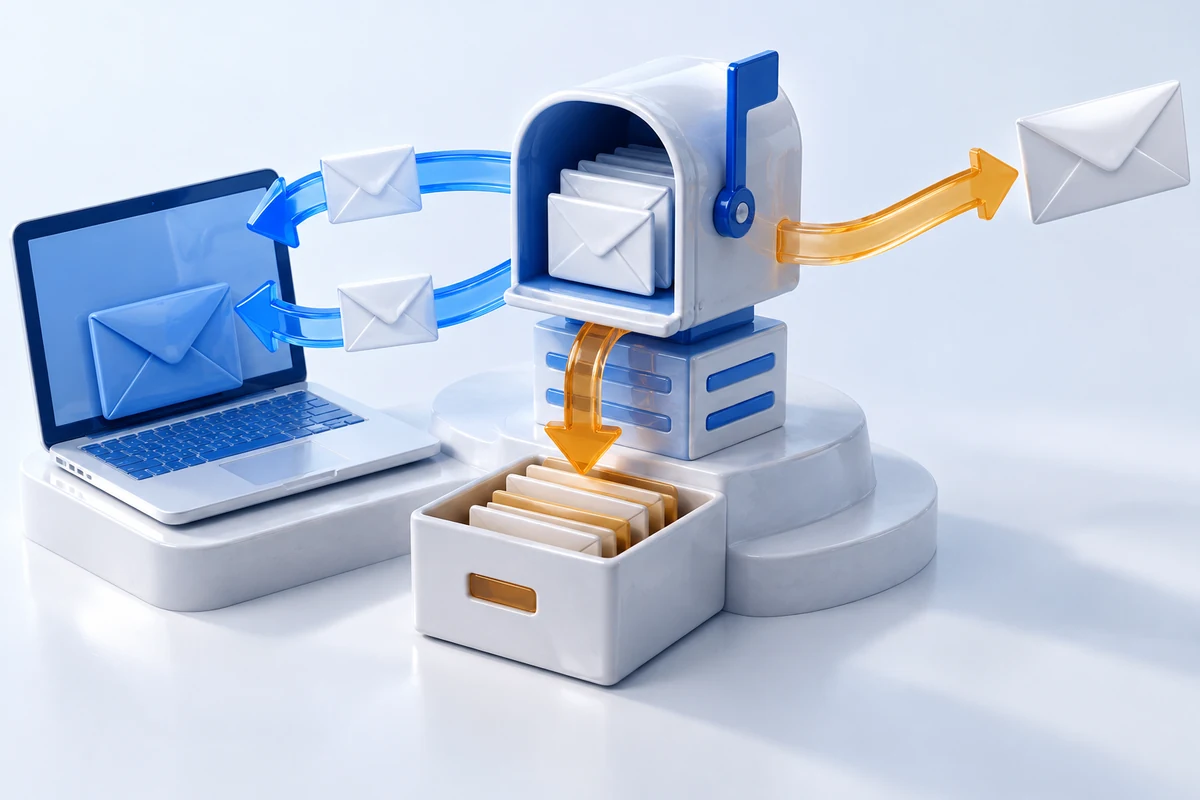
Use IMAP when you want the same mailbox and folders available across devices. Treat SMTP submission as a separate sending connection, even when receiving works perfectly. Choose POP only after understanding where messages will live and what the client will retain or delete.
This guide covers connecting an existing mailbox to a mail app and checking receiving, sending and folders. It does not create mailboxes or change domain DNS. Official sources were checked on 13 October 2026; examples are hypothetical and no account or delivery test was performed.
Identify the mailbox before entering settings
Start with the organization that actually hosts the mailbox, rather than the company that registered your domain or built the website. These may be different businesses. A forwarding address or alias may not have its own login or independent inbox; see our mailbox and alias guide if that distinction is unclear.
Open the provider’s official webmail through a known address and confirm that the mailbox exists and your authorized sign-in works. Inspect current account restrictions or service notices. Successful webmail access establishes a useful baseline, but does not prove external client access is enabled.
Collect the provider’s current client instructions for the exact account type. Thunderbird’s manual configuration guide explains the separate incoming and outgoing settings needed when automatic discovery cannot supply the right configuration. Automatic discovery is a starting point to verify, not a reason to ignore a mismatched server name.
Understand what IMAP, POP and SMTP each do
| Connection | Purpose | Important consequence |
|---|---|---|
| IMAP | Access and manage server mailbox messages and folders | Actions can synchronize across clients; synchronization is not an independent backup |
| POP | Retrieve messages from a server maildrop | Local retention and server-deletion settings need deliberate review |
| SMTP submission | Submit outgoing messages through the authorized mail service | Has its own server, authentication and connection settings |
The IMAP specification describes server mailbox management, message access and flags. It provides protocol background, not a claim that every provider implements the latest revision or every extension.
The message submission specification distinguishes submission from message relay between servers. Do not assume that an incoming IMAP hostname or a domain’s MX destination is the correct authenticated outgoing server for a desktop app.
Choose storage behaviour before adding another device
For a fictional two-device business, IMAP is usually the practical choice when both users of the devices need the same server folders and read state. Mozilla’s synchronization explanation distinguishes server messages from local offline availability. Seeing a header does not necessarily mean the complete message and attachments are downloaded.
Review offline synchronization, local storage limits and any age-based retention rules. A synchronized deletion can remove access elsewhere; a laptop containing a synchronized copy should not be your only recovery plan.
POP does not universally delete every message immediately. POP3 defines retrieval and explicit deletion commands; actual client choices determine whether messages are left on the server or marked for removal. Before changing a working POP account, preserve local-only messages and inspect retention settings. Adding IMAP does not automatically migrate an old local archive.
Record the exact secure connection and authentication choices
Make a small setup record containing incoming protocol, incoming hostname, outgoing hostname, provider-specified ports, TLS modes, username format and authentication method. Keep passwords, tokens and app passwords out of that record.
The email TLS recommendations explain implicit TLS and deprecate cleartext access and submission. Implicit TLS starts encryption when connecting; STARTTLS upgrades a connection through a protocol command. A port and security mode must match the provider’s supported service. Numbers copied from another host are not universal instructions.
If the client reports a certificate or hostname mismatch, stop and verify the documented endpoint. Do not accept an unexplained certificate exception, disable TLS or enable an obsolete protocol merely to make setup succeed. Transport encryption also does not make email end-to-end encrypted.
Use the provider’s supported sign-in flow
Some services use OAuth authorization rather than accepting the main account password in the mail app. Mozilla’s current OAuth guide explains the provider authorization flow and subsequent token use. Verify the account and requested permissions on the real provider’s sign-in page.
Client interfaces and browser handoff vary by version. Update the app through its supported channel and follow documentation matching the installed version. A browser permission prompt and a normal-password field are different authentication paths; repeatedly pasting the same secret into both is not diagnosis.
Google’s external-client guidance is a provider-specific example of modern sign-in requirements. If your provider documents an app password for a permitted legacy client, follow its eligibility and revocation rules. Do not switch off account MFA or use an unofficial credential-sharing tool to bypass a rejected connection.
Test receiving separately from sending
- Confirm the selected account identity, incoming hostname and protocol.
- Complete the supported authentication flow and inspect the exact result.
- Use a harmless message from an account you control or an authorized tester.
- Compare its arrival in webmail with its appearance in the client.
- Open the message and a safe attachment if offline download is required.
If webmail receives the message and the client does not, inspect account selection, folder visibility, filters, synchronization state and incoming errors. If neither receives it, investigate mailbox quota, delivery or routing rather than changing client SMTP settings.
Record whether the message is missing, delayed or merely shown in another folder. A global search result and the selected inbox can present different views. Avoid bulk-moving or deleting real mail during this basic test.
Diagnose receiving works but sending fails
Mozilla’s sending checklist includes outgoing settings and the SMTP server assigned to the account. With several identities, a client can receive through the right mailbox while trying to send through another account’s server.
Inspect the selected From address, outgoing server assignment, authentication username, supported TLS mode and the precise error. An alias may require provider authorization to send as that identity. Do not infer permission merely because replies can arrive there.
Distinguish an immediate authentication/connection refusal from a later non-delivery report. A message in Sent does not prove the recipient received it. If the service accepted the message but a bounce arrived later, use our bounce diagnosis guide and preserve the relevant status privately instead of repeatedly resending.
Check Sent, Drafts, Trash and folder mapping
Send one authorized test message and compare webmail with the client. Then save a harmless draft and check the intended location. A missing Sent copy can be a folder-mapping or copy-policy issue even when submission succeeded.
Thunderbird’s account options distinguish the identity’s outgoing server from Copies & Folders and synchronization settings. Providers may call a folder Sent, Sent Items or something else. Inspect the actual server folder and any subscription/display settings before creating duplicates.
If two copies appear, determine whether the server saves a copy and the client also uploads one. Follow the provider’s documented copy behaviour. Do not delete either folder or recreate the entire account before preserving local-only data and confirming where the useful history exists.
Keep Gmail web fetching separate from client access
Fetching another provider’s mailbox into Gmail on the web is different from using a desktop app to connect directly by IMAP/SMTP. Google’s current third-party account notice schedules removal of third-party Gmailify, web POP fetching and non-Google “Send as” support for January 2027, with restrictions on new configurations beforehand.
The notice distinguishes those changes from external clients accessing Gmail itself by IMAP or POP, and from adding a third-party mailbox as a separate account in the Gmail mobile app. Check the exact workflow rather than interpreting “POP changes” as removal of every POP server.
If you currently depend on Gmail-web aggregation, plan a supported replacement with the actual mailbox provider. Forwarding, one-time importing and live IMAP access have different history, folder and sending behaviour; they are not interchangeable migration promises.
Finish with a small acceptance record
Record the tested client/version, account identity, secure incoming and outgoing configuration, receive/send result, visible Sent/Drafts folders and expected offline behaviour. Note outstanding errors without copying message contents, tokens or full private logs into public support requests.
Before removing an old device or account configuration, preserve its local archive and confirm the new setup against webmail. For a provider move, follow our email migration guide; client setup alone does not move server history or safely change MX records.
A sound result is specific: the correct mailbox can receive, submit authorized messages and display the intended folders under the tested conditions. It is not a claim that every recipient will accept future mail or that synchronized history is protected from accidental loss.
Sources and verification
Editorial review 2026-10-13. Source check dates are recorded separately. Notes describe what each source supports and its limits.
View sources
- Mozilla: Manual Account ConfigurationChecked Incoming and outgoing service settings are separate; manual configuration needs the actual provider’s host, port, security and authentication details.
Limits: No universal hostname/port recipe or claim that automatic discovery is correct for a particular account. - RFC 9051: IMAP4rev2Checked IMAP server mailbox access, flags and management explain synchronized mailbox actions and protocol purpose.
Limits: Protocol background, not a claim that every provider implements IMAP4rev2, all extensions or identical deletion UI. - RFC 6409: Message Submission for MailChecked Authenticated client submission has a distinct role from server-to-server relay and incoming mailbox access.
Limits: No deployment, authorization, SMTP delivery guarantee or MX-based submission recipe. - Mozilla: IMAP SynchronizationChecked Server-based mail can be available across clients; offline download and local storage need explicit settings.
Limits: Official article has older UI illustrations; only stable synchronization concepts are used, not current menu compatibility claims. Sync is not a verified backup. - RFC 1939: POP3Checked Retrieval is distinct from explicit deletion, with server removal in the update process; POP does not necessarily erase every retrieved message.
Limits: Client retention policy is not specified by a universal rule. No destructive protocol command or account migration executed. - RFC 8314: TLS for Email Submission and AccessChecked Implicit TLS, STARTTLS distinction and deprecation of cleartext client access/submission support matching the actual service’s secure endpoint.
Limits: No universal host settings, certificate exception, obsolete TLS fallback or end-to-end encryption claim. - Mozilla: OAuth2 for ThunderbirdChecked Provider authorization and tokens differ from typing the main password into a normal-password client flow; client/version handoff varies.
Limits: No token captured or authorization performed. Broad antivirus-disable/local-service-stop troubleshooting is not adopted. - Google: Add Gmail to another email clientChecked Provider-specific supported authentication requirements illustrate checking current sign-in policies.
Limits: Not generalized to all hosts; no MFA disablement, app-password eligibility or successful account connection inferred. - Mozilla: Cannot send messagesChecked Check outgoing SMTP configuration and the actual SMTP service assigned to an account/identity separately from receiving.
Limits: No broad firewall/security disablement, blind password reset, provider diagnosis or recipient-delivery claim. - Mozilla: Configuration Options for AccountsChecked Identity outgoing-server selection, Copies & Folders, POP retention and synchronization settings are distinct configuration areas.
Limits: Menu labels and folder names can vary. No folder deletion, blanket subscription change or automatic archive migration. - Google: Changes to third-party email account support in GmailChecked Current January 2027 removal notice distinguishes Gmail-web aggregation and third-party Send as from external clients accessing Gmail and separate mobile account access.
Limits: Date-sensitive announcement checked 2026-10-13; no permanent Gmail-web workaround, universal POP shutdown or third-party migration guarantee.