
Verify the source change first, then clear the smallest relevant cache and recheck the same logged-out URL before moving to another layer.
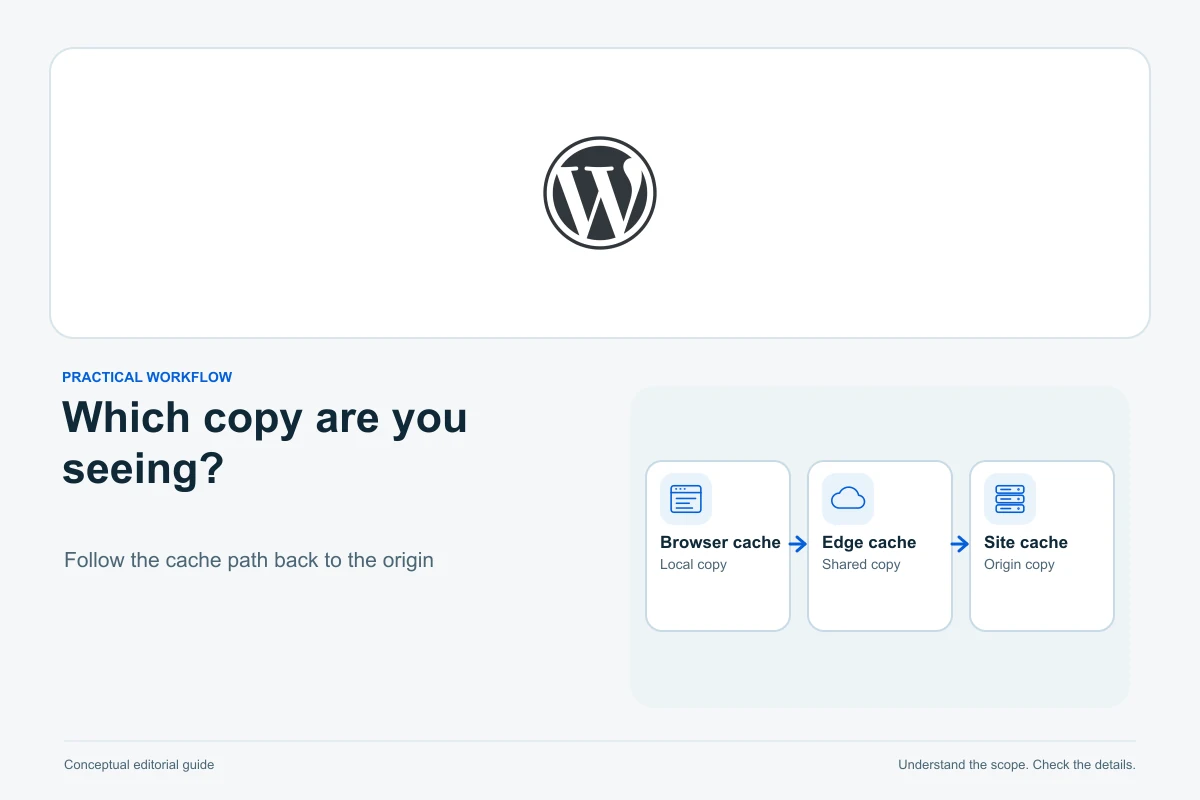
First confirm that the intended change was saved in the correct place. Then test the exact visitor URL and clear only the cache layer implicated by the result. An unchanged page can be an old cached response, a draft that is not public, an incorrect template or simply a different URL. Buying another optimization plugin is rarely the first useful diagnostic step.
This guide is for a site you administer. It provides a repeatable worksheet; it does not claim that we reproduced your hosting configuration or performed these repairs on a provider account.
1. Check the change before clearing anything
Return to the editor and verify the new text or setting is still present. Confirm the save completed, the correct post or template is open, and the relevant publication state is intentional. A private draft preview and the public website answer different questions. Do not publish unfinished work merely to test a cache theory.
The WordPress Posts screen documentation explains status-based organization. Check whether you edited an existing published item, a separate draft or another record with a similar title. For site-wide design, identify the template or reusable part actually used by that page.
Copy the exact URL you expect a visitor to see, including the path and language variant. A root domain, www address, preview, staging address and redirected destination may not be equivalent. Save this URL in your notes; testing different addresses accidentally can make a working fix appear inconsistent.
A small diagnostic worksheet
| What you observe | Useful next check | What it does not prove |
|---|---|---|
| Editor no longer contains the edit | Save errors, wrong record or a later overwrite | That visitors are seeing a cache problem |
| One browser is old; another is current | Browser cache, extensions or a local session difference | That every server cache is current |
| Logged-in view is current; logged-out is old | Page-cache rules and personalized responses | That logging out itself caused the problem |
| Text updates but styling stays old | The actual stylesheet URL and generated design assets | That the saved page body is wrong |
| All views show the old page | Correct source, final URL and shared cache layers | That deleting all cached files is safe or necessary |
2. Isolate the browser layer
Try a fresh logged-out browser session and reload the same URL. A private window is a useful comparison, but different cookies, extensions and login state can also change the result. Record those differences rather than assuming the cache is the only variable.
In Chrome DevTools, the Network panel’s Disable cache control lets you inspect a request without normal browser-cache reuse while DevTools is open. It does not purge the website’s hosting cache. Inspect the final document or asset request, not only the URL you originally entered before a redirect.
A normal refresh may reuse some cached resources. If you clear browser data, select the relevant cache controls rather than unnecessarily deleting all passwords, history and cookies. Recheck once and stop if the expected content appears consistently.
3. Find the caches your site actually uses
MDN distinguishes private and shared HTTP caches. Your browser can reuse a response; a host or CDN may also serve a stored response to many visitors. Cache headers and age information can help investigation, but a missing header does not prove that no cache exists.
List the active WordPress cache plugin, the host’s page-cache feature and any CDN or reverse proxy. Ask the host when that list is unclear. The WordPress troubleshooting FAQ also highlights server caching and changes made in the wrong source location.
Use the documented invalidation control for the smallest relevant page or asset. Recheck the exact URL after each action and record which step changed the outcome. Work outward from the confirmed fresh source so an outer cache does not immediately refill from an older inner response.
4. Purge the right CDN resource, when relevant
If the origin is current but the CDN response is old, follow that CDN’s exact instructions. Cloudflare documents URL-specific purging and exceptions for custom cache keys. Purging a redirect URL may remove the redirect response while leaving the destination content cached.
The page and its stylesheet are separate resources. A freshly delivered HTML document can still reference an older asset URL. Identify the stylesheet or image actually loaded before purging it. Do not change production cache rules or call an API with copied credentials merely because a generic tutorial suggests it.
5. Check generated assets and the active template
If the saved source is correct but the rendered result is wrong, check the theme or builder documentation for a supported asset-regeneration step. Preserve a recoverable backup first. Removing random files from uploads or a cache directory can destroy useful data or break the page without identifying the cause.
For an installed progressive web app, a service worker can add another layer; ask its maintainer how updates are handled. Do not unregister an application’s storage blindly. When no cache explanation fits, check whether another template, block pattern or plugin is replacing the output.
Verify the repair and prevent the repeat
- Check the original URL in a logged-out session.
- Verify the exact changed content and affected design asset.
- Confirm a form, cart or account page still behaves correctly if caching was adjusted.
- Record the responsible layer and its supported update procedure.
- Leave normal caching enabled once the issue is understood.
For recurring problems, reproduce the edit on a separate copy using the staging checklist. If cache changes create a slow site, use the performance diagnosis. A clear update procedure is more valuable than repeatedly buying tools that overlap the ones already installed.
Sources and verification
Editorial review 2026-10-08. Source check dates are recorded separately. Notes describe what each source supports and its limits.
View sources
- WordPress: changes not appearingChecked Browser, server and plugin caches or editing the wrong source can explain unchanged pages.
Limits: Some examples are historical; exact current theme and hosting controls differ. - WordPress: Posts screenChecked Draft and published states differ and posts can be found by status.
Limits: Post-list guidance does not diagnose every Site Editor template or page-builder workflow. - MDN: HTTP cachingChecked Private and shared caches differ; cache headers, freshness and validation influence reuse.
Limits: Protocol explanation; browser headers alone may not identify every hosting layer. - Chrome DevTools: Network featuresChecked Disable cache affects browser-cache behavior during a DevTools inspection.
Limits: Does not automatically bypass the host, reverse proxy, CDN or application storage. - Cloudflare: purge by single fileChecked URL purging can invalidate a specific CDN resource; custom cache keys and redirects have caveats.
Limits: Cloudflare-specific documentation, not a universal plugin procedure or permission to change a live zone.