
Inventory the address and existing subscription first. Use an alias for a single handler, a distribution group for copies with an agreed responder, a Collaborative Inbox for conversation ownership, or explicit delegated/shared mailbox access for a common mailbox. Purchase only if a verified requirement remains unmet.
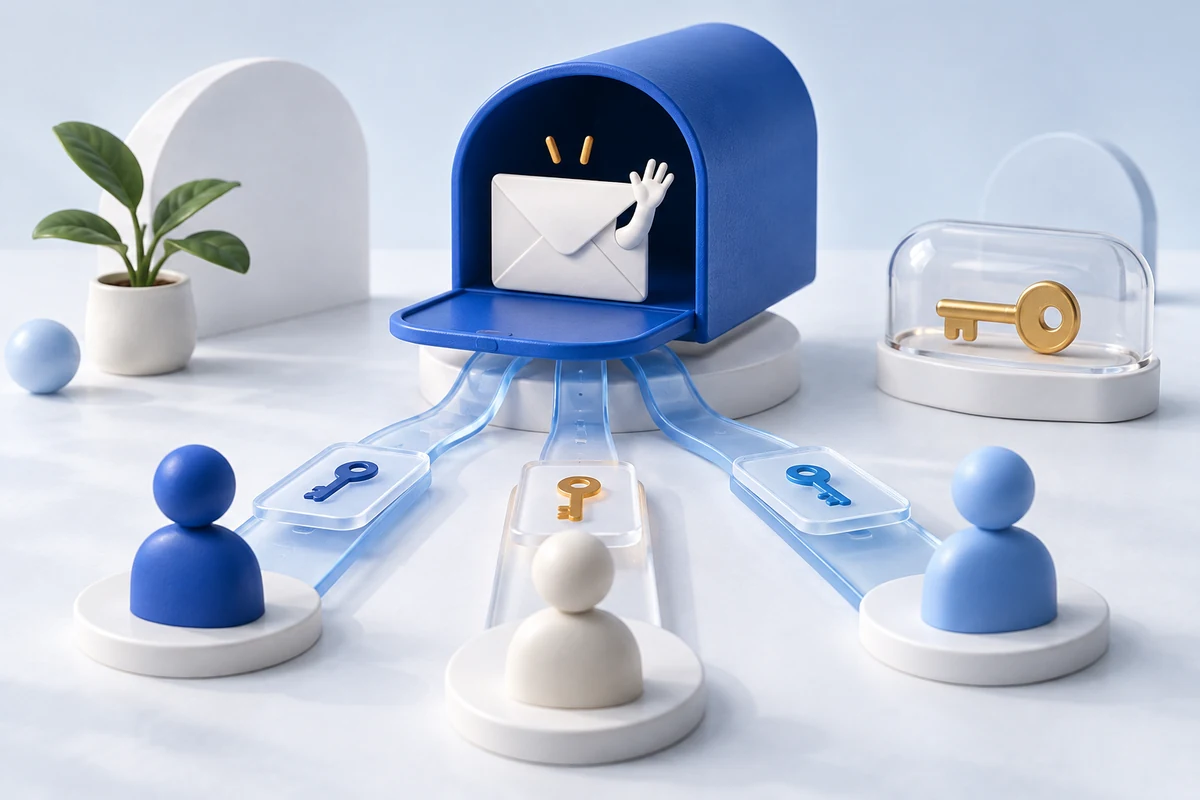
Give each teammate access through their own account, then configure a shared address they can read and answer. Start with the email subscription you already have. An alias may suit one person; a group or delegated mailbox may suit a team. None of these requires passing around the password for hello@.
This guide uses hello@example.com as an example address. It explains documented Google Workspace and Zoho Mail routes, checked on 11 October 2026. It is researched guidance; we have not configured a customer account or tested either provider’s delivery.
Before changing hello@
Ask your administrator what hello@ currently is: a user’s mailbox, an alias, a distribution group or a forwarding rule. Record where existing messages live, who can read them, who controls recovery and which applications send from that address. Preserve the existing arrangement until you have a migration and testing plan; replacing an address object does not automatically move its history.
Decide whether everyone needs to answer, whether replies must show hello@ and whether you need a visible owner for each enquiry. Name a person responsible for reviewing unanswered messages. Check your current edition and administrator permissions before purchasing another tool.
Choose the access model
| Arrangement | Who reads and replies? | Practical fit | Check first |
|---|---|---|---|
| Alias | Mail arrives in an existing user’s mailbox. | One person handles hello@ alongside their own address. | An alias alone does not create team access or assignment. |
| Distribution group | Members receive copies in their own inboxes. | Several people need notifications; one agreed person answers. | Separate copies do not establish a shared work queue or sender identity. |
| Collaborative Inbox | Authorized group members work with conversations and ownership. | A team needs to assign and track incoming enquiries. | Viewing, assignment and sending are separate permissions. |
| Delegated or shared mailbox | Named users receive access to a common mailbox. | A team needs mailbox history and replies from the same address. | Product-specific deletion, delegation and sender powers. |
Terminology varies. Google distinguishes aliases from mailbox delegation; its aliases belong to one user and cannot themselves have delegates. Zoho distinguishes distribution lists from shared mailboxes. Choose the workflow rather than assuming every product called a “shared inbox” behaves alike.
Google Workspace: use Groups for assignment
Google Groups’ Collaborative Inbox can assign conversations and track resolution. For a work account, Groups for Business must be available. A group owner or manager can enable the feature; ordinary membership alone is insufficient. Follow Google’s setup instructions:
- Create the intended group and add the people who will handle enquiries, or review an existing group’s membership.
- Turn on conversation history. In the group’s settings, enable Collaborative Inbox.
- Give the handlers the metadata moderation permission required for assignment and completion. Review content moderation separately for other resolution actions.
- Review who may view conversations, join, send messages and reply privately. A customer-facing address needs outside senders to reach it; that does not require exposing its conversation history publicly.
Sending as hello@ needs separate attention. In posting policies, check Who can post as group and the default sender. Review where replies go, too. These controls are documented in Google’s group settings reference. Receiving a group copy in Gmail does not prove that an ordinary reply will use hello@ or reach only the customer.
Each handler signs into their own account and opens the group. Use Take for your own conversation or Assign for a teammate before answering; inspect recipients and sender, then record the resolution. Google’s operating guide explains these actions. Agree who reviews unassigned conversations so two people do not independently answer the same request.
Zoho Mail: create a Shared Mailbox
Zoho Mail’s Shared Mailbox keeps group messages together rather than delivering a copy into each member’s personal inbox. Zoho currently limits this feature to organizations on paid plans. Zoho TeamInbox is a separate offering; do not assume a Mail subscription includes its features or charges.
- An administrator opens the Mail Admin Console, selects Groups, then Shared Mailbox and Create.
- Enter the group name and intended address. Choose an incoming-mail policy that accepts customer enquiries, with any moderation your team needs.
- Add the relevant organization users. Shared Mailbox does not support external members; an external customer sending an enquiry is different from an external teammate receiving access.
- Select moderators deliberately, finish creation and have each member locate the mailbox inside their own mail account.
These steps follow Zoho’s administrator instructions. In member settings, check each handler’s permission to send using the group address. Zoho documents that permission separately from membership.
Assign an incoming message to one member before answering. Zoho documents one assignee per email, shared assignment views, comments and a Sent folder for outgoing messages. Use those to hand over work and confirm a response was sent. See Shared Mailbox actions. Assignment is a team convention, not a promise that software prevents every duplicate reply.
Prefer a Gmail mailbox? Use delegation
If hello@ should be a Gmail mailbox, an administrator can enable delegation for the organization. Delegates can manage messages without receiving the account password; access includes deletion. Administrators also control whether recipients see the delegate’s address alongside the mailbox owner. Check Google’s delegation guidance before granting access.
On a computer, the mailbox owner opens Gmail’s full settings, then the Accounts or Accounts and Import tab. In the account-access section, add the teammate’s organization address and send the invitation. The teammate accepts it and opens the delegated inbox through their own Gmail account switcher. Google says activation can take up to 24 hours; see adding and removing delegates.
Google also documents an administrator shared-inbox setup for Business Starter, Standard and Plus, currently rolling out in phases. If available, follow that flow or convert an existing account. Its documentation says everyone with access can manage delegates and settings: decide whether that authority fits your team. Check the shared-inbox instructions. Do not assume this Gmail route provides Groups’ conversation-assignment workflow.
Test before handing over enquiries
Run this checklist with harmless messages and an outside address you control. It is a proposed acceptance test, not a test we have performed:
- Send to hello@ from outside the organization. Confirm the intended team can find it; check moderation and spam if it is missing.
- Have two handlers open it through their own accounts. Check assignment or your agreed ownership method.
- Reply once. At the outside account, inspect the visible sender, any delegate identity and reply destination.
- Reply back. Confirm the team can find the continuing conversation and the earlier outgoing message.
- Check that an unauthorized account cannot browse the conversation history.
Plan departures and lost-device recovery
Reassign open enquiries and retain required business records before removing a teammate. In Google Groups, an authorized manager selects the person under Members and removes their membership. Review joining and visibility settings as well. Google explains that removal stops group email without deleting the person’s account. Previously delivered or downloaded copies need separate handling.
For a Zoho shared mailbox, remove the selected user from its member list. For Gmail delegation, remove the person’s delegate entry in the mailbox’s account-access settings. Check every access route, including membership of any group used as a delegate. Suspending an employee account, preserving its records and changing subscription billing are separate administrator tasks.
Enable MFA on each person’s own login and protect the administrator accounts. Zoho supports organization-enforced MFA. Keep recovery material outside the shared mailbox, in protected storage available to the authorized recovery owner. Google recommends spare administrator recovery methods; Zoho’s backup-code options depend on organization policy. Record who can recover access, without putting passwords or codes in handover notes.
Quick questions
Can we just share an alias?
An alias changes where mail arrives; it does not by itself grant colleagues access. Choose an explicit group or mailbox permission model when several people must handle it.
Does hello@ cost another licence?
Check the exact product and edition. A user’s mailbox price cannot establish the cost or eligibility of a shared mailbox, group or TeamInbox subscription.
If your existing plan meets these checks, use it. Otherwise, compare team email options. That table compares subscriptions and costs per licence; it does not certify shared-workflow eligibility. Confirm the required paid features, permissions and full team quote before buying.
Sources and verification
Editorial review 2026-10-11. Source check dates are recorded separately. Notes describe what each source supports and its limits.
View sources
- Make a group a Collaborative Inbox — Google Workspace Learning CenterChecked Groups for Business prerequisite, owner or manager setup, conversation history requirement, assignment and completion permissions.
Limits: Documentation only; organization policies and actual feature availability were not tested. This is Google Groups, not Gmail mailbox delegation. - Create a group and choose group settings — Google Groups HelpChecked Separate controls for joining, conversation visibility, posting, replying, posting as the group, default sender and reply routing.
Limits: Available options depend on administrator policy; receiving a message does not verify the identity or recipients of a reply. - Set permissions for managing members and content — Google Workspace Learning CenterChecked Permission separation for reading, private replies, metadata moderation, content moderation, posting as group and member management.
Limits: Research cross-check; no custom-role configuration or permissions test was performed. - Use a group as a Collaborative Inbox — Google Workspace Learning CenterChecked Take and assign conversations in Google Groups; search assignments and record resolution states.
Limits: Does not prove duplicate responses are impossible or that a reply sent in a separate client has the intended sender. - Delegate a user's email address — Google Workspace HelpChecked Delegation grants reading, sending and deletion; aliases are assigned to one user and cannot have delegates; administrator controls sender information and delegation availability.
Limits: Page updated 9 October 2026. No tenant configuration, licence quote or delivery test; alias behavior is specifically Google's documented behavior. - Delegate and collaborate on email — Gmail HelpChecked Computer-based delegate invitation, own-account switcher access, removal of delegates, organization restriction and possible activation delay of up to 24 hours.
Limits: No invitations were sent or accepted. Interface labels differ between account types; delegate access is not Groups assignment. - Create a shared inbox — Google Workspace HelpChecked Business Starter, Standard and Plus support; phased rollout; administrator creation or conversion route; users with access can manage delegates and settings.
Limits: Page updated 9 October 2026. Rollout availability and complete licence cost must be checked in the reader's tenant. Broad delegate-management powers may not suit every team. - Manage your subscriptions and groups — Google Workspace Learning CenterChecked Authorized member removal in Groups; removed members stop receiving group email; removal does not delete the person's account.
Limits: Removal is not an employee-account lifecycle, billing or previously downloaded-data removal procedure. Joining and visibility policies also need review. - Shared Mailbox overview — Zoho MailChecked Shared threads rather than personal-inbox copies; paid-organization restriction; separate reference to Zoho TeamInbox.
Limits: Documentation states a paid-plan restriction but does not establish the exact reader's entitlement or the full cost of a particular configuration. - Shared Mailbox administrator settings — Zoho MailChecked Administrator creation under Groups and Shared Mailbox; incoming-sender policy, organization-user membership and moderator selection; external members unsupported.
Limits: An outside sender is different from an outside member. The shared view is established by the overview; generic group wording about delivery should not be read as personal-inbox copies. - Email groups or Distribution Lists — Zoho MailChecked Distribution lists deliver copies to members; distinguishes a distribution list from Zoho's Shared Mailbox.
Limits: This is not a claim that every distribution-list product lacks all optional collaboration features. - Email Group Settings — Zoho MailChecked Member list and role management, permission to send using the group address, selected-member removal and moderator powers.
Limits: The page covers group types generally. Its external-member options must not be applied to Shared Mailbox, whose specific instructions exclude external members. - Shared Mailbox Actions — Zoho MailChecked One assignee per email, assigned and unassigned views, internal comments and Sent folder for outgoing messages from the shared address.
Limits: No account used; assignment is not asserted to prevent all duplicate responses. Deletion-role wording differs in detail from the overview, so no granular delete-rights promise is made. - Introduction to multi-factor authentication — Zoho AccountsChecked MFA options and organization-enforced policies for individual Zoho logins.
Limits: No MFA method was configured; organization policy determines the supported enrollment route. - Backup verification codes — Zoho AccountsChecked Recovery codes can restore access after loss of an MFA method; organizations may restrict generation of those codes.
Limits: No recovery code was generated, viewed or stored; the article contains no secrets or exact recovery-step promises for an unverified policy. - Recover an account protected by 2-Step Verification — Google Workspace HelpChecked Prepare administrator recovery with spare security keys, secure backup codes and an additional authorized administrator; recovery actions require appropriate privileges.
Limits: Page updated 9 October 2026. Recovery policy and privileges were not tested; enabling or disabling MFA is outside this editorial task.