 Pagember

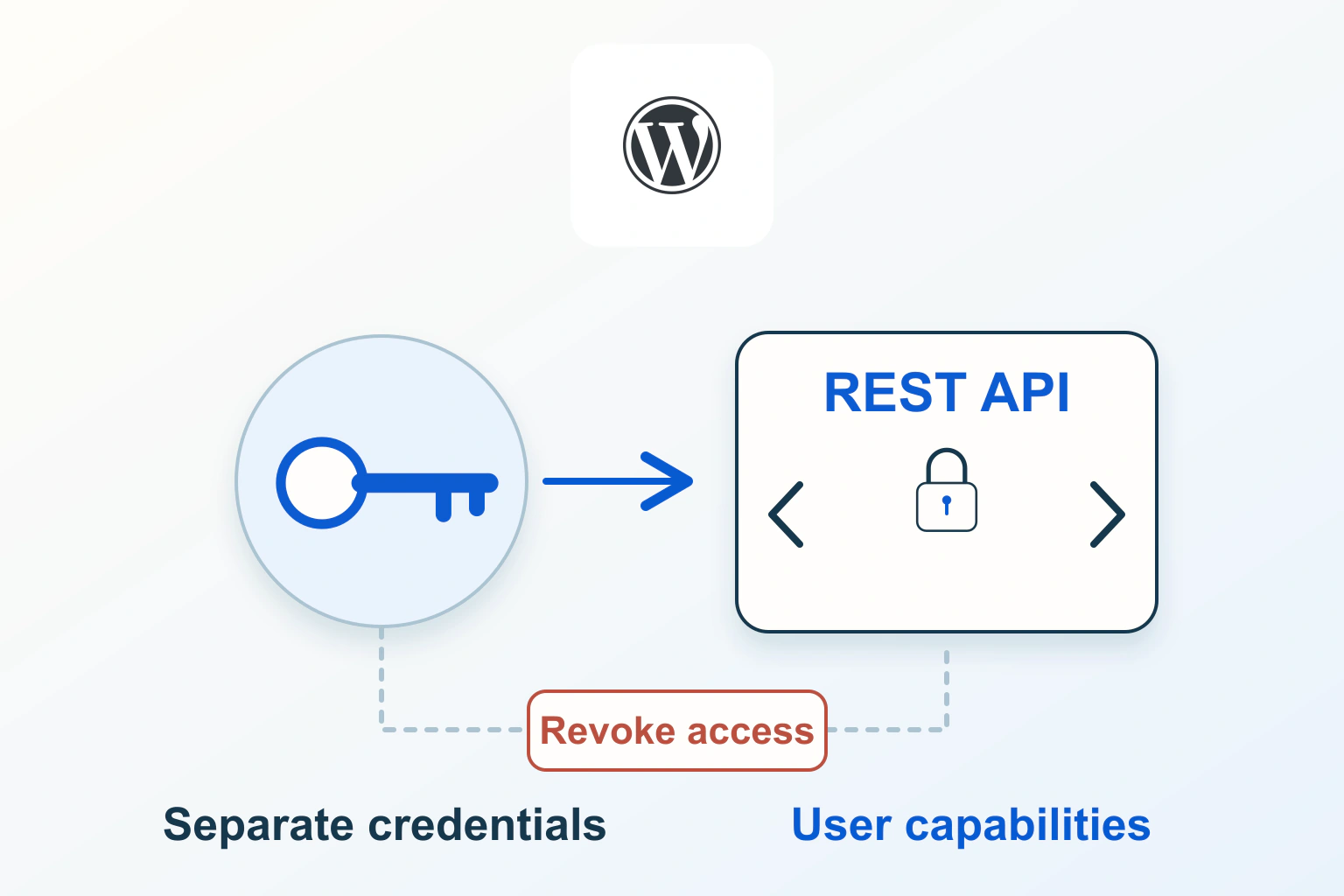
A WordPress application password lets an integration authenticate without receiving your main browser-login password. Create a different named credential for each approved application, send it only over HTTPS and revoke it when the connection ends. The credential is separately manageable, but it still acts with the associated user's capabilities.
Do not approve a service until you know which site, account and actions it will access. Make permission probes in a protected copy where possible.
Choose application authentication for an application
WordPress documents application passwords as programmatic credentials, introduced in core 5.6. They are not passwords for signing into the normal wp-admin login form. A tool that asks for your main administrator password may be using a different design; ask whether it supports the native application-password route.
The REST API authentication handbook distinguishes application-password Basic authentication from cookie and nonce authentication used with a signed-in WordPress browser session. Do not copy a browser cookie or nonce into a long-running external job as a substitute for a supported connection.
Browser multi-factor authentication and recovery remain important for the human account. They do not mean that every background API request will display a fresh human challenge. Protect the generated credential according to the access it provides, rather than assuming the interactive login controls make disclosure harmless.
Define the smallest useful access before generating anything
Write the integration's real job: reading a private report, creating drafts, uploading media or publishing content. Identify the relevant content types and whether it needs to change other users' work. A public-content reader may not need authenticated access at all.
WordPress roles and capabilities govern actions available to the user. A native application password does not come with a per-credential list of OAuth-style scopes. Naming it “Read only” does not remove publishing or administration capabilities from the associated account.
For a hypothetical reporting service, do not start by generating a password under the owner's Administrator account. Have the authorized maintainer identify the minimum capabilities the report actually requires and choose a suitable dedicated user or supported narrower integration. Verify plugin-specific records as well as ordinary posts.
If the task requires a custom capability arrangement, treat that as a separate implementation to review and test. Avoid adding broad permissions until an error disappears. Our temporary-access guide explains how to review the user boundary while preserving ownership and recovery.
Create a recognizable credential in the correct account
- Confirm the intended WordPress hostname, HTTPS address and environment.
- Go to Users → Profile (or Users → All Users → Edit for the integration user) and scroll to the Application Passwords section near the bottom.
- Type a precise name in New Application Password Name, for example "Reporting tool – staging", and click Add New Application Password.
- Copy the generated value straight into the approved application's secure credential setting. If you need to keep a copy, store it in a password manager entry named after the integration; NordPass shared items let a small team hand over that entry without pasting the secret into chat. If an integration secret was ever committed to a GitHub repository, revoke it and recover the deployment before you issue a new one.
- Record the non-secret connection details: owner, user, purpose, creation date and revocation responsibility.
WordPress shows the generated value at creation rather than making it a reusable visible field later. Do not put it into a ticket, shared document, article, screenshot or email. A copied secret must not become an ordinary project note.
Use a separate credential for each integration and environment. Reusing one across a publishing service and a reporting job makes later revocation harder to target. If you cannot identify which application uses an existing entry, investigate before deleting it or handing it to another service.
Keep the credential out of URLs and diagnostic output
Basic authentication supplies credentials through the client's supported authorization mechanism. HTTPS protects the transport; encoding a Basic value is not encryption on its own. Confirm the expected final hostname before sending authentication, and do not forward credentials blindly through an unexpected cross-host redirect.
Use the application's protected secret field or an appropriate secret store. Do not embed a username and password in a URL, paste a complete authorization header into a browser Console, or type a real secret into a command that will be retained in shell history. Review job logs and error reporting for accidental disclosure too.
When asking for support, share the request method, redacted route, response status and non-sensitive error text. Remove authorization values, cookies, private response bodies and personal records. A screenshot that hides the password field but exposes a copied header still exposes the credential.
Prove identity with a read-only request first
The Users REST reference documents the current-user endpoint. An authenticated GET can establish which user the integration is actually acting as before a publishing or update operation is enabled. The following is a schematic request plan, not executable code or a credential example.
Target: https://example.com/wp-json/wp/v2/users/me
Method: GET
Authentication: supplied privately by the approved client's secret store
Expected result: the intended integration user's identity
Do not include the secret in this record.
Check the structured response as well as the status. A successful HTML login page is not the expected REST identity result. Confirm that the user is the integration user, not an administrator session left open in the testing browser.
Then verify the specific read permissions required by the job. Identity success does not prove access to every report, media record or plugin endpoint. Use synthetic records in staging for any necessary write test, and keep publication or deletion disabled until the relevant capabilities and recovery path are understood.
Investigate refusals without opening every security boundary
- Application Passwords is absent
- HTTPS detection, current feature availability and any deliberate site policy
- Identity request is refused
- Actual credential type, correct account, final endpoint and whether the authorization header reaches WordPress
- Identity works but a task is forbidden
- The route's permission requirement and the user's effective capabilities
- Expected JSON becomes a login page
- Redirects or an additional access layer before the API
- Only the scheduled client fails
- Its configured environment, credential source and request behavior
HTTP 401 and 403 are useful evidence, but do not infer the whole cause from a number alone. A security gateway or custom integration may produce the response before WordPress handles it. Read the safe error details and correlate the request with the responsible maintainer.
The administration documentation notes that plugins or filters may disable the feature and that proxies can affect the Authorization header. Resolve the intended policy or documented server configuration. Do not disable the entire firewall, change every user to Administrator or expose a protected staging site to make one request succeed.
Review usage and revoke only the intended connection
The application-password reference defines records including name, creation, last-used time and last IP. These can help identify unused or unexpected connections. Treat them as usage metadata, not a complete immediate record of every request.
Keep the service's own job record beside that metadata. A connection with no expected future work can be retired deliberately. A surprising last-use observation should trigger investigation rather than a public accusation based on one address.
To end one integration, click Revoke next to its name in the Application Passwords table, then verify that the old connection cannot authenticate. Check that other approved integrations still work. If compromise is suspected, revoke promptly and investigate what the exposed user's permissions allowed; replacing the secret alone does not undo prior changes.
For planned rotation, prepare the replacement privately, verify the intended connection, retire the old value and confirm denial. Do not assume that naming a credential with an expiry date enforces that date. Record who will perform the future review, and maintain the owner's separate account recovery route.
The useful outcome is a connection whose owner, permissions, secret handling and offboarding are understood. Separating the credential makes that manageable; it does not make an overprivileged or untrusted integration safe.