 Pagember

NordVPN's VPN tunnel and its malware or phishing features solve different problems. A tunnel changes the network route and protects traffic on that route. A download scanner or malicious-site warning evaluates a different kind of risk: the file or destination you are about to use. Understanding those layers is the best way to get value from the app without buying a bundle for a feature your device cannot run.
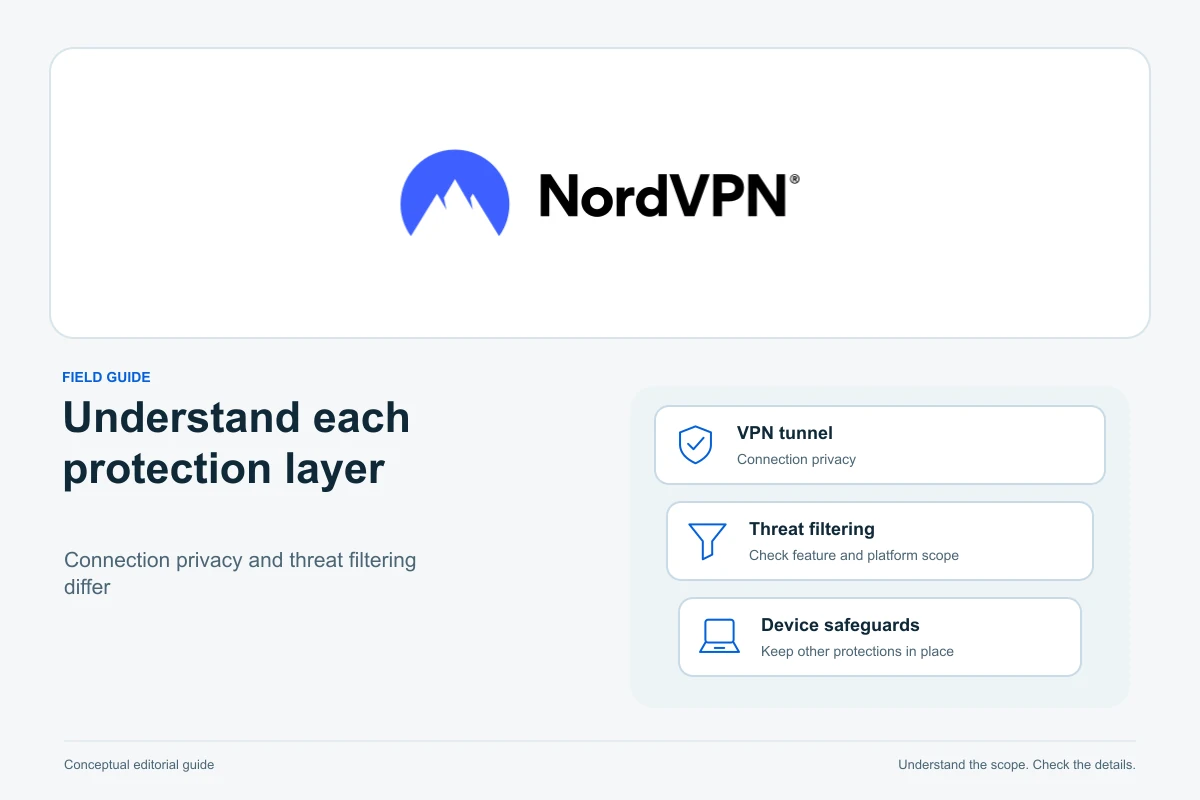
This researched guide uses official documentation checked on October 13, 2026. NordVPN's naming is changing: older material says Threat Protection Pro, while current pages also use next-gen antivirus, Scam, phishing, and malware protection, and Real-time protection. Follow the actual feature and its supported platform, rather than assuming a familiar name guarantees the same functions everywhere.
Explore NordVPN
Check NordVPN’s current protection features for your operating system and chosen plan. The guide below explains which layer each feature covers.
Start with the risk you want to reduce
For a website owner, three ordinary situations illustrate the difference. You may want your laptop's connection to use a VPN while working away from home. You may want another checkpoint before opening a downloaded tool. Or you may want help spotting an imitation sign-in page. Those tasks can complement one another, but they are not interchangeable.
| Layer | Useful question | What it does not establish |
|---|---|---|
| VPN connection | Is the intended traffic using the tunnel? | Whether a downloaded program is trustworthy. |
| Website filtering | Has the destination been identified as dangerous? | That every allowed page is legitimate. |
| Download protection | Has the supported scanner detected a threat? | That every file or execution path was examined. |
| Account controls | Can someone sign in with a stolen password alone? | That a VPN or scanner has replaced MFA. |
The value is in a sensible combination. Do not treat an extra layer as permission to ignore a browser warning, install an unknown WordPress plugin or reuse an administrator password. CISA's basic safety guidance treats phishing awareness, unique passwords, MFA and updates as separate precautions.
 Play video: Scan files you download for malware with a few simple steps
Match the current feature to the old name
The security-feature overview maps Threat Protection Pro to Scam, phishing, and malware protection. It maps the older Threat Protection name to Scam and phishing protection. The former has broader desktop capabilities, while the latter describes DNS-based filtering. A newer macOS setup guide calls the broader feature Real-time protection.
These names describe one feature family during a renaming, so you are not choosing between three separate products. When comparing an offer, write down the exact feature list shown for your country, subscription and installed app, and confirm the feature on the order summary before paying. If you are unsure, NordVPN support can confirm what your plan includes.
Desktop and mobile are different decisions
NordVPN's overview lists the broader desktop feature for Windows 10 64-bit and Windows 11, and macOS 12 or newer using the website-distributed app. It does not list the Mac App Store build for that full feature. The installed-app vulnerability scanner is specifically identified as Windows-only. Mobile, Linux and browser-extension entries should not be read as promises of equivalent desktop file scanning.
On a Mac, the installation-source guide directs users to the website version for the broader protection. Moving between distributions is a separate installation task. Preserve your work, read the current steps and confirm that the plan you own includes the desired feature before changing an otherwise working setup.
If you mainly use an iPhone, Android phone or Linux workstation, evaluate the features documented for that device. Paying for a desktop-focused capability only makes sense when you have a supported desktop and intend to use it. A broad “security bundle” label does not answer that practical question.
Match the bundle to the protection you can run
| Plan example in the reviewed US offer | Included layer to evaluate | Useful when | Boundary |
|---|---|---|---|
| Basic | VPN connection, DNS-based filtering and basic Dark Web Monitor. | The job is connection privacy with supported basic protection controls. | Do not assume desktop antivirus or file scanning is included. |
| Complete | The supported desktop malware and browsing tools, plus the bundle’s separate extras. | A compatible desktop will actually use the additional scanning/protection layer. | Check operating system and installation source; desktop scanning is not an identical phone feature. |
| Prime | Complete plus separately eligible US identity benefits. | The customer is eligible and has a defined use for those benefits. | Country, state and policy conditions still apply; plan names differ by market. |
| Ultra (Europe) | Complete plus Incogni personal data removal. | You want help asking data brokers to remove your personal data. | Additional Incogni terms apply; the tier is listed on NordVPN’s European page. |
Match the local feature matrix to the supported platforms. Plan names here are the US versions; Europe lists Ultra as the top tier. Our NordVPN plans and features guide compares the tiers, and the NordVPN Black Friday guide explains how Basic and Complete compare on upfront cost and renewal.
VPN off does not necessarily mean every protection is off
NordVPN's current product page describes supported desktop protection running without a VPN connection when enabled. That can be useful when you want an extra browsing or download checkpoint while deliberately using an ordinary network route.
The DNS-based feature follows different requirements. Official material describes filtering through NordVPN DNS servers, but the support overview includes a mobile exception alongside a table that says a VPN connection is required. Until the instructions for your actual app resolve that difference, do not assume your phone continues filtering after a disconnect. Check its current status and ask support if the displayed behavior is unclear.
These distinctions matter during troubleshooting. A page might be blocked by website filtering even when the VPN is disconnected, whereas a routing problem may affect a page that is not malicious at all. Identify the layer before changing settings.
Set up protection and inspect its actual state
The macOS instructions use the shield/Protection area and a setup wizard for required extension, configuration and disk-access permissions. They require administrative rights. An incomplete permission step is something to resolve through the official process, not by pasting commands from an unfamiliar forum.
NordVPN's scanner guide distinguishes saved toggle preferences from the currently active parent feature. Read both. It also describes an optional cloud-based scanner and choices between quarantining and automatically deleting detected files. The same guide says quarantine is not yet released for macOS, so do not promise a Mac user the Windows review-and-restore workflow.
Before enabling a cloud option, read the current explanation of processing and decide whether it suits the information you handle. For a work computer, follow the employer's security policy. Do not disable a managed antivirus or endpoint agent merely because a consumer feature is available in another app.
A useful example: evaluating a website utility download
Suppose you need an image optimization utility for your editorial workflow. Start at its publisher's genuine site, check the requested platform and read the installation requirements. If supported NordVPN download protection is enabled, treat its warning or scan result as additional evidence rather than a replacement for that investigation.
If a warning appears, pause. Confirm the source and intended filename independently. A file arriving at the time you expected does not make it safe. If you suspect a false positive, use the documented support route instead of routinely selecting Keep or adding the whole downloads location to an exception list.
If there is no warning, the remaining questions still matter: is the tool maintained, is its license appropriate, and do you need the access it requests? A silent scanner is not a guarantee that the software is suitable for your business. This is especially relevant to website backups, database tools and plugins that may handle customer information.
Handle website breakage narrowly
NordVPN acknowledges possible mistaken website blocks and layout problems caused by filtering. Its product FAQ also notes that download scanning may not work for Chrome incognito downloads on macOS. Those limits make a careful troubleshooting record more useful than a blanket assumption that every browser session is covered.
For an ordinary trusted site that fails to load, note the URL, time, app version and the visible warning without recording private form contents. Check whether the problem is connectivity or a protection alert. If the official guidance justifies a temporary exception, keep it specific and remove it when it is no longer needed. Do not turn off all protections indefinitely to fix a single broken page.
Decide on the bundle from your own feature list
- List the devices where you will actually use the feature.
- Confirm the supported OS, app distribution and permissions.
- Check the current subscription's included features in your market.
- Separate VPN routing, DNS filtering and desktop download protection.
- Keep MFA, updates, trustworthy downloads and website backups in place.
NordVPN brings the VPN tunnel, phishing filtering and download protection into one app, which suits a desktop user who will keep the settings maintained. Choose the tier for the features you will actually turn on. To keep traffic off the open network when the tunnel drops, set up the NordVPN Kill Switch as well. Our VPN guide for website owners and website security and backup budget guide cover the surrounding decisions. Check the current NordVPN feature list before choosing a plan.