 Pagember

A missing notification email does not automatically mean a visitor's inquiry is lost. If your Elementor form collected submissions, the saved record may still be available in WordPress. Check that record first, give someone responsibility for the reply, and investigate email delivery as a separate task.
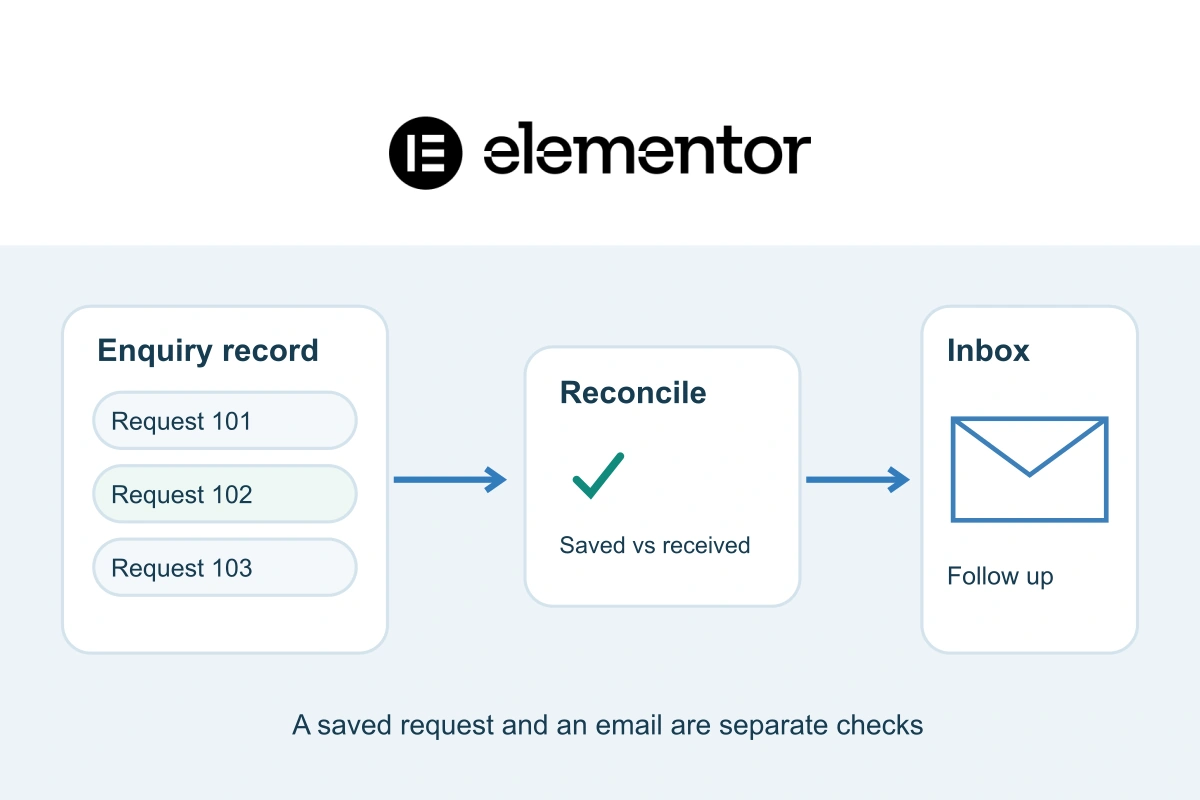
This workflow is for a site you administer and an inquiry you are authorized to handle. It follows Elementor's current help pages; whether old entries exist depends on how the form was set up when the visitor used it.
Record what is actually missing
Write down the form page, approximate submission time and the symptom: the visitor saw a success response, your team has no email, or both. Keep the investigation attached to that specific event. A customer acknowledgment and the notification addressed to your business are different messages.
Do not immediately ask every visitor to resubmit. You may create duplicate inquiries without understanding which copy needs a response. Keep a fallback contact route available while you investigate, and use synthetic information for new tests.
If someone else maintains the site, ask them to identify the form and the receiving workflow. A missing menu, insufficient account access and an empty set of saved records are different findings. Record the limitation instead of treating it as proof that no message exists.
 Play video: How to Use Form Submissions in Elementor Pro
Look for a saved Elementor submission
Elementor documents saved entries under Elementor > Submissions in WP Admin. Open the relevant entry and compare its contents with the known inquiry. Its collection instructions separately require Collect Submissions in the form's actions after submission.
- Open the saved-submission area with an authorized account.
- Look for the relevant time and form context, then open a plausible match.
- Check the actual question and supplied contact route, rather than relying on a familiar name alone.
- Record whether the inquiry already has a reply or an assigned owner in your business process.
Finding a matching record gives you something actionable. It does not establish that the notification was created, accepted by a mail service or read. If you cannot confidently match a record, keep it unresolved rather than contacting a different person by mistake.
Use a small inquiry ledger
Here is an example ledger for a service business, with invented inquiries.
| Hypothetical inquiry | Evidence found | Next action |
|---|---|---|
| Example A: appointment question | Matching saved row; notification not located | Assign a reply from the saved inquiry and investigate the email separately |
| Example B: estimate request | Matching saved row and notification in spam | Mark one follow-up owner so both copies do not produce duplicate replies |
| Example C: availability question | No matching row located; collection history uncertain | Investigate the form configuration and ask for the minimum missing detail through a known contact route |
Keep three separate statuses in your own ledger: saved record, notification and follow-up. “Saved, email unknown, reply assigned” is a useful operational state. A single label such as “sent” hides the distinction that matters.
For Example A, the immediate business task is to answer the inquiry. Repairing the notification remains necessary, but it need not prevent an authorized person responding to information already available. Record who replied and when in the process your team uses.
Export only the records you need
The same official submissions guide supports exporting all records or selecting entries with checkboxes and using Export Selected to CSV. A focused export is useful when the person handling a small reconciliation does not need the entire inquiry history.
Before downloading, define the purpose and permitted recipient. Then use this checklist:
- Select only the intended records and confirm the number selected.
- Save the CSV in the approved working location, outside a public website folder.
- Open it carefully and compare headings, record count and one example against the saved entry.
- Keep a working note of the export date and the person handling follow-up.
- Remove temporary copies under your organization's retention process once the task is finished.
An exported file is another copy of personal information. Do not send it to a public support discussion or treat it as an unlimited archive. If the form collects files, our contact-form upload workflow covers the separate storage and access decisions.
Inspect the notification without confusing it with storage
Elementor's email instructions show Email as a separate action after submission. Check the intended form, the recipient in To and the fields included in Message. A confirmation addressed to the visitor is not a substitute for the team's notification.
Verify the sender and reply destination separately. Elementor's server-error guidance recommends a From address on the website's domain and using Reply-To for the visitor's address. It also notes that sending uses the site's WordPress mail path. Do not change unrelated mailbox settings simply because a saved row exists.
If fields are missing from a received email, compare the notification template with the actual saved record. The email-settings documentation describes including all fields or choosing individual field shortcodes. That is a different problem from an email that never reaches the recipient.
The most common reason notifications stop is the sending route. By default WordPress hands form email to the server's PHP mail function, and receiving providers often filter or reject it because it is not authenticated for your domain. The durable fix is to send through an authenticated SMTP or transactional email service with an SMTP plugin, using a From address on your domain with SPF and DKIM records in place. Then submit a test inquiry and check both the saved entry and the inbox. For transport logs, authentication and recipient filtering, continue with our general form-email diagnosis. Keep this recovery task focused on existing records and accountable follow-up.
If there is no matching saved row
Check whether the relevant form had collection enabled when the visitor used it. The current default described by the help page does not prove how an older form was configured. A later setting change cannot establish that a previous entry was recorded.
If Collect Submissions was inactive, do not promise recovery from that feature. Check any other legitimate record your actual setup was configured to create, with the responsible administrator. If no record is available, explain the uncertainty and use a known contact route to request only what is needed to continue.
A form success response alone is insufficient evidence for reconstructing the visitor's original text. Keep “not located” separate from “confirmed never stored.” Avoid restoring an older whole-site database over current inquiries merely to search for one missing entry.
Check plan access only after diagnosis
Saved-submission management can be valuable when a small team needs a second place to find inquiries and reconcile its notification workflow. If spam is filling the same list, reduce form spam without losing genuine inquiries before you rely on the saved records. It is a feature requirement to verify, rather than a cure for every email problem.
The Elementor plan page checked on October 18, 2026 expressly excludes form submissions from Essential's Form Builder offering. Match the current selected plan to the storage feature you need; do not infer eligibility from a general widget tutorial.
Existing users with suitable access should use their current tools before purchasing anything. If you are planning a new stored-inquiry workflow, compare the relevant plan's full features, site allowance, payment term and renewal. Our Elementor feature-choice guide explains the broader decision, and when Elementor Pro is worth it covers the step up from Free.
Finish with one traceable test
After the appropriate repair, submit a harmless inquiry with a distinctive test label. Check the saved entry where collection is enabled, then separately check the actual notification at its intended destination. Finally confirm that the person responsible can read the necessary details and reply through the intended route.
Record the result as specific evidence: which form, which test time, which saved record and which recipient outcome. It is one verified workflow, not a promise that every future email will arrive.
Elementor's useful strength for this job is the combination of a configurable form and, on an eligible setup, accessible saved submissions. Pair that capability with a simple ownership routine: inspect unresolved inquiries, assign one reply owner and keep temporary exports controlled.
