 Pagember

Do not start an LCP repair by compressing every image or adding preload to the whole gallery. First find the element the browser measured as Largest Contentful Paint on the affected page. It may be the hero image, but it can also be a text block, and the result can change at a phone viewport.
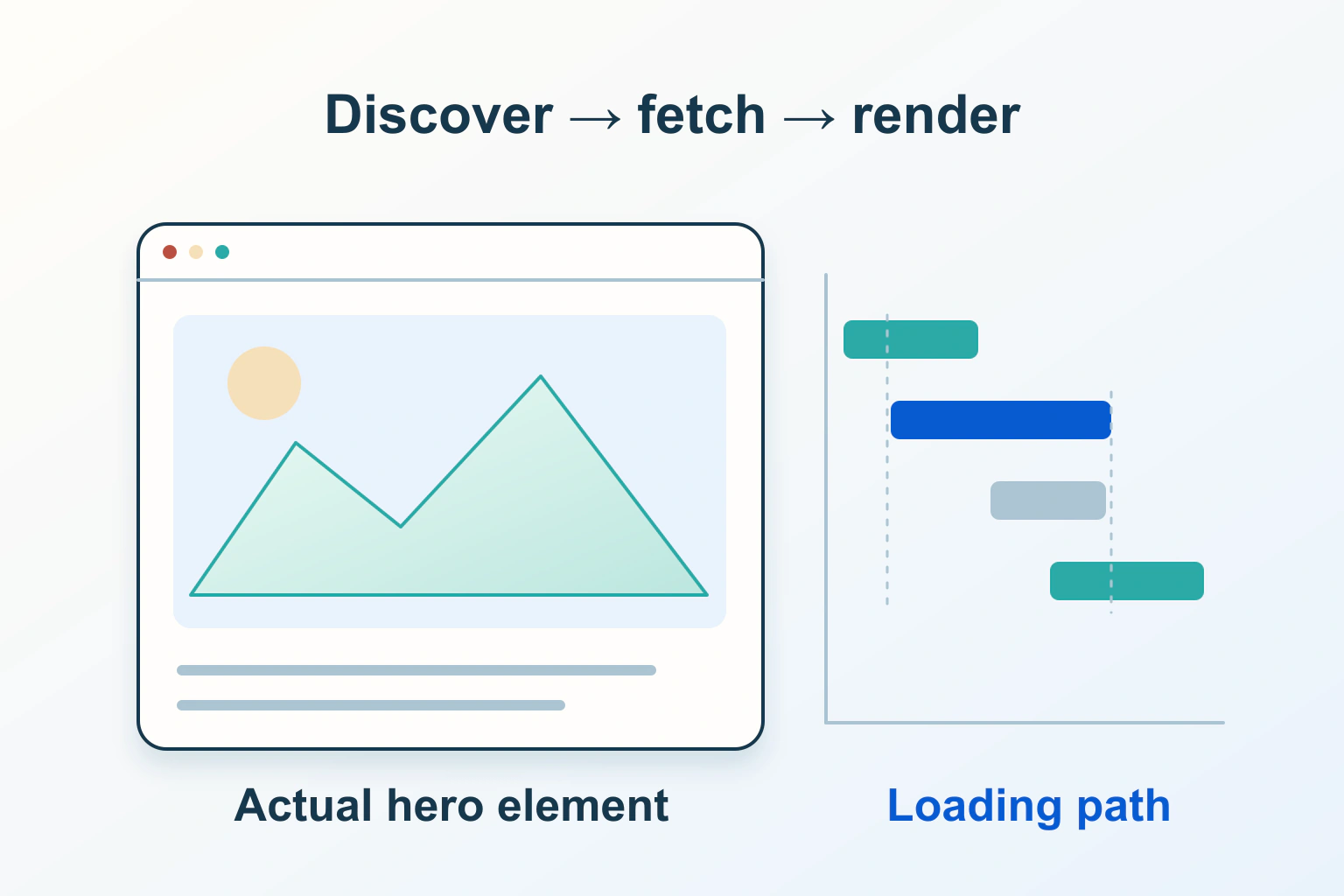
The examples describe a hypothetical workshop article. Keep the current working page and an appropriate recovery route before changing shared image, theme or optimization settings.
Identify which result you are trying to improve
Record the exact URL, device category, navigation state and observation date. In a report containing field and laboratory results, label them separately. Also check whether the field data describes this page or the whole origin; a site-wide population is not a precise measurement of one article.
web.dev's explanation of lab and field differences describes why controlled runs and real visits can disagree. Visitors vary in connection, device, cache and navigation conditions. A laboratory run is useful for locating a bottleneck without becoming proof that the next month's visitors will see that exact timing.
If field data is unavailable, say so. You can still investigate the page with repeatable local or laboratory observations. Do not label an absence of sufficient field data as a passing real-user result, and do not substitute an unrelated origin's report.
Find the actual element at the affected viewport
Use a performance tool that identifies the LCP element and its timing. Inspect the element in the rendered page and record whether it is an image or text. Repeat at the viewport where the problem occurs rather than assuming the desktop candidate is also the phone candidate.
For the workshop example, the wide layout could show a large opening photograph while the phone shows a long heading before a cropped image. Optimizing only the photograph may miss the phone's measured element. A carousel also deserves care: its first visible slide and later hidden images are different priorities.
Keep the page's intended content order. Removing useful opening content solely to manipulate a measurement can damage the reader's task. The useful question is why necessary visible content arrives or renders late.
Split the delay into the stage that owns it
The LCP optimization guide separates response time, resource load delay, resource load duration and element render delay. For an image candidate, this gives a practical investigation rather than treating the final time as one undifferentiated problem.
| Stage | Question to investigate | Example of a focused next check |
|---|---|---|
| Time to first byte | When did the document start arriving? | Document redirects, server response and the applicable cache state |
| Resource load delay | When could the image request begin? | Initial HTML, delayed script insertion and lazy-loading transformations |
| Resource load duration | How long did the selected image transfer take? | Actual requested variant, bytes, origin connection and delivery |
| Element render delay | Why did the loaded content wait to appear? | Blocking styles, main-thread work or a visibility rule |
If the document itself starts late, an image-priority hint cannot erase that earlier delay; the guide to diagnosing a slow WordPress site before upgrading hosting covers that server side. If the image has already finished loading but remains hidden, reducing its bytes may leave the same visible bottleneck. Work on the responsible stage first.
Make a confirmed LCP image discoverable early
Inspect the delivered initial HTML as well as the final DOM. An image source already present in ordinary image markup gives the browser an earlier opportunity to discover it than a source inserted after a script runs. A source hidden in a custom data attribute may depend on a later transformation.
For a confirmed image candidate in the opening viewport, investigate unexpected lazy loading. The LCP guidance advises against lazy-loading that image. Retain deliberate lazy loading for appropriate later content; changing every image to eager loading can create more competing requests.
When the important image is a CSS background, the image may be discovered only after its stylesheet is available and applied. Consider whether it is meaningful content that belongs in image markup. If the background treatment is necessary, a justified preload is another option, with the matching checks described below.
In WordPress, inspect actual output from the active theme and integrations. WordPress 6.3 introduced loading and fetch-priority heuristics, but that historical release note does not prove what a later version and an optimization plugin currently emit. Avoid layering a blanket filter over an unexplained existing decision.
Use priority as a hint for a specific resource
MDN documents fetchPriority as a hint about an image request's relative importance. High, low and auto do not create a guaranteed schedule, and high priority does not force a resource to be discovered before the markup describing it exists.
The following is illustrative markup for an already identified opening image, not a recipe to paste over every WordPress image. The dimensions and path must match the real asset, and the alternative text must describe its actual purpose.
<img
  src="/media/workshop-opening.webp"
  width="1200"
  height="800"
  alt="Workbench arranged for the repair described below"
  loading="eager"
  fetchpriority="high">
In WordPress you rarely type this tag by hand. An Image or Cover block in the post or template produces the markup, and core already adds these attributes to the image it judges to be the first large one. Inspect the delivered HTML to see whether they are present; change the theme template or the responsible plugin's setting when they are on the wrong image, rather than pasting a second copy of the image.
Inspect the resulting request priority and timing after the supported template change. If every card, badge and hidden slide receives high priority, the hint no longer distinguishes the main image. Preserve bandwidth for the styles and other resources required to display that content.
Preload only when the request needs earlier discovery
A preload can help when the browser otherwise discovers a necessary resource late. It is not automatically useful when the same image is already found promptly in the initial HTML. Check the actual delay before adding another instruction to the document head.
The responsive-image preload guide explains matching candidate selection to the image markup. A preload pointing at a large desktop file while the phone selects a different source can cause an unnecessary extra download. Check the final selected URL, not merely whether a preload tag exists.
In the workshop example, compare the resource requested by the visible image with any preload added by the theme or performance integration. Investigate duplicate candidates, redirects and conflicting generated markup. Do not add an independent second preload system until ownership of the first is clear.
If you use WP Rocket, its Optimize critical images feature handles this step for you and is on as soon as the plugin is active. On a visit, it detects the LCP image and other images above the fold, preloads the LCP image, adds fetchpriority="high" to it and keeps those images out of LazyLoad; the optimized markup appears the next time the page is cached. Let it own that job and switch off lazy loading in other plugins, as its documentation recommends. The WP Rocket setup guide covers the rest of the configuration.
Check transfer size and rendering without reopening every image decision
If transfer duration dominates, compare the downloaded image's dimensions and bytes with its actual display slot. Use the Media Library sizing workflow for the full source-selection procedure and the WebP and AVIF compatibility guide before a broad format change.
If rendering dominates, inspect what happens after the file arrives. Is a script hiding the image until an animation initializes? Is the main thread busy? Does a stylesheet needed for the layout arrive later? Have the maintainer address the verified dependency rather than disabling all scripts indiscriminately.
For a text candidate, review the font and style path instead of optimizing an unrelated photograph. Preserve readable fallback text and usable layout while investigating font delivery. The largest visible element should help determine the diagnosis, not merely decorate the report.
Compare the correction under consistent conditions
- Record the old and new candidate element, URL and viewport.
- Use comparable connection, device and cache conditions across several observations.
- Check the timing stage you intended to change and the final visible result.
- Confirm that no duplicate image request or competing high-priority group appeared.
- Check the narrow layout and layout stability, plus later images that still need to load.
- Monitor later field evidence separately from the immediate laboratory comparison.
A successful repair has an explained loading path and a repeatable observed improvement in the tested conditions. It does not promise a fixed score, a particular percentage gain or a search ranking. Keep the evidence precise enough that the next theme or image change can be checked against it.