 Pagember

When a mailbox is full, first identify which storage limit has been reached. Server mailbox quota, a shared cloud-storage allowance, a hosting account's disk allocation and your computer's local mail files are different things. Deleting from the wrong place can lose useful messages without solving the actual problem.
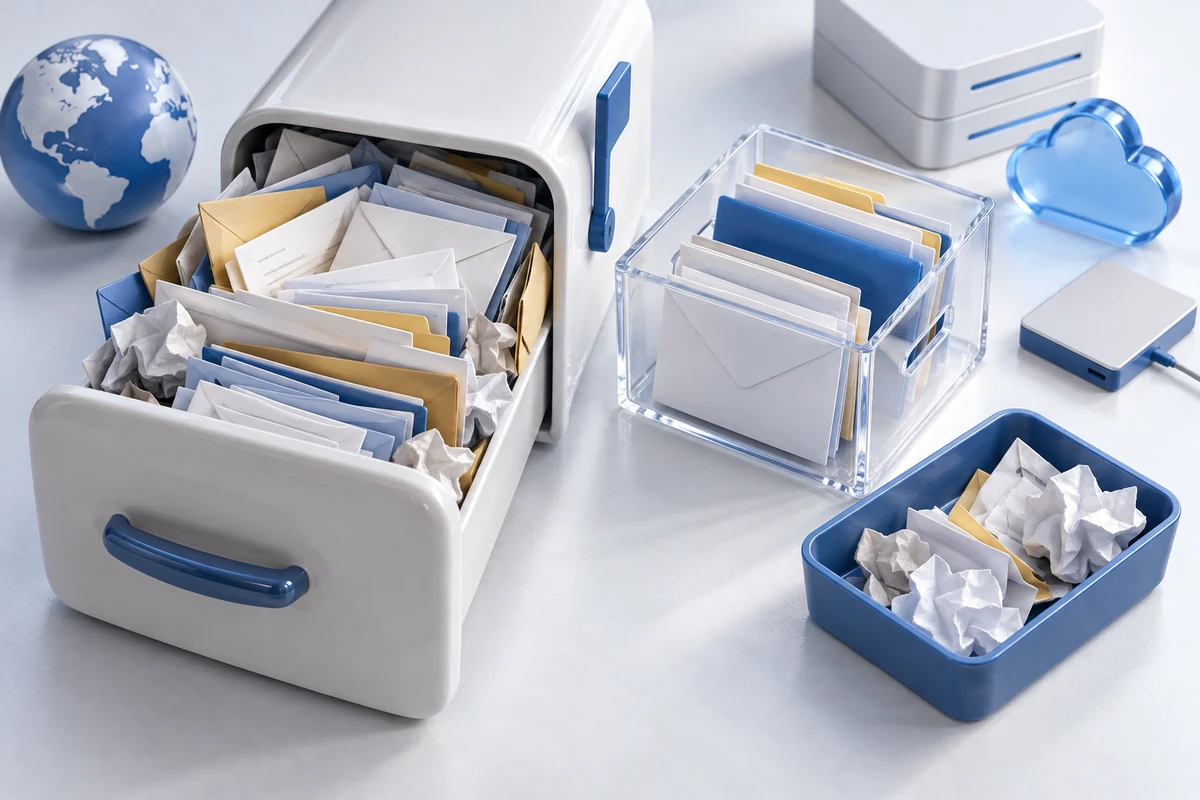
This guide explains a cautious cleanup workflow for an existing mailbox: locate usage, preserve required messages, remove selected material and verify access afterward. Official sources were checked on October 13, 2026.
Identify what the warning actually measures
Open the provider through its known official address rather than a link in an unexpected quota-warning email. Record the account, exact warning, current usage and stated limit. Confirm whether it applies to one address, a shared allowance or local disk space.
| Limit | Useful evidence | Wrong assumption to avoid |
|---|---|---|
| Server mailbox quota | Provider/webmail account storage view | Freeing laptop disk automatically frees server mail |
| Shared cloud storage | Usage breakdown across the provider's services | A nearly empty inbox proves enough total storage remains |
| Hosting allocation | Host's account and mailbox allocation views | Increasing one mailbox limit creates more physical hosting space |
| Local computer storage | Operating-system disk usage and mail profile location | Removing messages in an IMAP app affects only that computer |
Google's storage documentation includes Gmail messages, attachments, Spam and Trash in its shared-storage accounting. Outlook.com's storage guidance distinguishes mailbox storage from Microsoft cloud storage, either of which can affect mail. These are provider examples, not universal quotas or rules for every business plan.
Preserve the messages you still need
Decide what must remain accessible before deleting anything: current conversations, contracts, receipts, support history and records subject to your organization's retention requirements. Do not treat “old” or “already read” as proof that a message is disposable.
Identify local-only POP history, local folders and incomplete offline copies. Mozilla's IMAP explanation distinguishes server access from local synchronization. A listed message header does not establish that its body and attachments are available in an independent archive.
Create an appropriate protected export or backup and verify that representative messages and attachments can be opened from it. Mozilla's profile documentation describes backup/export options and copying a profile after closing Thunderbird. A live synchronized profile is not automatically a backup. Keep backup material private: it can contain much more than the few messages you intend to remove.
Find the folders and messages using space
Inspect the provider's storage breakdown rather than counting visible inbox messages. Sent, archived mail, Trash, Junk and user-created folders may hold large attachments or duplicated history. A few large messages can matter more than many short notifications.
The cPanel Email Disk Usage interface is one documented example of usage by mailbox/folder and size-based inspection. Its availability depends on the host, and its cached totals may lag recent changes. Identify the exact account before using any removal control on a shared hosting panel.
Use the mail service's supported sort or search-by-size feature to build a reviewable selection. Check the selected folder and whether a search applies to an entire conversation. Do not assume that the number of visible rows equals the number of individual messages about to be deleted.
Understand why archiving may not free server space
An Archive button often changes organization rather than storage ownership. Gmail archiving removes a message from the inbox while keeping it available in All Mail. That is useful inbox management, not removal from the account's storage.
Thunderbird's archive documentation distinguishes an archive inside the account's server mailbox from an archive in Local Folders. Moving to another IMAP folder on the same server generally keeps the material in that mailbox's storage scope.
For a hypothetical business that needs old correspondence only on a secured office computer, a verified local archive may be an appropriate option. It also changes availability: that history may no longer appear in webmail or on the phone. Back it up independently and document who can retrieve it before removing the server copies.
Copy and verify before removing server originals
- Select a small, clearly defined group of messages for archiving.
- Copy or export them through a supported workflow to the intended protected destination.
- Wait for completion and open representative full messages and attachments there.
- Confirm that the archive is independent of the mailbox copy you will delete.
- Preserve a recoverable backup of the archive.
- Only then remove the approved server originals and inspect the resulting state.
A “move” may remove the source as part of the operation, while a “copy” initially keeps it. Review the actual client behavior instead of treating these controls as interchangeable. Do not remove an account configuration or mail-profile directory as a shortcut to an archive migration.
If the computer is also almost full, plan sufficient protected destination space first. Copying a mailbox onto the same nearly full disk can fail midway. A completed progress bar is still worth checking against real message contents before any irreversible cleanup.
Review Trash and permanent deletion deliberately
Moving messages to Trash may preserve a recovery opportunity while still consuming quota. Google's deletion guidance describes Gmail's Trash and permanent-deletion behavior. Other services and organizational retention systems can behave differently; read the exact service's rules.
Review the contents and account before emptying a folder. Provider controls labeled Delete Permanently, Empty Folder or All Messages can have broader scope than deleting a selected search result. In cPanel's usage tool, age/read-state queries can permanently remove matches; do not use them before reviewing the intended selection.
Saving an attachment elsewhere does not necessarily remove it from the original message. Some clients offer attachment-removal functions, but these alter the message copy and are not universal. Preserve any required original correspondence and confirm the service's storage result rather than assuming a downloaded PDF freed the mailbox.
Separate local disk maintenance from server cleanup
If the server has space but the computer does not, review offline download settings and local archives. Deleting a synchronized message is different from reducing its offline cache. Use the app's supported storage controls and preserve local-only content before changing them.
Thunderbird compacting reclaims gaps left in local mbox files after messages were removed or moved. It is not compression of messages, and it does not choose old mail to delete. Maildir uses a different storage format and does not need this mbox compacting process.
Do not manually delete mailbox files, alter storage formats or purge a profile because a quota warning appeared. Those actions can remove an archive or create another failure without addressing the provider's limit. Diagnose server quota and local free space separately, then verify the specific result you changed.
Check quota allocation before buying more storage
Sometimes a mailbox's configured limit is smaller than the account's available capacity. The cPanel Email Accounts documentation distinguishes used/allocated storage and the management controls for an existing mailbox. The host controls what is permitted.
Ask the administrator whether there is available capacity and whether changing the mailbox allocation fits the hosting plan. Increasing a permitted mailbox quota can address that particular cap; it does not establish that the underlying hosting disk has unlimited space.
If legitimate required mail already uses the available allowance, compare cleanup, a supported archive and additional capacity by access needs and ongoing cost. A paid upgrade is a decision to assess, not a mandatory first step. Confirm the precise plan/account before purchasing anything.
If you are choosing a business mailbox partly for storage, compare the allowance per user on each plan. Fastmail lists storage per plan, and its administrators can add extra storage quota for a user on eligible plans under Settings → Users & Sharing, as described in Fastmail’s admin guide. Zoho Mail sets storage per user by plan as well, which suits a team where only a few people keep large archives. The small-team business email guide compares the wider choice.
Verify mail access after the storage change
Recheck the provider's usage view after its documented refresh interval. If it remains full, investigate the selected account, remaining Trash or server folders, shared storage and caching before deleting another batch blindly. Record what was removed and from where.
Use a harmless authorized receive/send test and compare webmail with the intended client. Outlook.com explicitly notes that mail rejected while over quota needs to be resent after space is restored; do not assume every previously failed message will automatically arrive.
For a non-delivery report, use our bounce diagnosis guide. For an account that can receive but cannot send, use the mail client setup guide. Space under quota is evidence about storage, not proof that routing, authentication and every recipient's delivery policy are correct.
Reduce recurrence without hiding the problem
Set a review schedule suited to actual growth and keep quota notifications going to a monitored account. Investigate repeated large automated mail or duplicate Sent copies at their source. Filters should follow a deliberate retention policy rather than silently deleting everything from an important correspondent.
For future large files, upload them to cloud storage and send a link shared only with the named recipients instead of attaching the file. Check who the link opens for before sending, and remove access once the recipient has the file.
Maintain a record of mailbox ownership, storage scope, archive location, backup access and the last verified cleanup. A successful outcome is specific: the intended allowance has usable space, required history remains retrievable and authorized mail tests work under the checked conditions.