 Pagember



Angie is an assistant that works with the context of a WordPress site. An editorial team can use it to turn approved information into a draft in the right place. This example is for a museum publishing workshop details, where accurate dates and access information matter more than how quickly the draft is produced.
Connect the right site and account
Open Angie from the WordPress or Elementor interface documented for your setup and connect the intended account. Start in staging when experimenting. Check the available actions and the role of the WordPress account. Angie can work with site information and, where supported, take actions in WordPress.
Pick one small editorial task for the first use. A single workshop draft makes it easy to identify what changed and check it against your brief. If you already work in an external AI client, use the Elementor MCP connection and permissions guide to test an edit from that client.
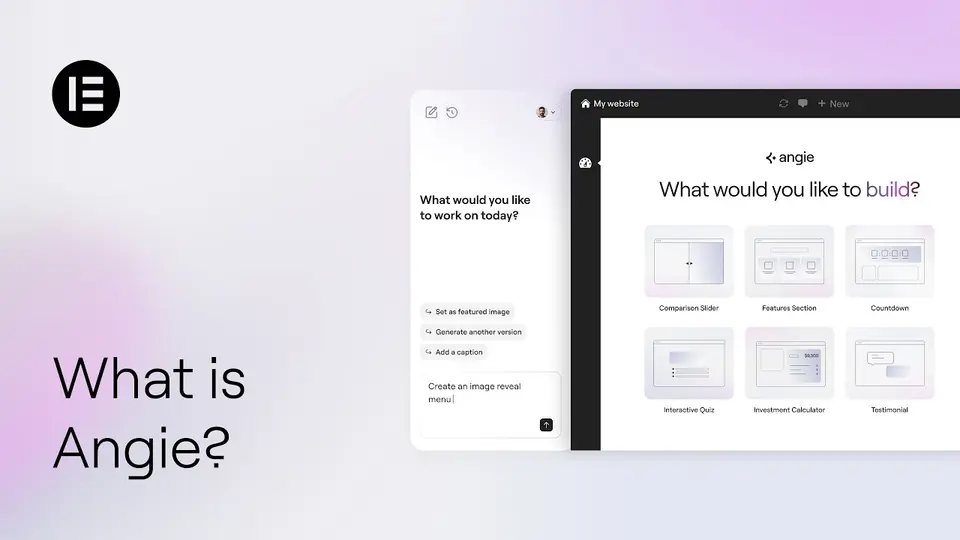 Play video: Tutorial: What is Angie?
Prepare a short, approved briefing
Include the confirmed venue, time, eligibility, registration link and the exact accessibility wording. Mark undecided dates or limits clearly. Attach only material the draft requires and avoid including attendee details. Specify which existing WordPress category and approved image to use.
Keep a copy of the source brief. If the assistant adds new claims or makes an assumption, the editor can compare it with an authoritative record.
Request one named draft
Ask Angie to create a draft with a specific title in the existing category. Give the post structure and say which details need an editor’s review. Keep the request confined to that post and state that publication and changes to users, plugins and settings are outside the task. Review any proposed operations before proceeding.
Open the draft through WordPress and check status, URL slug, category, text, approved image and registration link. Test how it reads on a phone. Replace any suggested language that changes the museum’s original access statement.
Check history and hand off for review
Inspect which operations ran. Angie’s documentation describes undo for some actions and explains that certain changes are irreversible. Verify the actual WordPress state when correcting an issue. For an incorrect draft, inspect revisions or use the appropriate native edit before asking for broader actions.
Hand the result to the person who verifies dates and registration. Record who signs off on the draft and how the workshop post will be updated when details change.
Install Angie and open the panel
Elementor’s getting-started guide gives these steps:
- In WP Admin, go to Install Plugin and search for “Angie”.
- Click Install Now, then Activate.
- Click the Angie option that appears in the WP Admin panel.
- Check the box to agree to the terms and conditions and click Sign in to continue.
- Log in to your Elementor account if prompted, or create one.
After that, click Angie in the WP Admin top bar. The panel opens on the left side of the screen, and clicking Angie again closes it. Elementor notes that Angie is separate from Elementor AI and the AI Site Planner, and that an Angie account is tied to one user.
Know what a request can change
Elementor’s site-management guide lists the actions Angie supports. Most are useful, and several go well beyond one draft, so scope every request.
| Area | Documented actions | Review before you continue |
|---|---|---|
| Content | Create a post, then publish it, open it in the WordPress editor or create another version; add alt text across Media → Library | Status before publishing; alt text on informative images |
| Plugins | Install, activate, deactivate, delete, update one or all | Staging first; deactivate rather than delete if unsure |
| Themes | Install, activate, delete, update, switch | Elementor warns that menus, widgets and settings may not carry over after a switch |
| Users | Add a user with a role, change a role later | Elementor recommends the least privileged role necessary |
| Settings | Site title, tagline, language, time zone, homepage, search engine visibility, site icon | These apply site-wide immediately |
For the museum workshop, the content row is the only one in scope. Say so in the prompt.
Attach the approved brief as a file
Elementor says Angie reads attached PDF, CSV, TXT, DOCX and JSON files and can turn them into WordPress posts or data structures. That suits an editorial team that already keeps workshop details in a document.
- Attach the approved version only, not a working draft with comments.
- Remove attendee lists, contact details and internal notes before attaching.
- Ask Angie to list any detail it could not find in the file instead of filling the gap.
Use History and Undo, and know what they cannot reverse
Open the Angie panel and click the History icon, a clock symbol at the top. Select the chat, hover over Angie’s response and click Undo. Elementor notes that not every action can be reversed. From the same list you can Rename, Delete or Copy ID for an entry. Deleting a history entry is permanent.
Elementor lists deletions as irreversible through the history panel. These include pages, posts, media, menus, categories, tags, comments, users, themes, custom post types and Gutenberg blocks. Angie typically asks for confirmation first, so read that prompt carefully and decline if it names anything outside the workshop draft.
Common problems and fixes
- Angie says it made a change you cannot see
- Refresh the page. If nothing changed, ask again with more detail.
- An error message appears
- Click New Chat, refresh, clear the browser cache or try a private window.
- A request fails on a specific screen
- Open the relevant WP Admin screen first and name the tool you want Angie to use.
- A background tool keeps failing
- Open the hamburger menu in the chat panel, choose Tools and switch Dev Mode on to see which tool fails.
- Results differ for the same prompt
- Elementor says output is context-sensitive. Make the prompt more specific.
Roles, privacy and sign-off
Elementor says Angie follows WordPress security standards, respects built-in user roles and performs actions inside your site. In practice, the WordPress role of the person using Angie sets the ceiling.
- Give writers who only prepare drafts a role such as Author or Contributor, not Administrator.
- Keep a separate administrator account for plugin, theme and user changes.
- Copy the history entry ID into your review notes so the editor can trace the request.
- Publish through your normal WordPress review once dates and access wording are confirmed.
More Elementor guides
To build a full landing page with Angie inside the Editor, follow the AI Page Builder guide. Browse the other Elementor guides.
Common questions
Do I need the Elementor Editor to use Angie?
No. Elementor says Angie works on any WordPress site, with or without Elementor, and can also be used inside the Editor.
Is Angie the same as Elementor AI?
No. Elementor’s getting-started guide describes Angie as separate from Elementor AI and the AI Site Planner.
Can I undo a deleted post through Angie?
Not through the history panel. Elementor lists deletions as irreversible there, so keep a current backup before approving any deletion. BlogVault keeps off-site WordPress backups, and its selective restore can bring back files or tables without rolling back the whole site.
Can I write requests in another language?
Yes. Elementor says Angie responds in the language you prompt in and follows the language you set for generated content.
