 Pagember

To build a website support chatbot with Botpress, create an agent, add your website to its Knowledge Base so it answers from your own pages, test it in the Emulator and preview, set up human handoff for questions it should not answer alone, then paste the Webchat embed code into your site. Botpress bills by conversations, with AI usage included on paid plans, so estimate your monthly chat volume before picking a plan. See every Botpress plan and its price in US$ on our Botpress pricing page.
How a Botpress support bot fits together
A Botpress website support bot has four parts. Knowing them up front makes setup faster and troubleshooting easier.
- Knowledge Base: the content your agent searches before answering, such as your website pages, documents, tables or rich text.
- Agent behavior: the instructions and workflows built in Botpress Studio, the agent-building tool.
- Human handoff: the path from the bot to a person. For new workspaces, Botpress's docs say this has moved to Botpress Desk, its AI helpdesk.
- Webchat: the chat window your visitors see, added to your site with an embed code.
Botpress's quickstart describes a guided setup: sign up, select Start building or Build my agent, and follow the on-screen instructions. You then see a preview of the bot trained on your sources and styled to your brand. You can fine-tune from there in Studio.
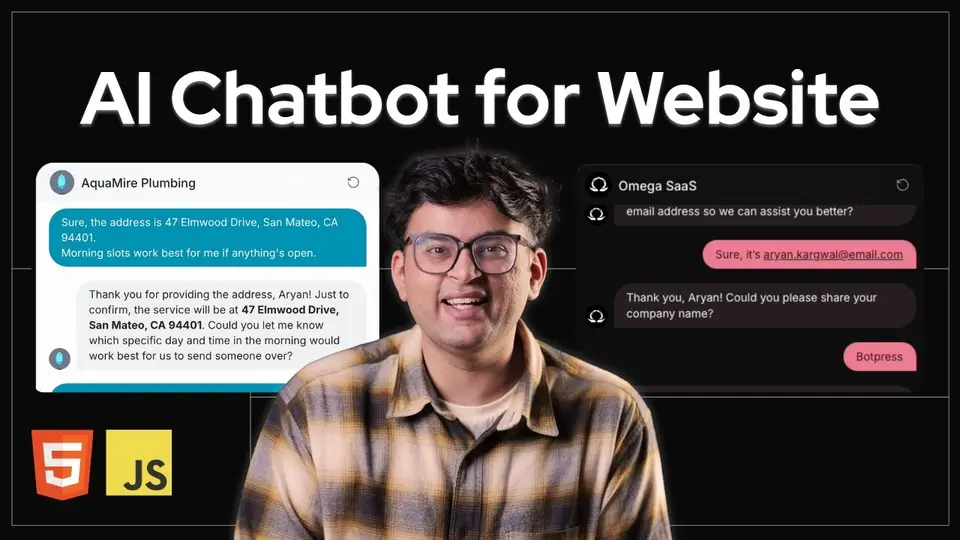 Play video: Build a Website Chatbot in 3 Steps [2025]
Choose your knowledge source
The quality of your answers depends on what you feed the Knowledge Base. Botpress's best-practices page says it plainly: poor-quality data leads to poor agent performance. Pick the source type that matches your content.
| Your content | Botpress source type | Best for | Check before you rely on it |
|---|---|---|---|
| Help pages, FAQs, policies on your site | Website (root domain or Specific Web Pages) | Most small business support bots | A valid sitemap helps the crawler; set a recrawl schedule |
| PDFs, manuals, Word docs | Documents (.pdf, .html, .txt, .doc, .docx, .md) | Content not published on the site | Files up to 50 MB each; styling and images are removed |
| Prices, stock, opening hours by location | Table | Structured data with fields | Mark at least one column as searchable |
| Short answers you want to control word for word | Rich Text | Returns, shipping, warranty summaries | Keep it updated by hand |
| Content that changes daily across the web | Web Search | Sites without a valid sitemap | Filter to specific websites to keep answers on-brand |
For website sources, Botpress can start from a root domain and discover the pages under it, letting you choose which pages to add. If you only want certain pages, choose Specific Web Pages and enter exact addresses. By default, pages are indexed once; open the Recrawl dropdown to choose a schedule such as Recrawl Daily so the bot keeps up with site changes.
Knowledge sources count toward your plan's file storage and vector storage. The Knowledge section shows current usage at the top.
Build the bot, step by step
These steps follow Botpress's official docs for the quickstart, Knowledge Bases, testing, handoff and Webchat.
- Create the agent. Sign up, select Start building or Build my agent, and follow the guided setup. If you prefer to start from scratch, select Skip and build in Studio.
- Open the Knowledge Base. In your agent's menu, open the Knowledge section, go to Knowledge Bases, open the default Knowledge Base and select + Add Knowledge Source.
- Add your website. Choose Website, enter your domain (or the help-center path), and select the pages to include. Leave out pages that would confuse answers, such as old announcements or legal archives.
- Set recrawling. Select the website source, then pick a schedule from the Recrawl dropdown. Later, use Manage on the source to Reconfigure, Resync or Remove this source.
- Add supporting sources. Upload key PDFs under Documents, connect a Table for structured data, or add Rich Text for answers that must be exact.
- Test in the Emulator. In Studio, press Ctrl+E (Cmd+E on Mac) to toggle the Emulator. Ask your top 20 real customer questions. Look for the in-line log Answer found in Knowledge Base, which links to the logs so you can see what was sent to the AI.
- Set up human handoff. For a new workspace, go to Human Handoff > Open Botpress Desk. On an existing workspace using the legacy setup, install the HITL integration and plugin from the Hub, then add the Start HITL card where the bot should hand off (details below).
- Style the Webchat. In the Dashboard, select the bot, open Webchat, and set the bot identity (avatar, name, description, composer placeholder) and appearance (primary color, font, theme, header and message style). Select Publish Configuration to save.
- Embed it on your site. Go to Webchat > Deploy Settings, copy the Embed code, and add it to the
headsection of your website's HTML. Botpress has separate guides for WordPress, Wix and Webflow. - Test on the live site. Open your site, start a chat, and run the same test questions again, plus one handoff request.
Set up human handoff
A support bot should know when to step aside: billing disputes, account problems, angry customers, or anything the Knowledge Base does not cover.
New workspaces: Botpress Desk. Botpress's docs say human handoff for new workspaces now lives in Botpress Desk. The Desk product page describes conversation tools (priorities, statuses, tags, snoozing), teams and routing with capacity-based assignment and business hours, and channels including webchat, email, WhatsApp and voice.
Existing workspaces: the HITL integration. Botpress's HITL guide lists these steps (the guide notes a Plus plan or higher is required):
- In Studio, select Explore Hub, find the HITL integration and select Install Integration.
- Install the HITL plugin, then under Configuration, choose HITL in the HITL integration dropdown and select Save.
- Add the Start HITL card at the point in your workflow where handoff should happen. Fill in Ticket Title, User ID and Conversation ID; Botpress's guide shows the current user and conversation variables (
event.userIdandevent.conversationId, wrapped in double curly braces) for the last two.
When handoff triggers, a ticket opens in the Human Handoff dashboard. A team member selects Assign to me to chat with the visitor, then Resume Chatbot when the issue is resolved. To test, open your agent's preview, chat until handoff triggers, and check the ticket in the dashboard.
Test before you go live
Botpress gives you two places to test, and they behave differently.
- Emulator (inside Studio): best for debugging. It shows in-line logs such as Answer found in Knowledge Base, No content matched the query and Knowledge disabled on that node. Use New Conversation to reset, Start as new user to test as a fresh visitor, and Simulate timeout event to check what happens when a chat goes quiet.
- Preview (from the Overview section of your agent): shows the published agent as visitors will see it, built with Webchat.
A simple test plan for a small business:
- 10 questions your site answers clearly (should succeed).
- 5 questions your site does not answer (the bot should say so or offer a person).
- 3 questions phrased the way customers actually write, with typos.
- 1 request for a human.
- 1 question about a page you just updated (checks recrawling).
Keep your test runs focused. Botpress's pricing FAQ says emulator conversations count as conversations for billing, the same as live ones.
How Botpress pricing and usage work
Botpress prices on conversations, not seats. Its pricing FAQ defines a conversation as any exchange with at least two messages from the end user in the billing month. A conversation that spans two months counts in both, multiple anonymous sessions count separately, and for voice calls three minutes count as one conversation.
Regular prices on the official pricing page, checked November 18, 2026:
| Plan | Billed annually | Billed monthly | Conversations included | Extra conversations | AI usage included | Seats |
|---|---|---|---|---|---|---|
| Free | US$0 | US$0 | 100 | No top-ups or overages | Not listed | 3 |
| Plus | US$150/mo | US$189/mo | 250/mo | Packs of 100 for US$65 (US$0.65/convo) | US$25 | 3 |
| Team | US$750/mo | US$939/mo | 1,500/mo | Packs of 100 for US$50 (US$0.50/convo) | US$150 | Unlimited |
| Enterprise | Custom | Custom | Custom | Custom | Custom | Unlimited |
What else to know before you buy:
- Overages are automatic. At 95% of your quota, Botpress adds a pack of 100 conversations. You get notices at 75% and 100%. The FAQ says auto-recharge for conversation packs cannot be turned off, and unused pack conversations expire at month end.
- AI spend credit grants. When a workspace reaches 95% of its AI spend limit, Botpress buys a US$10 credit grant at cost. Unused grant balance carries over for up to 12 months. This is not available on the Free plan.
- Storage. Free includes 1K table rows, 100MB vector storage and 100MB file storage. Plus includes 100K rows, 1GB and 10GB; Team includes 500K rows, 5GB and 50GB. Plus and Team can add a US$40/mo storage add-on.
- Plan features. Plus adds unlimited AI agents and whitelabel webchat. Team adds unlimited seats, teams, routing and RBAC, and team analytics.
For a small business, the free plan is a practical way to build and test. Once real visitors start chatting, compare your expected monthly conversations with the Plus and Team allowances. You can check current plans here: Compare Botpress plans.
Troubleshooting
The bot says it does not know, but the answer is on your site. Check the Emulator log. If you see No content matched the query, the page may not be in the Knowledge Base. Add it under Specific Web Pages, or use Resync to recrawl.
Answers are out of date. Website pages are indexed once by default. Set a recrawl schedule or trigger Resync after major updates.
The log says Knowledge disabled on that node. That part of the workflow is not set to accept knowledge questions. Review the node in Studio.
The crawler misses pages. Botpress's best-practices page recommends a valid sitemap for the Website crawler. Without one, it suggests the Search the Web option.
The chat bubble does not appear on your site. Confirm the bot is published, that both embed script lines are in the page head, and that a caching or optimization plugin is not stripping scripts. On WordPress, Botpress's guide uses the WPCode plugin with the snippet set to Active.
Webchat styling changes are not showing. Select Publish Configuration after editing. If you use the Webchat React library, Dashboard styles do not apply; configure styles in code.
Handoff does not trigger. On the legacy setup, confirm both the HITL integration and plugin are installed, and that the Start HITL card sits on the path the conversation actually takes.
Ready to build and test your first agent on the free plan? Start with Botpress
Related guides
The Botpress page summarizes plans and conversation pricing. Before launch, run a fixed set of questions through the Emulator with the assistant evaluation method, and check that the Knowledge Base cannot be steered by visitor input using the prompt-injection guide.
Common questions
Can Botpress learn from my website automatically?
Yes. Add a Website source to the Knowledge Base. Botpress can discover pages under your domain, and you choose which to include. Set a recrawl schedule so answers stay current.
Does Botpress work on WordPress, Wix and Webflow?
Botpress's docs include Webchat guides for WordPress, Wix and Webflow. For a self-hosted site, paste the embed code into the head of your HTML.
What counts as a conversation on Botpress?
According to the pricing FAQ, any exchange with at least two messages from the end user in the billing month. AI-only and human-assisted conversations count the same, and emulator conversations count too.
Which plan do I need for human handoff?
Botpress's HITL guide lists a Plus plan or higher for the HITL integration. New workspaces set up handoff through Botpress Desk; check the pricing page for the features included in each plan.
Is AI usage included in the price?
Paid plans include AI usage: US$25 on Plus and US$150 on Team, per the pricing page checked November 18, 2026. When you approach the limit, Botpress adds US$10 credit grants at cost.