
Use a supported comment or review role, check existing access and give reviewers a clear feedback task.
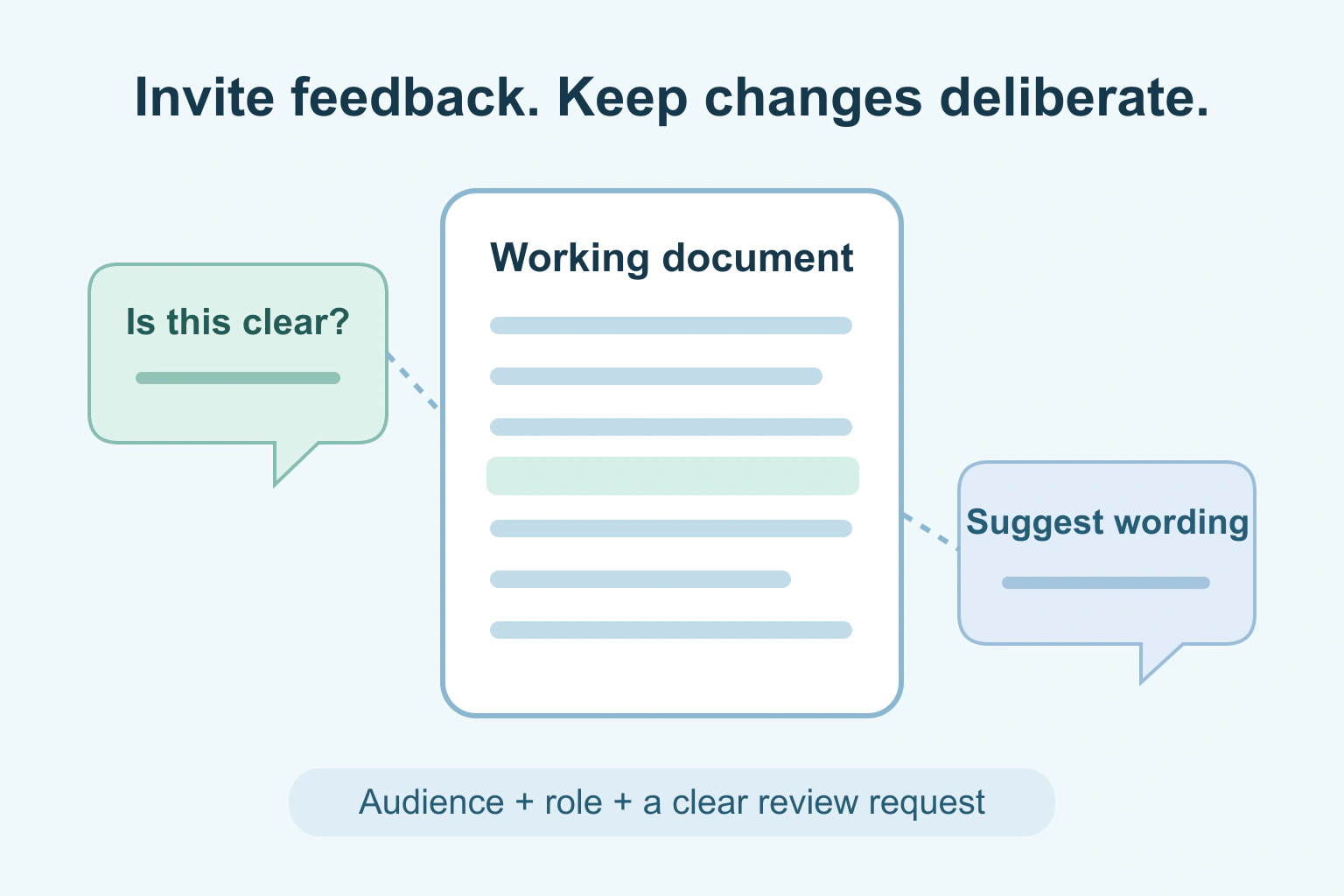
If someone only needs to review a document, use a supported comment or review permission instead of giving direct editing access by default. Then check what that role actually allows in your service. The label, file type and account rules matter.
A request to “please do not edit” is useful context, but it is not the same as a permission setting. Equally, choosing a comment role does not make the document confidential or prevent every possible copy. Decide both who should see it and what they should do.
Choose the kind of feedback you need
Ask for a specific task: check whether instructions are clear, identify missing information or propose wording changes. A reviewer who knows the purpose can leave more useful feedback than someone sent an unexplained document link.
Distinguish a comment from a suggested edit. A comment discusses a question or passage. A suggestion proposes a change for someone to accept or reject. Direct editing changes the working document under the service’s saving rules. Not every editor or file format supports all three.
Google Docs’ suggestion guide explains that suggestions do not replace the original text until accepted. It also says a commenter or editor can make suggestions in that product. That is an example to verify, not a feature to assume in every document app.
Set the role in the sharing controls
Open the document’s sharing controls and check the actual file and owner. Choose the intended recipient’s address, then select the role required for this review. Keep general access restricted when the material is meant for particular people.
In Google Drive’s My Drive role table, a commenter can view and comment but cannot directly edit. The documentation also explains that higher access inherited from a parent folder can affect the result. Adding someone as a commenter does not necessarily reduce access they already have.
| Review task | Access to look for | Check before sending |
|---|---|---|
| Read the final document | Viewer or equivalent | No feedback tools are required |
| Discuss unclear passages | Commenter or review role | Comments work for this file type |
| Propose wording changes | Supported suggestion workflow | Who can accept or reject proposals |
| Rewrite the working draft | Editor | Direct changes are actually intended |
These are role-selection questions, not universal permission names. Work or school accounts may restrict outside sharing. Follow that policy rather than making a private document public to get around it.
Check existing access and copied information
Review the people, groups and folders that already have permission. A file in an editable shared folder can have a broader audience or higher access than the invitation you are creating. Use a deliberately limited review location if your service supports it and the owner permits it.
Google’s sharing restriction guide describes controls for changing or limiting access. Its limits matter: preventing a supported download or copy action cannot stop every way someone could retain or share the contents.
Keep confidential notes and unrelated personal information out of the review file. Check existing comments too. A passage removed from the visible draft may still appear in a discussion or earlier version, depending on the service. Do not treat a comment permission as a document-cleaning tool.
Our file-sharing guide covers the broader access journey. This guide focuses on getting feedback without granting unnecessary direct editing.
Give reviewers a manageable request
Send the exact link with a short explanation of what is ready for review. Say which sections need attention, when feedback is useful and who will make the final changes. Avoid asking someone to review a moving draft without telling them it is still changing.
Keep comments close to the relevant passage where the editor supports that. One question per comment is easier to answer than a large list of unrelated points. A suggestion should explain the reason when the change is more than a small correction.
If you use AI to improve a message before sending it, our email editing guide helps keep the request clear and in your own voice. Do not paste confidential review material into a tool you are not authorised to use.
A fictional review of a club handout
Imagine a fictional community club prepares a one-page welcome handout. The organiser wants two volunteers to check whether a newcomer can follow it, while keeping the working text under one person’s control.
The organiser creates a clean review copy, grants the supported comment role to the two intended addresses and asks them to flag unclear steps. One volunteer proposes a simpler sentence through the product’s suggestion feature. The organiser accepts it only after checking the meaning.
The result is a review process, not a guarantee provided by the word “commenter”. The organiser still checks the effective permissions, the file type and whether the volunteers are signed into the invited identities.
Test the review and close it deliberately
- Use a harmless sample to confirm the intended role.
- Ask a reviewer to open the exact link with the invited account.
- Confirm that the supported comment or suggestion action works.
- Check the review role does not provide direct editing when that is not intended.
- Review and resolve feedback, then remove unneeded access when the task ends.
If a reviewer cannot comment, check the account, role and supported file type before granting more access. An owner preview does not reproduce the reviewer’s experience. Do not ask them to send a password or account code to diagnose the problem.
Our private album guide applies the same audience-first habit to family photos. Your next step is to write one clear review request and inspect the document’s existing access before creating its new invitation.
Sources and verification
Editorial review 2026-10-18. Source check dates are recorded separately. Notes describe what each source supports and its limits.
View sources
- Google: Suggest edits in Google DocsChecked Suggestions await acceptance and can be made with commenter or editor access in Google Docs.
Limits: Google Docs-specific; not all editors, formats or devices offer equivalent review behaviour. - Google: Share files from Google DriveChecked My Drive viewer/commenter/editor roles, restricted audiences and inherited parent-folder access.
Limits: Shared drives and organisation policies can differ; a new invitation may not lower existing access. - Google: Stop, limit, or change sharingChecked Reviewing grants, restrictions and the limits of preventing copying or onward disclosure.
Limits: Supported copy restrictions cannot prevent every other form of retaining or sharing information.