
Use a specific email-link trigger for a clearly described optional course to an eligible existing audience, with re-entry, exclusion and stop-path checks before wider release.
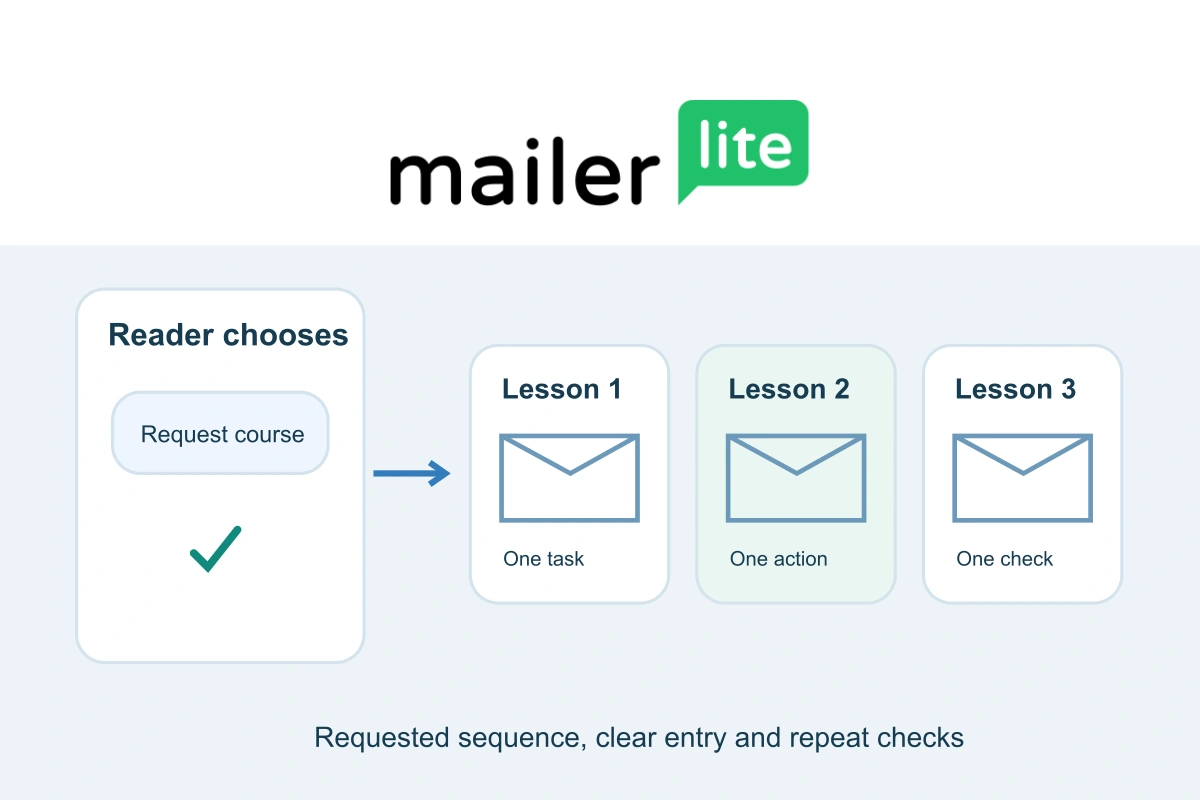
An existing newsletter reader may want a focused three-part course without signing up again or receiving your whole welcome sequence. MailerLite’s link-click automation can provide that route: the reader chooses a clearly described link in an email, then receives the lessons you promised.
This guide builds an original fictional course about organising family photos. It starts with an existing permission-based audience and a specific request link. It does not import a new list, enrol every subscriber or report delivery results from a live account.
Define what the reader is requesting
Write the invitation before creating the workflow. Use the campaign creation and scheduling guide to prepare the invitation email. For example: “Want the three-part photo-organising course? Request lesson one now; lessons two and three follow at 24-hour intervals.” Explain that the lessons are additional to the ordinary newsletter if that is your actual arrangement.
Send this invitation only to an audience you are entitled to email. A click-trigger setting is a technical event, not a universal legal basis for marketing or proof that every recorded click came from a person. Keep the subject, frequency and ability to stop clear. For sensitive changes or where an affirmative confirmation is needed, use an appropriate preference or confirmation form instead of treating a link request alone as sufficient.
A small optional educational course is easier to manage than an open-ended sales sequence disguised as a download. Define the end at lesson three, and do not quietly continue with unrelated messages under the same request.
Write three lessons that produce a result
The following copy is an original template, not provider advice or a measured conversion formula. Adapt the content to your expertise and deliver the promised useful action in every email.
| Lesson | Short original email template |
|---|---|
| 1: Find the sources | Subject: Your photo course, lesson 1. List the devices and accounts holding your photos. Do not move or delete anything today. Write down where the originals live and choose one small collection to organise first. Tomorrow we will give that collection a simple structure. |
| 2: Choose a structure | Subject: Photo course, lesson 2: one manageable folder. Choose a year-and-event name for your small collection. Keep an unchanged original copy while trying the structure. Record what moved, then check that you can open a few files. Tomorrow we will check whether the result is easy to find. |
| 3: Check the handover | Subject: Photo course, lesson 3: find it again. Locate one chosen photo without using a recent-items list. Confirm where your original and working copies belong. Write a short note for your future self. This is the final lesson; your normal newsletter preferences remain available below. |
Each lesson has one action and one expected result. A reader who finishes has a source inventory, a small organised collection and a retrieval check. Those are more concrete outcomes than three emails repeating general encouragement to get organised.
Match one exact request link
MailerLite’s current trigger documentation says Clicks a link responds to a specific URL in a MailerLite campaign or automation email. It is not a general detector for clicks anywhere on your website.
- Create an appropriate course-information destination on your own site.
- Copy its complete URL into the invitation email.
- Choose Clicks a link as the workflow trigger.
- Paste the same complete URL into the trigger’s Link field.
- Save the rule and record the destination beside the course name.
Keep that destination exclusive to this request where possible. Reusing the same URL as an ordinary “read more” link in other emails can make a routine click start the course. If the invitation URL contains campaign parameters, match that actual URL rather than guessing which variation counts as the same link.
The landing page should explain the course and what the reader should expect. Visiting it directly in a browser does not reproduce the documented email-click trigger. Do not announce a successful enrolment solely because an anonymous visitor opened the page.
Build the short sequence and deliberate delays
Use an Email step for lesson one, a 24-hour Delay, lesson two, another 24-hour Delay and lesson three. These intervals are our editorial example. Adjust the promise and settings together if your audience needs a different pace.
The automation-steps guide describes Email and Delay actions. Separate email blocks do not themselves imply a day between sends. Review the visible delay settings instead of relying on the order of blocks alone.
Relative delays and a specific day or time are different scheduling choices. For this simple course, check the actual relative delay offered by your account. Changing an active delay can affect queued subscribers, so review that behaviour before revising an already running course.
Decide whether the course can repeat
The link-trigger settings include Allow subscribers re-enter automation. Leave it unchecked for this one-time course, following the documented first-click-only behaviour. This keeps a later reread of the invitation from intentionally restarting the series after completion.
Record the policy in the workflow name or maintenance note: “Photo course, three lessons, once per subscriber.” If you later want an updated edition, decide how existing learners request it rather than casually enabling repeats on the old workflow. Do not assume a setting for a different trigger has the same repeat timing.
Test the request and the exclusion path
MailerLite distinguishes preview test emails from regular campaign behaviour; several functions do not operate fully in previews. Use previews for wording and layout, then a controlled regular campaign to addresses you own for the complete route. This is a test plan for you to execute, not an assertion that the following outcomes were measured here.
| Controlled case | Expected outcome to verify |
|---|---|
| Reader follows the request link | One entry, then the three lessons in the configured order |
| Reader receives but never clicks | No course entry or lessons |
| Reader clicks a different link | No course entry |
| Reader clicks again after completion | No restart with re-entry disabled |
| Reader stops receiving messages | The actual unsubscribe/preference route is respected |
Activate the reviewed workflow before performing the real trigger test. Inspect its activity and the received messages, including the sender, spacing, lesson links and mobile layout. A sent status is not the same as inbox placement. Keep the test recipients separate from the wider newsletter audience.
Troubleshoot the event before adding more rules
If no lesson arrives, check the workflow’s state, the exact sent link, subscriber eligibility, current step and configured delay. If an unexpected person enters, investigate where the request URL appeared and whether a security scanner could have followed it. Our newsletter bot-click guide explains why click reports can require interpretation.
Do not send a second copy manually just because a learner is waiting at a valid delay. Also check that another automation is not delivering a similar course. Test the stop path with our unsubscribe and preferences checklist rather than trusting a footer preview.
Choose MailerLite for a manageable teaching workflow
MailerLite is worth considering when you already run an eligible newsletter and want one understandable place for the invitation, trigger, lessons and activity review. The benefit is a maintainable sequence tied to a clear reader request, not an automatic guarantee of attention or purchases.
Before committing, check current plan entitlement, subscriber limits and sending allowance in our MailerLite pricing and budget guide. Keep the first course short, examine real requests and questions, then improve the lessons before multiplying the number of workflows.

Sources and verification
Editorial review 2026-10-18. Source check dates are recorded separately. Notes describe what each source supports and its limits.
View sources
- MailerLite: Automation triggersChecked Clicks a link requires an exact URL in a MailerLite campaign/automation email; documented re-entry checkbox and first-time-only option.
Limits: Technical trigger behaviour, not evidence of legal consent or guarantee all clicks are human. Current product, not Legacy/Classic. - MailerLite: How to use automation stepsChecked Email/Delay actions, relative and specific-time distinctions, active-delay change effects.
Limits: No fixed best cadence or delivery guarantee; current account entitlement must be checked. - MailerLite: Everything about test emailsChecked Preview tests have reduced functionality and regular controlled campaigns are needed for some behavioural/delivery checks.
Limits: Does not establish that a preview executes the real enrolment route or that a sent email reaches an inbox. - MailerLite: How to create and schedule a campaignChecked Regular campaigns, selected recipients and single-subscriber filters support an intentionally controlled real-send test.
Limits: A documented testing route; no emails were sent in preparing this article.