
Choose one useful outcome, plan what viewers need to see and hear, then record a short sample before the full video.
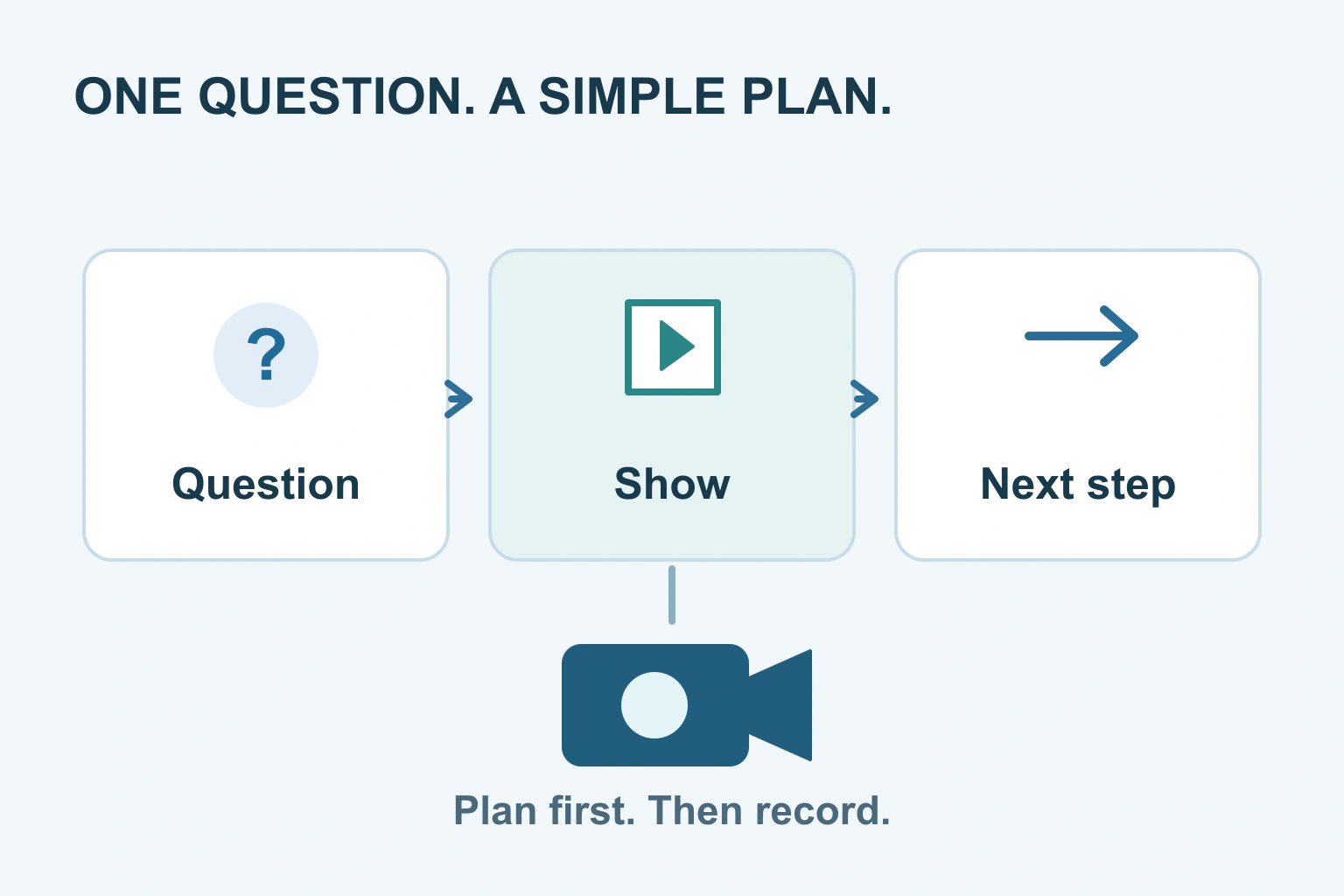
Your first video needs one useful point and a clear way to show it. Decide who it is for, what they should understand afterwards and which pictures or demonstrations will make that explanation easier. Then make a short test recording before filming the whole thing.
You do not have to buy a camera or learn a complicated editor first. A phone, a quiet space and a planned explanation can be a practical starting point. The main goal is to make something a viewer can follow, not to use every effect available.
Choose one viewer question
Write the question in the words someone might ask you: how do I pack this item, what happens at the first appointment, or how do I change this setting? If the question contains several unrelated tasks, choose one for the first video.
Finish this sentence: after watching, the viewer should be able to do or understand this. Keep it concrete. Show where to find the class timetable is easier to plan than make people love the business. You can judge whether the explanation works without claiming it will generate a particular number of views.
Check whether video adds something useful. A movement, a process or a physical detail can benefit from demonstration. A list of changing opening hours may be easier to maintain as text. Choose video because it helps the person, rather than because every topic needs a recording.
Make a beginning, middle and ending
Use a small outline instead of memorising an essay. Begin by naming the question and showing the result. In the middle, explain the few steps needed. Finish by saying what the viewer can do next, or where to find a detail that would make the video too long.
Read the outline aloud. Replace sentences you would never say in conversation. Explain unfamiliar words immediately. If you need a detailed script for accuracy, write it for speech: short sentences, natural pauses and one instruction at a time.
W3C’s media-content guidance supports clear language and time to process information. It also explains why instructions should not depend only on a colour or position. Say the name of the button or object, rather than simply pointing and saying this one.
Write a short shot list
A shot list is a list of pictures you need to record. Put it beside the outline. For a physical demonstration, that might mean the complete object, a close view of a part and a view of the finished result. A talking introduction is optional if the viewer only needs to see the task.
| Part | What the viewer sees | What the viewer hears |
|---|---|---|
| Opening | The finished item or problem | What this video will explain |
| Preparation | The materials needed | What to have ready |
| Main step | A close enough view of the action | The instruction and any important limit |
| Result | What a correct result looks like | How to check the outcome |
| Ending | The result remains visible | A useful next step |
The table is an example plan, not a required five-scene formula. Some explanations need only one steady view. Keep each picture for long enough to understand the action. A rapid montage can look lively while hiding the very detail the viewer came to learn.
Plan the setting and sound
Choose a place with as little competing sound as practical. Listen for traffic, a refrigerator, a fan or people talking nearby. Put the microphone close enough for clear speech and make a test with the setup you will use. An attractive room does not guarantee usable audio.
Place the phone or camera on a stable support. Check the frame for private documents, addresses, mirrors and people who have not agreed to appear. If the video concerns a real customer or location, settle permission before filming. Use an ordinary demonstration when real personal details are unnecessary.
Decide where the video will be watched before choosing its shape. A tall phone video and a wide website demonstration use the frame differently. Keep the important action clear in the chosen format instead of assuming you can crop everything later without losing it.
Make the explanation work beyond the picture
W3C’s planning guide explains why captions, description and other access needs belong in the plan. If a crucial step is visible but never described, someone who cannot see it may miss the meaning. Build the essential explanation into your speech where that fits naturally.
Leave room for captions without covering the action. Keep on-screen labels brief, readable and on screen long enough to use. Avoid placing small essential text at an edge where a player control or a later crop may obscure it.
W3C’s caption guidance distinguishes useful captions from a rough speech transcript. Plan time to check names, instructions and relevant sounds after recording. Captions generated automatically still need someone to read and compare them with the audio.
A fictional first-video plan
Imagine Sam sells plant pots and wants to explain how to check whether a pot has a drainage hole. The first idea includes the shop’s history, every pot size and watering advice. He narrows it to one question because those subjects need different explanations.
His shot list contains the underside of the pot, a close view of the opening and a simple explanation of the saucer shown separately. He names the parts aloud, avoids implying the saucer is included if it is not, and records a short sound test.
This fictional example shows how a smaller plan can make recording simpler. It is not a claim about sales or audience performance. The finished video should answer its one question accurately, while the product listing supplies the current purchase details.
Check a sample before recording everything
- Record one representative section using the final framing and sound setup.
- Open the saved sample on a phone and a larger screen.
- Listen without watching, then watch with the sound off.
- Check whether the action, wording and planned captions remain understandable.
- Fix the setup or outline before making the complete recording.
When the first video is ready, use our caption guide and visual-description guide for finishing. The website video guide covers the next publishing step. Keep the outline and original footage so a small correction does not require planning the project again.
Sources and verification
Editorial review 2026-10-18. Source check dates are recorded separately. Notes describe what each source supports and its limits.
View sources
- W3C: Planning Audio and Video MediaChecked Accessibility features and responsibilities should be considered during media planning rather than after production.
Limits: Accessibility requirements depend on the media, context and applicable conformance level; this article is not a conformance assessment. - W3C: Audio Content and Video ContentChecked Clear speech, useful pauses, readable on-screen text, suitable audio and described visual information improve access.
Limits: These are production principles, not a recommendation for a particular camera or a guaranteed audience result. - W3C: Captions/SubtitlesChecked Captions include relevant speech and other necessary audio; automatic captions need correction.
Limits: A planned caption process does not establish that a finished video is accurate or fully accessible.