
Photograph the actual item in soft, consistent light, show the details a buyer needs, and inspect the final listing crop. Improve the setup before trying to repair an inaccurate picture.
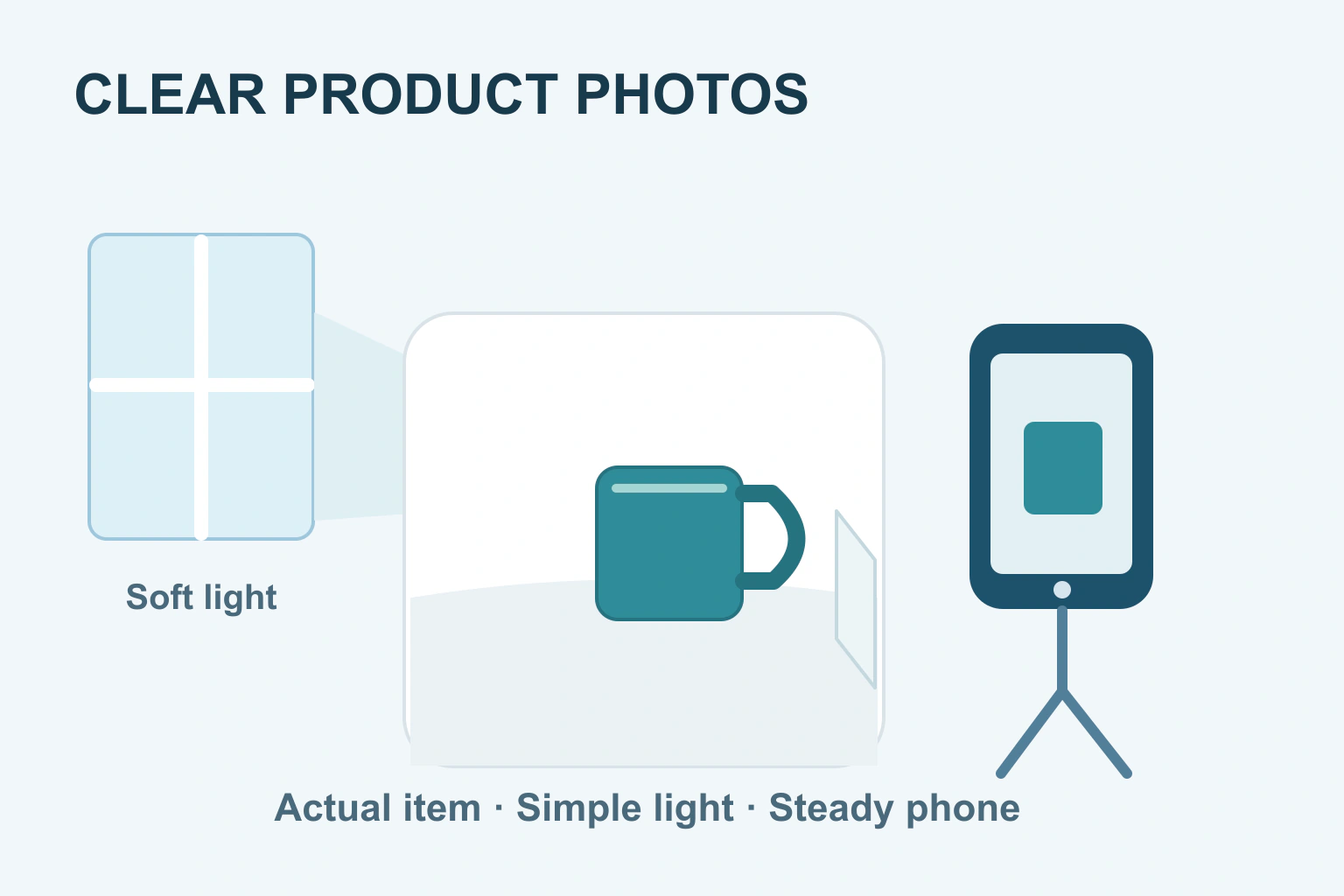
A phone can make useful product photographs when the item is sharp, well lit and shown honestly. Start with the real product, a simple background and soft light. Take the views a buyer needs, then check the saved pictures on a larger screen before uploading.
You do not need a decorated studio to begin. A clear picture of the actual colour, shape and condition is more useful than an elaborate scene that leaves the buyer guessing. Improve the light and framing before adding effects.
Choose the questions your photographs must answer
Write a short shot list. Usually, a buyer needs to see the whole item, its shape from another side, an important detail and something that explains size. A used item may also need clear pictures of wear or damage. Photograph the actual version you will supply.
Think about what could be misunderstood. Does the listing include one cup or a set? Is a stand supplied or only used to hold the item for the photograph? Keep the main view clear and explain any props. A styled scene should not quietly imply a larger package.
Etsy’s product-photography guidance recommends planning shots and checking the setup before a full session. Use that idea for any listing: prepare the few views that answer real buying questions rather than taking many almost identical pictures.
Find soft, consistent light
Try a table near a window with indirect daylight. Harsh sun can create bright patches and deep shadows that hide the surface. A thin curtain can soften it. Move the item or the table until its important details are visible, rather than assuming a brighter picture is always better.
A white card on the other side can reflect some light into a dark area. Keep the card outside the frame. Avoid mixing daylight with a strongly coloured room lamp if it changes the product’s appearance. Etsy’s guidance explains this mixed-light problem; your eyes may adjust to it more easily than the camera does.
Look carefully at shiny or transparent products. Reflections can show your face, room or private information. Change the angle and surroundings until the surface is understandable. If the item remains difficult to show accurately, consider getting help rather than removing its real details during editing.
Build a simple background and steady the phone
Use a clean, uncluttered background that separates the item from its surroundings. A large sheet of paper can curve from the wall onto the table without a hard corner. Secure it safely and keep the product away from distracting creases, marks and household objects.
Clean the phone lens and put the phone on a stable support or tripod. Use a timer if tapping the shutter moves it. Keep enough space around the item for the destination’s crop. Do not cut off a handle or cable just to make the product fill every pixel.
| Photograph | What it should explain | Common problem to avoid |
|---|---|---|
| Whole item | The exact shape and variant | Props that look included |
| Second angle | The back, side or depth | Repeating the same information |
| Detail | Texture, fastening or connection | Blur hiding the useful feature |
| Scale | How large the item is | A reference that gives a misleading impression |
| Condition | Visible wear or damage | Filters or retouching that conceal it |
Set focus and brightness on the product
Tap the important part of the item to focus if your camera supports it. Check the preview and the saved image, especially small text or texture. Move to a comfortable distance for the camera rather than getting so close that the product becomes soft.
Apple’s camera-tools guide shows focus and exposure controls on iPhone. Other phones have their own controls, and available options vary. Exposure means how light or dark the picture is; adjust it so that detail is visible without turning the product into a different colour.
Keep the camera angle consistent for a series. For an upright item, check that the photograph does not make it look unexpectedly tilted or stretched. Use a straightforward view for the main listing image and save more expressive angles for additional pictures when they still show the product clearly.
A fictional mug-photography session
Imagine a maker is listing one blue mug. She sets it on pale paper near a window, places a white card opposite and steadies her phone. Her shot list includes the whole mug, its handle, the inside, its underside and a ruler beside it for scale.
The first test makes the glaze look almost green. She removes a nearby warm lamp, takes another picture and compares it with the mug in the same light. She keeps the real variations in the handmade finish instead of smoothing them away.
In the listing, she states that the sale is for one mug. A spoon used in a later scene is clearly a prop. This fictional example demonstrates accurate presentation; it does not claim that one arrangement will increase sales or reproduce colour perfectly on every buyer’s screen.
Edit for clarity and follow the destination’s rules
Crop, straighten and make restrained brightness adjustments when needed. Keep the original files. Avoid changes that remove a defect, invent a different finish or alter the shape. If the original picture is blurry, another photograph is usually a better solution than aggressive sharpening.
Check the rules for the place you will upload. Google Merchant Center’s image reference, for example, requires a clear view of the actual item and restricts promotional overlays in the main image. That is a requirement for that destination, not a universal rule for every website gallery.
Open the actual listing after upload. Its card crop may be different from the large gallery. Check that the complete product remains visible and that the correct variant appears. Also check orientation, colour and whether small details survived resizing.
Prepare the final files and a reusable setup
- Choose distinct views that answer the buyer’s questions.
- Keep originals and name the final copies by product and view.
- Inspect each saved file for sharpness and accurate appearance.
- Review private details, including reflections and location information.
- Check the public listing on a phone and a larger screen.
Our photo-location guide explains a separate privacy check. For your own website, use the image-sizing workflow and alt-text guide. Keep a note of the light and setup that worked so the next item looks consistent without rebuilding the whole arrangement.
Sources and verification
Editorial review 2026-10-18. Source check dates are recorded separately. Notes describe what each source supports and its limits.
View sources
- Etsy: How to Shoot Your ProductsChecked Prepare a shot list, use uncluttered backgrounds, soften light, steady the camera and inspect test photos.
Limits: Seller education, not a guarantee of sales or a universal rule that every surface must use the same composition. - Apple: Use iPhone camera tools to set up your shotChecked Camera controls include focus and exposure adjustment, with options varying by model and operating system.
Limits: An iPhone example, not identical instructions for every phone. - Google Merchant Center: Image linkChecked Product images for this destination must show the actual item clearly and meet restrictions on promotional overlays and placeholders.
Limits: Google Merchant Center requirements apply to that destination; other marketplaces may have different image rules.