
Choose the reader's destination first, then select the appropriate native file URL or attachment permalink and verify the saved link in public.
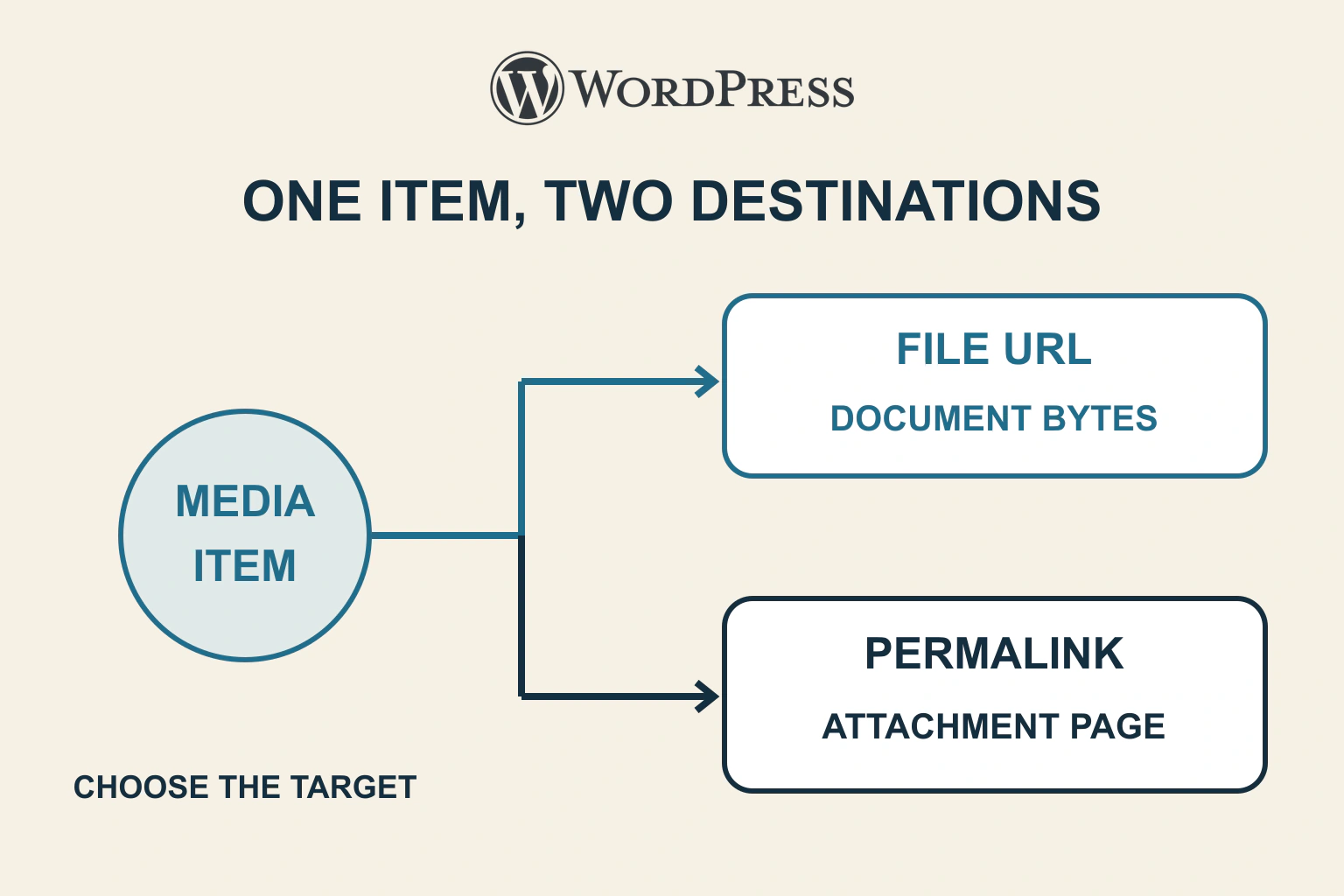
A WordPress attachment page is different from the uploaded file. If a document link opens a site page when readers expected the document, inspect the link’s saved destination and the native block’s target choice. Do not start by deleting the media, changing every permalink or forcing a download header.
Imagine a fictional community hall publishing a public room-layout PDF. The editor selects the file in the Media Library, but the article’s filename link leads to a themed page with the PDF title. A separate download button may follow another route. The first task is to identify which link the visitor used.
Define the promised destination
Should the action open the document, offer context about it or save a copy? Write that expectation before changing settings. An explanatory landing page can be useful when readers need revision notes or an accessible alternative. A direct file route can be clearer when the article already supplies that context.
For the hall, suppose the article says “Open the public room layout (PDF)”. Its main link should lead to the intended PDF response. A separate “About this layout” link could lead to an explanatory page if such a page is maintained and useful.
Keep naming specific enough to distinguish routes. Two adjacent links both labelled “Room layout” can conceal the fact that one points at a page and one at a file. The target decision is part of the reader experience, not just a technical URL preference.
Distinguish the two native identities
WordPress’s wp_get_attachment_url() reference concerns the attachment file URL. The get_attachment_link() reference concerns its attachment permalink. Both can be affected by filters; generating a URL does not establish the final response or file availability.
The media record can therefore have an identifier, a file location and a site-page relationship at once. Copying whichever URL appears first in an administrative screen is not a reliable substitute for deciding which destination the article needs.
Ask the maintainer to compare the actual anchor destination with the intended file URL. Follow any redirects and inspect the final response. A file-looking path can return an error page, while an attachment permalink may redirect under the site’s current configuration.
| Observed destination | What it represents | Next check |
|---|---|---|
| Themed page with a media title | Possible attachment or explanatory page | Saved target choice and permalink response |
| PDF viewer at the file URL | File delivered for browser display | Correct document revision and intended experience |
| Downloaded HTML instead of PDF | Wrong or failed response | Status, returned content and access state |
| Missing route | Unavailable page or file | Routing versus actual file existence |
Inspect the actual block setting
WordPress’s File block documentation describes choosing a direct media file or separate attachment page in the link settings. It also distinguishes the download-button toggle and PDF inline-embed setting. Those controls answer different questions.
Select the specific block used in the article. Review the filename link and any download button separately; do not assume one represents the other. Change the destination through the supported editor control and save the article normally.
If the page uses a different block or a theme-generated media link, inspect that component’s maintained controls. Adding a second File block may leave the old incorrect link in place. Fix the actual reader route rather than making a new working demonstration beside it.
Separate target correction from download behaviour
A direct PDF file can open in a browser viewer. That does not mean the attachment-page choice is still wrong. Once the final response is the intended document, display versus saving is a separate browser and response-policy investigation.
The download behaviour guide covers filename and inline-versus-attachment response questions. Do not force server-wide download settings while the actual problem is an anchor pointing at a page.
For the hall, first verify the correct layout PDF opens. If the product also needs a clear Save action, review that promise separately and test supported browsers. A button label cannot guarantee identical viewer behaviour across every device.
Check revision, permissions and accessibility
Open the file and compare its visible revision, content and intended public status. A successful response for last year’s room layout is still the wrong result. Do not infer freshness solely from a filename or upload date.
Also establish whether the file is intended to be public. Linking directly to uploaded bytes is not an access-control design. A private post containing the link does not automatically make the underlying file private; use the site’s reviewed protected-delivery mechanism where required.
For an image link, the image-purpose guide helps name its destination. For documents, retain useful nearby context such as file type, purpose and a maintained alternative where needed. Correcting the URL does not make the document’s contents accessible by itself.
Do not repair routing by deleting media
If the attachment permalink fails but the file URL works, investigate page configuration or routing separately. The WordPress routing guide helps distinguish that boundary. Deleting and reuploading can change IDs and public addresses while leaving the original link untouched.
Check where the media is reused before replacing it. A featured image, older article or another page may depend on the same record. A target correction usually needs no wholesale library cleanup.
If the site intentionally disables or redirects attachment pages, retain that design unless there is an authorized reason to change it. Correct a direct-document link through its own supported target instead of enabling site-wide pages merely to make a mistaken link resolve.
Verify the saved public journey
- Reopen the saved article and inspect its exact filename link.
- Activate it as a logged-out visitor and record the final destination.
- Confirm the response contains the intended current file.
- Check any separate download button and inline viewer independently.
- Repeat with a keyboard and a relevant phone browser.
- Verify reused media remains intact after the focused change.
Your next step is to compare the two native destinations for the actual media item. Accept the repair when the link’s promise, saved target and delivered result agree. The distinction between a WordPress page and a file then becomes a deliberate editorial choice rather than an unexpected detour.
Sources and verification
Editorial review 2026-10-17. Source check dates are recorded separately. Notes describe what each source supports and its limits.
View sources
- WordPress: wp_get_attachment_url()Checked Returns the attachment file URL, with possible filters and false return.
Limits: Does not guarantee the referenced bytes exist, remain private or download rather than display. - WordPress: get_attachment_link()Checked Returns an attachment permalink distinct from the direct file URL; output can be filtered.
Limits: Permalink generation alone does not establish whether attachment pages are enabled or the final response redirects. - WordPress: File blockChecked File block offers a media-file versus attachment-page link choice, download-button toggle and PDF embed setting.
Limits: Installed editor and integrations may vary; saved public markup and response need verification.