
Define the safe intended Enter action, inspect the form’s actual default submitter and preserve the relevant validation and submit-event path.
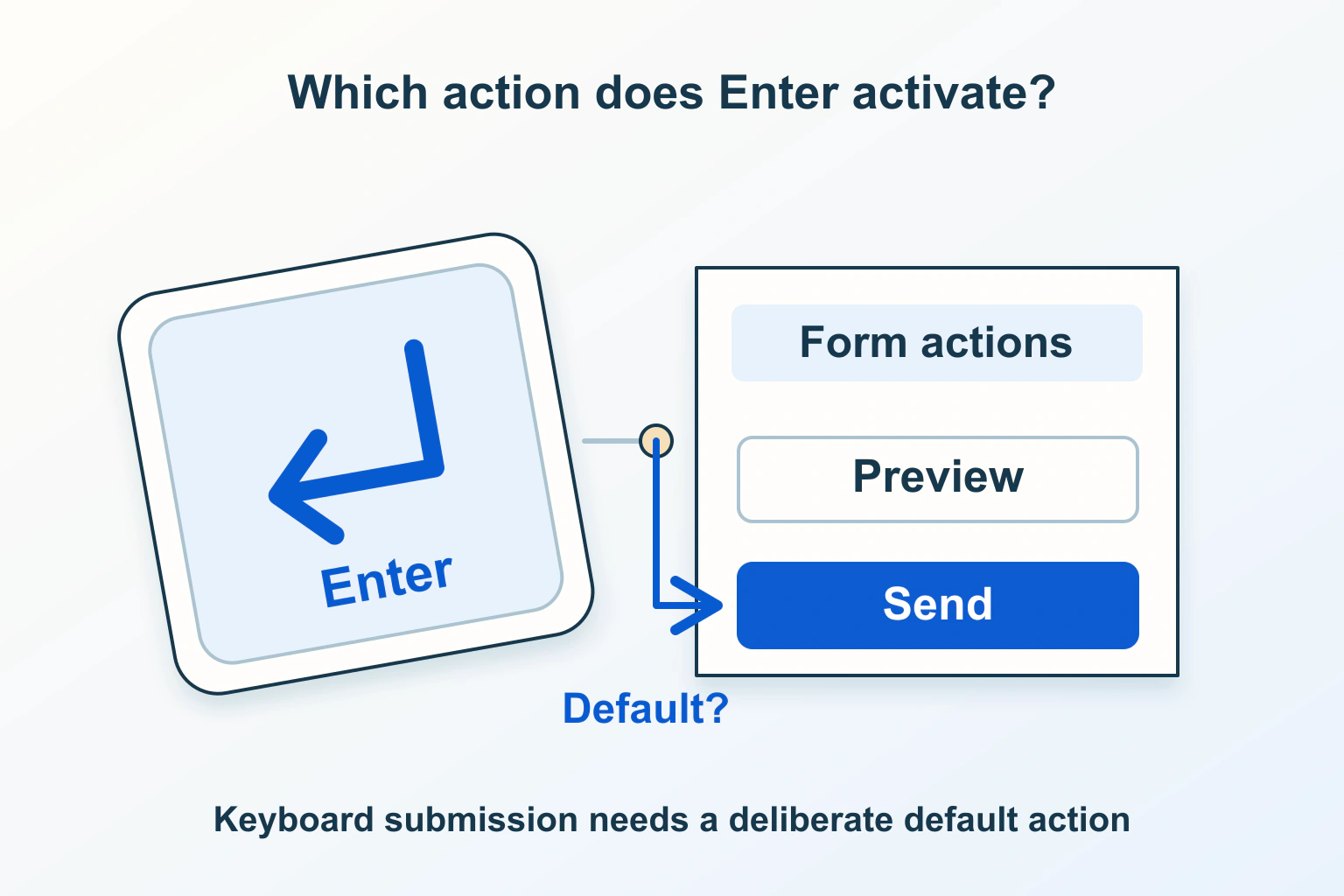
If Enter triggers the wrong action, start with the form’s default submission path rather than adding a rule that blocks the key everywhere. A form with Save draft and Publish needs an explicit product decision about what a visitor can trigger from a field. Its visual arrangement is only one part of that decision.
Consider a fictional community notice editor. A contributor edits the title, presses Enter expecting to save a draft and discovers that Publish was activated. Moving the blue button to the right might change the screenshot without changing the underlying default. The review needs to connect the intended action, form structure, keyboard interaction and actual request.
Decide the intended action before changing the handler
Write down what Enter should do in each relevant part of the form. A short title field, a multiline notice, a search-suggestion popup and an explicit action button need not have the same interaction. Keep the decision understandable to the person completing the task. Do not make the shortcut depend on a hidden convention that only the developer knows.
For the notice editor, the product owner might decide that publication requires a deliberate confirmation and that routine editing should not publish. That decision must hold across pointer and keyboard routes. The correct choice depends on the product; this article does not claim that Save draft is the right default for every form.
The typing and shortcut conflict guide addresses another layer of keyboard behavior. First establish the specific form action here, then check whether a custom shortcut introduces an additional route to the same outcome.
Inspect tree order and form association
The HTML implicit-submission rules define a form’s default button as its first associated submit button in tree order. Where the platform supports implicit submission, that path activates the default button if it is available. Rules without a submit button are more specific. Visual position alone does not establish the default.
Ask the maintainer to list the submit buttons actually associated with this form, in their document order, including relevant controls outside its visual box. Compare that list with the on-screen arrangement. A layout system can make actions appear in a different order, and a component can render a button somewhere other than the location implied by a design mockup.
In the imaginary notice editor, inspect the configuration that visitors receive, not a simpler prototype with only one action. Note which field had focus, which buttons were available and which button supplied the observed action. Avoid treating an unavailable default as a reason to force a different action through a custom handler.
Compare the important journeys, not just the buttons
| Journey | Decision to make | Evidence of the intended outcome |
|---|---|---|
| Enter from the title field | Which action may be implicit? | The expected submitter and resulting request |
| Enter while editing a multiline notice | Should typing continue in the editor? | Content remains editable without an unintended action |
| Keyboard activation of Save draft | Which workflow must run? | A draft result with the relevant checks preserved |
| Explicit Publish activation | What confirmation and validation apply? | The deliberate publication path and its clear result |
Document the state before each exercise. A populated form and an empty required title may follow different paths, and a pending request should not be confused with a completed save. The useful report names the action and observed state instead of saying that Enter worked or failed.
Choose a submission API that preserves the intended path
MDN describes requestSubmit() as following a submit-button path, including applicable validation and the submit event. An explicit submitter must belong to the form. Its data and form* attributes can affect the request, so review which action the code names rather than treating every submitter as interchangeable.
This matters when a component has its own activation logic. The developer should explain how that logic reaches the existing form workflow, which checks still apply and how the chosen action reaches the service. A small helper that merely appears to send the same values may bypass the product’s normal checks or select a different endpoint.
MDN’s submit() reference makes the distinction explicit: a direct call skips the submit event and constraint validation. A control with name or id submit can also mask that method. Do not replace one API with the other on the assumption that the names describe equivalent behavior.
Avoid a blanket key block as the whole solution
A broad Enter restriction can conceal the mistaken default while leaving the form difficult to operate. Review it against the actual interaction: visitors still need to type, select suggestions, operate controls and activate the intended action. Preserve platform and assistive-technology behavior wherever the component’s supported design relies on it.
Keep any custom handler narrowly scoped and documented. Explain which focused control and state it handles, which default behavior it replaces and why. If a third-party form component supplies the interaction, check its supported integration route rather than stacking unrelated event listeners on top of it.
Our duplicate submission and retry guide covers another potential symptom. One keyboard action should not independently trigger a custom request and a native submission. Establish the action first, then verify that the application’s pending and confirmation states remain coherent.
Propose a controlled keyboard acceptance review
- Use an authorized test destination with harmless notice content, and record which actions are allowed to create a public result.
- Check Enter from each relevant single-line field, then separately review multiline editing and any suggestion popup.
- Activate each visible action with the keyboard and pointer, recording the chosen submitter and actual workflow.
- Repeat with an intentionally incomplete required answer; the applicable validation and correction route should remain available.
- Inspect any custom programmatic submission path for the intended event, submitter and request behavior.
- Review the saved or published result, not merely a button animation, and check supported desktop and mobile combinations.
The form accessibility guide helps assess the correction and confirmation states. These exercises are proposed, not executed results. Finish when the implicit action is deliberate, the explicit actions remain understandable and the actual request matches the visitor’s intention.
Sources and verification
Editorial review 2026-10-15. Source check dates are recorded separately. Notes describe what each source supports and its limits.
View sources
- HTML Living Standard: implicit submissionChecked The default submit button is the first associated submit button in tree order; supported implicit submission activates it if available.
Limits: Support and no-button cases have specific rules; visual ordering alone does not define the default. - MDN: requestSubmit()Checked requestSubmit follows a submit-button path, including applicable validation and the submit event.
Limits: The submitter must belong to the form and can influence the request through its data and form attributes. - MDN: submit()Checked Calling submit directly skips the submit event and constraint validation.
Limits: A control named or identified as submit can mask the method; it is not equivalent to requestSubmit.